UpFoto - AI Photo Enhancer
- 15.95K
- 4.5
- Installs
- 100.00M
- Price
- Free

Screenshots


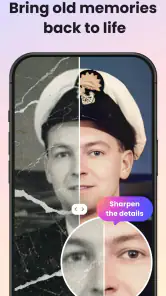
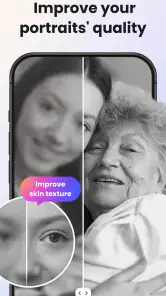
Analysis by Reviewed
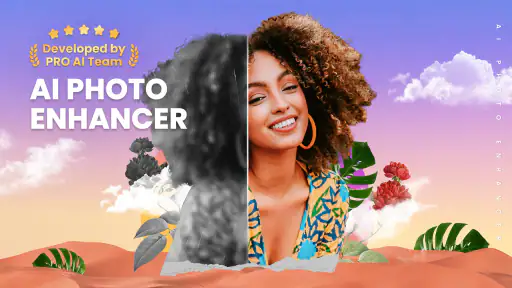
I tend to reach for a photo enhancer when I want to rescue an image quickly, not when I’m planning a careful edit from scratch. That’s the role UpFoto - AI Photo Enhancer aims to fill: a photography app from AI Photo Team for improving pictures and creating AI photos and videos. Its appeal is the promise of a short path from an imperfect snapshot to something more presentable, though I’d still treat any AI result as an interpretation rather than a faithful recovery of every detail.
A practical starting workflow
For a faded family picture or a soft phone shot, I’d begin with a copy of the original and compare the result before deciding to keep it. That small habit matters: enhancement can make an image look clearer, but it can also change fine texture, especially around faces, hair, and lettering. If the photo is important, save both versions and judge them at the size you’ll actually share or print, rather than relying only on a close-up preview.
A useful everyday example is finding an old group photo in a family chat just before sending it to relatives. UpFoto gives you a quick place to try restoration or enhancement without first learning a full desktop editor. I’d use it to make the image easier to view, then keep expectations realistic if the source is tiny, badly damaged, or heavily blurred: software cannot reliably recover details that were never captured.
The Latest on UpFoto - AI Photo Enhancer
Settings and habits that make a difference
When an image looks too processed, I’d resist the urge to keep adding adjustments. Check the before-and-after at normal viewing size, and pay special attention to skin and smooth backgrounds, where sharpening or noise cleanup can look artificial. For a portrait, a subtle improvement is usually more convincing than maximum crispness; for a document or product shot, legibility may matter more than natural texture.
The app is free to download, with in-app purchases ranging from $1.99 to $99.99 per item, so I’d inspect any purchase screen carefully before confirming. Its listed average is 4.5 from around 1.3 million ratings, and it has passed 100 million installs, which suggests broad interest but doesn’t guarantee that every photo type will suit its processing. It is rated Everyone, and version 1.3.7.107 requires Android 8.0 or later.
Where it fits among photo editors
Compared with a conventional editor, an AI enhancer is useful when you want an automated first pass rather than precise control over every curve, mask, or local adjustment. That makes UpFoto a reasonable option for casual users restoring a keepsake or tidying a picture for a message. If you need exact color matching, dependable text detail, or a consistent batch look for client work, a more manual editor is likely the safer choice.
I’d also avoid treating a generated or restored image as documentary proof of what an old scene looked like. AI can make a damaged face appear more complete, but that polish may include guessed detail. For family archives, keep the untouched scan alongside the edited copy and label the enhanced version clearly when accuracy matters. This is a simple way to enjoy a cleaner image without confusing restoration with evidence.
More From Our News Desk

Android Auto Makes the Case for Quieter Car Software

MobiOffice: Transforming Mobile Productivity with Seamless Integration

EA SPORTS FC™ Mobile Soccer: Redefining Mobile Sports Gaming

How Microsoft OneDrive Became a Mobile Productivity Giant
How Google Translate Breaks Language Barriers Effortlessly
Why Google Sheets Is the Ultimate Mobile Productivity Tool
Reviving Memories with AI
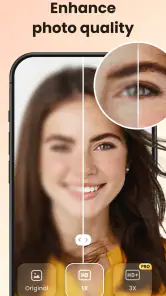
At the heart of UpFoto is its cutting-edge AI technology. This app doesn’t just sharpen your photos; it breathes life back into them. I was genuinely impressed with how it took some of my oldest, most pixelated pictures and transformed them into crisp and clear memories. It's like stepping into a time machine with every tap on ‘enhance’.
User-Friendly Interface
One of the things I loved most about this app is how easy it is to use. The interface is straightforward, so you don’t need to be a tech wizard to navigate it. Just upload your photo, hit enhance, and let the AI do its magic. In mere seconds, your photos are ready to be framed or shared with friends.
Features That Stand Out
Aside from the basic enhancement feature, UpFoto offers a variety of options to tweak your images further. You can adjust brightness, contrast, and even remove unwanted noise from your pictures. The app also supports batch processing, which is perfect if you have a ton of images that need a quick facelift.
Moreover, the app's ability to restore old photographs is something I found incredibly useful. It’s perfect for those vintage black-and-white family photos that need a second life. The AI’s capability to fill in missing details is quite astounding.
Why You’ll Love It
Let’s be honest, we all want our social media feeds to look polished and professional. With UpFoto - AI Photo Enhancer, you can achieve just that without spending hours on photo editing software. It's quick, efficient, and offers results that often left me saying, "Wow!"
Another thing worth mentioning is the app’s performance. It runs smoothly on both Android and iOS, and I didn’t experience any crashes or lagging, which is always a bonus in my book.
In conclusion, if you’re looking for an app that can make your photos pop and shine, UpFoto is definitely worth trying out. It’s like having a professional photo editor in your pocket, ready to transform your snaps into stunning visuals. So go ahead, give it a try, and watch your photos come to life!
Building a repeatable routine
If you regularly handle similar pictures, make your choices consistent instead of judging each image in isolation. I’d pick one representative photo first, check whether the enhancement keeps faces and edges believable, then use the same restrained approach on the rest. Batch processing can save time, but it is still worth spot-checking images with different lighting or subjects; a setting that suits a portrait may not suit a dim indoor scene.
For a quick social post, I’d crop and assess the original before enhancing it. Cropping first can help me focus on the subject, while checking the full image afterward catches halos or odd details near the edges. If the main problem is composition rather than blur or noise, a crop or a basic editor may improve the picture more naturally than AI processing.
When a different tool is the better call
UpFoto is best suited to people who value speed and want to try restoration without mastering a complex editing workflow. It is less compelling for photographers who need fine-grained control, predictable color across a full project, or guaranteed faithful reconstruction. I’d also skip an AI pass when the original is already sharp and natural; extra processing can make a good photo look less authentic rather than better.
The app was released on May 11, 2022, and its current version is 1.3.7.107. For someone deciding whether to keep it installed, I’d judge it by a small test set: one portrait, one older image, and one everyday snapshot. That reveals more than applying it to a whole gallery at once, and it helps you learn which kinds of photos benefit from its automated treatment.
A measured verdict
I’d recommend giving UpFoto a try if you often want to improve a soft snapshot, make an old picture easier to enjoy, or get a quick result without a long editing session. The strongest habit is to compare, preserve the original, and stop when the image looks plausible—not merely sharper. For detailed retouching or archival accuracy, I’d choose a more controlled workflow; for quick personal improvements, this app offers a convenient starting point.
Choose the right photo before you start
The source image often matters more than the strength of any enhancement. I’d avoid beginning with a screenshot that has already been compressed several times or a tiny image saved from a messaging thread; those copies may have lost subtle edges and tones that an editor cannot genuinely restore. If you can get the original from the person who took it, use that version instead. It gives the app better material to work with and makes the before-and-after comparison more meaningful.
For a portrait, I’d also check whether the face is in focus before asking AI to improve it. A slightly soft but well-lit picture may benefit from a gentle pass, while motion blur can leave the system guessing about facial detail. On landscapes, a broad enhancement can make distant foliage or rooftops look unusually crisp, so I’d inspect those areas rather than judging only the main subject. This is a practical way to decide whether the result is genuinely clearer or simply more assertive.
A useful routine for family and personal archives
When I’m sorting a batch of old family pictures, I’d first separate them into a few simple groups: portraits, group scenes, and images where damage or fading is the main problem. I would not run one treatment across everything without checking examples from each group. A face-focused result that works on a close portrait may make a busy group photo look strangely uniform, while a faded landscape may need a different balance of detail and tone.
For a treasured print, I’d scan or photograph it in even light, keep the untouched capture, and then try an enhanced copy. If the image includes handwriting, a date, or a sign, I’d compare those marks especially carefully; AI processing can make characters look cleaner while changing their actual shapes. That distinction matters when the image is meant to preserve a family record rather than simply look nicer in a digital album.
Making quick edits without losing the original
A helpful shortcut is to decide the purpose of the image before opening the app. If I’m sending a photo in a chat, I care about whether people are recognizable on a phone screen. If I’m preparing a print, I’d inspect the output at a larger size and be more cautious about invented texture. If I’m making a social post, composition and crop may matter more than recovering every fine detail. That purpose-first check prevents me from spending time enhancing parts no one will see.
I’d also keep a simple naming habit when saving important edits, such as distinguishing an enhanced copy from the original scan. It is easy to forget which version has been processed once pictures are moved between albums or shared with relatives. Keeping both versions makes it possible to revisit the decision later, and it avoids accidentally treating an AI-altered image as the untouched source.
What to expect from the free download
Because the app is free to download but includes paid items, I’d treat the first session as a chance to test the workflow rather than assume every option is included at no cost. Read each purchase prompt before proceeding and decide whether the improvement is worth paying for in your own use. If you only need occasional help with a handful of personal photos, your needs may be different from someone who plans to process images regularly.
UpFoto is a photography app from AI Photo Team, and its broad audience is reflected in its Everyone content rating. That makes it approachable for family snapshots and everyday editing, but age suitability does not answer whether its output fits a particular purpose. I would still use a conventional editing tool for work requiring controlled color, precise selections, or a repeatable client-facing finish.
How it compares with familiar alternatives
Against a basic phone editor, UpFoto’s appeal is the attempt to improve detail and restore an image with less manual work. A phone editor is often the better choice when the picture is already clear and only needs cropping, brightness correction, or a small color adjustment. Those straightforward changes can preserve the original character more reliably than applying enhancement to every shot.
Compared with a full desktop editor, the trade-off is convenience versus control. A desktop workflow usually gives an experienced user more ways to isolate a face, adjust a specific area, or keep color consistent across a set. UpFoto makes more sense when I want a quick experiment on an individual picture and can accept that the result may need checking. For a polished portfolio or important archival restoration, I’d use a more deliberate editor and regard AI enhancement as an optional starting point, not the final authority.
Who will get the most from it
I think the app suits people who have older photos they want to revisit, casual phone photographers who often share soft snapshots, and anyone who prefers a quick first attempt over learning a detailed editing system. It can also be useful when a picture is meaningful but not technically perfect: a family gathering, a childhood portrait, or a spontaneous moment that is worth making easier to see.
I’d steer away from it if your priority is faithful archival restoration, exact reproduction of lettering, or consistent editing across professional work. I’d also leave a strong, natural photo alone unless there is a clear problem to solve. AI treatment is not automatically an upgrade; in some images, the original’s grain, softness, or uneven light is part of what makes it feel real.
Getting a fair first impression
Rather than testing only the most damaged picture in your gallery, I’d choose one moderately soft portrait, one older photo, and one ordinary recent snapshot. That mix shows whether the app helps with your actual habits and makes it easier to notice when a result looks overworked. Compare each version at normal screen size, then zoom in only to investigate suspicious edges or changed details. The goal is not to find the most dramatic transformation, but to see whether the image becomes more useful without losing the qualities you value.
My overall view is that UpFoto works best as a convenient, selective tool, not as a button I would press on every image. Keep a copy, check the result for guessed detail, and choose a more controlled editor when accuracy or consistency matters. If your aim is simply to give a soft snapshot or a faded memory a careful second look, it is an approachable place to start.
UpFoto - AI Photo Enhancer Frequently Asked Questions
What kinds of photos might I use UpFoto to improve?
UpFoto is a photography app for people who want to restore, fix, beautify, or enhance photos, as well as explore AI photos and videos. It may be useful for everyday pictures that could benefit from an enhancement, or for older images you would like to restore. Results depend on the image and the effect you choose, so check the finished version before keeping or sharing it.
Is UpFoto suitable for someone who has never edited photos before?
UpFoto is designed to make photo enhancement approachable: its store summary highlights AI tools to restore, fix, beautify, and enhance photos, so it may appeal to people who want a simpler alternative to making manual adjustments. The app is free to download, and its content rating is Everyone. As with any photo app, you can start with an image you are comfortable editing and review the result before deciding whether it suits your needs.
What is UpFoto - AI Photo Enhancer?
UpFoto - AI Photo Enhancer is a cutting-edge application designed to enhance your photos using advanced artificial intelligence technology. It offers features such as automatic image correction, noise reduction, and detail enhancement, making your photos look more professional and visually appealing with minimal effort. The app is available for both Android and iOS devices, providing a user-friendly experience for photo enthusiasts and casual users alike.
How does UpFoto improve photo quality?
UpFoto utilizes artificial intelligence and machine learning algorithms to analyze and improve the quality of your images. The app automatically adjusts various parameters such as brightness, contrast, and color balance. It also reduces noise and sharpens details, ensuring that your photos are enhanced without losing their original essence. This allows users to easily upgrade the quality of their photos with just a few taps.
Is UpFoto - AI Photo Enhancer free to use?
UpFoto - AI Photo Enhancer offers a free version with basic features that allow users to enhance their photos. However, for those looking to access the full range of advanced features, a premium subscription is available. This subscription provides additional tools and capabilities, such as higher resolution exports and batch processing, ensuring that users can get the most out of their photo editing experience. In-app purchases are available, with prices ranging from $1.99 to $99.99 per item, so check the purchase details before paying.
Pros
- Enhances photo quality automatically.
- User-friendly interface for easy navigation.
- Supports batch processing for multiple images.
- Fast processing with minimal waiting time.
- Preserves original photo details well.
Cons
- Limited editing tools beyond enhancement.
- Requires internet for AI processing.
- Occasional over-sharpening of images.
- Limited to photo enhancements only.
- Subscription needed for premium features.
- Category
- Photography
- Version
- 1.3.7.107