Remini - AI Photo Enhancer
- 21.83K
- 4.2
- Installs
- 500.00M
- Price
- Free

Screenshots




Analysis by Reviewed
When I’m deciding whether to use a photo enhancer, I start with the problem in front of me: is the picture soft or damaged enough that a simple crop and brightness adjustment won’t help? That distinction matters with Remini - AI Photo Enhancer. It is an AI-focused photography app by Bending Spoons, built around improving faces and restoring older or blurry images, rather than giving me the detailed manual controls I expect from a full photo editor.
Choose the tool for the photo, not the promise
Before opening an enhancer, I ask what I need the image to do. If I’m preparing a quick portrait to send to relatives, a stronger, clearer-looking face may be useful even if the result is not a faithful restoration. If I’m digitizing a document, preserving evidence, or preparing an image where exact detail matters, I would avoid letting an AI-generated interpretation stand in for the original. The right choice depends less on how old the picture is than on how much visual guesswork I’m willing to accept.
I also separate repair from ordinary editing. A dim photo may need exposure and color adjustments, while a soft face is the kind of problem this app is designed to tackle. Starting with the wrong tool can waste time: I wouldn’t expect an automatic portrait enhancer to replace the careful crop, color correction, or local retouching available in a general editor. Keeping the task narrow makes it easier to judge whether the result actually helps.
The Latest on Remini - AI Photo Enhancer
A quick test before you commit
I recommend trying a copy of one photo first, especially if it is an irreplaceable family image. Look closely at small features such as eyes, hair, glasses, and the edges of a face, not just the overall sharpness. AI enhancement can make a picture feel clearer, but it may also interpret indistinct details rather than faithfully recover information that was never captured. I treat the result as a polished alternative, not a replacement for the original.
That approach also helps answer a common question: does it suit every old photo? Not equally. A portrait with visible faces gives the app something useful to work with; a tiny, heavily damaged image or a landscape with no clear subject may show less convincing improvement. Keep an untouched copy, compare at full size, and decide whether the enhanced version still looks like the people and moment you remember.
Breathing New Life into Old Memories
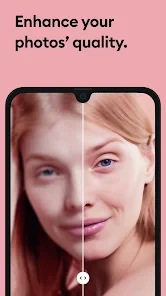
Alright, let’s talk about the magic behind this app. With Remini, those grainy, blurry, or just plain old photos can be transformed into high-definition masterpieces. It’s like waving a wand over your favorite memories and watching them come alive again. The app uses some pretty snazzy AI technology to sharpen up those images, and honestly, it’s like seeing your past in HD for the first time.
How Does It Work?
You might be wondering, "Okay, but how easy is it actually?" Super easy! Once you’ve got the app installed, all you need to do is upload a photo that needs a little TLC, and let Remini work its magic. The app’s interface is user-friendly, and within a few taps, you'll see the before and after that will surely blow your mind. It’s almost addictive watching those transformations!
More From Our News Desk

Weather by Xiaomi Review: Clear at a Glance, Less Clear Up Close

X Under Pressure: Can It Recover When Posting Goes Wrong?

Clash of Clans Is Won Between the Battles

Android Auto Makes the Case for Quieter Car Software

MobiOffice: Transforming Mobile Productivity with Seamless Integration

EA SPORTS FC™ Mobile Soccer: Redefining Mobile Sports Gaming
For a practical workflow, I would scan or photograph a print in even light, avoid reflections, and crop away empty borders before enhancing it. Save both versions with clear names so it is easy to tell the original from the edited copy later. This small bit of care can make a bigger difference than repeatedly processing the same image, and it gives you a fair way to judge whether the enhancement has helped.
When to Use Remini
Whether you're trying to enhance family portraits, travel snaps, or just a random selfie from a night out, Remini is your go-to app. It’s particularly great for those vintage photos that mean the world to you but haven’t aged too well. Now, you can share those moments with friends and family without cringing at the quality.
A useful everyday case is a group chat where someone shares a compressed portrait that has become hard to recognize. I’d keep the shared file untouched, try enhancing a separate copy, and compare the two before sending the edit back. That avoids confusing an improved-looking version with the only original. It also helps set expectations with family: the result can be easier to view on a phone, but it may not be a suitable substitute for a carefully scanned archival copy.
Picture finding a faded portrait while sorting through a relative’s album before a family gathering. I’d make a careful digital copy, try the enhancement, and show both versions to the family rather than silently replacing the original. That keeps expectations sensible: the clearer edit can be lovely for sharing, while the scan remains the record of what the photograph actually contains. For a quick post, the improved version may be enough; for printing or archiving, inspect it closely first.
What Makes Remini Stand Out?
Now, I know there are tons of photo editing apps out there, but here's why Remini stands a cut above the rest. Its AI capabilities are quite advanced, meaning the end results are not just clearer, but they retain the essence of the original image. Plus, the app doesn’t just handle one image at a time – you can batch process, which is a huge time-saver!
That focus is also the main trade-off. Compared with a conventional editor, where I can make restrained adjustments to exposure, color, or sharpening myself, this is better suited to a fast attempt at rescuing a face than to precise retouching. If I want to control every change or keep a deliberately natural, soft look, I’d reach for a traditional editing tool instead. For a batch of portraits, though, the convenience is appealing; I would still review each result because consistency across a set matters more than one impressive preview.
Batch work is most useful when the photos share a purpose, not simply because there are many of them. For example, I’d consider it for a group of portraits that I want to review together, but I would not assume every image deserves the same treatment. A mix of close-ups, distant faces, and pictures with different lighting can produce uneven results. My practical tip is to start with one representative image, decide whether the look suits the set, then check the rest individually before sharing or replacing files.
And let's not forget the surprise element; sometimes the enhancements reveal details you never even noticed before. It’s like rediscovering your own photos and the stories behind them.
There is a cost decision to make, too. Remini is free to install and is rated for Everyone, but it also offers in-app purchases, with listed item prices ranging from $0.49 to $189.99. I’d try the free experience against a specific photo task before paying for anything, and check the purchase screen carefully so the option and price suit how often I expect to use it. Its average rating is 4.2 from around 5.6 million ratings, and it has over 500 million installs, which shows how widely people turn to it, though popularity cannot tell me whether a particular image will come out naturally.
When another approach is the better fit
The usual alternatives fall into two broad groups: general photo editors and dedicated restoration workflows. A general editor is the better choice when I want to make small, deliberate changes to color, brightness, crop, or contrast and retain control over how much editing is visible. A careful scan-and-edit process makes more sense when I’m preserving a fragile or historically important image. Remini’s strongest case is narrower: I want to test an automatic improvement quickly, particularly on a face, and I’m comfortable treating the outcome as an interpretation.
That distinction matters for social photos, too. A selfie that looks a little soft may benefit from an automatic pass, but if skin texture and a natural appearance are important, a subtle manual edit can be more convincing. I wouldn’t use enhancement just because it is available. Comparing the untouched image with the result at the size where it will actually be viewed—on a phone, in a message, or in a printed copy—helps prevent a dramatic preview from making the decision for me.
Who It Suits—and When I’d Skip It
I’d recommend Remini to someone who wants a quick, approachable way to improve a blurry portrait or make an old family photo easier to share, without learning a complex editor. I would skip it when the image is already sharp, when exact historical fidelity matters more than a polished appearance, or when I need hands-on control over every adjustment. It is also worth checking the result before sharing: enhancement can make a face look unusually smooth or crisp compared with the rest of the picture.
It is a particularly reasonable first try for someone who rarely edits photos and does not want to learn a full desktop workflow for a handful of family images. On the other hand, photographers who already know how to make selective adjustments may find the automatic approach too blunt. People handling sensitive or irreplaceable material should also think about where they are comfortable processing it and keep a local original regardless of which editing route they choose.
The app was released on July 21, 2019, and its current version is 3.7.1126.202516929, with Android 7.0 as the minimum operating system. Those details help with basic compatibility, but my choice would still come down to the photograph itself and whether I prefer an automatic restoration attempt or careful manual editing. If a first test makes the subject look unlike themselves, I would keep the original and choose a less aggressive workflow.
Switching away after a test is simple in practical terms: retain the original, save the enhanced copy separately, and continue editing the original in another tool if the automatic result feels too strong. The bigger cost is not learning a complicated process; it is the time spent sorting versions and deciding which one to keep. I avoid overwriting files and use clear labels, especially when working through a family album, so a polished edit never becomes mistaken for the unaltered scan.
Making the result useful beyond the preview
One detail I pay attention to is how an enhanced portrait behaves when it is no longer filling the screen. A close-up can look striking in the app, yet appear overly crisp beside softer photos in a shared album. Before I send or post it, I check the image at the size other people will see and alongside the neighboring pictures. That quick comparison helps me decide whether to use the enhanced version, the original, or neither.
For a family archive, I’d also keep a simple naming routine: identify the person or occasion, then mark the edited copy as an edit rather than letting it replace the scan. This is especially useful when several relatives are contributing photos and nobody remembers which file came from the original print. It is a small organizational step, but it protects the context of the image and makes it easier to revisit the decision later.
People often wonder whether they should enhance every image in an old album once they have started. I wouldn’t. I’d choose the pictures where clearer faces genuinely help—perhaps a portrait that will be shown to relatives or a small image that is difficult to recognize—and leave already readable pictures alone. Selective use saves time and avoids making an album feel inconsistent through edits that are stronger than the photographs need.
If I were preparing a print, I would be more cautious than I would be for a phone-sized share. Enlarging a result can make smoothing, invented-looking edges, or mismatched texture easier to notice. I’d inspect the file at its intended use and compare it with the unedited scan before committing to a print. For a casual message, a pleasing improvement may be enough; for a keepsake, fidelity and careful review matter more than a dramatic before-and-after.
A practical choice, not a one-click archive
Remini works best in my view as a specialized stop in a photo workflow, not the whole workflow. I would use it to see whether an automatic face-focused pass can make a particular image more legible, then decide what to do with the result. If the image needs cropping, balanced color, or discreet local corrections, a general editor may still be necessary afterward. If the AI treatment changes the character of a face, I’d simply discard that copy rather than trying to justify it because the app produced it.
That makes it a different kind of choice from a traditional editor: the appeal is speed and an immediate attempt at improvement, while the compromise is less control over how the result is constructed. Someone who wants to learn editing carefully may prefer tools that expose individual adjustments. Someone with a few meaningful portraits and little editing experience may appreciate getting a quick alternative to compare. Neither approach is automatically better; the photo’s purpose should decide.
Remini - AI Photo Enhancer is more than just an app; it’s a bridge between your treasured memories and the present. So next time you come across an old photo that needs a little boost, you know exactly where to turn. Happy enhancing!
Remini - AI Photo Enhancer Frequently Asked Questions
Can I install Remini on a tablet as well as a phone?
Remini is available for Android and iOS, and its compatibility information includes smartphones and tablets. Before downloading it to a tablet, check that the device runs a supported operating system and that the app is available for that device through its app store. The Android minimum is version 7.0. The app’s photography tools are intended for enhancing or restoring pictures and creating AI photos.
Is Remini’s main purpose photo restoration or AI photo creation?
It supports both: Remini can create AI photos and improve or restore blurry, old, or damaged pictures. That combination may suit someone who wants to work on existing images as well as explore AI-generated imagery. The best way to judge whether it fits your needs is to try the relevant tools with a photo or use case you have in mind and review the result.
Do I need an internet connection to use Remini’s photo tools?
Remini’s image-enhancement workflow uses an internet connection, with AI processing described as taking place on the app’s servers. A stable connection can therefore be important when you want to use those tools. If you expect to work with photos while offline, consider this requirement before downloading, since the enhancement process may not be available without connectivity.
Is Remini intended for professional photo editing?
Remini is a photography app focused on creating AI photos and improving or restoring blurry, old, or damaged pictures. Its AI-led approach can be useful when you want to enhance an image without adjusting every detail manually. Whether the results are suitable for professional work depends on your requirements and the particular image, so review any edited photo carefully before using it.
Can Remini help improve a blurry picture?
Yes. Improving blurry pictures is one of Remini’s stated uses, alongside restoring old or damaged images and creating AI photos. The app applies AI enhancement to the image, but the outcome depends on the original photo and the kind of improvement you want. Try it with an image you are comfortable editing, compare the result with the original, and keep an unchanged copy of important photos.
Pros
- Enhances photo clarity effectively
- User-friendly interface
- Fast processing time
- Supports batch processing
- Restores old photos well
Cons
- Limited free version features
- Occasional over-sharpening
- Requires internet connection
- Ads in free version
- Subscription can be pricey
- Category
- Photography
- Version
- 3.7.1126.202516929