Lumy-AI Photo Video Generator
- 197.00
- 4.6
- Installs
- 500.00K
- Price
- Free

Screenshots

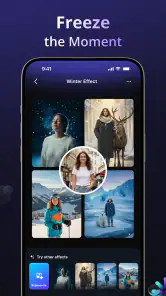
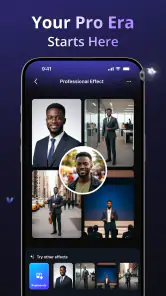
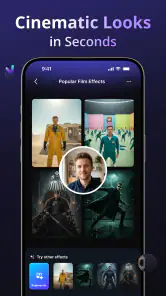

Analysis by Reviewed
I judge creative apps less by how many tools they advertise than by whether one of them makes a small, everyday task easier. With Lumy, the most useful idea is bringing AI-assisted photo and image creation into an art app rather than making you start with a full desktop-style editing setup. That can make it a handy place to experiment: take a portrait or image you already have, try a creative direction, and decide whether the result is worth keeping or refining elsewhere.
Lumy is a free art and design app from Ocean Float Mobile. It has a 4.6 average from around 45,000 ratings and more than 500,000 installs, which suggests it has found an audience among people looking for approachable AI creativity on mobile. The age rating is Everyone. I’d think of it as a casual creative workspace, not a replacement for a professional photo editor or a dedicated video-editing suite.
Where AI creation makes the biggest difference
I find AI creation most useful when I have a visual idea but no clear plan for building it from scratch. In this section, I’ll focus on how that shift from manual editing to generating possibilities changes the first few minutes of a project. It also sets up a practical question: when does a quick visual draft help, and when is direct control the better route?
A quick route from an idea to a visual draft
The appeal of AI image tools is not simply that they can produce something novel; it is that they lower the effort needed to test an idea. Instead of building a composition from scratch, you can use a generated image or an AI-assisted portrait as a starting point. For a person who wants a playful profile picture, a mood-board image, or a visual to share with friends, that shorter path can matter more than having dozens of manual controls.
The app’s creative focus also gives it a different role from a conventional editor. A traditional editor is usually strongest when you already know what you want to change: crop this edge, correct that color, remove a small distraction. AI creation is more useful when the goal is still loose, such as “make this feel more imaginative” or “show me a different visual direction.” I find that distinction helpful when deciding whether to open Lumy or a more precise editing tool.
That freedom comes with a trade-off. Generated art is a suggestion, not a guarantee that the result will match the image in your head. When I use this kind of workflow, I treat the first output as a draft and look for a version that communicates the idea rather than expecting exact control over every detail. That mindset makes experimentation feel productive instead of frustrating.
Working with a photo instead of starting from zero
For a practical first session, I would choose a clear portrait or a well-lit subject and decide on the intended use before making changes. A picture for a private chat can be more playful than one meant for a work profile. Keeping that purpose in mind helps you judge whether an AI result is a fun transformation or simply a distracting one.
More From Our News Desk

Weather by Xiaomi Review: Clear at a Glance, Less Clear Up Close

X Under Pressure: Can It Recover When Posting Goes Wrong?

Clash of Clans Is Won Between the Battles

Android Auto Makes the Case for Quieter Car Software

MobiOffice: Transforming Mobile Productivity with Seamless Integration

EA SPORTS FC™ Mobile Soccer: Redefining Mobile Sports Gaming
A useful workflow is to keep the original image in mind as your reference, try a small number of creative directions, and compare the results side by side before choosing one. This is more reliable than chasing a perfect output through endless variations. It also makes it easier to notice when a transformation has changed the subject’s recognizable features too much. If likeness matters, choose the closest result rather than the most dramatic one.
There is another practical reason to avoid over-editing: an image that looks striking in a full-screen preview may feel busy once it is reduced to a small avatar or thumbnail. I would check the final image at the size where it will actually appear. This simple step can save you from choosing a result whose details disappear on a phone screen.
Lumy’s broader AI creative focus includes photos, images, portraits, and video generation. That makes it appealing if you like moving between different kinds of visual experiments in one app. Still, I would approach each output as a separate creative task rather than assuming that an image workflow and a video workflow offer the same level of control or are equally suited to every project.
A realistic use: making a shareable portrait in a spare moment
Imagine you have a decent photo from a weekend outing and want something more distinctive for a messaging profile. You could open Lumy, use the photo as a starting point for an AI portrait, and compare a few interpretations against the original. The most useful question is not “Which one looks the most artificial?” but “Which one still looks like me while fitting the mood I want?” That keeps the result personal instead of turning the process into a novelty contest.
For this sort of quick project, I would prepare the image before opening the app: pick a photo where the face is easy to see, avoid a cluttered background if you have a cleaner option, and decide whether you want a recognizable portrait or a more imaginative interpretation. Those choices give you a better basis for judging the output. They also reduce the temptation to blame the app when the source image itself makes a clear result difficult.
If the goal is a polished work headshot, an AI-generated look may not be the right shortcut. A conventional portrait editor or a properly staged photo gives you more dependable control over realistic appearance. Lumy makes more sense when creativity and speed matter more than exact retouching or strict consistency.
Where it sits beside familiar editing apps
Compared with standard phone photo editors, Lumy’s advantage is the creative leap: it is aimed at helping you explore an image rather than only adjust it. Compared with professional design software, the likely attraction is a less demanding mobile experience for casual experimentation. I would not choose it when I need precise layer management, repeatable brand colors, or careful pixel-level corrections; those tasks call for tools built around hands-on control.
It can also complement rather than replace those alternatives. You might use an AI-generated visual to test a concept, then move to a conventional editor to crop it, arrange it with text, or make small finishing adjustments. That two-step approach is often more sensible than expecting one app to handle both open-ended generation and meticulous production work equally well.
For video, the same distinction is worth keeping in mind. An AI video generator may suit a quick creative experiment, but it should not automatically be treated as a full editing timeline for a carefully assembled personal film. If timing, shot order, or detailed audio choices are central to your project, a dedicated video editor is the more appropriate tool. Lumy’s appeal is broader creative exploration, not a promise that every production job can be completed in one place.
Trade-offs worth knowing before you spend time on a project
AI results can be inconsistent, and that is the main friction I would plan for. A prompt or source image that seems straightforward can still lead to an output that misses the intended mood. Keep the first project low-stakes, and save your preferred original separately so that experimentation never becomes a substitute for the photo you wanted to preserve.
Another limitation is the gap between creative freedom and precise editing. If you need to preserve exact facial details, make a subtle correction, or deliver a repeatable design, generated variations may take you farther from the target rather than closer. In those cases, a standard editor with direct controls is less exciting but more dependable.
The app is free to install, with in-app purchases ranging from $1.99 to $44.99 per item. I would explore the free experience before paying for anything and decide whether the specific creative workflow is useful enough to justify a purchase. The range means it is sensible to check the in-app terms carefully before confirming a transaction, especially if you only need an occasional portrait or image.
Lumy is at version 1.6 and supports Android 7.0 or later. Its release date is April 28, 2026. If you are choosing an app for an older device, check that your Android version meets the minimum before planning a project around it. Those details matter most when you are installing on a spare or hand-me-down phone rather than a current everyday device.
I would also make deliberate choices about which pictures I use for creative experiments. Start with an image you are comfortable working with, and avoid treating an AI result as a faithful record of the original. That is sensible practice for any creative transformation: the output may be visually appealing while changing details that matter to you.
Who is most likely to enjoy Lumy
I think Lumy is best for curious phone users who want a quick way to explore AI-created portraits and visual ideas without first learning a complex design program. It suits casual creators, people refreshing a social profile, and anyone who enjoys comparing imaginative versions of a familiar photo. Its art-and-design orientation makes the most sense when the goal is to play, discover a look, or make something shareable.
It is less suitable for photographers who need careful, predictable retouching; designers who rely on exact layout controls; or video makers who need a structured editing workflow. Those users may still find an occasional use for AI-generated material, but they will likely prefer a specialist tool for the main job. The key question is whether you want a creative starting point or precise control over a finished piece.
Small choices that make experiments more useful
One way to get more value from an AI portrait session is to decide what must stay recognizable before judging any output. For a profile image, that might be your face shape and expression; for a mood-board image, the overall atmosphere may matter more. Separating those priorities helps you compare results fairly instead of rejecting every variation for changing something you did not actually need to preserve.
I would also keep a simple shortlist rather than saving every version. Set aside the original, then retain only the alternatives that serve a clear purpose. This keeps a casual creative session from becoming a folder of near-duplicates and makes it easier to revisit the image later. If none of the results feels right, that is a useful stopping point: return to the source photo or try a conventional editor rather than spending more time on variations that are not moving toward your goal.
Choosing it for the right kind of project
If you are wondering whether it is suitable for a child or a shared family device, its Everyone age rating makes it broadly accessible. I would still guide younger users toward low-stakes projects and remind them that an AI-made portrait is an interpretation, not a faithful photograph. The same advice applies to anyone creating an image they plan to present as a real record of an event.
For a small business owner, Lumy could be useful for exploring visual directions before committing to a design, but I would not rely on it alone for final branded assets. The reason is practical: a business image often needs consistency across multiple uses, and direct design controls make that easier to manage. For personal sharing, by contrast, an unexpected variation can be part of the fun.
Overall, I see Lumy as a convenient option for turning a rough visual idea into something worth considering, especially when a portrait or image is the starting point. Its strongest case is quick experimentation, not guaranteed perfection. If you keep the project modest, choose a suitable source photo, and treat generated results as drafts, the app can make creative play feel approachable. If accuracy and fine control matter more than surprise, a conventional editor will serve you better.
Lumy-AI Photo Video Generator Frequently Asked Questions
What is Lumy-AI Photo Video Generator?
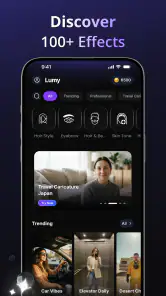
Lumy is an AI-powered app for creating or transforming visual content, such as photos and videos, using tools and effects provided in the app. Depending on the version and features available, you may be able to apply generated styles, animate images, or create content from prompts. Check the app listing for current capabilities, since features and availability can vary by device, region, and update.
Is Lumy-AI Photo Video Generator free to use?
The app may be free to download while placing some tools, generations, exports, or premium effects behind in-app purchases or a subscription. Before starting a trial or buying a plan, review the price, renewal period, cancellation terms, and any generation limits shown in the store or in the app. These details can change, so confirm them for your region before you proceed.
What photos or videos can I use with Lumy?
Lumy may let you select media from your device for AI processing, but supported formats, file sizes, and video lengths depend on the app version and the specific tool. Use clear, well-lit images for more reliable results, and make sure you have permission to upload or edit any photo that includes another person. Avoid submitting sensitive material unless you understand how the app handles it.
Does Lumy require an internet connection, and what permissions might it request?
AI generation often relies on online services, so an internet connection may be needed to create, process, or download results; some basic editing options may work differently offline. The app may request access to photos or videos so you can choose files and save finished creations. Grant only permissions that make sense for the feature you are using, and review the privacy information before uploading personal media.
Can I share or use Lumy-generated images and videos commercially?
You can generally save or share creations through options offered by the app, but the rights and restrictions for commercial use depend on Lumy's current terms, the source material, and any third-party assets or likenesses involved. Read the app's terms and privacy policy before using generated content in advertising, client work, or monetized posts. You should also obtain consent when a recognizable person appears in your source image.
Pros
- Turns text prompts and photos into creative images and videos.
- AI styles make it easy to explore different visual looks.
- Useful for creating social media posts and profile pictures.
- No advanced editing skills are needed to get started.
- A quick way to experiment with AI-generated content.
Cons
- Generated results may differ from the prompt or look inconsistent.
- Free use may be limited by credits
- features
- or usage caps.
- Some AI tools or styles may require a paid subscription.
- Video generation can take longer than making a still image.
- Review privacy settings before uploading personal photos.
- Category
- Art & Design
- Version
- 1.6