Artmate: Drawing Together
- 91.00
- 4.8
- Installs
- 10.00M
- Price
- Free

Screenshots


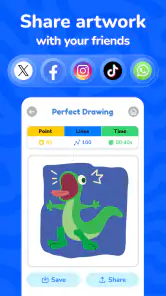
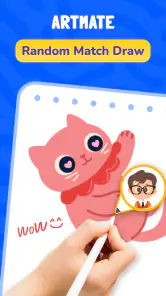
Analysis by Reviewed
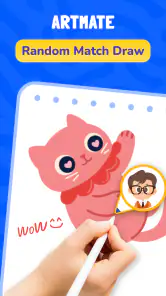
I like drawing apps best when they make it easy to start, not when they ask me to treat every sketch like a finished piece. Artmate: Drawing Together is aimed at that lighter, more social kind of creativity: it pairs drawing with lessons and the option to make art alongside friends. That combination makes it feel less like a professional studio and more like a shared table where beginners can follow along and regular doodlers can turn a spare moment into a small activity.
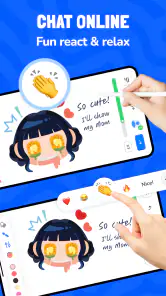
My main takeaway is that Artmate makes the most sense when you want company or a prompt to get past a blank canvas. It is an art-and-design app from Braly JSC, and its multiplayer focus gives it a different purpose from a conventional drawing tool. The trade-off is important: people looking for precise, solitary illustration work may prefer an app built around advanced controls, while those who enjoy learning and drawing together have a clearer reason to try this one.
Starting with a simple, shared drawing routine
I find that a shared drawing session works best when everyone knows the aim is to enjoy the process, not produce matching results. In this section, I’d focus on choosing one manageable lesson and agreeing on a comfortable pace, then look at how a few small routines can make future sessions easier to start.
Make the first session easy
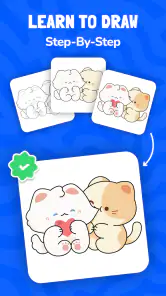
For a first visit, I would keep the goal modest: open a lesson, choose a small subject, and focus on following the steps rather than making the result look polished. The app’s easy-lesson angle suits that approach. A short guided drawing can give a newcomer something concrete to do, while the multiplayer element offers a natural way to make the activity feel less like homework.
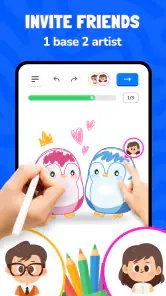
Drawing with friends also changes what counts as a successful session. You do not need to produce a portfolio-ready picture; a quick sketch, a shared laugh over an awkward shape, or the satisfaction of finishing a lesson can be enough. I would invite a friend who is comfortable being a beginner, rather than someone expecting a competitive art challenge. The relaxed premise is strongest when nobody feels judged on technique.
A realistic use case is a quiet evening when everyone is on a call but no one has much to talk about. Instead of searching for another video or game, you can use a lesson as a shared activity: follow the same prompt, compare what you drew, and then stop when the novelty fades. That makes the app useful as a lightweight social option, especially for friends who like making things but do not already share a hobby.
What the lessons do—and what they do not replace
Guided lessons can reduce the blank-page problem, but I would treat them as a starting point rather than a complete art education. Following a sequence is helpful for learning how to break a subject into manageable marks. It is less suited to developing a personal style on its own, since repeating a guided exercise is different from planning an original composition or studying the fundamentals in depth.
More From Our News Desk

Weather by Xiaomi Review: Clear at a Glance, Less Clear Up Close

X Under Pressure: Can It Recover When Posting Goes Wrong?

Clash of Clans Is Won Between the Battles

Android Auto Makes the Case for Quieter Car Software

MobiOffice: Transforming Mobile Productivity with Seamless Integration

EA SPORTS FC™ Mobile Soccer: Redefining Mobile Sports Gaming
That distinction helps set expectations. If you are new to drawing, a lesson can help you practise looking and making deliberate strokes without deciding every step yourself. If you already draw regularly, the appeal may be less about instruction and more about doing a simple exercise with someone else. For either group, I would judge a session by whether it gets you drawing, not by whether the finished image matches an imagined standard.
The app is free to install, with optional in-app purchases listed between ninety-nine cents and fourteen dollars and ninety-nine cents per item. I would begin with the free experience and decide whether the routine is valuable before spending anything. That is particularly sensible for a casual social app: its usefulness depends on whether you and your friends actually return to it, not just on the appeal of trying it once.
Check the practical details before inviting people
Artmate has an Everyone age rating, which makes it appropriate to consider for family drawing time as well as friends. I would still choose a comfortable setting for younger users and stay involved in the activity, as I would with any app used socially. The age label is helpful context, but it does not tell you whether a particular lesson or group arrangement suits your household.
The app has a 4.8 average from around eleven thousand ratings and has passed ten million installs, which suggests that it has reached a broad audience. Those figures are reassuring as a sign of interest, but they cannot tell you whether its drawing style fits your taste. I would use a first lesson to answer that more personal question: does the interface and activity make you want to keep sketching?
It is currently at version 1.1.38 and supports devices running Android 7.0 or later. Before planning a group session, I would check that the people joining can install and open it on their devices. That small bit of preparation avoids making the least technical person troubleshoot while everyone else waits. The same principle applies if you are introducing it to a child or a relative who rarely uses drawing apps.
Build repeatable habits without turning it into homework
Once a first session feels comfortable, I’d keep the routine flexible rather than making drawing another obligation. This section looks at ways to make familiar habits useful without squeezing out spontaneity, before considering where repeat practice helps—and where a different drawing tool may suit you better.
Settings worth checking first
I would start by looking through the available settings before a longer session, especially if you expect to draw with other people. Keep the first run uncomplicated: learn how the lesson is presented, find the controls you use repeatedly, and note anything that affects comfort or readability. I would not change several things at once; if the experience feels better or worse afterward, you want to know which adjustment made the difference.
One useful habit is to make the screen comfortable before beginning rather than interrupting the drawing to fix it. If the app offers choices related to the drawing surface or input, test them with a quick mark or a low-stakes lesson first. I am deliberately cautious about assuming particular controls are present; the practical point is to explore what your installation actually offers and avoid making a real session your first experiment.
For a group, agree on a simple rhythm before starting: choose one lesson, give everyone time to follow it, and compare results at the end. This is not a special app feature; it is a way to make a shared activity less chaotic. It also helps people who draw at different speeds. A beginner can take longer without feeling rushed, while a more experienced friend can focus on adding their own touches after completing the basic steps.
Faster patterns that preserve the fun
Once you know the basic flow, repeating a small routine is more useful than trying to discover shortcuts that may not exist. I would keep a session focused on one subject, avoid switching between unrelated ideas, and use the lesson as a common starting point. That cuts down on decision-making and makes it easier to compare progress with friends without turning the comparison into a contest.
A second practical pattern is to separate practice from experimentation. On one day, follow the lesson closely and concentrate on understanding its sequence. On another, use a familiar subject as a chance to change proportions, colours, or details if the app’s tools allow it. This keeps guided work from becoming mechanical and gives more experienced users room to make the activity their own without expecting the lesson itself to teach every skill.
For families or small groups, I would rotate who chooses the lesson or subject from session to session. That gives quieter participants a way to shape the activity and prevents one person from always setting the pace. It is also a good way to discover whether the app works for different ages and confidence levels. If one participant is bored while another is overwhelmed, shorten the session rather than forcing everyone through the same amount of practice.
Where it sits among drawing apps
Compared with a typical solo sketching app, Artmate’s distinguishing value is the social framing and guided activity. A traditional drawing app is usually the better choice if your priority is detailed editing, a personal workspace, or building a large collection of independent illustrations. A lesson-led app can be more approachable when you want a clear next step, while a multiplayer option is especially useful when the people you want to draw with are not in the same room or do not share much art experience.
That does not make it a replacement for every kind of creative software. Someone who needs advanced control over layers, brushes, or export workflows should choose a tool designed around those needs. Likewise, a person who prefers quiet, uninterrupted drawing may find the social focus unnecessary. I would think of this as a companion for guided, casual sessions rather than a one-app solution for every stage of making art.
Limits to keep in mind as you improve
The same simplicity that makes an app approachable can feel restrictive once you know exactly what you want to create. If a lesson’s structure does not match your preferred method, or if you want to control every detail of a finished illustration, a more specialist drawing program is likely to give you more room. That is not a flaw for someone who mainly wants a friendly prompt; it is a boundary to notice before expecting professional-grade flexibility.
Group drawing also depends on other people being available and willing to participate. The multiplayer idea is less compelling when friends prefer different schedules, or when you would rather work privately. In that case, use the lessons as solo prompts if they suit you, but do not choose the app solely because of its social side. Its best use is the overlap between guided drawing and a shared moment.
I would also avoid treating ratings or install figures as a guarantee of a perfect fit. A popular app can still have a learning style or pace that does not work for you. Try a short session, notice whether the lesson keeps you engaged, and decide whether you would willingly open it again. That is a better test than judging your first sketch against someone else’s result.
Who will get the most from it
Artmate is a good fit for beginners who want an approachable prompt, friends looking for a low-pressure activity, and families interested in drawing together. It may also suit experienced doodlers who enjoy helping someone else learn or want a brief creative break without setting up a serious project. I would recommend it most to people who value participation and momentum more than deep customization.
I would skip it, or pair it with a more capable art tool, if your goal is detailed digital painting, precise illustration work, or a highly controlled solo workflow. It is also not the obvious choice if you dislike guided exercises or have no interest in drawing with other people. Knowing that before installing saves you from expecting a full professional studio when the app’s appeal lies in making a shared lesson feel easy to begin.
A practical verdict for getting comfortable
My advice is to start with one short lesson, check the controls that affect your comfort, and invite someone who will enjoy the process rather than judge the result. If that first session feels natural, repeat the same simple format before trying to make it more ambitious. A familiar routine gives you a fair sense of whether the app’s combination of instruction and social drawing fits your everyday life.
Artmate is at its best as a friendly nudge to draw with someone, not as a promise to replace dedicated illustration software. Its guided approach can lower the barrier to starting, and its shared focus gives casual practice a reason to happen. I would recommend giving it a try if you want a relaxed creative activity and are happy to keep your expectations centered on learning, connection, and quick sketches.
Artmate: Drawing Together Frequently Asked Questions
What is Artmate: Drawing Together?
Artmate: Drawing Together is a social drawing app designed to let people create artwork alongside friends or other participants. Depending on the available features and app version, you may be able to join shared drawing activities, exchange creative ideas, and view what others are making. It is intended for casual creativity rather than replacing professional illustration software, so check the current store listing to confirm which collaboration tools are offered.
Can I use Artmate: Drawing Together with friends?
The app’s name and concept suggest a focus on drawing with other people, but the exact way you connect can depend on its current version and region. Before downloading, look for details in the store listing about invitations, rooms, accounts, or multiplayer sessions. Also check whether your friends need to install the app and whether a stable internet connection is required for shared activities.
Is Artmate: Drawing Together free to download and use?
Availability, pricing, and in-app purchases can change, so check the Google Play or Apple App Store listing for the latest information before installing. An app may be free to download while offering optional purchases, subscriptions, or paid features. Review the purchase details and any trial terms carefully, and use your device’s purchase controls if you want to prevent accidental spending.
Is Artmate: Drawing Together suitable for children?
The app may appeal to children who enjoy drawing, but suitability depends on its current features and how it handles interaction with other users. Before a child uses it, review the age rating, privacy information, chat or sharing options, and any community rules shown in the store listing or app. Parents should supervise online interactions and adjust available device-level privacy and purchase settings.
What devices and permissions does Artmate: Drawing Together require?
Artmate: Drawing Together is offered for mobile platforms, but supported operating-system versions and device requirements may vary. Check the relevant app-store listing to confirm compatibility with your phone or tablet. If the app requests permissions such as photos, camera, microphone, or notifications, consider why each is needed and grant only those you are comfortable with; permission options can usually be changed later in device settings.
Pros
- Makes collaborative drawing sessions easy to start and join.
- Turns creative prompts into a fun way to connect with friends.
- Offers a relaxed
- low-pressure space for sharing ideas.
- Works well for casual doodling and quick creative breaks.
- Can help spark inspiration when you’re unsure what to draw.
Cons
- The experience is less rewarding when friends aren’t online.
- Small screens can make detailed drawing difficult.
- Collaborative canvases may become cluttered with many participants.
- A stable internet connection is needed for shared sessions.
- It may not provide the advanced tools serious artists expect.
- Category
- Art & Design
- Version
- 1.1.38