SeeGen AI: Seedance 2.0 & 2.5
- 40.00
- 4.0
- Installs
- 50.00K
- Price
- Free

Screenshots


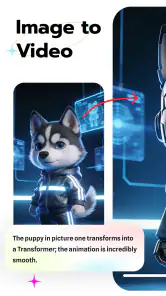
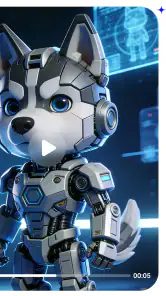
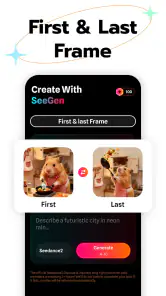
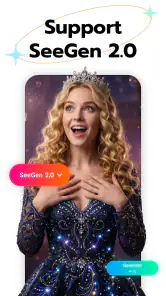
Analysis by Reviewed
I approached SeeGen AI as a practical tool rather than a simple image-making app. Its focus is familiar AI video workflows for people using the Seedance 2.0 and Seedance 2.5 models, so the main appeal is clear: it is aimed at turning an idea into a video-oriented creative process without asking users to begin with a traditional editing timeline. My first impression is that it makes the most sense for experimentation, visual planning, and short creative projects rather than for replacing a full professional video suite.
The app comes from Fillog Studio and sits in the Art & Design category. It is free to install, carries an Everyone age rating, and has reached over 50 thousand installs with a 4.0 average from more than 600 ratings. Those figures suggest a modest but active audience, which matches the kind of product this is: interesting to curious creators, but still something I would test carefully before building an important project around it.
Where the first attempts tend to get stuck
The biggest adjustment is mental. A Seedance-based workflow is not the same as opening a conventional editor, placing clips on a timeline, and trimming them by hand. When I use an AI video app, I have to think in terms of direction: subject, action, setting, movement, mood, and continuity. If the request is vague, the result can feel vague too. The app may be doing exactly what the instruction allows, while the user expects a much more controlled scene.
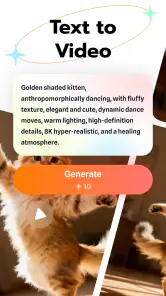
This is why a first attempt can feel disappointing even when the interface seems straightforward. A short prompt such as “a stylish city video” leaves too many decisions open. A more useful instruction identifies the subject, the visible action, the camera behavior, the lighting, and the intended atmosphere. I would also separate the main idea from optional decoration. If every sentence introduces another character, location, transition, and visual style, the result becomes harder to judge and harder to correct.
Another common sticking point is expecting one generation to be final. I see this type of app as a drafting partner. The first output is useful for discovering what the model understood, not necessarily for publishing. I prefer to change one important element at a time. If I alter the subject, camera angle, color, and pacing together, I cannot tell which change helped or caused a new problem.
There is also a practical difference between wanting a concept and wanting a finished social video. Someone looking for a quick visual idea may enjoy the process immediately. Someone expecting precise lip synchronization, exact object placement, frame-by-frame retouching, or dependable continuity across many shots may run into limits much sooner. In that situation, SeeGen AI can still help with early concepts, but a conventional editor or a more specialized production tool is the better finishing environment.
Write instructions that are easy to diagnose
I get more useful results when I treat each request like a compact shot brief. I describe what must remain visible, what should move, and what the camera should do. I avoid mixing several unrelated goals into one instruction. For example, a product demonstration benefits from a stable subject and a clearly stated movement, while a cinematic scene benefits from a defined viewpoint and atmosphere. The wording does not need to sound technical; it needs to make priorities obvious.
More From Our News Desk

Weather by Xiaomi Review: Clear at a Glance, Less Clear Up Close

X Under Pressure: Can It Recover When Posting Goes Wrong?

Clash of Clans Is Won Between the Battles

Android Auto Makes the Case for Quieter Car Software

MobiOffice: Transforming Mobile Productivity with Seamless Integration

EA SPORTS FC™ Mobile Soccer: Redefining Mobile Sports Gaming
A helpful habit is to keep a small record of successful wording outside the app. I save the basic prompt, then note the one change made in each later attempt. This is more valuable than repeatedly starting from scratch because it creates a personal workflow for Seedance generations. It also makes it easier to return to a promising direction after an unsuccessful experiment.
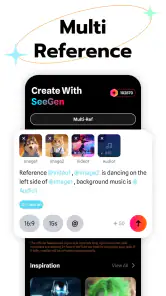
Reference material, when the workflow allows it, should be chosen for clarity rather than visual complexity. A clean subject with a distinct silhouette is easier to evaluate than a crowded image containing several competing focal points. I would begin with a simple composition, confirm that the main idea works, and only then add more demanding details.
Setup checks before blaming the generation
SeeGen AI supports Android devices running version 7.0 or later, so compatibility is the first sensible check. If the app does not install, closes immediately, or behaves strangely before a project begins, I would confirm the operating system and update the app before changing creative settings. The current version is 1.1.6, and using the current release is especially sensible with an AI workflow because service-side changes and app-side fixes can affect how a process behaves.
I would also start with a small, uncomplicated test. Instead of beginning with a long creative brief, I would use one subject, one action, and one setting. This separates setup trouble from prompt trouble. If a basic test works, the next step is to increase complexity gradually. If it fails at the simplest stage, rewriting the prompt repeatedly is unlikely to solve the real issue.
Before spending time on an ambitious sequence, I would check the basics that affect any connected creative application: a stable internet connection, enough free device storage for temporary media, and a battery level suitable for a longer session. I would avoid switching networks halfway through a generation and would keep the app open while an important task is processing. These are ordinary precautions, but they prevent confusing a stalled transfer or interrupted session with a poor model result.
The free entry point is useful for learning the workflow without committing immediately. At the same time, the app includes in-app purchases ranging from $2.99 to $199.99 per item. That broad range makes it important to understand what a purchase unlocks before confirming anything. I would first test the free experience, decide whether the output quality fits my needs, and only then consider spending money. For casual experimentation, there is no reason to treat a paid option as the first step.
One detail I would not overlook is the distinction between the application and the model workflow it helps users access. If a generation is slow, unavailable, or inconsistent, the cause may involve the selected Seedance model or the wider service path rather than the app interface itself. Keeping that distinction in mind makes troubleshooting more rational. I would record which model was selected, what the request contained, and what stage failed before assuming the whole application is unusable.
A setup routine that saves time
My preferred starting routine is simple. I open the app, confirm that it is responsive, prepare a short test instruction, and use a subject whose result is easy to recognize. I then inspect whether the output follows the central action before worrying about style. If the basic movement is correct, I refine the look. If the movement is wrong, I simplify the instruction rather than adding more adjectives.
I also keep project expectations realistic on an older device. Compatibility does not guarantee the same comfort on every phone. A device may support the app but still feel less pleasant during media-heavy work because of storage pressure, heat, or limited memory. If the interface becomes sluggish, I close unrelated apps, free storage, and retry a small task. That is a better first response than repeatedly submitting the same request.
For anyone wondering whether an account, special hardware, or advanced editing knowledge is required, my practical answer is that the app is approachable for beginners, but the quality of the workflow depends on how clearly the user can describe a scene. You do not need to be a filmmaker to explore it. You do need patience, a willingness to iterate, and enough visual judgment to recognize whether an output actually matches the intention.
Recovering a workflow when something goes wrong
When a generation appears stuck, I avoid pressing the same control repeatedly. First I check whether the task has actually changed state, then I wait briefly and look for a visible result or error. If nothing progresses, I return to a smaller test rather than immediately rebuilding a complex project. This gives me a clean comparison and reduces the chance of creating several duplicate requests.
If a request fails, I simplify it in stages. I remove secondary characters, complicated camera instructions, and decorative details while keeping the central action. A successful simplified version tells me that the original request was probably too demanding or ambiguous. From there, I add one element back at a time. This “reduce, verify, rebuild” approach is more reliable than rewriting everything with different wording.
For inconsistent characters or objects, I keep the description stable. I use the same identifying terms for the subject and avoid changing its appearance casually between attempts. I also treat each shot as its own unit when continuity becomes unreliable. A short collection of individually understandable clips is easier to repair in a standard editor than one long generation that tries to maintain every detail at once.
One of the more useful trade-offs is choosing between visual ambition and recoverability. A simple shot may look less impressive, but it is easier to regenerate and compare. A complicated shot may offer a more dramatic first impression, yet a small defect can make the entire result unusable. For a real project, I would rather build a sequence from dependable pieces than gamble everything on one elaborate instruction.
When an output is almost right, I would not discard it automatically. It may still work as a storyboard reference, a mood clip, or a guide for a later edit. This is particularly valuable for creators who need to communicate an idea to someone else. The app’s strength is not limited to final delivery; it can help make an abstract concept visible early enough to discuss and improve.
How I would organize a small project
For a short promotional concept, I would divide the work into separate visual beats: an opening view, the main subject, the important action, and a closing image. I would test each beat independently, keeping the instructions focused. Afterward, I would use a familiar video editor for ordering, trimming, text, sound, and final timing. This division lets SeeGen AI handle visual generation while a conventional tool handles precise assembly.
For a personal travel idea, I might use the app to explore an opening atmosphere or a transition between locations, then combine those experiments with real photographs or video elsewhere. That is a more realistic use than expecting every moment of a complete travel film to emerge with consistent geography and identity. The generated material becomes a creative layer rather than the entire production.
For social content, I would make the first test intentionally short and visually direct. Mobile viewers usually understand a clear subject faster than a crowded scene. I would check the result without sound as well as with sound, because the image should still communicate its basic purpose. If the clip only makes sense after a long explanation, the prompt or composition probably needs another pass.
When the app is not the cause
Not every disappointing result is an app failure. AI video generation can interpret an instruction differently from the person who wrote it, especially when the request contains competing priorities. If the output is coherent but not what I imagined, I treat that as a direction problem first. I ask whether the essential subject and action were actually stated clearly before concluding that the tool failed.
Network interruptions are another easy source of confusion. A partially completed task, missing preview, or delayed response can look like a model-quality issue when the real problem is communication between the device and the service. I would retry once on a stable connection, using a small request. If the small request works, I would continue cautiously. If it does not, I would stop repeating attempts and try again later rather than consuming time or any limited usage attached to the workflow.
Device conditions matter too. An older phone may technically meet the minimum operating-system requirement while still struggling with storage or background memory. If the app works after restarting the device or closing other media-heavy applications, the issue was probably local pressure rather than the creative engine. Keeping several large videos on the phone can also make later sessions less comfortable, so I would move finished material elsewhere and retain only the files needed for the current project.
Payments deserve the same careful separation. Because the application is free but offers paid items, a user should distinguish an optional purchase from a technical fix. Paying does not automatically make an unclear prompt clearer or repair a device problem. I would only buy something when I understand its purpose and have already confirmed that the basic workflow suits me. This is especially important for beginners who may mistake a disappointing first result for a missing paid capability.
Privacy and creative ownership are also reasons to pause before using sensitive material. I would avoid testing with private documents, identifiable personal footage, or client assets until I had read the app’s current policies and understood how the relevant workflow handles uploads. That is not a criticism unique to SeeGen AI; it is a sensible boundary for any connected AI creation tool. For professional work, I would use material that I am authorized to process and keep original source files organized separately.
Who will get the most from SeeGen AI?
I think the app is a good fit for curious creators who want to explore AI video without starting with a complicated desktop production setup. It can be useful for visual brainstorming, mood development, social experiments, concept presentations, and early storyboarding. Students and independent creators may appreciate being able to test ideas quickly, while designers can use generated motion as a way to discuss a direction before investing in a polished production.
It is less suitable for someone whose priority is exact manual control. If you need a dependable timeline, detailed audio mixing, precise masks, repeatable color work, or guaranteed continuity across a large set of shots, I would choose a full editor and use AI generation only as an additional resource. The same applies if you need a finished commercial deliverable with strict brand rules and no tolerance for small visual errors.
Compared with ordinary video editors, SeeGen AI reduces the importance of filming and manual assembly but increases the importance of describing and evaluating. Compared with a basic design app, it is more useful for exploring motion and scene ideas, but it is not as naturally suited to static layouts, typography, or detailed graphic composition. The right choice depends on whether your bottleneck is creating a visual concept or controlling an existing set of media.
My strongest practical recommendation is to use it as one part of a workflow. Generate a focused idea here, select the usable material, and finish the structure in a tool designed for trimming and presentation. That approach plays to the app’s creative strength while protecting you from expecting it to perform every production task itself.
My practical verdict after testing the workflow
SeeGen AI is an approachable entry into Seedance 2.0 and Seedance 2.5 workflows, but it rewards users who work methodically. The free installation and Everyone rating make it easy to try, while the current 1.1.6 release gives users a clear starting point on supported Android devices. Fillog Studio has positioned it for people who want a familiar route into AI video creation, and I can see the value for experimentation and early-stage visual development.
I would not recommend opening it with the expectation of instant, production-ready results. The main friction comes from prompt clarity, model interpretation, device conditions, and the need to iterate. Those are not reasons to dismiss it; they are the conditions of using it well. Start with a small test, keep one variable changing at a time, separate generation from final editing, and treat failed outputs as information rather than wasted effort.
The 4.0 average from the existing audience feels consistent with my balanced view: the idea is useful, but the experience depends heavily on expectations and workflow discipline. Before considering any in-app purchase, I would confirm that the free experience produces material I genuinely want to develop. If it does, the app can become a handy creative sketchbook. If your work demands exact control, repeatability, or a complete editing environment, I would keep it as a supporting tool and choose a conventional editor for the final result.
In short, I recommend SeeGen AI to people who want to turn written visual ideas into experimental video and are comfortable refining their instructions. I would skip it as a primary solution for precision-heavy production. Used with realistic expectations, its best role is clear: it helps me see a direction sooner, test alternatives, and carry the strongest idea into a more controlled finishing workflow.
SeeGen AI: Seedance 2.0 & 2.5 Frequently Asked Questions
What devices can run SeeGen AI: Seedance 2.0 & 2.5?
SeeGen AI: Seedance 2.0 & 2.5 is an Art & Design app for Android devices running version 7.0 or later. It is developed by Fillog Studio, and the app is free to download, with optional in-app purchases. Check your device’s operating system before installing, and consider whether you have enough storage and a reliable connection for the video-creation workflows you plan to use.
What is SeeGen AI: Seedance 2.0 & 2.5 used for?
SeeGen AI: Seedance 2.0 & 2.5 is designed for creating AI-generated videos from written prompts and, depending on the available tools, reference images or other media. It can help users produce short creative clips, animated concepts, social media content, visual stories, and experimental scenes without traditional video-editing skills. Results depend heavily on the prompt, source material, selected model, and current service availability.
Is SeeGen AI: Seedance 2.0 & 2.5 free to use?
The application is free to download, but it also offers in-app purchases ranging from $2.99 to $199.99 per item. Advanced features and continued use may require paid credits or other purchases. Pricing, generation limits, watermarks, export options, and promotional offers may change over time. Before creating many videos, check the in-app purchase screen carefully and confirm whether any billing renews automatically.
Do I need an account or an internet connection to use the app?
AI video generation is generally processed online, so a stable internet connection is normally required. The app may also ask you to create an account or sign in through a supported login method to save projects, manage credits, or synchronize content between devices. Offline editing or viewing may be limited, and generation can take longer when servers are busy or your connection is weak.
Can I use the videos created with SeeGen AI commercially?
Commercial usage depends on SeeGen AI’s current terms of service, the plan used to generate the content, and the rights associated with any images, music, characters, logos, or prompts included in a project. Users should not assume that every generated video is automatically safe for advertising or resale. Review the licensing rules, avoid copyrighted material without permission, and check whether free-plan exports have additional restrictions.
Pros
- Simple interface makes AI video creation accessible to beginners.
- Supports quick experimentation with multiple creative concepts.
- Useful for generating visual drafts before full production.
- Can reduce the time needed to create short video content.
- Suitable for social media creators and casual projects.
Cons
- Output quality may vary depending on the prompt and source material.
- Advanced editing controls may feel limited for professional workflows.
- AI-generated scenes can include visual inconsistencies or artifacts.
- Some features may require credits
- subscriptions
- or in-app purchases.
- Processing times can increase when demand for the service is high.
- Category
- Art & Design
- Version
- 1.1.6