Recover Deleted Photos App
- 586.00
- 4.3
- Installs
- 10.00M
- Price
- Free

Screenshots

Analysis by Reviewed
When I realize a photo has disappeared, I want a way to look for it without making the situation worse. That is the problem Recover Deleted Photos App is meant to address: it scans a phone’s storage for images that may still be recoverable. I see it as a practical attempt after the obvious places have come up empty, not as a promise that every deleted picture can be brought back.
Start with the safest places
I’d treat recovery as a rescue attempt, not as a replacement for a backup. If I noticed a missing picture, I’d avoid taking lots of new photos or downloading large files before scanning: activity can use storage that may still contain traces of deleted files. I’d also check the phone’s own trash or recently deleted folder first, along with any photo backup I already use. Those options are often simpler, and a cloud copy is a safer handoff when the image matters more than experimenting with recovery.
A practical moment to use it
Picture deleting a set of family photos while clearing space, then realizing later that one important shot was included. I’d open the app promptly, scan, and review the results for recognizable thumbnails rather than restoring everything blindly. If the missing image was on an SD card, I’d make sure the card is available to the phone and look through the scan results carefully. A recovery app is most useful when I can identify the exact image and choose a sensible place to keep the recovered copy.
Finding a photo and deciding what to do next
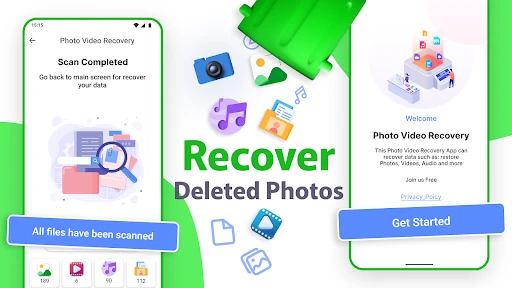
So, here's the deal: the app is designed to help you recover photos that you might have deleted from your phone by mistake. And let's be honest, with the number of selfies, pet photos, and food pics we take, it's bound to happen at some point. The app works by scanning your device's storage, including external memory, to find and restore those lost gems. It’s like having a little detective in your phone, tracking down every last image you thought was gone forever.
How the scan fits into the workflow
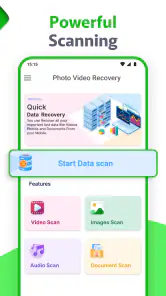
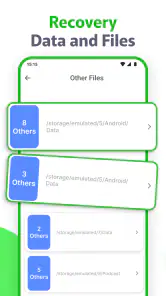
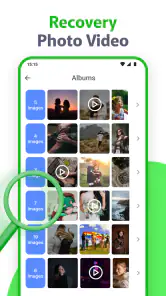
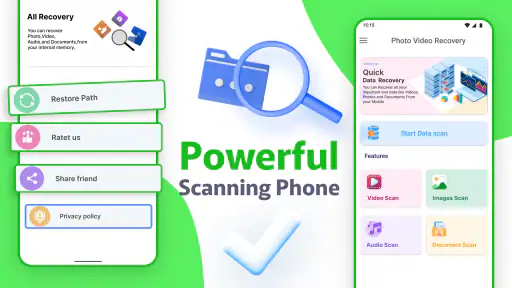
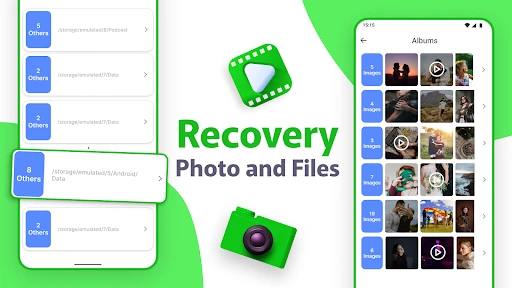
When you open the app, you’re greeted with a clean, user-friendly interface that’s pretty straightforward. You don't need to be a tech wizard to navigate it, which is a huge plus for those of us who might not be the most tech-savvy. Simply hit the scan button, and the app goes to work, sifting through your device's data like a pro. It even categorizes the photos it finds so you can easily sift through and pick the ones you want to recover. No more endless scrolling!
My useful habit here is to review small groups of results instead of tapping every option at once. Similar-looking thumbnails can make it easy to select duplicates or unrelated images, especially after a broad scan. I’d recover only the pictures I recognize, then check the destination and confirm that the files open correctly. That extra check matters: seeing a thumbnail in a results list is not quite the same as having a usable photo saved where I can find it later.
Choosing what to restore
That careful selection is more than a tidy way to browse. If a scan returns a mixture of old pictures and recent deletions, restoring everything can create a cluttered camera roll and make it harder to spot the image that matters. I’d use visible details in the thumbnail—people, setting, or the approximate moment—to narrow the list, then verify each recovered file after saving it. When a picture is important, I’d also make a second copy somewhere I already trust rather than leaving the recovered version as the only copy.
More From Our News Desk

Weather by Xiaomi Review: Clear at a Glance, Less Clear Up Close

X Under Pressure: Can It Recover When Posting Goes Wrong?

Clash of Clans Is Won Between the Battles

Android Auto Makes the Case for Quieter Car Software

MobiOffice: Transforming Mobile Productivity with Seamless Integration

EA SPORTS FC™ Mobile Soccer: Redefining Mobile Sports Gaming
There is a useful distinction between finding a candidate and completing a recovery. A preview can help me decide whether an image looks familiar, but the real test is whether the saved file opens and is clear enough for its intended use. If I need a photo for a message or a personal record, a slightly imperfect image might still be useful; if I need a full-quality original, I’d be more cautious before treating a preview as success.
Storage cards and the handoff after recovery
One of the standout features of the Recover Deleted Photos App is its ability to recover photos from your SD card as well. This is particularly useful if you're using a device that supports external storage. Moreover, it's not just about recovering images; the app supports multiple file formats, which is a neat little bonus. And did I mention it’s free? Well, mostly. There are some premium features, but honestly, the free version gets the job done perfectly for most scenarios.
For someone who moves a card between a phone and another device, I’d think about the handoff before starting: make sure the card containing the missing image is the one being checked, and avoid casually reusing it while trying to recover files. Once I find the right picture, I’d confirm where the recovered copy went and then move or back it up deliberately. That simple sequence reduces the chance of finishing a scan, assuming the job is done, and later discovering the image is still only sitting somewhere inconvenient.
That makes it a different kind of tool from the usual alternatives. A phone’s recently deleted folder is the first place I’d check for a straightforward undo, while cloud backups are better for maintaining a dependable second copy across devices. Recovery scanning is worth trying when neither has the picture, but it should not be mistaken for a backup system or a guarantee. The app is a practical next step for a missing file, not a substitute for routinely saving important images somewhere else.
Who benefits from this approach
I’d recommend trying it if you use an Android phone, sometimes delete images by mistake, and want a direct way to search local storage before giving up. It may be especially handy for people who keep photos on an SD card and are comfortable checking a scan’s results themselves. If you only need to undo a recent deletion, start with the phone’s trash instead. And if the photo is irreplaceable, or you need a dependable recovery from damaged storage, I wouldn’t rely on a simple phone app alone; a professional recovery option or a backup may be the better route.
It also suits people who can spare a little time to inspect results instead of expecting a single button to identify the exact missing frame. For example, after clearing space during a commute, I might later realize that a picture of a receipt or a family moment was removed with a batch. I’d first check the usual trash and backup, then scan, compare the candidate thumbnails, restore only the likely match, and open it before sending it or filing it away. The value is in having another sensible step in that chain, not in skipping the checking.
There are a few sensible expectations to keep in mind. A scan can turn up many images that are not the one you want, so patience and careful selection are part of the process. A file may also be incomplete or unusable if its data has already been overwritten. I’d avoid paying for anything until I had checked what the free experience can actually recover; optional in-app purchases range from $0.99 to $99.99 per item, so it is worth considering the cost against the value of the photos and the alternatives available to you.
When the usual options are better
If the image is still in the phone’s recently deleted area, restoring it there is the cleaner choice: it avoids a scan and keeps the process close to the original photo library. If I already have an automatic cloud copy, retrieving that copy is generally a more dependable route than searching storage remnants. This app occupies the gap between those two cases—when the straightforward undo and the backup both fail—but that position also means the outcome depends on what remains recoverable on the device.
I would skip a scan if I already know the picture is safely backed up, if I need guaranteed recovery for work, or if the storage itself appears damaged. In those situations, preserving the remaining data and using a suitable backup or specialist recovery route matters more than experimenting on the phone. I’d also be wary of treating a large number of scan results as proof that the particular image I need is among them; browsing volume is not the same as a successful restore.
Limits worth understanding before relying on it
Now, I won't say the app is perfect. Sometimes, it might not recover every single photo, especially if the data has been overwritten. However, it does a pretty solid job and is definitely worth a shot before you panic or spend money on more expensive recovery software. Plus, it’s regularly updated, which means improvements are constantly being made.
Made by DOSA Apps, this free photography app is rated for Everyone and is listed for Android 5.0 and newer. Its current version is 2.1.1; it was released on June 17, 2019. It has an average rating of 4.3 from around 169,000 ratings, with over 10 million installs. Those figures suggest it has reached a broad audience, but I’d still judge it by whether it finds the particular image I need rather than treating popularity as a promise of recovery.
One practical question is whether I should keep using the phone while I decide. My answer is to minimize activity if the missing photo is important: new files can take up space that might otherwise contain recoverable information. Another is whether I should restore every result that looks plausible. I wouldn’t; I’d select the image I can identify, check the saved file, and keep a separate copy. That approach takes more attention than a one-tap undo, but it gives me a clearer idea of what I actually recovered.
The purchase range is another reason to take the process in stages. I’d explore what the free version can do first, then weigh any paid option against how important the missing image is and whether a backup or other recovery route is available. A low-stakes photo may not justify spending anything, while a uniquely valuable image deserves a more careful decision than an impulsive purchase. I find that setting this boundary before scanning helps keep urgency from turning into unnecessary spending.
A measured recommendation
In a nutshell, if you're someone who tends to be a bit clumsy with your digital photo album, this app is definitely worth having on your device. It's like an insurance policy for your memories, ensuring that even if you slip up, there's a good chance you can get your photos back.
So, next time you find yourself in a photo-deleting pickle, remember there's hope with the Recover Deleted Photos App. It’s simple, effective, and most importantly, gives you peace of mind knowing that your memories aren’t lost forever. I’d still pair it with a regular backup routine: recovery is a useful last attempt, while a second copy is the more reliable way to protect the pictures I care about.
My bottom line is that I’d keep it in mind as a focused fallback, especially for accidental deletions on a phone or an accessible memory card. It is not the right first stop when the phone’s own trash or an existing backup can solve the problem, and it cannot promise an intact file after storage has been reused. But when those simpler routes fail, a careful scan and deliberate restore are reasonable things to try. I’d use it with patience, verify the outcome, and protect the recovered photo with a backup rather than asking one recovery app to do the work of a whole photo-safety routine.
Recover Deleted Photos App Frequently Asked Questions
Does Recover Deleted Photos App require special permissions to scan my photos?
A recovery tool needs access to image files and device storage to search for photos, so review the permission prompts carefully when you open Recover Deleted Photos App. Grant only the access needed for the task, and check your device’s settings if you want to review or change app permissions later. This is a sensible step before using any app that works with personal pictures.
Can I preview recovered photos before saving them?
Before relying on Recover Deleted Photos App to restore an important image, check the recovery results presented in the app and confirm that the photos are the ones you want. Being able to identify the right images can help you avoid restoring unwanted files. Keep in mind that recovery results depend on what the app can find in your device storage.
Will Recover Deleted Photos App restore every photo I have deleted?
No recovery app can guarantee that every deleted image will be found. Recover Deleted Photos App is intended to help locate and retrieve photos, but results can depend on the device and the files still available to scan. If a picture is especially important, avoid using the affected storage unnecessarily and check any backups or cloud services where it may have been saved.
How much storage space does Recover Deleted Photos App need?
The amount of space used can vary with the app and the recovery results, so it is useful to check available storage before starting a scan or saving recovered pictures. Restored images also need room on your device. If storage is tight, consider moving other files or choosing only the photos you want to keep rather than saving every result.
Can I use Recover Deleted Photos App to recover videos as well as photos?
Recover Deleted Photos App is presented as a photo-recovery tool, so it is best to approach it as an option for deleted pictures rather than assume it can restore videos. If you need a video back, check the recovery options shown in the app and consider your device’s backup or cloud service. Make sure the tool supports the kind of file you need before relying on it.
Pros
- Easy to navigate interface.
- Quick recovery of deleted photos.
- Supports multiple file formats.
- No need for backup to recover.
- Recovers photos from SD card.
Cons
- Ads can be intrusive.
- Limited free trial features.
- Requires internet for full functionality.
- Some photos may not be recoverable.
- App may slow down older devices.
- Category
- Photography
- Version
- 2.1.1