Genera: AI Video Generator
- 130.00
- 4.2
- Installs
- 500.00K
- Price
- Free

Screenshots
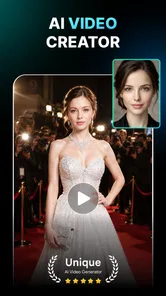
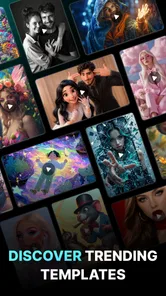

Analysis by Reviewed
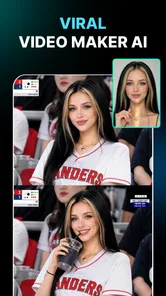
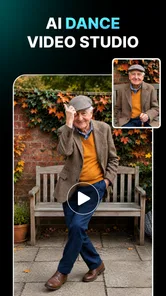
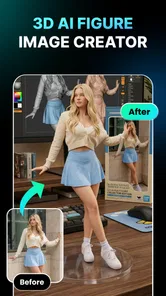
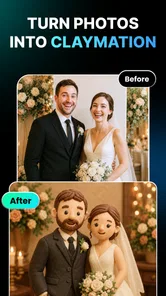
I approached Genera: AI Video Generator as a creative toolkit for turning portraits into playful AI effects, rather than as a full video-editing studio. Its focus is apparent in the mix of AI video generation, face dance, face swapping, and photo enhancement. That combination makes it appealing when I want to experiment with a picture quickly, but it also means the experience is best judged by the quality and convenience of its transformations—not by how much control it offers over a finished production.
For casual social posts, profile-picture experiments, or a funny clip to share with friends, the idea is easy to grasp: start with a face or photo and see what the app can do with it. I would treat the results as creative variations, not guaranteed likeness-preserving edits. AI transformations can look charming when they capture the subject well and less convincing when small facial details shift. If you enjoy trying several interpretations, that unpredictability is part of the fun; if you need a faithful retouch, it can be a drawback.
How the creative workflow feels
I’d use this section to set expectations for a portrait-first workflow: the app is most useful when I arrive with one clear idea, rather than expecting a full editing suite. Choosing the source image and intended effect up front can make experimentation feel more purposeful. From there, the next question is how that workflow holds up when I try more than one image.
Quick experiments, with a little patience
The app’s different effects suggest a low-friction way to explore several kinds of portrait-based creativity in one place. Face dance and face swap are geared toward entertainment, while photo enhancement has a more practical role when a portrait needs a visual lift. AI video generation gives the results a moving-image angle, which can make a familiar selfie feel more shareable than a standard filter. I see the strongest use here as choosing one clear idea and testing it, rather than expecting a complete, polished video workflow.
Speed is difficult to judge without knowing the image, effect, and device involved, so I would not install it expecting every transformation to finish instantly. AI processing can feel slower than applying a conventional filter, especially when the result involves animation or a substantial visual change. A useful habit is to start with a single image and one effect, then decide whether the result is worth refining or sharing. That keeps experimentation focused and makes it easier to tell whether an effect is genuinely useful to you.
For a more convincing portrait result, choose a clear, well-lit photo where the face is easy to see. A sharp, unobstructed image gives a transformation a better starting point than a dim selfie, a face partly hidden by hair, or a group shot where the intended subject is ambiguous. This is a practical trade-off: the best source photo may be less spontaneous, but it can save time spent rerunning an effect on an image that was difficult for the app to interpret.
Where it fits in an everyday routine
Imagine a friend group planning a casual social post before meeting up. I would use the face-focused effects to make a short, humorous variation from a suitable portrait, then compare it with the original before sharing. The enhancement option could be more useful when someone wants a tidier-looking photo without turning the task into a full editing session. In either case, I would keep the original image separate so the playful version does not replace the photo I actually want to preserve.
More From Our News Desk

Weather by Xiaomi Review: Clear at a Glance, Less Clear Up Close

X Under Pressure: Can It Recover When Posting Goes Wrong?

Clash of Clans Is Won Between the Battles

Android Auto Makes the Case for Quieter Car Software

MobiOffice: Transforming Mobile Productivity with Seamless Integration

EA SPORTS FC™ Mobile Soccer: Redefining Mobile Sports Gaming
That small workflow matters because novelty effects are easy to overuse. I would make one or two versions, check that the face still looks recognisable, and stop when the edit begins to feel more artificial than entertaining. If the goal is a carefully paced video with precise cuts, captions, and soundtrack timing, a dedicated video editor is a better fit. Genera is more attractive when the starting point is a face and the goal is a quick visual transformation.
It can also serve as a lightweight idea generator. I might use an enhanced portrait as a starting point for a later design, or make a face-based clip to see whether a concept suits a social post. I would not treat an AI result as a final asset for a project that needs exact color, framing, or identity consistency. In that situation, a photo editor with direct controls gives a clearer path from the original image to the intended result.
When several effects compete for attention
The breadth of the app is convenient, but it creates a real choice: a handful of distinct creative tools can be easier to approach than a large professional suite, yet the app is not necessarily the best place to refine every detail. Face swap, dance effects, enhancement, and generated video serve different needs. Before starting, it helps to decide whether the priority is comedy, movement, or a cleaner portrait. That choice reduces aimless browsing and makes the result easier to evaluate.
For heavier sessions, such as testing multiple treatments on several portraits, I would work in small batches rather than queueing a long list and hoping every output suits the same purpose. Review each result before moving on. This is not a claim about a specific app limit; it is simply a sensible way to manage a creative workflow where each transformation may produce a different look. It also makes it easier to keep track of which source image produced the version you prefer.
When an output takes longer than expected, I would avoid repeatedly tapping the same action or immediately switching between effects. Give the current attempt a chance to finish, then retry with a simpler or clearer source image if needed. That approach helps distinguish an image-quality problem from a temporary wait and avoids creating confusion about which result belongs to which attempt. For any work you care about, keep the original photo available rather than relying on an altered copy as your only version.
Reliability and the limits of AI results
Reliability in this kind of app is not only about whether it opens; it is also about whether a result is consistent enough to use. A face effect can be entertaining on one portrait and awkward on another because the source image gives the transformation different material to work with. I would judge Genera by the output for the specific image I plan to use, not by assuming that one successful example means every photo will behave the same way.
Stability and recovery also deserve a practical approach. If a transformation does not produce the intended look, I would first try a different, clearer portrait rather than assuming that every attempt should be identical. If the app appears to stall, pausing before trying again is more sensible than repeating an action rapidly. I cannot promise a particular recovery behavior across devices, so I would avoid using it as the only step in a time-sensitive workflow where a finished clip must be ready immediately.
There is another reliability question that is easy to overlook: whether an effect preserves the person’s recognizable features. For a joke shared privately, a slightly exaggerated face may be exactly the point. For a professional profile or a portrait meant to represent someone accurately, I would inspect the eyes, mouth, and overall facial shape carefully and choose a more conventional editor if the transformation changes them too much. The app’s creative emphasis is a strength for play, but it is not a substitute for precise retouching.
Device fit, cost, and who should choose it
Genera is a free art-and-design app from AMOBEAR TECHNOLOGY GROUP, with in-app purchases ranging from $5.49 to $59.99 per item. I would begin by exploring the free experience and only consider a purchase after confirming that the particular effects I enjoy are worth paying for. The price range makes it especially important to check the purchase details in the app before committing, rather than assuming every tool or output is included at no cost.
The app is rated for Everyone and requires Android 8.0 or later. It has a 4.2 average from around 6,000 ratings, with about 130 written reviews, and has passed 500,000 installs. It launched on March 30, 2026, and its current version is 1.1.8_20260714. Those figures offer useful context about its audience and availability, but they do not guarantee that it will run equally smoothly on every compatible phone. AI-oriented creative work can be more demanding than browsing a static gallery, so I would close other resource-heavy tasks if the device feels sluggish and avoid judging performance from an older or low-capacity phone alone.
It is a good match for someone who likes trying face-based effects, wants a simple way to experiment with AI video or photo enhancement, and is comfortable choosing among imperfect results. It is less suitable for a creator who needs detailed editing controls, consistent output across a batch, or a dependable last-minute production pipeline. If your main task is trimming footage and arranging a polished sequence, use a conventional video editor; if you want exact control over skin tone or object removal, a dedicated photo editor is likely better.
My verdict on performance and purpose
I would recommend Genera: AI Video Generator as an experimental portrait app, not as an all-purpose creative workstation. Its appeal lies in bringing face dance, face swapping, photo enhancement, and AI video ideas together, so a casual user can move between playful and practical edits without starting with a complex editor. The most satisfying results are likely to come from clear source photos, a specific goal, and a willingness to discard versions that do not look right.
My performance verdict is therefore measured: expect AI effects to require more patience than a basic filter, and treat intensive sessions as something to do in manageable rounds. The app’s format makes spontaneous creative tests convenient, but source-image quality and the unpredictability of transformations remain important constraints. I would choose it for a fun portrait experiment or a quick social idea, and switch to a more controlled editing tool when accuracy, repeatability, or deadline reliability matters more than novelty.
A practical way to decide whether it suits you
If you are curious but unsure how often you would use it, I would test one ordinary portrait that you would be comfortable experimenting with, rather than beginning with a cherished family photo or an image intended for work. Try the enhancement route when you want a restrained improvement, then compare a face-focused effect only if you are happy for the result to look stylized. This gives you a useful sense of the app’s range without confusing entertainment value with editing precision.
For a quick everyday example, imagine you have a clear selfie before a birthday gathering and want a playful clip for a group chat. I would choose the intended effect first, make one attempt, and review the result at normal size before sharing. If it changes the person’s expression or identity in a way that feels uncomfortable, I would keep it private or discard it. That simple check is especially worthwhile when another person’s face is involved: ask before turning their portrait into a joke or posting an altered version publicly.
Choosing between Genera and other creative tools
Compared with a standard photo-filter app, Genera’s distinctive appeal is the combination of portrait transformations with moving-image creativity. A conventional filter is usually the more predictable option when all you want is a quick color adjustment, while a dedicated editor is better when you need control over individual details. Genera makes more sense when the fun lies in seeing what an AI treatment does to a face, rather than manually tuning every setting.
It also occupies a different lane from a full video editor. Those tools are designed for assembling clips and shaping a finished sequence; here, I would start with the portrait effect itself and treat the resulting media as an experiment or a small social asset. If a post needs exact timing, several shots, or a polished narrative, I would create or refine it elsewhere. Using Genera for the transformation and another editor for the final assembly is a sensible split when the visual idea works but needs more production control.
One useful trade-off is that a focused set of effects can make it easier to get started than a professional editing interface, but that simplicity may leave less room to correct a result that is almost right. I would not keep rerunning an image indefinitely in pursuit of a perfect version. If the first few results miss the intended tone, changing the source photo or moving to a tool with direct controls is likely to be more productive than hoping the same input will become precise through repetition.
Making a low-risk first try
Because the app is free to start and offers in-app purchases, I would explore before buying and pay attention to which specific options are presented as paid. The listed purchase range runs from $5.49 to $59.99 per item, so it is worth checking the amount and terms shown for an individual item rather than assuming there is one standard upgrade. If you only want an occasional novelty effect, a purchase may not make sense; if a particular tool becomes part of your routine, you can weigh its value against how often you actually use it.
On a compatible Android device, the stated minimum is Android 8.0, but compatibility alone does not tell me how comfortable a demanding session will feel on a particular phone. If the device is older or already struggles with large media tasks, I would test a single image first and leave room for patience rather than planning a long batch. That is a more useful performance check than relying on a general expectation, because the chosen effect, source image, and device all shape the experience.
Overall, I would choose this app for low-stakes portrait play, quick creative prompts, and people who enjoy comparing several AI interpretations. I would skip it when the job requires a faithful likeness, detailed manual correction, predictable batch results, or a finished video on a strict deadline. Its best use is narrower than its collection of tools might initially suggest, but within that lane it offers a straightforward way to turn a photo into something more animated or amusing.
Genera: AI Video Generator Frequently Asked Questions
What is Genera: AI Video Generator, and what can I create with it?
Genera: AI Video Generator is an app designed to turn text prompts, images, or other supplied content into AI-generated videos. Depending on the tools available in your version, you may be able to choose a visual style, describe motion or a scene, and preview the result before saving it. Results vary with the prompt and settings, so it is best viewed as a creative aid rather than a guarantee of polished, production-ready footage.
Do I need experience with video editing or AI to use Genera?
You generally do not need professional editing skills to try an AI video generator: the main task is usually entering a clear prompt or selecting an image and adjusting the available options. More specific descriptions can help guide the output, but the generated clip may still need revisions. Check the app’s current interface and instructions, as available controls and ease of use can differ by version and device.
Is Genera: AI Video Generator free, and are there in-app purchases?
The app may offer a free download or limited access, while some features, generation credits, longer videos, or higher-quality exports may require payment. Pricing and included allowances can change, so review the store listing and the subscription or purchase terms before starting a trial or confirming a transaction. Also check whether a subscription renews automatically and how to cancel it through your Apple App Store or Google Play account.
Can I save and share videos made with Genera?
AI video apps commonly provide options to preview and export creations, and Genera may let you save or share videos when those features are available in your version. Export formats, resolution, watermarks, and sharing options can depend on your plan and device. Before using a clip publicly or commercially, review the app’s terms, the rights to any uploaded images or audio, and any platform rules that apply to generated content.
What should I know about privacy before uploading photos or prompts?
Creating a video may involve sending prompts, images, or other inputs to the app’s service for processing. Before uploading personal, sensitive, or identifying material, read the app’s privacy policy to understand what data is collected, how long it may be retained, and whether it can be used to improve services. Avoid uploading someone else’s likeness or private content without permission, and check the requested device permissions before granting access.
Pros
- Turns text prompts and images into short AI-generated videos.
- Offers a simple workflow that is approachable for beginners.
- Useful for creating social media clips and visual concepts.
- Multiple generation styles can help shape different creative looks.
- Can speed up video ideation without filming or editing footage.
Cons
- Generated motion may look inconsistent or unnatural.
- Results can differ from the prompt and may need several attempts.
- Video generation may take time
- especially during busy periods.
- Free use may be limited by credits
- features
- or export options.
- Check the app’s privacy terms before uploading personal images.