Draw & Paint - Classic & Pixel
- 32.00
- 4.1
- Installs
- 1.00M
- Price
- Free

Screenshots



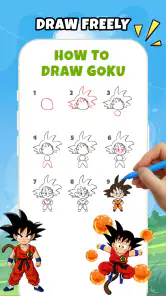
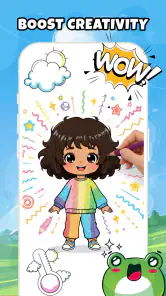
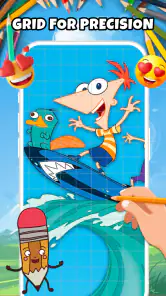

Analysis by Reviewed
When I open Draw & Paint - Classic & Pixel, I’m looking for a simple way to settle into a drawing session, not a professional studio full of settings to learn. That makes it most appealing when I want to color or sketch casually on a phone or tablet. The app sits in the art and design category, and its focus is approachable: make a mark, add color, and enjoy the process without needing drawing experience.
My main advice is to treat it as a relaxed creative break rather than a replacement for a full illustration package. That distinction matters if you’re deciding whether to install it: a coloring session has different needs from building a layered image for work. The app’s strongest case is the low-pressure one, where a few minutes with a drawing feels more useful than scrolling through another feed.
Getting past the first-session friction
Start with a small test, not a finished picture
The first few minutes are best spent learning how the canvas responds. I’d make a couple of test marks, try a color change, and check how the drawing feels on the device before committing to a detailed piece. This sounds basic, but it prevents a common frustration: discovering halfway through a picture that your chosen way of working is awkward on a small screen.
On a phone, a finger is convenient but less precise than a stylus. I’d favor larger shapes, broad strokes, and simple compositions there. A tablet gives you more room to control details, though the app’s approachable focus still makes it better suited to casual drawing than to demanding production work. If a line feels difficult to place, simplifying the design is often a better adjustment than trying to force tiny details onto a compact display.
It also helps to decide what you want from a session before you begin. If the goal is to unwind, coloring a contained area can feel more satisfying than starting an open-ended sketch with no plan. If you want to practice, choose one small subject and concentrate on a single skill, such as keeping shapes readable or choosing a limited set of colors. That gives the session a clear finish without turning a hobby into homework.
Check the basics before blaming the brush
If drawing feels unresponsive or a tap seems to land in the wrong place, first check the simple things: whether the app is still active, whether the device is responding normally, and whether your hand or stylus is making consistent contact with the screen. Close any accidental overlays and try a fresh mark in an empty area. These checks are more useful than repeatedly tapping the same spot and hoping for a different result.
For a new installation, I’d also make sure the device is running a compatible operating system; this release requires Android 9 or later. Keeping the app current is sensible, too: the version available is 1.12.1. Those details won’t solve every drawing problem, but checking them early can rule out a basic compatibility issue before you spend time troubleshooting your technique.
One practical setup tip is to avoid beginning with a long, detailed session while you’re still learning the controls. Make a quick sample, leave the canvas, and return once you understand the basic feel. That gives you a chance to notice whether the screen size, input method, and your preferred pace work together. If the app feels comfortable for a short test, you’ll have a better idea whether it suits the longer coloring sessions you have in mind.
Making a session easier to recover
Use a deliberate, low-risk workflow
I’d work in short stages rather than trying to finish a full picture in one uninterrupted burst. Begin with the broad shapes, pause to check the overall balance, and only then add smaller details. This workflow is useful even in a simple drawing app: it makes mistakes easier to spot while they are still small, and it gives you natural moments to decide whether the picture is going in the direction you want.
When an edit doesn’t look right, stop and inspect the area before continuing. A new stroke may cover the problem, but it can also make the result harder to read. If the mark is minor, adjusting the surrounding shapes may be enough; if it changes the whole image, it can be less frustrating to restart that small section than to keep patching it. I wouldn’t assume that every drawing tool behaves like the undo or layer systems in a desktop editor, so I’d avoid relying on a recovery option until I’ve confirmed how it works in the app.
A useful habit is to take a moment after each meaningful stage to check whether you’re happy with the result. That doesn’t require a complicated backup routine. It simply reduces the odds of making several later choices based on an earlier mark you already dislike. For a casual coloring session, this steady pace is often more relaxing than racing to fill every space.
Separate device trouble from drawing trouble
If the app closes, the screen freezes, or the device becomes sluggish, I’d first treat that as a general device issue rather than assuming the artwork itself is at fault. Close other demanding apps, give the device a moment, then reopen the drawing app and test a simple action. If the same problem appears across other apps, the cause may be broader than this one drawing tool.
If only one canvas behaves strangely, try a different, simple drawing task before changing several settings at once. Changing one thing at a time makes it easier to tell whether the problem is related to the current image, the input method, or the device’s temporary state. If a session matters to you, avoid force-closing the app while you’re unsure whether your latest work has been retained. A cautious pause is better than risking an avoidable loss.
Screen size and posture can cause their own kind of friction. A hand resting on a phone display may obscure the line you’re making, while prolonged close work can make small details tiring. I’d rotate the device if that makes the composition easier to reach, adjust how I hold it, and take a short break before deciding that the app is uncomfortable. These are ordinary drawing-workflow fixes, but they can make a noticeable difference in a touch-based art app.
Where it fits among drawing alternatives
Relaxed coloring versus a full art suite
Compared with a comprehensive illustration app, Draw & Paint is the kind of choice I’d make when I want to begin quickly and keep the session light. A more advanced tool is the better fit if your work depends on a detailed layer structure, precise editing controls, or a professional export workflow. Those expectations can turn a simple coloring app into the wrong tool, even if the basic act of drawing works well.
Compared with coloring apps that focus on completing predefined pictures, a drawing-and-painting approach is more attractive if you want to make your own marks rather than only fill in a prepared design. The trade-off is that open-ended drawing asks you to supply more of the idea yourself. If you find blank-page choices stressful, a guided coloring experience may feel easier. If you enjoy shaping a picture from a simple starting point, this app’s broader creative purpose makes more sense.
It can also serve as a handy counterpoint to paper. Paper has no battery and gives a familiar tactile surface, but it can’t offer the same screen-based convenience. A phone is always close by for a short sketch, though the display and touch input may limit delicate work. I’d choose the app for spontaneous practice or a quick color session, and reach for physical materials when texture, fine control, or a larger working surface matters more.
Who is likely to enjoy it
I can see this being a good fit for someone who wants an approachable art activity at home, on a break, or while waiting for an appointment. A realistic everyday use is a ten-minute pause after work: open a simple drawing, color a few areas, then stop when the break ends. The value there is not producing a polished portfolio piece; it’s having a small creative task that feels more active than passive screen time.
It may also suit a beginner who wants to get comfortable with drawing on a touchscreen. Starting with large shapes and a limited palette keeps the learning curve manageable. Parents looking for a creative app may find its Everyone age rating reassuring, but I’d still consider whether the child’s device habits and the app’s purchase options suit the household before handing it over.
I’d steer away from it if you need precise professional controls, a robust production workflow, or dependable handling of complex projects. It may also be a poor match if you dislike drawing on glass or prefer tutorials that guide every step. The app can make casual art accessible, but it can’t remove the personal preference involved in choosing between freehand creativity, structured coloring, and traditional materials.
Cost, expectations, and my verdict
The app is free to install, with in-app purchases listed from $4.99 to $39.99 per item. I’d begin with the free experience and decide whether the basic workflow genuinely fits before considering a purchase. That is especially sensible for a casual art app: if you only draw occasionally, paying for something you barely use may not make sense. Before buying anything, check the purchase screen carefully so you understand what you’re choosing and whether it suits your needs.
Its broader reach suggests it has found an audience: Draw & Paint has more than a million installs and an average rating of 4.1 from around two thousand ratings, alongside thirty-two written reviews. I take that as a useful sign of interest, not a promise that it will suit every artist. Your experience will depend heavily on whether you want a relaxed touch-based activity or expect the depth of a specialist drawing workspace.
Neli Creative keeps the proposition centered on making art feel approachable. The current release, version 1.12.1, gives me a straightforward reason to try it if I want a casual coloring or sketching option on Android. I’d recommend it to beginners, occasional doodlers, and anyone who likes short creative breaks. I would not choose it as my main tool for intricate commissioned work or projects that need advanced editing.
My practical verdict is that Draw & Paint - Classic & Pixel is most worthwhile when you meet it on its own terms: a low-pressure place to color, sketch, and experiment, rather than a substitute for every art app. Start with a small test, use broad shapes on a phone, and build a simple routine around short sessions. If that feels enjoyable, the app has a clear role; if you keep wishing for more control or structure, a more specialized alternative will serve you better.
Draw & Paint - Classic & Pixel Frequently Asked Questions
What is Draw & Paint - Classic & Pixel?
Draw & Paint - Classic & Pixel is a drawing app for creating artwork in two styles: conventional freehand illustrations and pixel art. It is aimed at users who want to sketch, color, or make small, block-based designs on a mobile device. Available tools and features can vary by version, so check the app’s store listing and screenshots to confirm that its current options suit the way you want to draw.
Is Draw & Paint - Classic & Pixel suitable for beginners?
The app’s combination of classic drawing and pixel-art modes may appeal to beginners who want to experiment with digital art without starting with a complex professional program. As with any drawing app, getting comfortable with the controls can take a little practice, especially when placing individual pixels or editing details on a small screen. Review the screenshots and description before downloading to see whether the interface and tools match your experience level.
Can I create both regular drawings and pixel art in the app?
The app is presented as supporting both classic drawing and pixel-art creation, making it useful for users interested in more than one visual style. Classic drawing generally involves freehand marks and color, while pixel art depends on placing precise, grid-like details. The exact brushes, canvas controls, and editing options may differ between modes or app versions, so consult the current store listing for a reliable feature breakdown.
Is Draw & Paint - Classic & Pixel free, and does it include ads or in-app purchases?
Pricing, advertising, and in-app purchase details can differ by platform, region, and app version. Before installing, check the Google Play or Apple App Store listing for the current price and any disclosures about ads or optional purchases. These details are worth reviewing if you prefer an uninterrupted drawing experience or do not want to make additional payments after downloading. Do not assume that every feature is available at no cost.
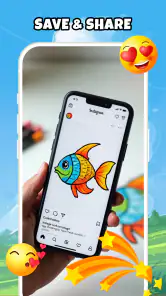
Can I save or share artwork made with Draw & Paint - Classic & Pixel?
Saving and sharing are important considerations if you plan to keep your drawings or show them to others. The available export formats, image quality, and sharing options can depend on the app version and device, so verify these details in the store listing or within the app before beginning a large project. Also check whether your work is saved locally or synced, and consider keeping a separate backup of artwork you want to preserve.
Pros
- Offers both classic drawing tools and pixel-art creation in one app.
- Pixel mode is useful for making artwork with a retro-game look.
- A simple interface makes it approachable for casual drawing sessions.
- Suitable for experimenting with colors
- shapes
- and small illustrations.
- Can be used for creative practice without needing advanced art skills.
Cons
- Small screens can make precise drawing and pixel placement difficult.
- Touch controls may feel less accurate than drawing with a stylus.
- The pixel-art style may not suit users seeking realistic painting tools.
- Artwork quality can depend heavily on the device's screen size.
- Beginners may need time to get comfortable with the available tools.

- Category
- Art & Design
- Version
- 1.12.1