Animation Maker - Spin Art Fun
- 52.00
- 3.9
- Installs
- 500.00K
- Price
- Free
Screenshots
Analysis by Reviewed
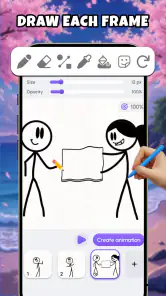
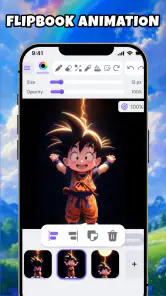
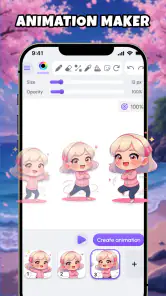
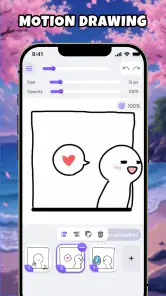
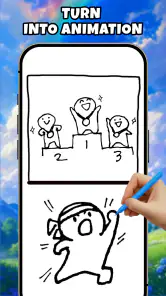
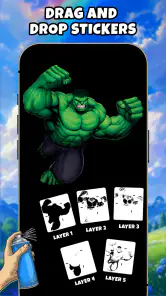
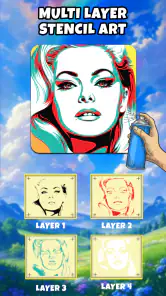
Animation Maker - Spin Art Fun is the kind of art and design app I open when I want to make something playful without committing to a full drawing project. It turns simple sketches into small animations, includes a magic-wheel style art experience, and offers a stickman flipbook approach that feels approachable on a phone. I found the appeal less about producing polished studio work and more about making movement visible with a few quick marks.
That simplicity matters on mobile. A blank canvas in a professional illustration app can feel intimidating, especially when I only have a few minutes. Here, the idea is easier to grasp: draw something, build a sequence, and see how the marks change. The result can be rough, funny, or surprisingly expressive. For children, casual doodlers, and anyone curious about basic animation, that low-pressure starting point is the strongest reason to try it.
The app is free and carries an Everyone age rating, which makes it suitable for family-oriented creative use. It comes from Neli Creative, and its current version is 1.5.6. The app has passed the half-million-install mark and holds an average rating of 3.9 from roughly 870 ratings, so it has attracted a meaningful audience while still leaving room for a mixed experience depending on what each person expects from it.
How the drawing and animation workflow feels
A friendly entry point for first animations
My first impression is that Animation Maker - Spin Art Fun is designed around immediacy. I do not need to understand keyframes, timelines, layers, or animation terminology before trying an idea. That makes it a useful introduction for someone who has only ever drawn static pictures. A stick figure lifting an arm, bouncing, waving, or changing expression can teach the basic principle of frame-by-frame movement more effectively than a long explanation.
The stickman flipbook format is especially good for learning timing. I can make a starting pose, alter it slightly, and compare the next moment with the previous one. Even when the drawing is deliberately simple, the spacing between poses changes how fast the action feels. That is a valuable lesson for beginners: animation is not only about drawing ability, but also about deciding what changes and when.
I would use it with a child who enjoys doodling but loses interest in complicated creative software. A short challenge works well: draw a character waving, then make the hand travel in small steps instead of jumping from one side to the other. The exercise is concrete, and the visible movement gives immediate feedback. It also encourages experimentation because a failed attempt is easy to remake rather than a major investment of time.
Where the magic-wheel idea fits
The magic-wheel art feature gives the app a different rhythm from the flipbook tools. Instead of concentrating only on character motion, I can explore repeated or rotating visual patterns and watch a simple sketch become more decorative. I see this as a good option for users who enjoy symmetrical doodles, colorful shapes, or hypnotic-looking designs but are not looking for a conventional drawing lesson.
There is a useful creative trade-off here. The wheel-style approach can produce an attractive result quickly, but it offers less direct control than drawing every element manually. That is part of its charm, yet it can also frustrate someone who wants exact placement or a carefully planned illustration. I would treat it as a discovery tool rather than a replacement for a serious vector or painting workspace.
A practical workflow is to begin with the wheel art when I want visual inspiration, then switch to the flipbook concept for a small action based on one of the shapes or characters that came to mind. This prevents the app from feeling like a single trick. The two approaches serve different moods: one rewards playful repetition, while the other rewards observing movement one change at a time.
What it is not trying to be
I would not choose this app for detailed digital painting, professional motion graphics, or a long illustrated film. Its strength is the distance between idea and result, not deep production control. Users who already work comfortably with advanced animation software may find the experience limited because they expect precise editing, sophisticated asset management, and a wider range of export or compositing options.
That limitation is important before installing it. The app makes sense when the goal is to sketch an animated thought, entertain a child, explore a visual pattern, or understand the basics of frame-by-frame movement. It is a weaker match for an artist who needs a large canvas, careful brush behavior, or a production-ready workflow. In those cases, a dedicated drawing or animation alternative will usually be the better choice, even if it takes longer to learn.
Connectivity, mobile use, and the moments that matter
Why network context still affects the experience
Although the creative act itself feels personal and immediate, network conditions can still shape how comfortable the overall experience is. On a phone, I may discover an app while moving between places, using a limited connection, or switching between Wi-Fi and mobile data. That makes the difference between opening the tool quickly and waiting through a store or content-related interruption more noticeable than it would be on a desktop.
I do not treat Animation Maker - Spin Art Fun as a reason to assume that every part of the experience works without connectivity. The sensible approach is to install and open it while connected, then learn which parts remain available during the situations that matter to me. I would also avoid beginning an important creative session immediately before travelling or entering an area with unreliable reception. That small habit prevents a casual drawing project from becoming an avoidable source of frustration.
For a family, connectivity can matter in a different way. A child may expect to start drawing as soon as the app is tapped, while an adult may be managing a shared device and a limited data plan. Setting up the app at home and testing the main drawing flow first is more useful than assuming the store description answers every practical question. It also gives the child a clear activity to use rather than leaving them waiting for something to load.
Good mobile situations for this app
The strongest mobile scenario is a short creative break. I can imagine using it while waiting for an appointment, sitting in a café, or taking a quiet break from work. A five-minute sketch can become a tiny flipbook, and the limited screen size actually encourages simpler ideas. That is a benefit: I am less likely to over-plan a character when the whole project needs to remain manageable on a phone.
It also works well as a prompt for drawing practice. Instead of asking myself to create a finished picture, I can choose one movement: a ball bouncing, a face changing, or a stick figure turning around. The smaller target makes it easier to begin. If I am teaching someone younger, I can turn each attempt into a question: what is the first pose, what is the last pose, and which small changes connect them?
On the other hand, extended sessions may expose the limits of phone-based editing. Fingers cover part of the canvas, repeated adjustments can feel fiddly, and a small display is not ideal for inspecting tiny details. I would use a larger screen when possible for comfort, but I would still judge the app by its intended casual workflow rather than expecting it to behave like desktop animation software.
What happens when something goes wrong
Creative apps are especially sensitive to interruption because users may assume that a drawing is safe the moment it appears on screen. My advice is to save or finish important work in small stages whenever the app offers a suitable way to do so, and to avoid closing it immediately after a long session without checking that the result remains accessible. This is not glamorous advice, but it is the difference between a fun experiment and having to recreate it.
If a project fails to appear correctly after an interruption, I would first reopen the app calmly rather than repeatedly tapping through menus. I would check the simplest drawing flow, confirm whether the issue affects one project or the whole app, and then recreate a tiny test animation. That test helps separate a temporary loading problem from a problem with a particular piece of work. Keeping the original idea simple also makes recovery less painful.
A useful recovery habit is to build in checkpoints. For a flipbook, I might pause after the opening pose, the middle action, and the final pose. If something goes wrong, I still have the structure of the movement in mind. For wheel-based art, I would record the basic visual idea in a quick note or screenshot when it is worth keeping. The point is not to turn a playful app into an administrative task; it is to protect the few creations that matter.
Using it thoughtfully with mobile data
People who watch their data usage should prepare projects when connected to a trusted network and avoid repeatedly reopening the app just to test whether a result has appeared. I would also keep an eye on the device if a child is using it, because creative sessions can lead to repeated loading, sharing, or store activity even when the drawing itself is simple. The app is free, but free does not automatically mean every surrounding phone activity has no data cost.
Battery use is another practical consideration during longer drawing sessions. Bright screens, repeated animation previews, and an older phone can make a short project feel more demanding than expected. I prefer making rough frames first, previewing only after the sequence has a clear shape, and taking a break if the device becomes warm. This workflow is faster than constantly replaying an unfinished animation after every tiny mark.
These habits also improve the creative result. When I stop previewing after every stroke, I pay more attention to the intended movement and make fewer random edits. The app becomes a sketchbook for motion instead of a button-tapping exercise. That is one of the less obvious ways to get more from a simple animation tool: reduce interruptions, plan the key poses, and use the preview to judge rhythm rather than perfection.
Who should install it
I recommend Animation Maker - Spin Art Fun to beginners who want a gentle introduction to animation, parents looking for a creative activity, and casual artists who enjoy turning rough sketches into moving ideas. It is also a good fit for someone who likes visual surprises and wants to explore wheel-based patterns without learning a complex design program first.
I would skip it if my priority were professional illustration, precise animation editing, or a dependable production pipeline for client work. I would also look elsewhere if I disliked experimenting with simple tools or needed complete control over every visual element. The app’s accessible design is valuable precisely because it keeps the process light, but that same lightness becomes a drawback for advanced users.
My connectivity verdict
Connectivity does not define the creative appeal of the app, but it does influence when I would use it. I would set it up on a reliable connection, test the main workflow before relying on it away from home, and keep important creations in a recoverable form. That approach respects what the app does well without making assumptions about every network-dependent part of the experience.
Overall, I see it as a compact playground for motion rather than a complete animation studio. The combination of simple sketch animation, stickman flipbook practice, and magic-wheel art gives beginners more than one way to start. The free price lowers the barrier, and the Everyone rating makes it easy to consider for shared family use. Still, users should approach it with realistic expectations about mobile precision and advanced control.
My final recommendation is positive for the right audience. If you want to make a small animated idea during a spare moment, teach yourself how tiny frame changes create movement, or turn casual doodling into something more lively, Animation Maker - Spin Art Fun is worth trying. I would keep a more powerful drawing or animation app nearby for serious projects, but for quick experiments and approachable creative play, this app has a clear purpose and a pleasant starting point.
Animation Maker - Spin Art Fun Frequently Asked Questions
What devices and operating systems can run Animation Maker - Spin Art Fun?
Animation Maker - Spin Art Fun is an Art & Design app from Neli Creative, and its current version is 1.5.6. On Android, it requires Android 9 or later, so check your device’s software version before downloading. The app is listed for Everyone, making it suitable for a broad audience, although parents may still want to supervise younger children’s app use.
What is Animation Maker - Spin Art Fun?
Animation Maker - Spin Art Fun is a creative drawing and animation app built around colorful spin-art effects. After choosing colors and adjusting the design, you can rotate the virtual canvas to create symmetrical patterns, abstract artwork, and short animated visuals. It is aimed at casual users and children who want an easy, playful way to experiment with digital art without needing advanced drawing skills.
How does the spin-art animation process work?
The app generally lets you select a canvas or design style, apply different colors or brush effects, and then control the rotation to produce moving patterns. As the artwork spins, repeated shapes and color combinations create an animation-like result. Controls are designed to be simple, so users can experiment with speed, direction, and visual effects rather than manually drawing every frame.
Is Animation Maker - Spin Art Fun suitable for children?
Yes, the app is designed to be accessible for younger users because it focuses on colorful experimentation instead of complicated editing tools. Children can create patterns by choosing colors and watching the artwork rotate. Its Everyone content rating also makes it broadly appropriate, though parents should still review permissions, advertising, in-app purchase settings, and privacy information, especially if children will use it without supervision.
Can I save or share the animations I create?
Depending on the version installed and the device being used, the app may provide options to save finished artwork or share creations through supported applications. Export features can vary between Android and iOS releases, and some options may require access to photos or files. Before creating a large collection, check the save and sharing controls to confirm the available format and destination.
Pros
- Simple controls make it easy for beginners to create spin-art designs.
- Color mixing produces unpredictable results that encourage creative experimentation.
- Finished artwork can be saved for sharing or future editing.
- Runs well for quick
- casual sessions without requiring advanced drawing skills.
- The playful format makes it suitable for children and family activities.
Cons
- The creative options may feel limited for experienced digital artists.
- Some features or content may require in-app purchases.
- Ads can interrupt the experience
- depending on the app version.
- Results rely heavily on random effects
- reducing precise design control.
- The app may become repetitive after several spin-art creations.
- Category
- Art & Design
- Version
- 1.5.6