Volume Booster - Sound Booster
- 22.64K
- 4.7
- Installs
- 50.00M
- Price
- Free

Screenshots
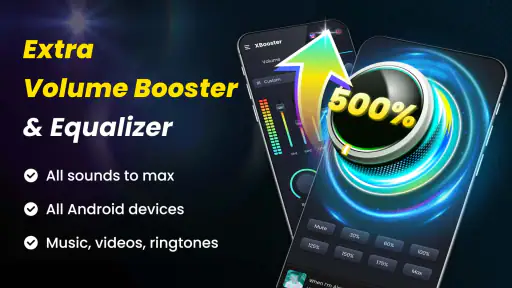
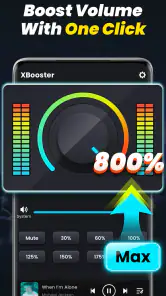
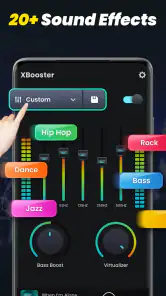
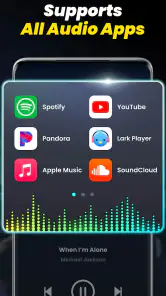



Analysis by Reviewed
I usually reach for a volume booster when a podcast, video, or song is just a little too quiet for the situation. That was what drew me to Volume Booster - Sound Booster: a simple way to try getting more out of a phone’s speaker or headphones without changing the audio file itself. My main takeaway is that it can be handy for occasional listening, but it works best as a careful adjustment rather than a volume setting to push to the limit.
A sensible baseline before turning it up
I get the most useful results by starting with my phone's normal volume rather than immediately pushing the booster high. I play a familiar clip at a comfortable level, then raise the boost in small steps. That makes it easier to notice whether speech becomes clearer or whether the sound simply gets harsher. For a podcast or a call, intelligibility matters more than sheer loudness; for music, I pay closer attention to distortion and the way bass-heavy passages change.
One practical routine is to check the phone's own media volume first, then adjust the app while the audio is actually playing. A quiet source will not necessarily become clean just because it is louder, and different recordings can react differently. If a track starts to sound brittle, I lower the boost instead of treating the highest setting as the goal. More volume is useful only while the sound remains comfortable and understandable.
Unleashing the Power of Sound
Upon installing the Volume Booster - Sound Booster, the first thing that struck me was its straightforward and user-friendly interface. You know how some apps can be overwhelming with too many options? Not this one. It’s clean, simple, and gets right to the point. The main screen greets you with a big, bold volume dial that's just begging to be cranked up. And trust me, I didn't hold back.
Features that Stand Out
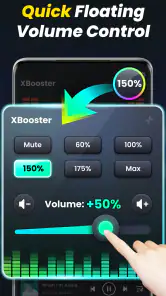
The app offers a plethora of features that make it stand out from the crowd. First off, there's the volume boosting feature, which is the star of the show. It enhances the volume beyond the default levels, making it perfect for those times when you want to blast your favorite tunes or need a little extra volume boost for a video call. It's like having an extra volume button on your device that goes beyond the max.
The most useful way I think about this control is as extra headroom for a particular moment, not a permanent fix for every app on the phone. If a video is mastered quietly, a modest increase may make it easier to follow while I am nearby. If the source is already loud or compressed, however, another push can make it tiring rather than better. I check the source first, then decide whether a small boost is actually solving the problem.
Another cool feature is the bass boost. Now, if you're someone who loves feeling the thump of the bass in your chest when listening to music, this is going to be your best friend. The bass boost gives your tracks that extra oomph, making your listening experience richer and more immersive.
More From Our News Desk

Weather by Xiaomi Review: Clear at a Glance, Less Clear Up Close

X Under Pressure: Can It Recover When Posting Goes Wrong?

Clash of Clans Is Won Between the Battles

Android Auto Makes the Case for Quieter Car Software

MobiOffice: Transforming Mobile Productivity with Seamless Integration

EA SPORTS FC™ Mobile Soccer: Redefining Mobile Sports Gaming
Settings and everyday listening habits
I would treat the boost and bass controls as adjustments to audition, not settings to leave at their highest levels by default. On a spoken video, extra bass may muddy voices; with a thin-sounding song, a modest bass lift may feel more pleasant. I switch between those listening situations by checking the sound again after each adjustment, rather than assuming one profile will suit everything. The app is most helpful when the phone's built-in output is just slightly too quiet, not when a recording itself is poor.
A realistic use is listening to a news clip while cooking, when the phone is across the room and ordinary playback is hard to hear. I would raise the level enough to follow speech, then return it to a moderate setting before putting on headphones. That small habit matters because a setting that seems reasonable through a speaker can feel startling through earbuds. If you are already comfortable with your phone's volume, there is little benefit in adding more.
I also make a point of checking the phone’s own sound controls before relying on extra gain. A media slider can be low even when the booster is active, and sound settings may differ between the phone speaker and an attached audio device. Testing with one familiar clip keeps the comparison fair: change one control, listen, and decide whether the result is genuinely clearer. This is more useful than adjusting several things at once and then guessing which change helped.
Performance and Usability
One of my initial concerns was whether boosting the volume would affect the sound quality. After all, no one wants distorted audio, right? Thankfully, the Volume Booster - Sound Booster maintains sound clarity, even when cranked up to the max. It's like having a mini sound system right in your pocket.
Even so, I would not treat a clean-sounding moment as proof that every recording will tolerate the same setting. A spoken clip can remain easy to understand while a dense song becomes sharp, and a bass-heavy track can expose roughness that is less noticeable elsewhere. My practical test is to replay a passage I know well, including a louder section, before settling on an adjustment. If I hear crackling or feel the sound becoming tiring, I back off rather than trying to compensate with another control.
Usability-wise, the app is a breeze to navigate. You can easily toggle between different settings, adjust the boost levels, and even customize your audio profile. Whether you're a tech newbie or an audio aficionado, you'll find this app incredibly easy to use.
That simplicity is an advantage if I only need a quick change, but it also sets expectations: this is not the same as a full audio workstation or a detailed equalizer with fine control over many frequency bands. I would choose a dedicated equalizer when shaping several parts of the sound matters, or a music player with its own sound tools if I want adjustments tied to my listening library. Here, the appeal is trying a straightforward lift without building a complicated setup.
Where a booster helps—and where it does not
Compared with the usual alternatives, this is a quick software adjustment rather than a replacement for better headphones, a louder speaker, or a properly mixed audio file. If you regularly listen in a noisy place, better-fitting headphones can be a more dependable answer than pushing a phone's output. If the issue is a muffled recording, boosting it may make the unwanted noise more obvious too. I see the app as a handy extra for occasional low-volume situations, not a fix for every audio problem.
It is also worth checking the result with the specific output you plan to use. A phone speaker, wired headphones, and Bluetooth audio can sound different, so I would not assume that a comfortable setting carries over unchanged. I keep the adjustment conservative when changing devices and listen for crackling, harshness, or fatigue. If any of those appear, lowering the level is the better choice than continuing to increase it.
For a quiet room or a brief clip that is hard to hear, the booster can be more convenient than moving files into an editor or replacing a whole playback setup. For a shared room, a dedicated speaker is usually the better answer: it is intended to fill space, while increasing a phone’s output cannot make its small speaker behave like larger hardware. And if I am using headphones in a noisy environment, I would rather improve the fit or move somewhere quieter than keep raising the level to compete with background sound.
A small but useful habit is to treat a change of listening device as a fresh start. I do not assume a setting that worked on the phone speaker will feel right through headphones; I begin with a lower level, play a familiar section, and raise it only if needed. This avoids an unpleasant jump in loudness and makes it easier to notice whether the output itself is the bottleneck. The same careful reset makes sense after switching from speech to music, since those sources can respond differently.
The app is free to install and is made by 360 Tool. It sits in the music and audio category, has an Everyone content rating, and its current version is 2.5.0.53; Android 6.0 is the minimum system requirement. Its 4.7 average comes from around 632,000 ratings, while it has been installed over 50 million times. Optional in-app purchases range from $2.99 to $11.99 per item. Those details make it easy to see that it is widely used, but popularity does not guarantee that every phone or audio setup will sound better with extra gain.
For someone deciding whether to keep it, I would ask a simple question: do you often struggle to hear ordinary phone audio, and does a cautious boost improve it without making it unpleasant? If yes, the straightforward controls may be worthwhile. If you need dependable loudness for a room, precise equalizer control, or consistently clean sound at high levels, a speaker or headphones designed for that job are the more sensible choice.
I would also be selective about when I open it. If the difficulty is confined to one unusually quiet recording, a booster is a reasonable experiment. If every source sounds faint, I would first check the phone’s standard volume and the output device rather than assuming an app can overcome a hardware or setup limitation. That distinction helps set realistic expectations: this tool can alter how loud playback feels, but it cannot restore details missing from a recording or make a weak speaker deliver the room-filling sound of a larger one.
A quick routine for repeat listening
For everyday use, I find a repeatable sequence more helpful than chasing a maximum: choose the output device, start a familiar clip, set the phone’s normal media level, and then make a small booster adjustment. I listen through a quiet and a loud part before deciding whether to keep it. When I finish, I lower the level before changing to headphones or handing the phone to someone else. That routine is simple, but it prevents the most common annoyance: carrying an aggressive setting into a different listening situation.
This approach suits people who listen to spoken audio while doing chores, watch videos on a phone in a quiet space, or occasionally encounter recordings that play softer than expected. It is less suitable for anyone who needs consistent high output for work, wants precise sound shaping, or regularly listens where raising the volume would be unsafe or inconsiderate. In those cases, better equipment, a quieter environment, or a source with a more suitable mix is a more dependable solution than relying on extra software gain.
Why You Should Try It
So, why should you download the Volume Booster - Sound Booster? Well, if you’re looking to enhance your audio experience without splurging on expensive hardware, this app is a no-brainer. It’s perfect for music lovers, video watchers, and anyone who just wants to get the most out of their device's audio capabilities.
I would recommend trying it first with a short clip rather than turning it on and immediately playing a long playlist. That gives you a quick chance to judge whether your particular phone and source benefit from the adjustment. If the improvement is obvious at a modest level, it may earn a place in your occasional listening routine. If the sound becomes harsh or the difference is too small to matter, there is no reason to keep pushing it just because a higher setting is available.
In conclusion, the Volume Booster - Sound Booster is a fantastic tool to have in your app arsenal. It's simple, effective, and does exactly what it promises. So next time you find yourself straining to hear your favorite song or struggling with low audio during a call, give this app a whirl. You might just be surprised at how much of a difference it makes!
My verdict is more measured: I see it as a convenient extra for a specific problem, not an essential audio upgrade for every phone. Its uncomplicated approach makes experimentation approachable, while the need to check each source and output keeps it from being a set-and-forget answer. If a careful boost makes quiet everyday listening easier, it is worth trying; if you want richer sound, stronger room coverage, or reliable quality at high levels, choosing suitable headphones or a speaker is the better investment in your listening experience.
Volume Booster - Sound Booster Frequently Asked Questions
Is Volume Booster - Sound Booster suitable for listening to podcasts and other spoken audio?
Volume Booster - Sound Booster is intended to increase audio output from speakers and headphones, so you can try it when spoken content sounds too quiet. The app may be useful for podcasts, videos, or other media, though the result can vary with your device and listening setup. Keep the volume at a comfortable level, particularly when using headphones.
Can I use Volume Booster - Sound Booster while playing audio in other apps?
The app is designed to boost sound from your device, including music and other multimedia playback. You can try it alongside the audio app you normally use, then adjust the volume to a comfortable level. The effect may differ depending on your device, the audio source, and the output you are using, so check the sound before listening for a long time.
Who develops Volume Booster - Sound Booster, and what kind of app is it?
Volume Booster - Sound Booster is developed by 360 Tool and belongs to the Music & Audio category. Its purpose is straightforward: to provide extra volume for sound from speakers and headphones. If you want a dedicated utility for making device audio louder, this is the role the app is intended to fill.
Which devices can run Volume Booster - Sound Booster?
Volume Booster - Sound Booster is an app in the Music & Audio category for Android devices running Android 6.0 or later. It is developed by 360 Tool, and its Everyone content rating makes it suitable for a broad audience. Before downloading, check your device’s operating system version so you know it meets the app’s minimum requirement.
What is Volume Booster - Sound Booster and how does it work?
Volume Booster - Sound Booster is an app designed to enhance the sound quality and volume of your device. It works by amplifying the audio output, allowing you to enjoy louder and clearer sound when playing music, watching videos, or using other multimedia applications. The app employs advanced audio processing algorithms to boost the volume without compromising the sound quality.
Pros
- Easy to use interface.
- Noticeable sound enhancement.
- Minimal battery consumption.
- Compatible with most apps.
- Customizable sound settings.
Cons
- May distort sound at high levels.
- Ads can be intrusive.
- Limited free features.
- May require device restart.
- Potential app crashes.
- Category
- Music & Audio
- Version
- 2.5.0.53