PDF Reader, Editor & Scanner
- 372.00
- 4.2
- Installs
- 10.00M
- Price
- Free

Screenshots
Analysis by Reviewed
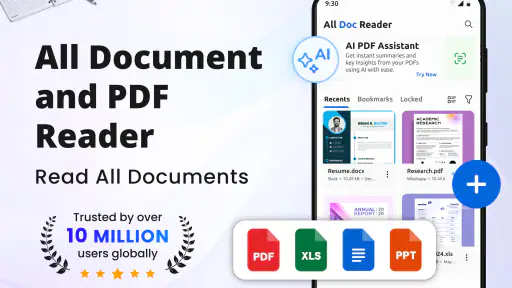
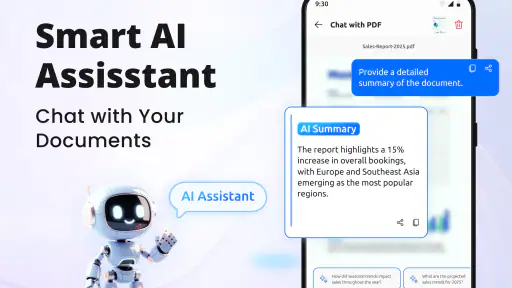
I’d first decide what I want my phone to do with a document: just show it, or help me carry it through a small task. PDF Reader, Editor & Scanner is a productivity app that brings reading, editing, scanning, conversion, and document handling into one place. For a first-time user, that breadth is handy, but it also makes a simple approach worthwhile: start with one file and one clear goal.
Choosing the right first task
Before importing a batch of files, I’d pick a document that represents something I genuinely do, such as checking a form or saving a receipt. That gives me a fair test of the app’s value without turning setup into a project. If I can open the file, complete the needed action, and find the result afterward, I have learned more than I would from tapping through every tool in one sitting.
A useful boundary is to treat this as a mobile paperwork helper, not an automatic replacement for a desktop workflow. I’d reach for it when a document needs attention while I’m away from a computer, then use a larger screen if the job becomes detailed or layout-sensitive. That division keeps expectations realistic and makes the app easier to judge.
It is free to install and comes from Funsol Technologies FZE LLC. Optional in-app purchases are available, with items priced from $4.99 to $109.99, so I would check the terms of a specific feature before making it part of a regular routine. The app is rated for Everyone, which suits its everyday document focus; still, when handling personal paperwork, I’d make the same careful choices about file copies and sharing that I would with any phone utility.
What to expect from a mobile PDF workspace
My main expectation would be convenience rather than a desktop publishing suite in miniature. The app is designed for common document jobs: looking through a PDF, making changes, turning a paper document into a digital one, converting files, and keeping documents manageable. That combination is useful because these tasks often arrive together. A form needs checking before it can be filled in; a paper receipt needs scanning before it can be shared; a PDF needs converting before another person can work with it.
The important distinction is that an all-in-one tool is most valuable when your needs are occasional and varied. If you read PDFs every day but never edit or scan them, a lightweight reader may feel simpler. If you routinely produce long, carefully formatted documents, a computer-based editor is likely to offer better control. This app makes more sense as a flexible phone utility for everyday paperwork than as a replacement for every document tool you own.
Its average rating is 4.2 from around 150,000 ratings, and it has passed 10 million installs. That points to a widely used option, but popularity cannot tell me whether its particular editing workflow fits my needs. I’d still test it with an ordinary file, especially if I expect to rely on it for a time-sensitive task.
More From Our News Desk

Weather by Xiaomi Review: Clear at a Glance, Less Clear Up Close

X Under Pressure: Can It Recover When Posting Goes Wrong?

Clash of Clans Is Won Between the Battles

Android Auto Makes the Case for Quieter Car Software

MobiOffice: Transforming Mobile Productivity with Seamless Integration

EA SPORTS FC™ Mobile Soccer: Redefining Mobile Sports Gaming
A reassuring first setup
After installing it, I’d begin with one document I already know, not a folder full of important paperwork. Open a familiar PDF and check that its pages display clearly and that you can move between them without losing your place. This low-risk test tells you whether the basic reading experience works for the kinds of files you receive, before you depend on the app for a deadline or an important form.
Then try a small task that matches your immediate need. If you have a paper receipt, scan that first rather than a multi-page contract. If you need to edit a PDF, use a copy of the file so you can compare the result with the original. This simple habit is worthwhile with any mobile document editor: it keeps the source intact while you learn where the app puts its tools and how it handles the finished file.
One practical point for first-time users is to think about file organization before importing everything. Create or choose a sensible place for documents you expect to revisit, and use names that will still make sense later, such as “insurance form” or “course notes” rather than a vague label. A scanner can turn paper into a file quickly, but a scan with an unclear name is still hard to find when you need it.
The app requires Android 8.0 or later, and its current version is 4.0.33. If you are setting it up on an older Android phone, check compatibility before planning a workflow around it. On a supported device, my advice is to keep the first session focused: open one file, complete one useful action, and confirm where the resulting document can be found.
Getting to a first useful result
A realistic first success might be dealing with a form sent by email. Open the attachment in the app, read through it, and decide whether you need to edit it, convert it, or simply keep a clean copy for later. The benefit is not just that the file opens; it is that you can assess the next step in the same working space instead of losing time switching between a reader, scanner, and conversion tool.
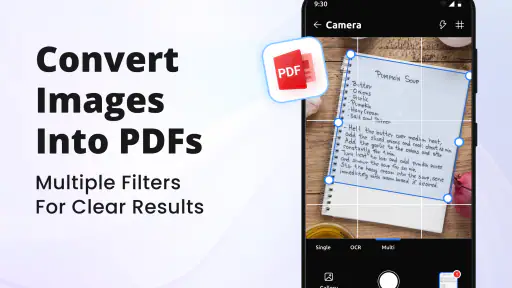
For paper documents, a helpful workflow is to scan one page, inspect the result, and only then continue with a longer batch. Check the edges and readability before relying on the scan. A phone capture that looks acceptable in the preview may be less useful if a signature, date, or small line of text is hard to make out. Taking a moment to review the result is especially important for expense records, application forms, or anything you may need to submit again.
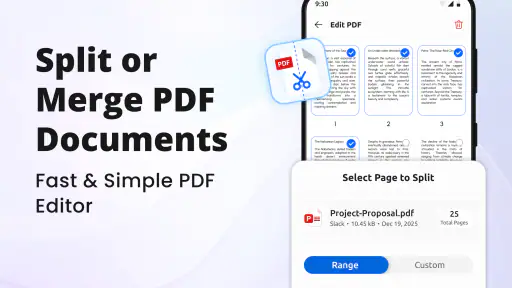
For editing, I would make a copy before changing a file that matters. Then do only the necessary work, save the result, and reopen it once to verify that the change is present and the pages still look right. That last check catches a common mobile-document mistake: assuming a task is finished because an editing screen closed, without confirming that the useful version is the one you can access later.
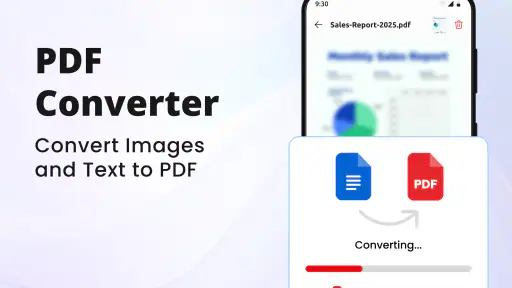
Conversion is most useful when it solves a specific compatibility problem, not as a routine extra step. If someone needs an editable file, or a document must be kept in another format for a particular workflow, conversion may reduce friction. If the PDF already does the job, leaving it alone avoids creating duplicate versions and uncertainty about which copy is current.
Where first-time users can get confused
When several document jobs live in one app, the natural question is whether every tool works the same way or has the same cost. I would not assume that reading, scanning, editing, and converting are all equally available without payment just because the app itself is free. Try the exact action you need and review any purchase prompt carefully. That is more reliable than discovering a restriction after you have built a routine around a feature.
Another potential source of confusion is the difference between a scanned image and a document that is easy to work with. A scan gives you a digital copy of paper, but it does not automatically guarantee that every line will be searchable or editable in the way you expect. If your goal is simply to preserve a receipt or share a signed page, a clear scan may be enough. If you need to change the underlying text, test that exact requirement before scanning a large stack.
It also helps to separate “edited” from “saved where I can find it.” A document may be ready inside an app but still need deliberate handling before it is useful to someone else. After a change or conversion, look for the finished copy and give it a distinct name. For example, keeping “application original” and “application completed” separate makes it much harder to send the wrong version in a hurry.
Finally, a phone screen is convenient but not ideal for inspecting every detail. Long reports, dense tables, and documents with tiny print can be tiring to review on a handset. I would use this app to check a file, handle a quick amendment, or capture paper while away from a desk; for careful proofreading or complex layout work, a larger screen and a more specialized editor are usually a better fit.
Who will get the most from it
I’d recommend it to someone who regularly receives PDFs but does not want to install a separate app for every occasional job. A student could read course handouts, keep a scanned copy of a signed page, and convert a file when a class workflow calls for it. A freelancer could review a client document while away from a laptop and keep a paper receipt with the related records. At home, it can be handy for forms that arrive digitally alongside documents that still exist only on paper.
The less obvious advantage of combining these jobs is continuity. A single document can move from “I need to inspect this” to “I need a digital copy” or “I need another format” without making you rethink the whole process. That is particularly useful for short errands: scan a receipt while travelling, check a PDF during a break, or prepare a form before you get back to a computer. The trade-off is that an all-in-one interface can feel busier than a reader designed only for opening files.
If you mostly annotate complex technical documents, depend on advanced layout controls, or need a highly polished workflow for frequent professional editing, I would compare it with a specialist PDF editor before settling in. The same goes for people who only want to read books or articles: a dedicated reading app may make page navigation and reading comfort its central priority. This tool’s appeal is breadth, not a claim that it is the best at every individual task.
Making everyday document work less fiddly
One small workflow I find particularly sensible is to use the app as a temporary bridge between paper and an existing digital filing habit. For example, after buying something that needs a receipt kept for reimbursement, I’d scan it, check that the date and total are legible, and give the saved copy a name that connects it to the expense. I would then move or share it through whatever process I already use for records, rather than treating the app itself as my entire filing system.
For emailed forms, I’d avoid editing the attachment directly if I might need the untouched version later. Keeping a source copy and a clearly named working copy gives me a simple way back if I make an unwanted change. This is a more useful safeguard than trying to remember which version was opened first, especially when several similar forms arrive close together.
Compared with installing separate reader, scanner, and conversion utilities, the appeal here is fewer handoffs. That can save effort for occasional, mixed tasks, but it does not mean the combined tools will match a specialist app in every detail. A dedicated scanner may be preferable if capturing paper is the main job, while a focused reader may be calmer for long reading sessions. I’d choose based on the task I repeat most, not simply on how many tools appear under one icon.
Taking the next step without overcomplicating things
Once the first task works, build a small repeatable routine rather than importing everything at once. Keep originals intact, use descriptive names for finished copies, and open the saved result to confirm it is the one you intended. If you scan several documents, review each before moving on; fixing a crooked or unreadable capture immediately is easier than trying to remember which page was unclear later.
I would also decide what you want the app to replace. If it can handle the occasional scan and conversion that currently send you searching for another utility, it may earn a place on your phone. If you already have a reader you like and rarely edit PDFs, adding another app may not improve your day. The best test is one complete, ordinary task from opening the source to locating the finished document.
Overall, PDF Reader, Editor & Scanner looks most appealing as a practical document toolbox for people who want reading, scanning, editing, and conversion close at hand. Its free starting point is approachable, while optional purchases mean it is worth checking the cost of a feature before depending on it. I would start with a familiar PDF, then try one scan or edit that matters to me. If that small workflow feels clear and the saved result is easy to find, the app is likely to be useful; if your work demands deep editing or you only need a distraction-free reader, a more focused alternative will probably suit you better.
PDF Reader, Editor & Scanner Frequently Asked Questions
What can you do with PDF Reader, Editor & Scanner?
PDF Reader, Editor & Scanner is designed to handle common document tasks in one place: you can open and read PDF files, make certain edits, and scan paper documents into digital files. The exact tools available may depend on the app version and your device. Before downloading, check the store listing for details such as supported file types and whether features like editing or exporting require a paid plan.
Can I edit PDF text and images with this app?
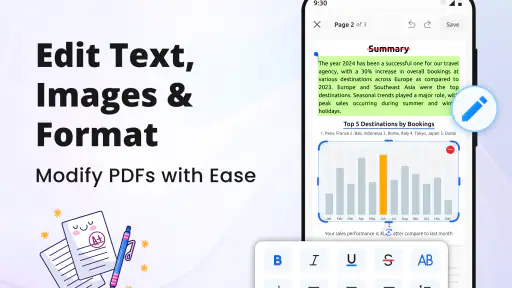
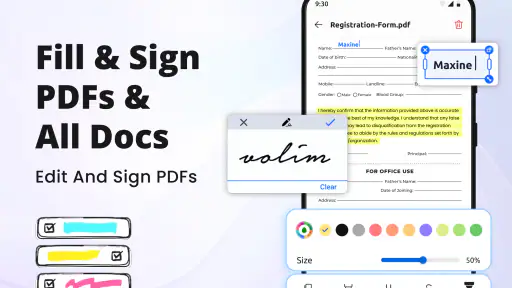
The app is presented as a PDF editor, but “editing” can mean different things. Some PDF apps let you add notes, highlights, signatures, or text boxes, while changing existing text or images may be limited or unavailable. Review the current feature list and any in-app purchase details before relying on it for extensive document changes. Keep a copy of the original file before making edits.
How does the document scanner work, and do I need a separate scanner?
A scanner feature typically uses your phone or tablet’s camera to capture paper pages and turn them into a digital document, often with options to crop or adjust the image. You generally do not need a separate scanner for basic captures, though results depend on lighting, focus, and page condition. Check the app’s permissions and export options, and review each scan before sharing or storing it.
Is PDF Reader, Editor & Scanner free to use?
The app may be available to download without an upfront charge, but some tools could be restricted by a subscription, a one-time purchase, or other in-app payments. Pricing and free-use limits can change, so consult the Google Play or Apple App Store listing for current terms before installing. Also check whether a trial renews automatically and how to cancel it if you decide not to continue.
Are my documents private, and can I use the app offline?
Privacy and offline access depend on how the app processes files and which features you use. Reading a document stored on your device may work offline, while cloud storage, sharing, or online conversion tools may need an internet connection. Documents can contain sensitive information, so review the app’s privacy policy, permissions, and data-handling disclosures before importing confidential files.
Pros
- Opens PDFs quickly for convenient on-the-go reading.
- Built-in scanner can turn paper documents into digital files.
- Useful editing tools let you make changes without switching apps.
- Handy for keeping document tasks together in one place.
- Supports common PDF workflows for everyday personal use.
Cons
- Scanning quality may depend heavily on lighting and camera focus.
- Editing PDFs on a phone can be less precise than on a computer.
- Some advanced tools may require a paid plan or in-app purchase.
- Large documents may take longer to load or navigate.
- Review privacy and storage settings before scanning sensitive papers.
- Category
- Productivity
- Version
- 4.0.33