TP-Link Tether
- 20.03K
- 4.7
- Installs
- 50.00M
- Price
- Free

Screenshots
Analysis by Reviewed
When the Wi-Fi acts up, I want to know what to check before I start changing things. TP-Link Tether is a free tools app from TP-LINK SYSTEMS INC. for managing compatible TP-Link devices from a phone. I see it as a handy companion for everyday home-network tasks, not a replacement for every option in a router’s full administration interface. That distinction matters: the app is at its best when you need a quick check or a familiar adjustment, rather than a deep dive into networking.
A simple routine for everyday network checks
My practical starting point is to open the app when something changes: a visitor needs Wi-Fi, a device seems to be slowing things down, or I want to see which devices are connected. Keeping those checks together on a phone is more convenient than finding a computer and signing in through a browser. The app’s appeal is less about constant monitoring and more about having a straightforward place to begin when a small network task comes up.
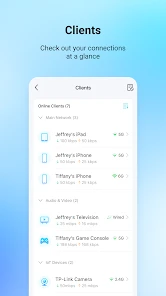
It’s especially useful in a household where several people connect phones, computers, TVs, and other devices. If the network feels busy, checking the connected-device list can help me work out whether a familiar device is responsible before I start changing settings. That’s a better first move than randomly restarting equipment or altering the Wi-Fi setup and creating a new problem.
A realistic example is a video call that starts stuttering just as someone else begins streaming. I’d use Tether to check which devices are connected and see whether there’s an obvious explanation, rather than assuming the router itself has failed. That check won’t prove what caused the slowdown, but it can help narrow the possibilities and keep me from making unnecessary changes. If nothing stands out, I’d move on to checking the router or connection itself instead of repeatedly refreshing the app.
Getting Started with TP-Link Tether
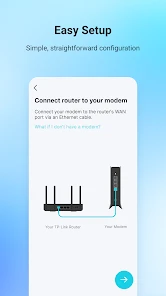
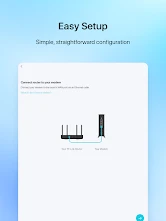
First off, setting up the TP-Link Tether app is a breeze. You just download it from your app store, and voila, you’re halfway there. I was pretty impressed with how straightforward the installation process was. Once you open the app, it guides you through the setup with easy-to-follow instructions, which is perfect if you’re not exactly a tech wizard.
Settings worth checking before you need them
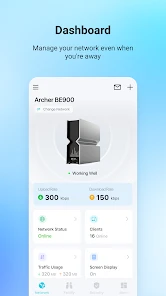
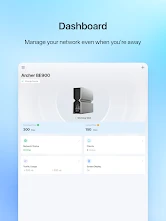
What really caught my attention was the range of features this app packs. You can manage your router settings, check who’s connected to your network, and even control your internet usage all from your phone. I mean, how cool is that? It’s like having your own personal IT department right in your pocket.
That said, I’d treat usage information as a clue, not an instant diagnosis. A device appearing busy doesn’t automatically mean it’s misbehaving; it may simply be doing something data-heavy at that moment. I find it more useful to compare what’s happening with the household’s routine, then decide whether a setting actually needs changing. This avoids blaming the wrong device or making an adjustment that affects everyone.
More From Our News Desk

Weather by Xiaomi Review: Clear at a Glance, Less Clear Up Close

X Under Pressure: Can It Recover When Posting Goes Wrong?

Clash of Clans Is Won Between the Battles

Android Auto Makes the Case for Quieter Car Software

MobiOffice: Transforming Mobile Productivity with Seamless Integration

EA SPORTS FC™ Mobile Soccer: Redefining Mobile Sports Gaming
Before changing a setting, I’d first make sure I know which router or compatible device I’m managing and what outcome I want. It’s an easy detail to overlook when a household has more than one network device. A small adjustment can affect everyone using that connection, so I prefer to make one change at a time and check whether it helped before trying another. That simple discipline makes troubleshooting easier to retrace.
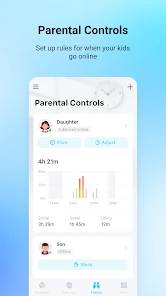
The app also lets you manage multiple devices. So, if you’ve got a household full of tech gadgets, this is super handy. You can set parental controls and even create guest networks with just a few taps. I tried setting up a guest network for a friend who was visiting, and it was seamless. No more sharing my main Wi-Fi password with everyone who walks through the door!
Faster habits for repeat tasks
A useful habit is to set up a guest network before guests arrive, rather than trying to remember the steps while someone is waiting to connect. It also gives me a reason to check which network details I’m sharing, instead of handing out access to the main one by default. For households using parental controls, it’s sensible to review the chosen settings after making a change so the result matches what the family expects.
For a repeatable check, I’d follow the same order each time: look at connected devices, consider what the household is doing, and only then open the relevant setting if something needs attention. This makes it less likely that I’ll mistake normal activity for a fault. It also helps when another person in the household is helping, because we can discuss what we checked instead of making several changes at once and guessing which one mattered.
For routine troubleshooting, I’d check the connected devices first, then look at relevant network settings, and only then make a change. That order is a small but worthwhile safeguard: it gives me a clearer idea of what I’m trying to fix and makes it easier to undo a change if it doesn’t help. The app is most useful when I use it deliberately, rather than tapping through options just because they’re available.
Performance and Usability
Now, let’s talk about performance. The app is incredibly responsive. I didn’t experience any lag or crashes, which is honestly a breath of fresh air compared to other apps I’ve tried. The interface is clean and intuitive, making it easy to navigate even if you’re not a tech enthusiast. Everything is laid out logically, so you don’t have to dig through endless menus to find what you’re looking for.
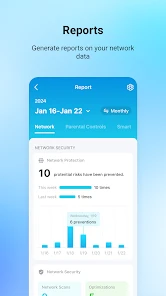
Another thing I appreciated was the real-time data monitoring. You can see exactly how much data each device is using. As someone who’s always conscious about data usage, this feature is a lifesaver. Plus, it helps in identifying those pesky devices that might be hogging all the bandwidth.
I’d use those per-device figures as a snapshot to guide a conversation, not as proof that a device is the culprit. For instance, if a television is active during a busy evening, its activity may be expected. Checking again at a quieter time gives useful context. This is a practical way to avoid overreacting to a momentary reading, especially when several people share the network and their routines overlap.
Compared with a router’s browser-based administration page, a phone app is more convenient for quick checks and simple adjustments. The trade-off is that a dedicated app may not be the best place for someone who wants to inspect every advanced networking option. If you’re troubleshooting a complex setup or prefer detailed controls on a larger screen, the router’s own administration interface may suit you better. Tether makes the most sense when your equipment is compatible and your needs are mostly hands-on, everyday management.
Where it fits—and where it doesn’t
The app is a strong fit for TP-Link households that want an accessible way to check connections, handle guest access, and manage basic settings from a phone. It’s also useful for someone who usually leaves router administration alone but wants a simpler route to common tasks. The current version is 4.12.28, and it’s listed for Android 7.0 and later; the app is rated for Everyone.
I wouldn’t choose it as a universal network-control app for a mixed setup built around equipment from other manufacturers. Nor would I rely on a phone interface as a substitute for more detailed troubleshooting when the problem is beyond routine home-network management. Compatibility with the network equipment matters, so it’s worth checking that before making Tether part of your regular routine.
That compatibility check is the first question I’d answer before installing it for a particular router: is the device one Tether can manage? The second is what I actually need to do. If I mainly want to check connected devices, adjust routine settings, or arrange guest access, a phone-based tool is a natural fit. If I need to investigate a complicated network problem or work with equipment from several brands, I’d start with the relevant device interfaces instead.
It has a 4.7 average from around 784,000 ratings, with over 50 million installs. The app is free to download, while in-app purchases are listed from $2.99 to $159.99 per item. Those purchases don’t change the basic question I’d ask first: does it work with the TP-Link device I want to manage? If yes, the convenience of handling ordinary network jobs on a phone is the main reason to use it.
Choosing the right level of control
For someone comparing it with the usual alternatives, I’d put Tether between doing nothing and using a router’s full web-based controls. It is more direct than opening a browser and navigating an administration page for a quick check, while that page remains the better choice when the task calls for more detailed options. A separate network-monitoring tool may suit someone trying to understand a broader or mixed-brand setup, but it won’t replace a compatible device’s own controls for making changes.
I’d also skip it if I expect a phone app to solve every Wi-Fi problem automatically. It can make common management tasks easier, but it does not remove the need to judge what is happening in the home or to check the equipment when the issue goes beyond a routine setting. For a household that rarely changes anything and has no interest in checking devices, the benefit may be modest; for the person who usually gets asked to share Wi-Fi or troubleshoot a slow evening, it can be a useful tool to keep installed.
Performance and Usability
Now, let’s talk about performance. The app is incredibly responsive. I didn’t experience any lag or crashes, which is honestly a breath of fresh air compared to other apps I’ve tried. The interface is clean and intuitive, making it easy to navigate even if you’re not a tech enthusiast. Everything is laid out logically, so you don’t have to dig through endless menus to find what you’re looking for.
Another thing I appreciated was the real-time data monitoring. You can see exactly how much data each device is using. As someone who’s always conscious about data usage, this feature is a lifesaver. Plus, it helps in identifying those pesky devices that might be hogging all the bandwidth.
Final Thoughts
All in all, I’ve got to say that TP-Link Tether is a game-changer for anyone looking to manage their home network effortlessly. It’s user-friendly, packed with practical features, and just makes life easier. Whether you’re a tech novice or a seasoned pro, there’s something in this app for everyone. Give it a try, and you might just find yourself wondering how you ever managed without it!
So, what are you waiting for? Go ahead, download it, and let me know what you think. I’d love to hear your thoughts!
TP-Link Tether Frequently Asked Questions
Can TP-Link Tether help me manage my home Wi-Fi from my phone?
Yes. TP-Link Tether is intended to provide a way to access and manage compatible devices through a mobile app. It can be useful when you want to handle network tasks from your smartphone rather than going to a computer. The app is focused on TP-Link devices, so its usefulness depends on having a compatible device to manage.
Who develops TP-Link Tether, and how popular is it?
TP-Link Tether is developed by TP-LINK SYSTEMS INC. It has an average rating of 4.7 from around 784,000 ratings, with about 20,000 written reviews and over 50 million installs. Those figures suggest that many users have tried the app, although individual experiences can still vary depending on the phone and TP-Link device being used.
Is TP-Link Tether free to download, and are there in-app purchases?
TP-Link Tether is free to download and is listed for everyone. The app also has in-app purchases, so check the current purchase details in your app store before installing if you are concerned about optional costs. It is a tools app from TP-LINK SYSTEMS INC., intended to provide a way to access and manage compatible devices.
Which phones and operating systems can run TP-Link Tether?
The listed minimum operating system is version 7.0, so check your phone’s software version before downloading. TP-Link Tether is available as a mobile app, and its purpose is to manage compatible TP-Link devices from a smartphone. Keeping your operating system up to date can also help ensure the app runs smoothly and that you can use its available features.
What is TP-Link Tether and what devices does it support?
TP-Link Tether is a mobile application designed to manage and control your TP-Link routers and range extenders directly from your smartphone. It supports a variety of TP-Link devices, including Wi-Fi routers, range extenders, and LTE routers. Users can easily manage their network settings, set up parental controls, and even provide guest access through a simple interface.
Pros
- User-friendly interface for easy setup.
- Supports multiple TP-Link devices.
- Real-time network management.
- Parental controls for safe browsing.
- Remote access to your network.
Cons
- Limited advanced settings options.
- Occasional connectivity issues.
- Requires TP-Link account to use.
- Ads can be intrusive at times.
- No support for non-TP-Link devices.
- Category
- Tools
- Version
- 4.12.28