Google Flow
- 562.00
- 3.8
- Installs
- 10.00M
- Price
- Free
Screenshots
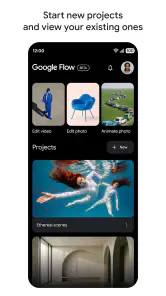
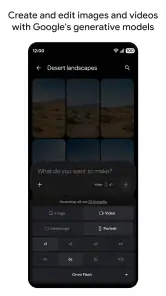
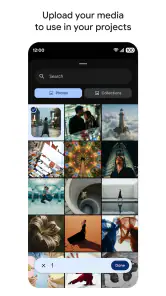
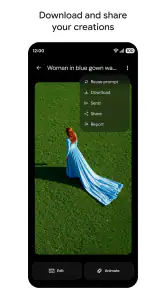
Analysis by Reviewed
I’d choose Google Flow based on one question: do I want help exploring visual ideas, or do I need a dependable, hands-on design workspace? That distinction matters. This is an art and design app from Google Labs, and its appeal is the chance to use AI as a creative starting point rather than begin with a blank page. I find that most useful when I have a loose concept but not yet a clear image of what it should become.
Google Flow is free, which makes it easy to try without treating it as a commitment. The trade-off is that an AI studio is not automatically a replacement for a drawing app, a layout editor, or a carefully controlled production workflow. If you’re deciding whether to install it, think about how you like to create: do you want to investigate possibilities through prompts, or do you need precise control over every mark and element?
Start with the kind of creative work you actually do
I’d begin by deciding whether your creative work is still searching for a direction or already needs precise execution. That distinction helps me judge where an AI-led process can be genuinely useful, rather than adding another step to a project that is already well defined. From there, I’d look at the kinds of early decisions the app can help you make.
Good for moving from an idea to a visual direction
For me, the strongest reason to use an AI-focused art tool is momentum. A vague thought such as “a quiet, dreamlike scene” can be hard to turn into a useful brief. Working through an AI creative process can help make that idea more concrete: you can judge whether the mood, subject, or visual direction is close to what you had in mind, then refine your thinking from there. The value is not just getting an image; it is discovering what you meant by the idea.
That makes the app a natural fit for early-stage exploration: collecting visual inspiration for a personal project, testing the tone of a poster concept, or finding a starting point for an illustration. I would approach it as a place to experiment, not as proof that a finished design is ready to publish. A promising result still needs a human eye, especially if the work must meet a particular brief or match an established style.
A practical tip is to treat each attempt as a small creative decision rather than asking for a perfect final result immediately. Decide what matters most—subject, atmosphere, or composition—and keep your next instruction focused on that. This makes it easier to tell whether a change actually helped. If you alter several parts of an idea at once, it becomes harder to understand why one result feels better than another.
Where Google Flow has the clearest appeal
The app makes most sense when you want an approachable way into AI-assisted creativity. Google Labs is the developer, and the product’s identity is more about exploring ideas than presenting itself as a traditional, tool-heavy art suite. That can be a relief if you are not a practiced illustrator and simply want to see a concept take visual shape. It can also be useful to experienced creators who want a quick source of directions to consider before doing more controlled work elsewhere.
More From Our News Desk

Weather by Xiaomi Review: Clear at a Glance, Less Clear Up Close

X Under Pressure: Can It Recover When Posting Goes Wrong?

Clash of Clans Is Won Between the Battles

Android Auto Makes the Case for Quieter Car Software

MobiOffice: Transforming Mobile Productivity with Seamless Integration

EA SPORTS FC™ Mobile Soccer: Redefining Mobile Sports Gaming
One non-obvious way I’d use it is as a visual brief generator for myself. If I’m preparing a handmade invitation or a small social post, I can use a rough concept to clarify whether I’m leaning toward something playful, calm, or dramatic. Even if I don’t use the generated result directly, the exercise can help me describe the look I want before I open a conventional design tool. That is a worthwhile outcome, not a workaround.
Another useful habit is to keep a short note of what you were trying to achieve with each experiment. AI outputs can be compelling enough to distract from the original goal. A note such as “testing a warmer mood” gives you a simple way to judge whether a result serves the project or is merely eye-catching. This is particularly helpful when you are exploring several visual directions and need to make a decision rather than collect endless variations.
Everyday use: planning a small project
Imagine you want to make a birthday card for a friend but have only a general idea: maybe a garden scene, a favorite color, and a gentle sense of humor. I’d use Flow to explore the visual mood before deciding on the card’s final layout. The experiment might help me settle on a direction, but I would still move to a design app if I needed exact text placement, print dimensions, or careful alignment. That division of labor keeps AI exploration useful without expecting it to solve every part of the job.
This example also shows when the app is less suitable. If the card must include flawless lettering, match a specific brand palette, or be ready for printing with exact specifications, direct control is more important than idea generation. I would choose a conventional layout or illustration tool for those requirements, then use an AI studio only if I wanted help brainstorming the visual concept.
How it compares with familiar alternatives
Compared with a standard drawing app, an AI creative studio is better suited to people who want to describe an idea and explore possible visual directions than to people who want to build an image stroke by stroke. A drawing app gives an artist direct control and supports a deliberate, skill-led process. Flow’s appeal is different: it offers a way to start with an intention and consider what a generated interpretation might suggest.
Compared with a general-purpose design or layout editor, I would think of Flow as an upstream companion rather than a full substitute. A layout editor is the clearer choice when the deliverable has strict dimensions, layered text, or a known template. The AI route can be more useful before those decisions are settled, when you are still asking what the project should look and feel like. These are different stages of work, and choosing the right one can save time.
It also helps to distinguish creative exploration from asset production. If you need a particular image to be consistent across a set of materials, closely follow a reference, or satisfy detailed requirements, you may prefer a workflow that gives you more direct control. If you are curious, open-minded, and willing to judge each result rather than accept it automatically, Flow is a more appealing place to experiment.
Limitations worth considering before you switch
The main friction is the same quality that makes AI creation interesting: you are working with a system that interprets an idea rather than simply carrying out every detail as you would in a manual editor. I would not assume that a result will match a precise mental picture on the first try. You may need to rethink how you describe the idea, accept a useful variation, or take the concept into another app for refinement.
That makes it a weaker choice for someone who dislikes iteration. If you prefer exact controls and predictable edits, a familiar illustration program may feel calmer and more efficient. It is also not the app I’d pick as my only creative tool when a project depends on carefully arranging typography or controlling fine details. The important distinction is not whether AI output can look appealing; it is whether the process gives you the degree of authorship your work requires.
There is a learning adjustment too. People used to drawing directly may need to think in terms of describing an outcome and evaluating interpretations. I’d start with a simple, low-stakes idea instead of a paid client brief or an important personal project. That gives you room to learn what kinds of descriptions help you communicate your intent, while keeping expectations realistic.
What switching to it involves
If you already use a drawing or design app, I wouldn’t replace it on day one. Add Flow to the beginning of a project: explore a mood, clarify a visual direction, and then decide whether the result is useful enough to carry into your usual workflow. This gradual approach makes the switch low-risk and reveals whether AI exploration actually saves you effort, rather than adding another place to manage unfinished ideas.
If you’re new to creative software, the free price makes trying it more approachable, but it does not remove the need to develop your own taste. I’d use the first few sessions to compare results against a clear intention: what did you ask for, what did you get, and what would you change? That small review habit is more useful than treating every attractive output as a finished answer.
The app has an average rating of 3.8 from around 29,000 ratings, and it has passed 10 million installs. Those figures suggest a substantial audience, but they don’t tell me whether it will fit your creative habits. I’d weigh your own need for experimentation against your need for exact control instead of treating popularity as a guarantee.
Practical details and who should pass
Google Flow is free and rated Teen, so it may suit older teens and adults interested in visual experimentation. It is currently version 1.570.2 and requires Android 7.0 or later. The app’s release date is May 18, 2026, so anyone comparing it with a long-established creative workflow should bear in mind that familiarity with a product and suitability for a specific project are separate questions.
I’d recommend skipping it if your main goal is to learn traditional drawing technique, produce a precisely controlled illustration, or finish complex layouts in one place. A hands-on art app is a better teacher for deliberate mark-making, while a dedicated layout tool is a better fit for exact placement and production details. Flow is most worthwhile when you enjoy trying possibilities and can tell the difference between inspiration and a finished deliverable.
Making experiments useful instead of endless
One risk with prompt-led creativity is spending more time collecting alternatives than choosing among them. I’d set a small boundary before starting: name the question you want the experiment to answer, then stop once you have a direction worth testing elsewhere. For example, if the question is whether a flyer should feel playful or elegant, you do not need to keep generating ideas after one direction clearly suits the audience. This turns exploration into a decision tool rather than a separate hobby that eats into the time needed to finish the project.
I’d also separate personal inspiration from material that must be dependable. For a private mood board, an unexpected interpretation can be a pleasant surprise. For a client-facing graphic, the same unpredictability may mean more checking and adjustment. Before you begin, decide which parts of the result are allowed to change and which are fixed. That simple distinction helps you tell whether Flow is helping with the task or introducing more uncertainty than you want.
Questions to settle before relying on it
Would I use it for finished professional artwork? Only when the brief leaves room for experimentation and I can review the outcome carefully. If visual consistency, exact details, or controlled typography are essential, I would keep a conventional editor at the center of the work. The app is easier to recommend as a source of concepts than as the final step in a production chain, particularly when other people will judge the result against precise requirements.
Does it make sense for someone with no art background? It can, if that person is interested in trying ideas and is comfortable making choices about what looks right. You do not need to approach every experiment as a formal design exercise. Still, the tool cannot decide whether an image communicates the right message for you. A beginner may get the most from using it to explore, then comparing those ideas with examples, references, or their own clear brief.
Should it replace the creative apps already on my phone? I would not make that decision before testing it on a small project. Use it for one early-stage task, then notice whether it gave you a useful direction or created extra work when you needed to finish. If it helps you clarify an idea, it has earned a place alongside your usual tools. If you repeatedly need to rebuild the result in another app, keep it as an occasional source of inspiration rather than a core workspace.
My recommendation
I’d recommend Google Flow to curious creators who want a low-cost way to turn rough visual ideas into something they can react to. Its best role is helping you explore a direction, sharpen a brief, or get past the blank-page moment. I would keep a drawing or design editor in the mix for work that needs precise control, reliable layout, or detailed finishing.
In short, install it if the act of experimenting sounds enjoyable and you’re comfortable making the final creative decisions yourself. Pass if you want a predictable, fully manual tool or need a single app to handle a tightly specified production job. Used with those expectations, Flow can be a useful creative companion—not a substitute for every other tool in your workflow.
Google Flow Frequently Asked Questions
What is Google Flow, and what can I use it for?
Google Flow is an AI-powered filmmaking tool designed to help turn written ideas into cinematic video scenes. Depending on the features available to your account, you can describe a scene, generate or revise clips, and assemble shots into a larger project. It is aimed at creative storytelling and experimentation rather than conventional video editing, so results may need review and refinement.
Is Google Flow free to use?
Access and usage limits for Google Flow can depend on your region, account, and Google’s current plans. Some users may need an eligible Google AI subscription, and generation may be subject to monthly credits or other limits. Check the official Flow page and subscription details before signing up, since availability, included features, and pricing can change over time.
Can I use Google Flow on an Android or iPhone?
Google Flow is primarily accessed through a compatible web browser, rather than being a traditional Android or iOS app installed from an app store. Mobile access and the editing experience may vary, and a larger screen can make managing prompts, clips, and projects easier. Use Google’s official Flow website to confirm supported devices and avoid unofficial downloads claiming to be the service.
Do I need video-editing experience to use Google Flow?
No professional editing background is necessarily required: Flow is built around describing what you want and working with AI-generated scenes. However, writing clear prompts and refining a sequence can take practice. Generated clips may not match every detail of a prompt, and maintaining consistent characters, settings, or visual style may require repeated adjustments and careful review.
Can I publish or commercially use videos made with Google Flow?
Whether you can publish or use a Flow-generated video commercially depends on Google’s current terms, the features used, and any applicable content or usage restrictions. AI-generated material can also raise rights, privacy, and likeness concerns, especially if prompts involve real people or protected works. Review the official terms and check the output before sharing or using it in a paid project.
Pros
- Combines text prompts and reference images to guide video generation.
- Includes tools for editing and extending generated clips.
- Can help create storyboards and plan scenes before generating videos.
- Google ecosystem integration may make it convenient for existing users.
- Useful for quickly exploring visual concepts without filming.
Cons
- Results can vary significantly between generations.
- Access and features may depend on account
- region
- or subscription.
- Generated videos may contain visual inconsistencies or artifacts.
- Prompting effectively can take experimentation and practice.
- AI-generated content may require review for accuracy and appropriate use.
- Category
- Art & Design
- Version
- 1.570.2