Gallery - Photo Gallery
- 817.00
- 4.6
- Installs
- 10.00M
- Price
- Free

Screenshots
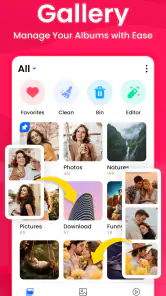
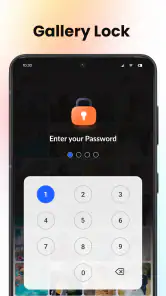
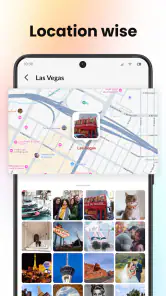

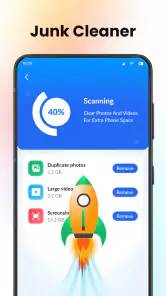


Analysis by Reviewed
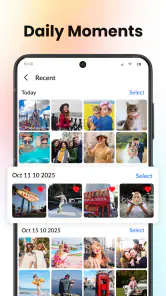
I judge a photo gallery by a simple test: when I need one picture in a hurry, can I find it without turning the search into another task? Gallery - Photo Gallery is aimed at that everyday problem. It gives photos and videos a dedicated place to browse and organize, with albums and the option to hide and view media. That makes it worth considering if your phone’s camera roll has become a crowded stream rather than a useful library.
Where browsing can get frustrating
A gallery app can only feel effortless when its layout matches the way you think about your pictures. Some people browse chronologically, scrolling back to a particular day; others remember an album, an event, or whether the item was a video. Gallery’s focus on albums and both kinds of media makes it a practical alternative to treating every photo as one undifferentiated pile.
In an ordinary week, that distinction matters. I might take a picture of a receipt, save a few images from a conversation, and record a short clip at a family gathering. Later, the goal is not to admire the camera roll; it is to reach the right item quickly. Keeping related pictures together in albums can make that job less tedious, especially when I want to separate personal images from reference material.
The first point to keep in mind is that an organizer does not automatically organize everything for you. Album-based browsing works best when you create and maintain groupings that make sense to you. If you never sort anything and expect the app to identify events or topics on your behalf, this may not change your habits much. I would treat it as a place to establish a simple system, not as a substitute for one.
There is also a useful distinction between hiding an item and organizing it. Hiding can help keep selected media out of casual browsing, while an album gives related items a deliberate home. I would not use those actions interchangeably: an album is for retrieval, while hiding is for reducing visibility in the normal gallery view. That small choice can prevent the familiar problem of putting something away and then forgetting where to look for it.
Start with a small, useful album system
My practical advice is to begin with only a few albums that answer real questions: “Where are my important documents?”, “Which pictures belong to this trip?”, or “What do I want to show someone?” A short list is easier to keep current than a maze of categories. When an album name is obvious, it becomes a shortcut; when it is too clever or too broad, it is just another place to search.
For temporary material, I would be cautious about creating a permanent album for every small batch of images. A more sustainable workflow is to group items only when I expect to revisit them. That keeps the library manageable and gives the app’s album organization a clear purpose rather than adding more maintenance to photo management.
More From Our News Desk

Weather by Xiaomi Review: Clear at a Glance, Less Clear Up Close

X Under Pressure: Can It Recover When Posting Goes Wrong?

Clash of Clans Is Won Between the Battles

Android Auto Makes the Case for Quieter Car Software

MobiOffice: Transforming Mobile Productivity with Seamless Integration

EA SPORTS FC™ Mobile Soccer: Redefining Mobile Sports Gaming
Setup checks before you rely on it
Gallery is a free photography app from iStrom Apps, and it is marked for Everyone. Its current version is 1.5.5, and it requires Android 11 or later. That last detail is the first check I would make before troubleshooting anything: if the device runs an older Android release, the app is not a suitable choice for it.
After installing, I would open the app and check whether the pictures and videos I expect to browse are visible. If something seems missing, I would first make sure I am looking in the right place and allow the initial view time to settle before assuming that media has disappeared. A gallery’s job is to display the media available to it; a blank or incomplete view is not, by itself, proof that the files have been deleted.
It helps to test with a familiar picture and a familiar video rather than trying to inspect the whole library at once. That gives you a quick reference point: if both appear, basic browsing is working; if one does not, you can narrow down the issue instead of changing several settings blindly. I would also check an album I already recognize before creating new ones, so I know whether the confusion is about visibility or about organization.
Because this is a media manager, expectations matter. I would not assume that moving, hiding, or grouping an item has the same effect as deleting it, or that an album is a separate backup. Before making a large change, confirm what action you are choosing and keep important originals backed up through whatever storage routine you already trust. That is sensible protection for any photo library, not a claim about a special Gallery feature.
There is a paid layer to consider as well: the app is free to install, with in-app purchases ranging from $1.99 to $10.99 per item. I would start by using the free app for the basic task of browsing and grouping media, then decide whether any purchase is worthwhile only after checking what it offers in the app. Do not pay simply because you assume a feature is necessary; first see whether your everyday workflow actually runs into a limitation.
Make the first session a quick audit
Instead of reorganizing years of pictures on day one, I would use the first session to answer three questions: can I find a recent photo, can I find a video, and can I make one album that has a clear purpose? If the answers are yes, you already know whether the app fits your basic routine. A gradual cleanup is less frustrating than trying to build a perfect filing system before you have learned how you browse.
The app has a 4.6 average from around 126,000 ratings, and it has passed 10 million installs. Those figures suggest that it has reached a broad audience, but they cannot tell me whether its organization style will suit your habits. I would use them as context, not as a reason to skip the hands-on check: a gallery is personal, and the best choice is the one that makes your own media easier to retrieve.
Recover a workflow without making things worse
When a picture seems absent, I would work from the least disruptive check to the most involved one. First, revisit the main gallery and the albums you use; then check whether the item may have been hidden or placed somewhere unexpected. If you remember roughly when you took it, use that memory to narrow your browsing rather than scanning every thumbnail. These steps are deliberately simple because unnecessary changes can make a small navigation problem harder to understand.
If an album looks incomplete, compare it with the main photo view before rebuilding it. The media may still be present even if your chosen grouping is not what you expected. I would add one known item to a test album only after confirming the basic browsing path, then check whether that gives you the result you wanted. This isolates the problem: you learn whether the issue is finding the file or maintaining the album structure.
For a hidden item, I would make a note of the distinction between “not visible in the usual browse path” and “gone.” Search the places where you deliberately put media before concluding it has been lost. This is a useful habit with any gallery that offers hiding, because the feature solves a privacy or clutter problem only if you remember how you used it.
If the app becomes unresponsive or a view does not update, avoid immediately deleting media or resetting your organization. Close and reopen the app, then check the same familiar photo again. If the issue continues, a device restart is a reasonable general troubleshooting step. I would make no destructive changes until I had confirmed that the underlying files are safe elsewhere, particularly if the photos are irreplaceable.
Keep albums useful after the initial cleanup
A common organizational trap is making an album for every event and then forgetting to use those albums. I find it more useful to choose names based on the next action: “share,” “keep handy,” or a specific occasion I expect to revisit. The name should tell future me why I grouped the images, not merely repeat what is already obvious from looking at them.
Another helpful habit is to separate reference photos from memories. Receipts, appliance labels, and screenshots can be valuable, but they often make a camera roll feel noisier. Putting them in a dedicated album, when that matches your routine, means they remain accessible without competing with photos you browse for enjoyment. This is a small workflow choice, but it can make a basic gallery feel much more intentional.
When the problem may be elsewhere
Not every missing photo or video is caused by the gallery app. If an item was never saved to the device, was removed elsewhere, or is stored in a different location, changing album names will not bring it back. I would first establish whether the file exists through the places and backup services I normally use, then return to Gallery for browsing and organization. This avoids treating the display app as if it were also the source of every file.
Likewise, if you are trying to recover deleted media, a gallery should not be mistaken for a recovery service. Check your existing backup or device-level recovery options before experimenting. If you need guaranteed long-term preservation, use a backup approach designed for that purpose; an album is a way to arrange media, not a replacement for a second copy.
People who want extensive editing, cloud-library controls, automatic recognition, or a tightly integrated ecosystem may be better served by a dedicated editing or photo-storage app. Gallery’s appeal is narrower and clearer: it is for managing and viewing pictures and videos. Compared with the default gallery that comes with a phone, it is worth trying if you want a separate album-centered way to browse; if the built-in app already makes everything easy to find, switching may add little.
I would also skip it if you are not willing to maintain even a modest amount of organization. Albums help when they reflect real retrieval needs, but they can become extra work if you prefer to leave everything in one chronological stream. The right choice depends less on the number of photos you own than on whether you regularly need to separate, revisit, or keep certain items out of ordinary browsing.
My practical verdict
I see Gallery - Photo Gallery as a straightforward option for someone who wants a more deliberate home for photos and videos without turning media management into a complicated project. Its emphasis on albums and hidden media gives it useful everyday roles: keeping reference pictures apart from personal ones, collecting images for a planned share, or reducing clutter when you browse.
My recommendation is to try it with a small, low-risk task first. Make one album, check a familiar video, and test the way you expect to find a hidden item before relying on it for your whole library. That will tell you more than a long cleanup session and will expose any friction while the stakes are low.
With 817 reviews alongside its broader rating history, it has a visible track record, but I would still judge it by the fit of its workflow on your device. For Android 11 or newer, it is a sensible free starting point if albums are the missing piece in your current gallery routine. If you need sophisticated editing, dependable recovery, or automatic sorting, choose a tool built around those needs instead. For simple, hands-on browsing and organization, this app is worth a measured try.
Gallery - Photo Gallery Frequently Asked Questions
What is Gallery - Photo Gallery used for?
Gallery - Photo Gallery is designed to help you browse and organize pictures and videos stored on your device. Depending on the version and the features supported by your phone, you may be able to sort items into albums, view them in a grid or full-screen, and use basic tools such as sharing, deleting, or editing. Check the app listing to confirm which specific features are available in your version.
Does Gallery - Photo Gallery work without an internet connection?
A gallery app can generally display media already saved on your device without an internet connection, so you can browse local photos and videos offline. However, features that rely on online services—such as cloud backup, syncing, or downloading content—may require connectivity. Offline behavior can also depend on your device and the app version, so review the permissions and store listing before relying on a particular feature.
Will the app upload or share my photos automatically?
Installing a gallery app does not by itself mean your pictures are uploaded or shared, but its privacy behavior depends on the developer and the features enabled. Review the app’s privacy policy and permission requests, especially access to photos, videos, storage, or network services. If cloud backup or sharing options are offered, check their settings carefully and avoid enabling them unless you understand where your files will be stored.
Can I use Gallery - Photo Gallery to hide or protect private photos?
Some gallery apps include a private folder, lock, or similar privacy feature, but availability varies by app version and device. Do not assume that simply moving a picture into an album hides it from other apps or protects it with encryption. Before storing sensitive media, confirm whether the app provides a genuinely protected folder, how access is secured, and whether files remain visible through the phone’s file manager or other gallery apps.
What should I check before downloading Gallery - Photo Gallery?
Before downloading, confirm that the app is compatible with your Android or iOS version and review its current store listing, developer information, recent updates, and user feedback. Check the requested permissions and whether the listed functions match your needs, since features can differ between versions. Also make sure you have enough device storage and consider backing up important photos before changing albums or deleting files.
Pros
- Keeps photos and videos together in one place.
- Lets you browse media in a familiar grid or album view.
- Makes it easy to revisit recent photos without searching folders.
- Can help organize a growing camera roll into albums.
- Useful for quickly checking saved images and video clips.
Cons
- Album organization may require manual sorting.
- Large libraries can take time to browse.
- The app’s features may vary by device and version.
- Deleted or misplaced files may be difficult to recover.
- Some users may prefer the built-in gallery already on their phone.
- Category
- Photography
- Version
- 1.5.5