ARtie Lab: AR Drawing & Sketch
- 559.00
- 4.5
- Installs
- 1.00M
- Price
- Free
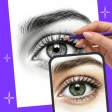
Screenshots
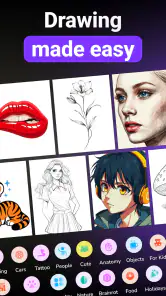

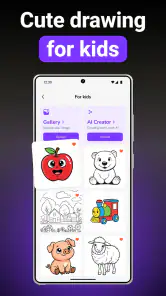
Analysis by Reviewed
I see ARtie Lab as a drawing practice app built around a simple idea: use an augmented-reality view to help guide a sketch, rather than starting with a blank page and relying only on memory. That makes it appealing to beginners, people who learn by watching and copying, and anyone who wants a low-pressure way to try drawing. Its focus is practical, but the experience depends on more than the tracing concept: the screen must be understandable, the phone must be comfortable to use, and the setting must suit looking at a display while drawing.
Learning to draw through a guided view
A clear idea, with a little setup involved
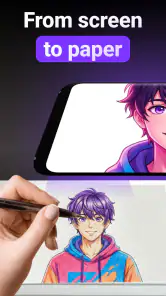
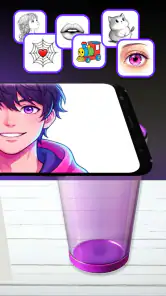
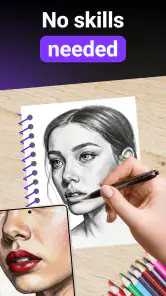
ARtie Lab is an art and design app from Tenet Apps FZCO. Its central appeal is easy to grasp: use a picture as a guide while you draw, with the camera-based view helping connect the reference to the surface in front of you. I like that this gives a new artist a concrete first step. Instead of wondering how to turn a reference into shapes, you can focus on following what you see and gradually build confidence with lines and proportions.
The approach is especially useful for short practice sessions. A learner can choose a simple subject, place a sheet of paper somewhere stable, and try to reproduce the broad outline before worrying about details. That order matters: tracing can make a first attempt feel less intimidating, but the real learning comes from noticing where the major shapes sit and how they relate to one another. I would treat the guided image as a teacher’s prompt, not as a substitute for observing and making decisions.
The app is free to install and is rated for Everyone. It has a 4.5 average from around 81,000 ratings, and has passed one million installs. Those figures suggest that the basic idea has broad appeal, though they do not tell me whether every learner will find the camera-based process comfortable. The current version is 1.0.4, and the app is listed for devices running Android 7.0 or later.
Readability and navigation matter more than decoration
For a drawing guide, the most important interface question is whether I can understand what to do without constantly stopping to interpret the screen. A useful workflow should make it easy to move from choosing a reference to positioning the phone and beginning a sketch. When an app’s main purpose is this focused, extra menus and visual flourishes are less valuable than clear labels and controls that are easy to locate.
My practical advice is to learn the setup before starting a drawing you care about. Try a quick, disposable sketch first, and pay attention to whether the reference is easy to see while your hand is moving. If the phone’s display is hard to read at your chosen angle, adjust the paper and device before you begin rather than trying to compensate with awkward posture. A few minutes of setup can prevent a frustrating session.
This workflow also affects who will find the app straightforward. Someone comfortable switching between a phone and a physical page may settle in quickly. A person who expects a conventional drawing canvas, where every action happens directly on the screen, may need time to understand why the camera view is part of the process. It is a different kind of drawing tool, not simply a digital sketchbook with a tracing option added.
Motor comfort and sensory load
Tracing can reduce one particular challenge: deciding where to place the first line. That may help a learner who feels overwhelmed by a blank page or finds it difficult to estimate proportions from scratch. It does not remove the physical work of drawing. Holding a pen, controlling pressure, and keeping a steady hand still matter, so I would not present the app as a solution for every motor difficulty.
The phone-and-paper arrangement can also demand sustained coordination. One hand may be drawing while the device must remain positioned so the guide stays useful. For some people, that is manageable; for others, balancing a phone, keeping a page still, and making precise marks can become the hardest part. A stable surface and a stand or other secure support, if already available, can make a session calmer, but I would test the arrangement before buying anything specifically for it.
Sensory comfort is another personal consideration. The camera view and on-screen guide may be helpful for a learner who benefits from a visible reference, yet a bright display or a visually busy composition can be tiring. I suggest starting with a simple image and a short session, then changing the room lighting or device angle if glare makes the guide hard to follow. The useful question is not whether the app is universally comfortable, but whether its visual method suits the person using it.
Where and when it works best
ARtie Lab is most naturally suited to a settled spot: a desk, a table, or another surface where paper and phone can stay in place. A realistic use case is a parent or older sibling spending a few minutes with a child after school, choosing a simple subject and taking turns spotting the large shapes before drawing them. The app’s age rating is Everyone, but younger users may still benefit from an adult helping with device placement and keeping the activity relaxed.
It can also fit an adult’s casual practice routine. For example, if I have a short break and want to sketch a household object, I can use a guided reference to get past the blank-page hesitation, then spend the rest of the session adding my own details. That is a better use of the tool than expecting it to teach every drawing skill at once. For shading, perspective, or confident freehand work, a dedicated lesson or a traditional drawing course may offer more structured instruction.
The physical setting is a genuine trade-off. Because the experience involves looking at a phone while drawing on a separate surface, it is less convenient on a crowded commute, in a dim room, or anywhere the device might be bumped. It is not the first option I would pick for drawing directly on a tablet during travel. A regular mobile sketching app is more suitable when portability and one-screen control matter more than tracing a reference onto paper.
What tracing teaches—and what it cannot teach alone
Tracing is sometimes dismissed as “cheating,” but I think that misses its value as a first exercise. It can help a learner notice contours and build the confidence to finish a picture. The limitation is that copying a visible guide does not automatically teach how to construct the same subject from memory. To get more out of the session, I would trace or follow the guide once, then put it aside and try to redraw the main shapes without it.
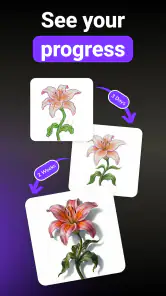
A second useful exercise is to change the goal from accuracy to observation. Rather than chasing every small edge, identify the largest shapes, their relative size, and where they meet. That turns a guided sketch into a small lesson in composition. If the result looks imperfect, that is still useful: compare the broad proportions, choose one thing to improve, and try again. The app is at its best when it encourages that process instead of making a polished copy the only measure of success.
Compared with a standard drawing app, this tool’s advantage is the link between a reference and a physical drawing surface. A digital canvas is usually better for undoing mistakes, experimenting with colors, and saving work in a tidy project. A printed reference is simpler and avoids keeping a phone aligned, but it does not offer the same camera-based guidance. I would choose between them based on the task: ARtie Lab for guided paper practice, a digital art app for editing and finished screen-based work, and a printed image for a no-device exercise.
Costs, expectations, and remaining barriers
Although the app is free, it includes in-app purchases priced from $9.99 to $29.99 per item. That is worth keeping in mind if you are trying it with a child or using it as an occasional practice aid. I would start with the free experience and decide whether the basic workflow genuinely fits before considering a purchase. The price range alone does not explain what each item unlocks, so I would check the purchase details in the app before spending.
The biggest potential barrier is not artistic skill but the setup itself. A learner may have difficulty holding a drawing tool, keeping the page still, or positioning a phone in a way that is both readable and comfortable. A family could help by preparing the surface and letting the artist focus on the sketch. Someone using the app independently should test whether they can arrange the phone securely and see the guide without bending or straining.
There is also a learning trade-off for people who want to become fully independent at freehand drawing. Guided copying can get a person started, but relying on it every time may leave less practice in judging proportions without a visual overlay. I would alternate guided attempts with simple observation sketches. If the main goal is structured lessons, feedback, or a deeper drawing curriculum, a teaching-focused course is likely a better fit; if the goal is an approachable bridge into making marks on paper, this app makes more sense.
Who I would recommend it to
I would recommend ARtie Lab to beginners who want a visible starting point, parents looking for a short creative activity, and hobbyists who enjoy drawing on paper but sometimes stall before the first line. It is also a reasonable option for someone who wants to practice looking carefully at shape and placement. The key is having a comfortable surface and being willing to treat the guide as support rather than a promise of effortless results.
I would skip it if I mainly wanted a full-featured digital art studio, a screen-reader-led drawing experience, or lessons that explain technique step by step. I would also be cautious if coordinating a phone and a separate sheet is uncomfortable or difficult. Those are not minor details: they are central to the way this kind of drawing works, and another format may be more inclusive for a particular person or setting.
Overall, ARtie Lab offers a thoughtful entry point into drawing by making the first move less daunting. Its strongest quality is not that it removes the effort of learning, but that it gives that effort a visible direction. With sensible expectations, a stable setup, and short practice sessions, I can see it helping someone turn “I don’t know where to start” into a finished sketch. The experience will not suit every body, room, or artistic goal, but for paper-based guided practice, it is a useful idea worth trying before deciding whether its workflow feels right.
ARtie Lab: AR Drawing & Sketch Frequently Asked Questions
What is ARtie Lab: AR Drawing & Sketch, and how does it work?
ARtie Lab is an augmented-reality drawing app designed to help you trace images onto paper or another surface. You choose an image, position it in the camera view, and use the on-screen overlay as a guide while drawing by hand. The app provides a visual reference rather than drawing the finished picture for you, so the result still depends on your own technique and the surface you use.
Do I need any special equipment to use ARtie Lab?
You generally need a compatible smartphone or tablet with a working camera and the app’s camera permission enabled. A separate stand or tripod is not necessarily required, but keeping your device steady can make tracing easier; some users may prefer a phone holder. You will also need paper and drawing tools. Augmented-reality performance and available features can vary depending on your device and operating system.
Can ARtie Lab help beginners learn to draw?
The tracing approach can be useful for beginners who want guidance with outlines, proportions, or getting started with a subject. It does not replace drawing practice or teach every art skill automatically, and you will still need to control your pencil and interpret the reference. More experienced artists may also use it as a convenient starting point, then add their own details, shading, and style.
Is ARtie Lab free, and are there in-app purchases or ads?
The app’s price, advertising, and any optional paid features may differ by platform, region, or version. Check its current Google Play or App Store listing before downloading, and review the purchase details shown in the app before subscribing or paying. If a feature is described as premium, confirm what it unlocks and whether payment is recurring, since store listings and app offers can change over time.
What permissions does ARtie Lab need, and should I check anything before downloading?
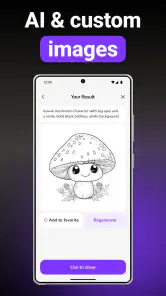
Because the app uses augmented reality to place an image over a live view, camera access is important for its drawing workflow. It may also request access to photos or media if you want to select your own reference images; available permissions can depend on your device and app version. Before installing, check the official store listing, supported-device requirements, recent reviews, and privacy information, and grant only permissions you are comfortable with.
Articles Related to ARtie Lab: AR Drawing & Sketch
Clash of Clans Is Won Between the Battles
Its raids are quick; its community is a long-term project of coordination, teaching, rivalry, and shared responsibility—with all the friction that entails.
Android Auto Makes the Case for Quieter Car Software
The car interface is no longer judged by how much it can do, but by how quietly it helps. Android Auto shows what drivers now expect—and what still gets in the way.
MobiOffice: Transforming Mobile Productivity with Seamless Integration
MobiOffice: Word, Sheets, PDF is redefining mobile productivity with a surprising blend of functionality and innovation.
EA SPORTS FC™ Mobile Soccer: Redefining Mobile Sports Gaming
Dive into EA SPORTS FC™ Mobile Soccer, where immersive gameplay and strategic depth transform mobile sports gaming.
Pros
- Guided tracing can help beginners break down a drawing into manageable steps.
- Useful for practicing proportions by following an image on paper.
- The AR overlay makes it easier to keep a reference visible while drawing.
- Suitable for casual sketching sessions without needing advanced art skills.
- Can make drawing practice more engaging for users who enjoy augmented reality.
Cons
- The overlay may shift if the phone or drawing surface moves.
- A stable stand or mount may be needed to keep the image aligned.
- Bright lighting and a clearly visible surface can affect the AR experience.
- Drawing through a phone screen may feel less natural than using a direct reference.
- Results depend on manual tracing; the app does not draw the finished picture for you.
- Category
- Art & Design
- Version
- 1.0.4