AR Drawing: Sketch & Paint
- 3.09K
- 4.1
- Installs
- 10.00M
- Price
- Free
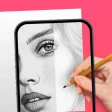
Screenshots
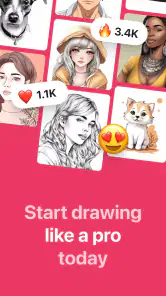
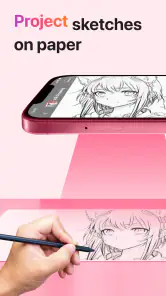
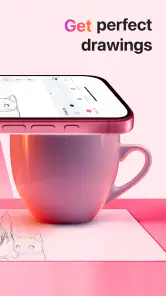
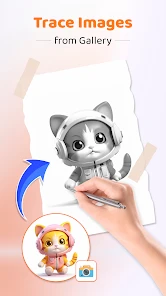
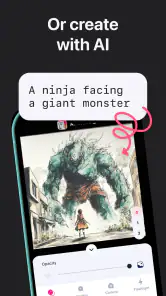
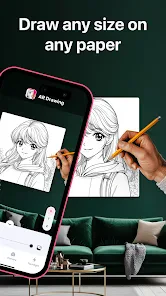
Analysis by Reviewed
The most useful way to think about AR Drawing: Sketch & Paint is as a bridge between looking at a picture and getting its basic shapes onto paper. Instead of asking you to copy an image by eye, it uses augmented reality to place a guide over your drawing surface. You follow that projected outline with a pencil, then add color by hand. I find that idea much more appealing for learning and casual projects than another blank digital canvas: the phone helps with placement, while the paper and your own tools still do the creative work.
That distinction matters. This is an art and design app, but it is not trying to replace a full illustration program. Its central purpose is to help you trace a picture on paper through your phone’s camera. If you want a quick way to get a recognizable sketch started, that focused approach is the point. If you expect advanced digital brushes, layers, or a complete drawing studio on screen, you are looking for a different kind of app.
Using a camera guide to get the first lines down
Why tracing changes the drawing experience
Drawing from a reference asks you to solve several problems at once: notice the proportions, judge where each line belongs, and control your hand well enough to reproduce it. A projected guide takes some of the guesswork out of that first stage. You can concentrate on following the visible shapes instead of constantly glancing between a reference image and your page.
In practice, this makes the app especially approachable when you have an idea for a picture but do not yet trust your ability to sketch it freehand. A beginner can work on the outline of an object, character, or simple decorative drawing without needing to understand every proportion from scratch. More experienced artists may also find it useful as a transfer aid when they want to move a reference onto paper quickly, then make their own choices about line quality and color.
The guide is a starting structure, not a finished artwork. Your hand still determines whether the lines are smooth, whether small details survive the transfer, and how the final colors look. I would treat the result as a drawing you have made with assistance, rather than a one-tap image conversion. That expectation keeps the experience enjoyable and leaves room to add a personal touch.
Latest News
A practical setup makes a real difference
The basic workflow is straightforward in concept: choose a picture to work from, position the phone so the camera view and drawing surface line up, and trace the visible guide. The fiddly part is arranging the phone and paper so they stay steady while you draw. A small shift in the device’s position can make the guide harder to follow, so it is worth settling the setup before you start adding careful details.
For a more comfortable session, use a firm, well-lit surface and keep the paper from sliding. If you have a phone stand or another stable way to support the device, that can reduce the temptation to hold it in one hand while drawing with the other. This is a practical improvement rather than a special app feature: stability helps you keep your attention on the page, and it makes tracing less interrupted.
Start with the largest shapes and work inward. Trying to capture tiny details immediately can make the process feel cramped, especially if the guide and paper are not perfectly aligned. Once the main outline is in place, you can decide which details are worth keeping and simplify the rest. That workflow is useful even if you later color the picture digitally or redraw parts by hand.
It also helps to think about the final use before choosing the image. A bold subject with clear contours is easier to transfer than a busy picture with many overlapping edges. For a greeting card or a small sketchbook page, a simple outline often gives a cleaner result than trying to reproduce every feature of a complicated reference. Choosing an image that suits the space is one of the easiest ways to make the app feel more effective.
A realistic everyday use: a handmade card
Imagine you need a quick handmade card and want to draw a small flower or a simple animal, but you do not want to spend the evening correcting proportions. You can use the camera guide to establish the main outline on the card, then put the phone aside and finish the work with colored pencils or markers. The traced structure saves time at the stage where many casual drawings go wrong, while your choice of colors and small embellishments keeps the result from feeling like a plain copy.
This kind of task suits the app better than a project that depends on exact, professional-grade line work. The paper size, phone angle, and your ability to keep the device steady all influence how comfortable tracing feels. I would make a quick practice sketch on spare paper first if the final surface matters, rather than experimenting directly on a card you have already decorated.
Where it sits among drawing alternatives
Compared with a conventional drawing app, the important difference is the destination: this workflow is built around tracing onto physical paper, not creating the entire image on the phone. A digital illustration app is usually the better choice if you want editable layers, undo-heavy experimentation, or an image you can finish and share entirely onscreen. A printed reference is a simpler alternative if you are happy to copy by eye and do not want to arrange a phone over your workspace.
Against freehand practice, the camera guide offers a gentler first step but less practice in judging proportions unaided. That is a genuine tradeoff rather than a flaw. If your long-term goal is to draw confidently without a guide, try tracing the outline once and then sketching the same subject from the reference afterward. You can compare the two attempts and gradually rely less on the overlay. Used this way, the app can support practice instead of becoming a permanent crutch.
There is also a useful middle ground: trace only the larger forms, then invent or adjust smaller details yourself. This avoids spending too long following every mark and gives the drawing more character. It is a good approach for decorative work, where an exact copy is less important than a balanced composition that looks appealing on the page.
Limits to keep in mind before you begin
The method depends on a camera-based view and a physical drawing surface, so it is not as effortless as opening a canvas and sketching with a finger. You need room to place the paper and phone, and keeping their positions comfortable can take some trial and adjustment. If you like to draw while commuting, lying back, or moving between places, this setup may feel less convenient than a pocket sketchbook or a tablet app.
Tracing can also make an image look stiff if you follow every edge without adapting it to your own hand. For a more natural result, vary the pressure of your pencil, leave out fussy details, and add a few marks that are yours. The app helps with the outline; it cannot make choices about expression, texture, or what to emphasize. Those choices are where your drawing begins to feel personal.
Small or intricate references are another case where patience matters. A dense image can produce a guide that is difficult to interpret on a limited area of paper, and trying to preserve every detail may be frustrating. Simplifying the reference, enlarging the parts that matter in your own drawing, or choosing a clearer subject is often more productive than insisting on a perfect transfer.
Who is likely to get the most from it?
I would recommend this app to beginners who want help getting an outline onto paper, parents or teachers looking for a guided drawing activity, and hobbyists who enjoy coloring a physical sketch once the hard-to-place shapes are established. It is also a reasonable choice for someone who wants to make a quick personal decoration without learning a full digital art workflow. The app is free to start, rated for Everyone, and developed by AR Drawing; optional in-app purchases range from $1.99 to $64.99 per item, so it is sensible to check what is offered before making a purchase.
Its audience is not limited to people who consider themselves artists. If you are making a label, a simple notebook illustration, or a small gift, the ability to transfer a recognizable outline can be more useful than a large collection of digital tools. The key question is whether you want the finished work to live on paper. If yes, the camera-guided approach has a clear purpose; if you mainly want to paint or edit images on your phone, a conventional art app will probably suit you better.
There is a small learning benefit here too, provided you use the guide thoughtfully. After tracing a few subjects, pause to notice how the main shapes fit together. Then try drawing one of those subjects without the overlay. This turns a quick copying session into an exercise in observation, and it helps you judge whether the app is supporting your progress or simply doing the part you hoped to practice.
A sensible choice for guided paper drawing
AR Drawing: Sketch & Paint has a focused appeal: it uses augmented reality to help you transfer a picture onto paper, then leaves the coloring and finishing to you. It has reached over 10 million installs and holds an average rating of 4.1 from around 837 thousand ratings, which suggests a broad audience for this straightforward concept. The app was released on June 2, 2023; version 5.2.6 requires Android 8.0 or later.
My recommendation is conditional but clear. Give it a try if you want a practical guide for getting a sketch started on a real page, especially for casual crafts and beginner practice. Be prepared to arrange your phone and paper carefully, and do not expect tracing alone to supply the personality of the finished piece. For fully digital artwork, detailed editing, or drawing practice without visual support, another tool is a better fit. For a guided route from reference image to colored paper drawing, this app makes the process approachable without pretending to do the creative work for you.
AR Drawing: Sketch & Paint Frequently Asked Questions
What is AR Drawing: Sketch & Paint, and how does it work?
AR Drawing: Sketch & Paint is a mobile drawing tool that uses augmented reality to help you trace an image onto paper. Choose or import a reference picture, then use your phone’s camera to display it over the surface you want to draw on. The image acts as a guide while you sketch by hand; the app does not automatically create a finished drawing for you.
Do I need special equipment to use AR Drawing: Sketch & Paint?
You generally need a compatible Android or iOS phone or tablet with a working camera. A stand or tripod can make tracing easier by keeping the device steady and aimed at the page, but it is not essential. You will also need paper and drawing materials. Augmented-reality performance can vary by device, lighting, camera quality, and the app version.
Can I use my own photos or choose from ready-made images?
The app’s drawing workflow is designed around selecting a reference image to trace, and available choices may include built-in pictures as well as images from your device, depending on the version and permissions you grant. Check the image-import options before relying on a particular source. If you select personal photos, review the app’s privacy information to understand how images are handled.
Is AR Drawing: Sketch & Paint free, and does it include ads or paid features?
The download may be free, but pricing, advertisements, and optional purchases can differ by platform, region, and app version. Before installing, check the listing in the Google Play Store or Apple App Store for in-app purchases, subscription terms, and any free-trial conditions. If a paid feature is offered, confirm its price and renewal details in the store before proceeding.
Does the app require an internet connection, and what permissions should I expect?
The camera is central to the AR tracing experience, so you should expect to grant camera access. Access to photos or files may also be needed if you want to use your own reference images. Some features or content could require an internet connection, while basic tracing may work offline, depending on the release. Review permission prompts and the store’s privacy disclosures before use.
Pros
- Helpful for beginners who want guidance while sketching.
- Lets you explore ideas without needing advanced drawing skills.
- Useful for practicing proportions and basic shapes.
- Can make drawing sessions more engaging and interactive.
- Suitable for casual creative projects and hobbies.
Cons
- A steady hand is needed to trace accurately.
- Screen glare or poor lighting can make tracing difficult.
- The camera view may be less convenient on smaller phones.
- Results depend on the surface and drawing materials you use.
- It may not suit artists looking for advanced editing tools.
- Category
- Art & Design
- Version
- 5.2.6