All Video Downloader & Player
- 27.57K
- 4.6
- Installs
- 100.00M
- Price
- Free

Screenshots




Analysis by Reviewed
I tend to judge a video tool by how easily I can get from a clip I want to keep to a file I can actually watch later. All Video Downloader & Player brings downloading and playback together, so it may suit people who want fewer steps between finding a video and watching it offline. I’d treat it as a practical utility rather than a replacement for every video service: what you can save depends on the source and its rules.
Readable controls, straightforward navigation
The clean layout described in my use makes the basic copy-and-paste workflow approachable, especially if you don’t want to learn a complicated download manager. The app is free, made by QR Code Scanner, and sits in the tools category. Its 4.6 average from around 1.5 million ratings, alongside over 100 million installs, suggests it has reached a broad audience, though popularity alone doesn’t tell me whether its controls will suit every person.
For a first try, I’d keep the task simple: copy a link from a video you’re allowed to save, paste it into the app, and check that the resulting file appears where you expect before starting a batch. That small test can make it easier to understand the app’s flow without ending up with several downloads to sort through. If a site blocks saving or requires a different method, I wouldn’t assume the app can bypass that restriction.
Making a small download routine manageable
I find it helps to decide what I want to watch before opening a downloader. A short list of permitted clips gives the queue a purpose and makes it easier to notice if I pasted the wrong link. If a download doesn’t start as expected, I’d check the source’s own options first rather than repeatedly retrying the same address. That avoids wasted time and keeps the app in its proper role: a convenient tool for sources that allow saving, not a workaround for every online video.
Storage is another reason to begin with one file. A high-definition copy may be noticeably larger than a low-resolution one, and a few saved clips can quickly become a folder I have to manage. I’d keep the versions I genuinely need for offline viewing, remove old ones after a trip, and avoid saving duplicates simply because the download action is quick. This is especially useful on a phone that also holds photos, messages, and other everyday files.
Playback choices and sensory comfort
The built-in player is useful when I want to avoid bouncing between a downloader and a separate playback app. Full-screen viewing can make a clip easier to focus on, while a mini-player may help when I want to keep another task in view. Playback speed is also a practical option: slowing a tutorial can help me follow a quick demonstration, while speeding through familiar material saves time. These are useful controls, but they don’t by themselves establish support for screen readers, captions, or other accessibility needs.
That distinction matters if you rely on spoken descriptions, subtitles, or highly adjustable display settings. I’d test a short clip with the controls and content you normally use before depending on the app for a long viewing session. The app is rated for Everyone, has a current version of 1.8.3, and runs on Android 6.0 or later; those details describe its intended age audience and basic platform reach, not how well it meets an individual access requirement.
More From Our News Desk

Weather by Xiaomi Review: Clear at a Glance, Less Clear Up Close

X Under Pressure: Can It Recover When Posting Goes Wrong?

Clash of Clans Is Won Between the Battles

Android Auto Makes the Case for Quieter Car Software

MobiOffice: Transforming Mobile Productivity with Seamless Integration

EA SPORTS FC™ Mobile Soccer: Redefining Mobile Sports Gaming
Small choices that can improve a viewing session
For a tutorial, I’d try slowing playback at the exact part where a hand movement or menu selection happens, then return to normal speed once I understand it. That is more useful than playing the whole clip slowly. With a longer video, a quick check that the file opens and that its sound is clear can prevent an unpleasant surprise after I’ve left a reliable connection. These checks are simple, but they make offline preparation more dependable.
The mini-player has a different value: it can keep a clip visible while I look at another task, but it may also compete for attention. I’d use it for a reference video or a short demonstration, not while doing something that needs careful focus. Full-screen is the better choice when the details matter, and an ordinary media player may be preferable if its controls are more comfortable for a long session.
When offline copies help—and when another option is better
A realistic use is preparing a few permitted videos before a commute through areas with unreliable reception. I’d download only what I expect to watch, then open each file once before leaving; that quick check can catch a file that didn’t finish or won’t play as expected while there’s still time to try again. Batch downloading may reduce repetitive steps, but it also makes it easier to collect duplicates or more material than I’ll actually watch, so I’d review the queue rather than selecting everything at once.
Compared with a standard video player, this app is more useful when getting a local copy is part of the job. Compared with a browser’s built-in save or offline option, it may be less convenient where the service already offers a reliable, authorized way to watch later. I’d choose the service’s own feature for subscription content or clips with access restrictions, and use a general player when I only need to open files already on my device. Respecting copyright and platform terms is part of using any downloader responsibly.
Where it fits among video tools
The choice between this app and the usual alternatives comes down to the starting point. If I already have a video file, a dedicated player is the more direct option and may be easier to keep as a clean library. If I’m watching within a service that offers an authorized offline mode, staying there avoids managing another copy. This app is most compelling when I have a suitable link, want a local file, and value handling playback in the same tool.
That combined role is convenient, but it also means I wouldn’t choose it for every video habit. Someone who mostly streams at home may gain little from saving files, while a person who organizes a large personal collection may prefer a player built around library management. I’d also skip a downloader if the intended source doesn’t permit saving. For occasional, lawful offline viewing, the fewer handoffs can be the main benefit.
Seamless Video Downloading
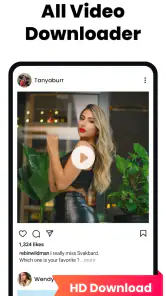
For video enthusiasts, the downloading workflow is the central draw. In my experience, copying a suitable video link and bringing it into the app is a much simpler starting point than learning a complex download manager. The useful question is not whether every platform will work, but whether the particular source permits a copy and whether the app can handle that link. Keeping that expectation realistic makes the tool easier to judge.
Intuitive User Interface
Now, I won't lie, I've tried a few video downloading apps in the past, and most of them have left me frustrated with their clunky interfaces. But All Video Downloader & Player is different. The interface is clean, intuitive, and user-friendly. Even my tech-phobic friend managed to navigate through it without any help. Everything is neatly organized, making it easy to find what you need without unnecessary stress.
For someone who doesn’t use download tools often, that simplicity lowers the effort of getting started. I’d still recommend doing one link at a time at first: it reveals how the app responds before a person has to manage multiple files or troubleshoot a queue. If a screen or control is difficult to read or reach, ease of navigation for one person won’t guarantee the same experience for someone else, so trying it directly is more useful than relying on a general impression.
Built-in Video Player
What sets this app apart for me is its built-in video player. Once you've downloaded your favorite videos, you don't have to switch to another app to play them. The app supports a wide range of video formats, which means you can watch practically anything without a hitch. And the best part? You can adjust playback speed, switch between full-screen and mini-player, and even create playlists!
Having playback near the download step can make a useful check part of the routine: open the file, confirm it plays, and then decide whether it belongs in a playlist or can be deleted. Playlists are most helpful when saved videos have a purpose, such as a set of lessons or clips for a journey. If I only have one or two temporary files, organizing them into a list may be more work than it saves.
Ad-Free Experience and More
I'm one of those people who can't stand intrusive ads popping up all the time, and thankfully, this app offers an ad-free experience, which is a huge plus in my book. Moreover, it provides options for high-definition downloads, which is a must for those who, like me, appreciate quality visuals.
High definition is not automatically the right choice for every situation. On a small screen or a short commute, a more modest copy may be enough, while a visually detailed video is a better case for prioritizing image quality. I’d weigh that choice against available storage and how long I need to keep the file. The most efficient download is the one that suits the actual viewing plan, not simply the highest setting available.
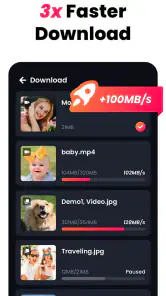
Another cool feature is the ability to download multiple files at once. So, if you're prepping for a long flight or a weekend in the woods without internet, you can stock up on entertainment without any hassle.
Choosing it for the right reasons
There are a few trade-offs I’d keep in mind before making it my default. Downloading in high definition can use more storage, and a batch of large files may take longer to prepare than a single clip. If space is tight, I’d save only what I need for the trip and remove files afterwards. For someone who mainly streams at home, the extra local copies may not be worth the added storage and sorting.
If you’re choosing between this and a dedicated media player, the deciding question is whether downloading is central to your routine. A dedicated player may be a better fit if your library is already organized on your device and you want specialized playback controls. This app’s appeal is the combined workflow: find a suitable link, save a copy, and play it in the same place. I’d skip it if you expect every social or streaming site to allow downloads, or if you need accessibility features that you haven’t personally tested in the interface.
One practical way to decide is to try it with a clip you are permitted to save and a viewing situation you actually have coming up. If the link works, the file plays comfortably, and the storage trade-off feels reasonable, the combined workflow may earn a place on your phone. If any part of that test is awkward, a service’s own offline mode or a separate player could be the better fit rather than something to work around.
In a nutshell, All Video Downloader & Player has quickly become my go-to app for saving and watching videos offline. It's incredibly efficient, easy to use, and packed with features that make life easier. If you haven't tried it yet, I'd say give it a shot. Who knows, it might just become your new favorite app too!
My inclusive verdict
I see this as a convenient option for people who want a simple link-to-file routine and appreciate having playback close at hand. Its most helpful choices are practical ones—using the mini-player when multitasking, slowing a tutorial, and checking a sample download before preparing several files. But ease of use is not the same as access for everyone: if your comfort depends on captions, screen-reader behavior, or particular visual controls, test those needs first and choose a player that clearly supports them if this one falls short. For permitted downloads and straightforward offline viewing, it’s worth considering; for restricted content or specialized access needs, another route may be more dependable.
All Video Downloader & Player Frequently Asked Questions
What is the price of All Video Downloader & Player?
All Video Downloader & Player is free to download. That makes it easy to try its video playback and downloading tools without paying upfront. Keep in mind that the published price does not by itself explain every possible in-app option, so review the app’s current store page before installing if you want to understand any optional extras.
Who developed All Video Downloader & Player?
All Video Downloader & Player was developed by QR Code Scanner. The developer name can help you identify the app when searching for it and distinguish it from similarly named downloaders or video players. Check that the publisher shown on the app’s store page matches QR Code Scanner before you install, especially if multiple results appear.
When was All Video Downloader & Player released?
All Video Downloader & Player was released on January 29, 2022. This gives you a point of reference for how long the app has been available, while its current version is 1.8.3. Release timing alone does not tell you how well it will suit your device, so check the system requirement and consider whether its video tools fit your needs.
What Android version do I need to use All Video Downloader & Player?
Check your device’s operating system before downloading: All Video Downloader & Player requires Android 6.0 or later. The app is a Tools app developed by QR Code Scanner, and its current version is 1.8.3. If your device meets the minimum requirement, you can install it and try its video playback and downloading features.
What is All Video Downloader & Player and how does it work?
All Video Downloader & Player is a versatile application designed to help users download and play videos from various online platforms. The app allows you to save videos directly to your device for offline viewing. With its integrated player, you can also watch the videos without needing an external app. Simply paste the video URL into the app, choose your preferred format and quality, and download it with ease.
Pros
- Supports various video formats seamlessly.
- Built-in browser for easy video search.
- High-speed downloads without lag.
- User-friendly interface and navigation.
- Option to convert video to audio files.
Cons
- Contains intrusive ads during use.
- No support for 4K video downloads.
- In-app purchases required for full features.
- Occasional crashes during downloads.
- Limited editing tools for video customization.
- Category
- Tools
- Version
- 1.8.3