Roku Remote Control & TV Cast
- 85.00
- 4.8
- Installs
- 50.00K
- Price
- Free
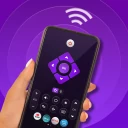
Screenshots
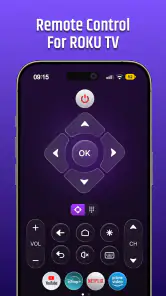
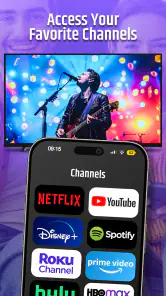
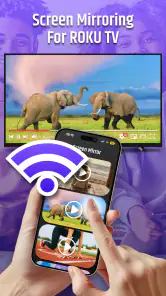
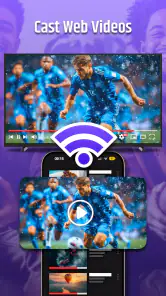
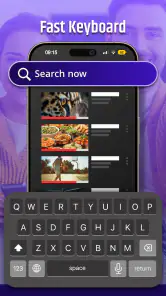
Analysis by Reviewed
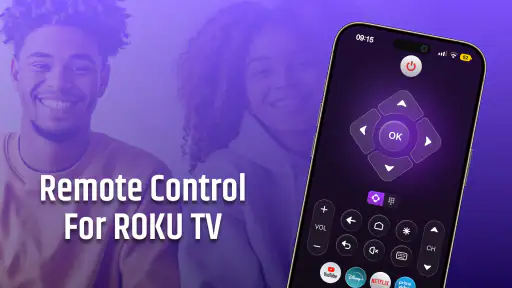
I tested Roku Remote Control & TV Cast as a practical replacement for the physical Roku remote, and my first impression was straightforward: it is most useful when I want the phone already in my hand to become the control center for the television. The app sits in the Tools category, comes from PrizePool Studios, and focuses on three jobs that matter in everyday use: controlling a Roku TV through Wi-Fi, sending photos and videos to the screen, and making text entry less frustrating.
That sounds simple, but simplicity is exactly where this kind of utility succeeds or fails. A remote app does not need a long feature list; it needs to connect quickly, respond when I tap, and stay out of the way while I am watching something. In my experience, this one is best understood as a convenience layer rather than a complete replacement for every Roku accessory. It can make searching and casual control easier, but it still depends on the television and phone being prepared to communicate over the same home network.
How I use it from the first connection to everyday control
The sensible starting point is to treat the first launch as a setup task, not something to rush through while a film is waiting. I keep the Roku TV powered on, check that the phone is connected to the same Wi-Fi network, and then look for the television inside the app. That habit avoids the most common source of confusion with network remotes: the app may be working correctly while the phone and TV are simply on different networks.
Once the connection is established, the basic workflow feels familiar. I use the on-screen controls for navigation, playback-related actions, and selecting items on the Roku interface. The benefit is not that the phone suddenly offers a radically different television system. The benefit is that I do not have to search between sofa cushions for the small physical remote, and I can use a device whose screen and keyboard are already familiar.
Text entry is where I notice the biggest practical improvement. Searching for a title with a directional pad and an on-screen keyboard can be slow, especially when the search term is long or includes an unusual spelling. Typing on the phone is more natural, so the app makes the discovery part of streaming less tedious. I would still keep the original remote nearby for emergencies, but for regular searches I prefer the phone-based approach.
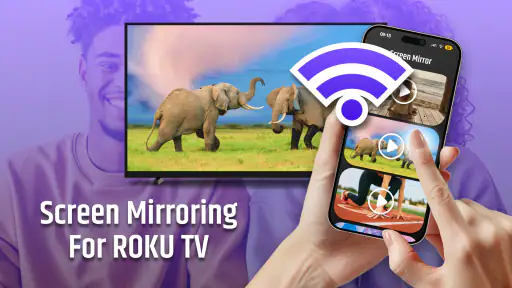
The casting side is useful in a different situation. If I want to show a photo or video stored on the phone, I can use the app instead of first figuring out another sharing route. This is particularly handy when several people are sitting together and someone wants to display a recent picture on the larger screen. I see it as a quick presentation tool rather than a full media-management system: choose something worth showing, send it to the TV, and return to normal viewing.
A realistic example is a relaxed evening when I have used the phone to find a program, typed the title instead of navigating letter by letter, and later shown a short family video on the television. The value comes from moving between those tasks without changing devices. It is less impressive in a room where the physical remote is already within reach and nobody needs to search or cast anything.
More From Our News Desk

Weather by Xiaomi Review: Clear at a Glance, Less Clear Up Close

X Under Pressure: Can It Recover When Posting Goes Wrong?

Clash of Clans Is Won Between the Battles

Android Auto Makes the Case for Quieter Car Software

MobiOffice: Transforming Mobile Productivity with Seamless Integration

EA SPORTS FC™ Mobile Soccer: Redefining Mobile Sports Gaming
What the app changes in a shared living room
In a shared home, the phone can be more convenient than a remote that keeps moving from one person to another. I can control the screen from the seat where I am already messaging or browsing, and I can type privately rather than displaying every search letter while other people are watching. That is a small but meaningful improvement for anyone who searches frequently.
There is also a social advantage to photo and video casting. Instead of passing the phone around a group, I can put the selected item on the television and let everyone see it at once. I would use this for a small collection of pictures, a short clip, or a quick demonstration. I would not assume that every phone video is equally suitable for the big screen, though; the experience depends on the source file and the way the television handles it.
The app is free to install, which makes trying it low-risk, although it includes in-app purchases ranging from $4.99 to $64.99 per item. That pricing detail is worth noticing before treating the app as a completely cost-free utility. I would begin with the free experience and only consider an optional purchase if it clearly removes a problem I actually encounter.
Settings and habits that make the connection less annoying
The most important “setting” is not a flashy option inside the remote screen. It is the network arrangement around the app. I make sure the phone and Roku TV are connected to the same Wi-Fi environment before troubleshooting anything else. Guest networks, separate bands configured with isolation, or a television that has recently lost its connection can all make a remote appear unreliable even when the controls themselves are fine.
I also keep the phone awake during the first connection and avoid switching between networks while testing. If the TV does not appear, I would first reconnect the phone to the home network, confirm that the television is online, and relaunch the app. That sequence is faster than repeatedly tapping the same discovery control and assuming the application has failed.
For regular use, I recommend placing the app where it is easy to reach but not buried among rarely used tools. The benefit of a phone remote disappears if opening it takes longer than finding the physical controller. I also keep the phone charged during long viewing sessions. A physical remote usually consumes little attention, while a phone is doing more work and may already be needed for other tasks.
Privacy-conscious users should think about the casting workflow before handing the phone to someone else. Photos and videos are personal, and the safest habit is to select the intended item first rather than browsing a whole gallery in front of a group. The app’s usefulness comes from direct access to phone media, but that same access means I would use it deliberately in a shared room.
Shortcuts that are really repeatable routines
I do not think mastery comes from discovering secret controls. It comes from repeating a few sensible patterns. My preferred routine is to open the app before starting a search, connect to the TV while the home screen is visible, type the title on the phone, and then put the phone aside once playback begins. This prevents the remote app from becoming another distraction.
For casting, I prepare the photo or video before opening the living-room workflow. Choosing the item first reduces the chance of sending the wrong file or scrolling through unrelated media while everyone waits. When I want to show several items, I organize my intention in advance rather than treating the television as a replacement for a gallery browser.
Another useful pattern is to keep the physical remote as a fallback instead of throwing it into a drawer. Network control is convenient, but a phone can be locked, misplaced, low on battery, or connected to a different network. Experienced use is not about pretending the app makes the original remote unnecessary; it is about knowing which controller is fastest for the task in front of me.
Typing is the strongest reason to choose the app over the ordinary remote. I use it for searches, logins where supported by the Roku interface, and any screen that requires repeated character selection. For simple volume or directional adjustments, the physical remote may still feel quicker because it has tactile buttons. The trade-off is clear: the phone wins at text and convenience, while the traditional controller can win at immediate, eyes-free operation.
That distinction also affects households with children or guests. A phone remote is easy to understand if the user already knows the Roku interface, but it is less obvious to someone who expects physical buttons. I would show a guest the essential controls before handing over the phone, especially if the television is being used for a presentation or family video. A minute of orientation prevents accidental navigation away from the intended content.
Where the app is strong and where I would choose something else
The app’s strongest use case is a Roku TV owner who regularly searches for content, misplaces the physical remote, or wants a quick way to show phone media on a larger display. It is also a good fit for people who already keep their phone beside them while watching television. In that situation, the app adds a useful control option without asking the user to learn a completely different entertainment system.
I would be more cautious recommending it to someone who wants a guaranteed offline controller, a tactile button layout, or a universal remote for many brands of equipment. A network-based Roku tool is naturally tied to the Roku television workflow. If the home setup includes multiple devices from different manufacturers, a broader universal-remote solution may be more appropriate, even if its typing and casting experience is less focused.
It is also not the ideal choice for someone who mainly wants to mirror an entire phone screen or manage a large media library on the TV. The app is centered on remote control, photo casting, video casting, and easier typing. Those functions should not be confused with every form of screen sharing or advanced home-theater management. Choosing it for a job outside that core could lead to disappointment.
The app’s public reception is encouraging, with a 4.8 average from around 3.7 thousand ratings and more than 50 thousand installs. Those figures suggest that many users find the basic idea useful, but they do not remove the network and device limitations I experienced conceptually with this type of tool. A high rating cannot make a phone connect to a television that is offline or isolated from the phone.
Version, compatibility, and the practical trade-offs
The current version is 1.3.2, and the app supports devices running Android 7.0 or later. That makes it accessible to people using older Android hardware, although the quality of the experience can still vary with the phone, Wi-Fi environment, and Roku TV configuration. I would keep the app updated when updates are available, particularly for a tool whose main job depends on communicating with another device.
The age rating is Everyone, which fits the straightforward remote and casting purpose. That does not mean every household workflow is automatically simple. Parents may still want to decide whether children should have independent access to the television controls or the phone’s photo library. The rating describes the app’s general suitability, not the personal media stored on a particular device.
One limitation I would keep in mind is that a phone remote is not as physically immediate as a dedicated controller. I have to unlock or access the phone, open the app, and make sure the connection is active. If the phone is being used for a call, navigation, or another demanding task, switching back and forth can be inconvenient. This is why I see the app as a second control path, not an absolute replacement.
Another trade-off concerns attention. The same screen used to control the TV also contains notifications and unrelated distractions. A physical remote encourages me to focus on the television; a phone invites me to check messages. For short searches and quick casts, that is not a serious issue. During a long film, I prefer to complete the setup and put the phone down.
Finally, I would not pay for an optional item simply because the app is useful in principle. Since in-app purchases can reach $64.99 per item, I would first establish a repeatable need and understand what the purchase changes. A free remote that performs the essential task may be enough for many people, while others may value an extra convenience enough to justify spending. The right decision depends on actual use, not the presence of a purchase button.
My verdict after building a reliable routine
Roku Remote Control & TV Cast is a focused utility that earns its place when phone typing and quick media sharing matter more than tactile buttons. I especially like it for searching, because entering a title on a phone is less tiring than navigating a television keyboard one character at a time. The ability to send selected photos and videos to the Roku TV adds a second useful reason to keep it installed.
My recommendation comes with a simple condition: set up the network correctly and keep expectations realistic. This is not a universal controller, an offline fallback, or a complete replacement for every Roku accessory. It is a convenient Wi-Fi companion for a Roku TV, and it works best when I use it through repeatable habits—connect before searching, prepare media before casting, and keep the original remote available for situations where physical buttons are faster.
PrizePool Studios has made a tool that is easy to understand because its purpose is narrow. If you own a compatible Roku TV, often search for programs, or regularly show phone content to other people, I think it is worth trying at no initial cost. If you rarely type, never cast photos or videos, and already have a dependable remote beside you, the improvement may be too small to justify changing your routine.
For me, the final judgment is positive but practical: the best results come from treating the app as a smart companion, not a magic replacement. Used that way, it reduces the little annoyances of Roku control without pretending that Wi-Fi, battery life, and physical buttons no longer matter.
Roku Remote Control & TV Cast Frequently Asked Questions
Which Roku devices can I use with Roku Remote Control & TV Cast?
Roku Remote Control & TV Cast is intended to work with compatible Roku streaming players and Roku TVs, but the experience can differ between models. Before downloading, consider whether your Roku device is connected to Wi-Fi and able to communicate with your phone or tablet on the same network. The app’s available remote and casting functions may also depend on the Roku model and its software.
What is Roku Remote Control & TV Cast, and what can it do?
Roku Remote Control & TV Cast is a mobile companion app designed to control compatible Roku streaming players and Roku TVs from an Android or iOS device. After connecting to the same Wi-Fi network, it typically provides navigation buttons, playback controls, a keyboard for easier searching, and options for casting supported photos, videos, or music to the television. Available features may vary by device, operating system, and app version.
How do I connect Roku Remote Control & TV Cast to my Roku device?
To connect the app, your phone or tablet and Roku device generally need to be connected to the same wireless network. Open the application, allow any requested local-network permissions, and select the Roku player or TV detected on the network. If the device does not appear, check that both devices use the same Wi-Fi band or network, disable VPN or guest-network isolation, and restart the app, router, or Roku device before trying again.
Can Roku Remote Control & TV Cast replace the original Roku remote?
For everyday navigation, the app can often replace a physical Roku remote by offering directional controls, playback buttons, volume functions on supported Roku TVs, and a convenient phone keyboard. However, it may not provide every feature of the original remote, such as certain shortcut buttons, private-listening compatibility, or controls available only on specific models. Keeping the physical remote available is recommended during setup or troubleshooting.
Does the app support casting videos, photos, and music to Roku?
Many versions of Roku Remote Control & TV Cast include casting or mirroring tools for sending personal media from a mobile device to a compatible Roku player or television. Support can depend on the media format, Roku model, network quality, and permissions granted to the app. Some streaming services also restrict third-party casting, so the app may work best with locally stored content or services that officially support Roku playback.
Pros
- Works with most Roku TVs and streaming players on the same Wi‑Fi network.
- Simple layout makes navigation and text entry easier than the physical remote.
- Includes private listening support with compatible headphones and devices.
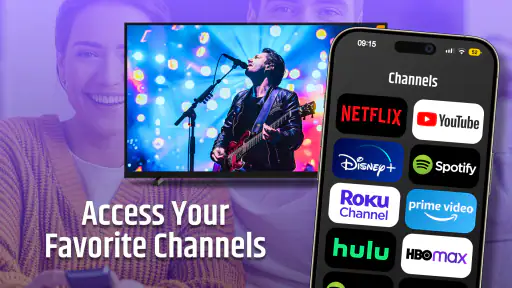
- Quick access to installed channels and recently used content.
- Useful keyboard makes searching for movies and shows faster.
Cons
- The phone and Roku device must be connected to the same Wi‑Fi network.
- Some features may require location access to discover nearby Roku devices.
- Private listening can drain your phone battery during longer viewing sessions.
- Casting support varies by app and may not work with every video service.
- Ads or premium features may appear depending on the app version.
- Category
- Tools
- Version
- 1.3.2