Precious - AI Photo Studio
- 112.00
- 4.6
- Installs
- 500.00K
- Price
- Free

Screenshots
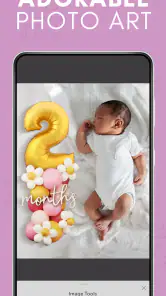
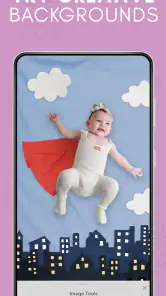
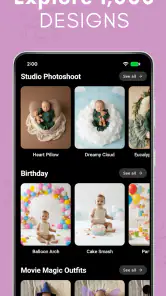
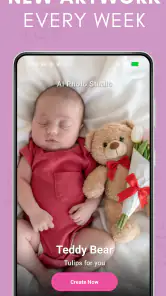
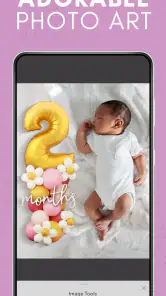
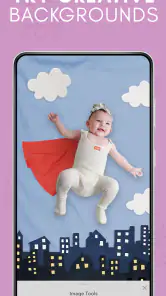
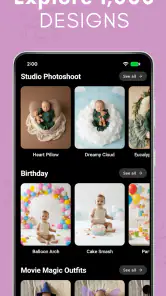
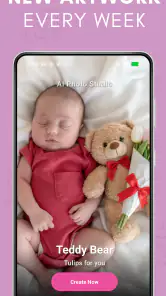
Analysis by Reviewed
I’d choose Precious - AI Photo Studio for one clear reason: it is aimed at turning baby milestones into keepsakes, rather than serving as a general photo editor. That focus can make it appealing when you want a memorable way to mark a first smile, a new skill, or an ordinary moment you know you’ll want to revisit. It also means expectations matter. The app’s promise is personal and visual, so the value depends on whether its approach suits your taste and fits comfortably into your family’s routine.
Getting past the first-use friction
Precious is a free parenting app from Curious Creators Co., with a content rating of Everyone. Its focus is baby photos and milestone keepsakes, so I’d approach it as a creative companion for family memories, not as a replacement for your phone’s camera roll or a full-featured editing suite. The distinction is useful: you can keep ordinary photos where you already organize them and use this app when you want a more intentional presentation.
For a first session, I’d begin with one photo rather than trying to process a whole album. Pick a clear, well-lit image where the baby’s face is visible, then follow the app’s available prompts at an unhurried pace. This makes it easier to judge whether the result feels like something you would actually save or share. It also avoids spending time on several images before you know whether the app’s creative style matches your preferences.
A common source of frustration with photo apps is expecting the first screen to explain every choice. If a result feels off, I’d check the image itself before assuming the app has failed: a dim room, motion blur, a face partly turned away, or busy surroundings can make a photo harder to work with. Trying a second image taken in steadier light is a simple way to separate an image-quality issue from a workflow problem.
The app is currently at version 1.1.5 and requires Android 8.0 or later. Before installing, I’d check the operating-system version on the device you plan to use, especially if it is an older phone kept for family photos. If the install does not proceed, confirm that the device meets that minimum and that there is enough room for an app and the images you intend to work with. Those basic checks are more useful than repeatedly tapping the install button.
Make the first keepsake a small test
When you open a new photo tool, there is a temptation to start with the most important picture: a birthday portrait, a hospital photo, or a shot that has already become a family favorite. I’d save that image for later. Start with a pleasant but replaceable photo, learn the app’s rhythm, and decide whether its output feels right before investing emotional weight in the process.
This is also a practical way to judge how much hands-on work you are comfortable doing. If you want a keepsake quickly, a simple, uncomplicated source photo is the fairest test. If you enjoy comparing visual treatments and choosing among versions, take time to explore the app’s available options, but keep the original image untouched in your normal photo library.
Keep the workflow easy to recover
Baby-photo sessions rarely happen under perfect conditions. You may have a few minutes while a child naps, or be working one-handed while keeping an eye on the room. I’d make the process resilient: choose the image first, avoid jumping between several tasks, and check that the finished result is saved before closing the app. That simple habit helps prevent the familiar uncertainty of wondering whether a keepsake was completed or only previewed.
If a screen stalls or a result does not appear as expected, I’d pause and retry with the same photo before making multiple changes at once. If that does not help, close and reopen the app, then try a different image. Changing one thing at a time makes troubleshooting clearer. It also protects you from accidentally replacing a good source photo with an edit you did not mean to keep.
For families who share caregiving, a useful routine is to agree on where finished keepsakes belong. The app can be the creative step, while the family’s usual photo storage remains the place to find important originals. This avoids treating one app as the only home for memories and makes it easier for another parent or relative to locate the images later.
When the trouble may be elsewhere
Not every delay or disappointing result points to a problem inside Precious. A weak connection can interrupt online steps in many modern apps, while a device running low on storage can make photo tasks awkward. If something seems stuck, I’d first check that the phone is responsive, that it has free space, and that the connection is steady. Then I’d reopen the app and retry once rather than repeatedly submitting the same action.
Image quality is another outside factor. A keepsake tool cannot make every candid shot equally suitable: a tiny face in a wide group photo, strong backlighting, or a fast-moving baby may leave less room for a pleasing result. For a milestone image, taking a few extra frames in soft natural light gives you better material to choose from. That is a photography habit, not a special requirement, but it can make the whole experience less frustrating.
I’d also keep expectations grounded around the word “AI.” It can suggest or create a visual treatment, but the result still needs your judgement. Check faces, hands, clothing, and other details before deciding an image is ready to share. For a private family keepsake, a slightly imperfect result may still feel charming; for a card or a prominent framed print, you may want to inspect it more carefully or use a conventional editor for precise finishing.
How it fits beside familiar alternatives
The usual alternative is to keep photos in the phone gallery, add a date or caption yourself, and perhaps use a standard editor for cropping and color. That route gives you more direct control and avoids learning another workflow, so it is better if you mainly want reliable storage or precise manual adjustments. Precious makes more sense when the milestone itself is the point and you want a dedicated creative step rather than another general editing toolbox.
It is not necessarily an either-or choice. I would keep original photos in the gallery, use Precious for selected moments, and reserve a conventional editor for detailed corrections. This division of labor is especially helpful if you take many pictures but only want to turn a handful into keepsakes. It reduces clutter and prevents the pressure to make every everyday snapshot into a finished project.
The audience numbers suggest that the app has found a substantial group of users: it has more than 500,000 installs and an average rating of 4.6 from around 69,000 ratings. I take that as useful context, not a guarantee that every style or workflow will suit every parent. Its 112 written reviews offer another perspective for prospective users, but the most relevant test is still whether the results feel personal to your family.
Cost, fit, and the final call
The app is free to download, with optional in-app purchases ranging from $4.99 to $39.99 per item. I’d explore the free experience before paying for anything, then decide whether a particular purchase solves a real need rather than buying on impulse. For a parent who wants an occasional milestone image, paying only when a specific option feels worthwhile may be a more comfortable approach than treating every photo as a project.
Precious is a good fit for parents and caregivers who enjoy visual mementos, want a focused way to mark baby milestones, and are willing to review the output before keeping it. It may be less suitable if you want a simple archival system, prefer editing every detail by hand, or do not want optional purchases in a creative app. If you are choosing a gift for a new parent, I would also consider whether they actually enjoy making photo keepsakes; a useful tool can still feel like extra work to someone who prefers an unedited camera roll.
My practical recommendation is to try it with one ordinary photo, confirm that the result and workflow suit you, and keep your original safely in your usual gallery. With that approach, Precious - AI Photo Studio can be a thoughtful extra for turning a few meaningful moments into keepsakes without taking over your whole photo routine. Its strongest appeal is its narrow purpose; its main trade-off is that the final value depends on your taste, the source image, and how much creative handling you want to do.
Precious - AI Photo Studio Frequently Asked Questions
What is Precious - AI Photo Studio?
Precious - AI Photo Studio is a photo-editing app that uses artificial intelligence to create or enhance images. Depending on the features available in your version, you may be able to upload a photo, choose an effect or style, and let the app process the image. Check the app listing for the current feature set, since tools and capabilities can change with updates.
How do I create an image with Precious - AI Photo Studio?
Typically, you start by selecting or taking a photo, then choose an available AI effect, editing tool, or preset and follow the on-screen instructions. Results may depend on the quality and type of the original image, and processing can take time or require an internet connection. Review the selected options before confirming, especially if the app offers paid features or credits.
Is Precious - AI Photo Studio free to use?
The app may be available to download without an upfront charge, but that does not necessarily mean every feature is free. AI processing, premium styles, subscriptions, or in-app purchases may be offered, and pricing can vary by region or change over time. Before using a trial or confirming a purchase, check the app store listing and the payment details shown in the app.
Are my photos private when I use Precious - AI Photo Studio?
Photo privacy depends on how the app processes and stores uploaded images, as well as the permissions and policies in its current version. AI tools may send images to online services for processing, so avoid uploading sensitive or identifying photos unless you are comfortable with the stated terms. Read the app’s privacy policy and review its data-safety information in the relevant app store before sharing images.
Can I save and share images made with Precious - AI Photo Studio?
The app may provide options to save finished images to your device or share them through other apps, but available export options can depend on the feature, account status, or subscription. Check whether exports include watermarks, resolution limits, or usage restrictions before relying on them for a project. Keep a copy of your original photo, since an edited result may not preserve the source image.
Pros
- Simple interface makes photo editing approachable for beginners.
- AI tools can speed up common image-enhancement tasks.
- Useful for creating polished portraits and social-ready images.
- Combines several photo-editing features in one app.
- Can help users explore creative looks without advanced editing skills.
Cons
- AI-generated results may look inconsistent from one photo to another.
- Some features or exports may require a subscription or in-app purchase.
- Results depend heavily on the quality and lighting of the original photo.
- AI processing may take time
- especially on older devices.
- Review privacy settings before uploading personal or sensitive photos.

- Category
- Parenting
- Version
- 1.1.5