HD Camera for Android: XCamera
- 7.22K
- 4.8
- Installs
- 10.00M
- Price
- Free

Screenshots
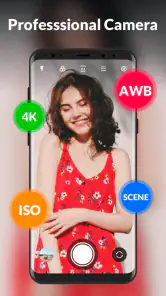
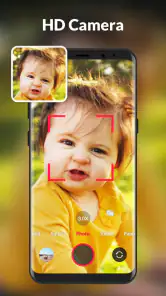
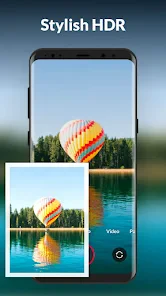
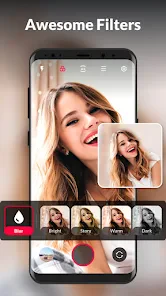
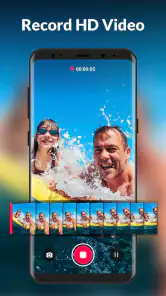
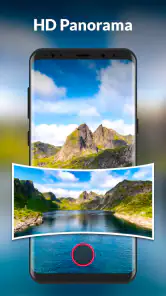
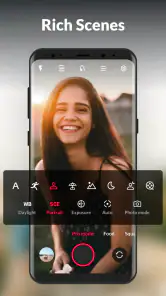
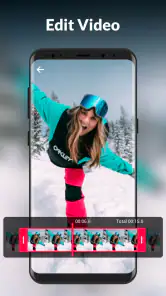
Analysis by Reviewed
I judge a camera app by whether it helps me get the shot I want without making a quick photo feel like a chore. HD Camera for Android: XCamera aims to add more control than a basic camera interface, while keeping the process approachable. That balance is useful when I want to adjust a shot, but it also makes this app less compelling if my phone’s built-in camera already does everything I need.
Where extra camera controls can help
The appeal of a separate camera app is not simply having more buttons; it is being able to respond when automatic exposure or color balance misses the mood. Manual adjustments can help with a bright window behind a person, for example, where I may want to preserve the subject rather than let the background dictate the whole image. I would make one change at a time, take a test photo, and compare it with the automatic result. That small habit is more useful than changing several settings at once and guessing which one improved the picture.
For everyday use, the best case is a scene that gives me a moment to compose: a meal before everyone starts eating, a pet sitting still, or a view on a walk. In those situations, a straightforward camera interface and extra control can work well together. For a child running across a room or a fleeting expression, I would favor the fastest camera already available on my phone. Opening a separate app and adjusting settings can cost the moment, and manual control is not automatically an advantage when speed matters most.
Useful habits for getting a better shot
When using manual controls, I would begin with the exposure rather than trying to make every image look dramatic. A small adjustment can keep a pale sky from washing out, but pushing it too far may leave faces too dark. White balance is worth considering when indoor lighting gives a photo an unwanted color cast; I would check the result on the actual screen before taking several pictures, since the right choice depends on the room and its lights.
Filters and effects are best treated as a finishing touch, not a substitute for a well-framed photo. I would capture a clean-looking version first, then see whether an effect improves the image or distracts from it. That approach also gives me a more flexible original to share in different places. If I am taking several related shots, using a consistent look afterward can make the set feel coherent without applying a heavy effect to every frame.
How it fits alongside a phone’s default camera
The built-in camera is usually the natural choice for quick snapshots because it is already familiar and easy to reach. A dedicated camera app makes more sense when I want to explore controls or prefer its layout. I would compare the two on the same subject rather than assume that the word “HD” guarantees a visible improvement: framing, available light, focus, and the phone’s own camera hardware all influence the result.
That comparison matters especially for low light. More manual control can help me make a deliberate exposure, but it cannot create light that is not there, and a longer exposure may make a moving subject blur. For a still object, I can take time to steady the phone and experiment; for people or pets in motion, the automatic camera may deliver a more usable picture with less effort. The right choice depends on the shot, not on which app has more settings.
More From Our News Desk

Weather by Xiaomi Review: Clear at a Glance, Less Clear Up Close

X Under Pressure: Can It Recover When Posting Goes Wrong?

Clash of Clans Is Won Between the Battles

Android Auto Makes the Case for Quieter Car Software

MobiOffice: Transforming Mobile Productivity with Seamless Integration

EA SPORTS FC™ Mobile Soccer: Redefining Mobile Sports Gaming
A practical choice for different kinds of users
Someone who enjoys learning how exposure and color affect a photograph may get more out of this app than a person who only wants to point and shoot. It can also suit anyone who takes planned portraits, travel views, or close-up pictures of objects and wants to adjust the result before pressing the shutter. I would not recommend switching from a familiar camera solely for the promise of better quality; I would try both apps in the situations that matter and keep the one that reliably gives me the result I prefer.
There is a real trade-off between control and convenience. Extra options can make a camera feel more capable, but they can also slow down a simple photo if I start adjusting settings without a clear reason. A sensible workflow is to leave the controls alone for ordinary snapshots, then use manual adjustments only when the automatic result is visibly off. That keeps the app from turning every casual picture into a small technical project.
Why I would test it on a real outing
I would not decide whether a camera app suits me by taking one picture indoors and judging it on the spot. A better test is to use it during an ordinary outing: photograph a street scene in daylight, a friend in open shade, and a still object under indoor lighting. Those situations reveal different things. The first shows whether the framing and exposure feel natural, the second makes skin tones and backlighting easier to assess, and the last gives me time to test color balance without rushing.
For a weekend walk, I might open the app for a landscape that deserves a little attention, then return to the phone’s usual camera for quick passing moments. That is not a failure of the app; it is a practical way to divide jobs. I would also review the pictures later on the same screen where I normally browse my gallery. A tiny preview can make a photo look sharper or brighter than it feels when viewed at a more useful size.
Making controls work rather than getting in the way
Manual settings are most helpful when I can name the problem I am trying to solve. If a face looks too dark against a bright background, I can test an exposure change. If a white plate looks yellow in warm room light, I can experiment with white balance. If I cannot identify what is wrong, I would first try moving to better light or changing the angle. A physical adjustment to the scene can be quicker and more reliable than searching through controls.
One useful discipline is to take a reference image before changing anything. I can then compare the adjusted version against a familiar baseline instead of relying on memory. This is especially helpful when experimenting with several settings over time: small changes can feel impressive while I am making them, yet the untouched image may look more natural later. I would keep the goal simple—clear, believable pictures—rather than treating every available adjustment as something that needs to be used.
Where a dedicated camera app has limits
Switching apps does not replace the strengths of the phone itself. The lens, sensor, available light, and the way the device processes a picture still shape what I get. Manual control can help me make a more deliberate choice, but it will not turn a dim room into a bright studio or make a moving subject hold still. If the phone’s own camera already handles tricky scenes reliably, a second interface may add little beyond another set of controls to learn.
I would also be cautious about treating filters as a reason to choose a camera app. A strong effect can make a quick preview feel more polished, but it may be less useful for family pictures or images I want to reuse in different contexts. For those, I prefer a restrained capture and a separate edit only when needed. That keeps the image adaptable, rather than committing to a look before I know how I will use it.
Bringing Out the Photographer in You
Right off the bat, the HD Camera for Android: XCamera app impresses with its user-friendly interface. Whether you're a pro photographer or someone who just loves snapping photos of your cat, this app makes it super easy to capture those picture-perfect moments. The layout is intuitive, so you don't have to fumble around trying to find the right setting.
A Feature-Packed Experience
Now, let’s talk features. The app is loaded with a bunch of tools that make taking high-quality photos a breeze. My personal favorite is the manual mode, which lets you tweak settings like ISO, exposure, and white balance, giving you more control over the final outcome. It’s like having a DSLR in your pocket! And for those who love a bit of creativity, there are filters and effects galore. From vintage vibes to modern aesthetics, there's something for everyone.
Beyond just photos, XCamera also excels in the video department. The app supports full HD video recording, and the stabilization feature is a lifesaver, especially if you’re like me and can’t keep your hands steady. The videos I shot were smooth and crisp, capturing every detail beautifully.
Seamless Sharing & Editing
What I appreciate about this app is how easy it is to edit and share your creations. The built-in editor is quite robust, offering a wide range of editing tools that let you enhance your photos without needing third-party apps. Once you’re happy with your masterpiece, sharing it on social media is just a tap away. The seamless integration with platforms like Instagram and Facebook is a nice touch, making it effortless to show off your latest snaps to the world.
Oh, and did I mention how lightweight the app is? It doesn’t bog down your phone or suck up all your storage space, which is a huge plus in my book. Plus, it supports a variety of languages, making it accessible to a global audience.
Who should give it a try
Simple Design Ltd. positions this free photography app for Android users who want another way to take pictures, and I can see the appeal for beginners as well as people who already enjoy adjusting a shot. Its 4.8 average from around 329,000 ratings and more than 10 million installs suggest that plenty of users have made it part of their camera routine. It is rated for Everyone, runs on Android 6.0 or later, and the current version is 1.1.8.
I would suggest trying it if you often take still subjects, enjoy learning what exposure and white balance do, or want a camera interface that gives you room to experiment. I would be less inclined to recommend it to someone who mostly captures spontaneous moments and is already happy with the built-in camera. That person may gain more from learning the default app’s shortcuts than from adding another camera to open.
The app is free to install, with optional in-app purchases listed at $3.99 per item. I would start with the free experience and decide whether the tools I actually use justify spending anything. The presence of optional purchases does not change my basic test: does it make a photo easier or more satisfying to take than my usual option? If the answer is no after a few everyday comparisons, there is little reason to keep switching to it.
Final Thoughts
All in all, the HD Camera for Android: XCamera is a fantastic app for anyone looking to elevate their mobile photography. It’s packed with features that cater to both beginners and seasoned photographers, and its ease of use makes it a joy to use. Whether you're capturing sunsets, selfies, or family gatherings, this app has got you covered.
So, if you're on the hunt for a reliable camera app that won’t let you down, give XCamera a try. Trust me, your photo gallery will thank you!
HD Camera for Android: XCamera Frequently Asked Questions
Can I use XCamera as my phone’s default camera app?
HD Camera for Android: XCamera is a photography app designed as a camera and selfie camera for Android devices. You can try it for taking photos and selfies, then decide whether it suits your routine better than your phone’s built-in camera. Your device’s camera capabilities and the options available on it can affect the experience.
Is HD Camera for Android: XCamera compatible with my Android device?
XCamera is an Android photography app that requires Android 6.0 or later. If your device meets that requirement, you can consider downloading it and checking how it works with your phone’s camera. The app is designed as a camera and selfie camera for Android devices, but results and available options can depend on the device itself.
Who develops HD Camera for Android: XCamera, and what is its age rating?
HD Camera for Android: XCamera is developed by Simple Design Ltd. and is rated Everyone, so its content is intended for a general audience. It is a photography app focused on taking pictures and selfies. As with any app, it is sensible to review its permissions and the app-store details on your device before installing.
What features does HD Camera for Android: XCamera offer?
HD Camera for Android: XCamera offers a range of features to enhance your photography experience. It includes manual controls for exposure, focus, and white balance, as well as advanced shooting modes like night, panorama, and HDR. Additionally, it provides high-resolution photo and video capture, various filters, and editing tools to enhance your images.
Is HD Camera for Android: XCamera free to use?
Yes, HD Camera for Android: XCamera is free to download and use. However, it may offer in-app purchases for additional features or to remove ads. Users can enjoy the basic functionalities without any charges, but for an ad-free experience or to unlock premium features, purchasing might be necessary. In-app purchases are listed at $3.99 per item, so review any purchase prompt carefully before confirming.
Pros
- High-resolution photo capture capability.
- User-friendly interface
- easy to navigate.
- Wide range of filters and effects.
- Fast photo processing speed.
- Supports both photo and video modes.
Cons
- Contains ads that can be intrusive.
- Limited free features
- many require purchase.
- May drain battery quickly on older devices.
- Occasional lags on low-end phones.
- Requires significant storage space.
- Category
- Photography
- Version
- 1.1.8