 About Microsoft Authenticator
Microsoft Authenticator Works Best When You Set It Up Before You Need It
Most people install Microsoft Authenticator, approve a sign-in once, and then forget it exists. That leaves its most useful work undone. Set up thoughtfully, it can replace repeated code entry, make Microsoft account sign-ins faster, and give you a practical route back into accounts after a phone change. The catch is that these benefits depend on your account types, device settings, and backup habits. This is less a magic security shield than a small piece of infrastructure worth configuring properly.
The app is clearest when you think of it as a sign-in control panel, not simply a code generator. It can hold time-based verification codes for many services, support passwordless sign-in for personal Microsoft accounts, and approve work or school sign-ins where an organization has enabled that flow. Those capabilities overlap, but they are not interchangeable. A code in the app does not mean every account is passwordless, and a push approval does not prove a sign-in is legitimate. Knowing which task you are performing is the first power-user upgrade.
Make the everyday sign-in smarter
Why most people barely use it well
The first-run experience encourages a narrow habit: add an account, wait for a code, type it into a website. That works, but it treats the app like a pocket full of tiny passwords. Many people also add only their Microsoft account and assume it will automatically protect everything else they use. It will not. Each supported account has to be enrolled with its provider, usually by scanning a QR code during that provider’s two-step verification setup.
Another source of confusion is the difference between a code and an approval. A code is generated on your device and entered into a sign-in screen. An approval is a prompt tied to a sign-in attempt, and some Microsoft work, school, or personal account flows can also ask you to match a number shown on the sign-in screen. The exact options depend on the account and the organization’s policies. If you tap approve without checking context, the convenience has outrun the security.


The fastest immediate win
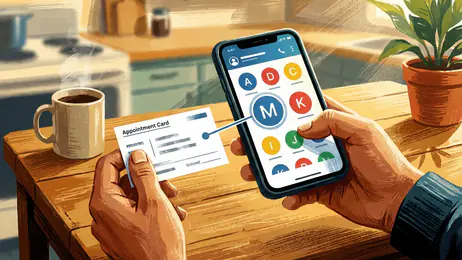
Start with the account you sign into most often, then check whether its provider supports an authenticator app. In that account’s security settings, enable two-step verification and choose the authenticator-app setup option. Scan the displayed QR code, confirm the test code, and save the provider’s recovery codes somewhere separate from your phone. Repeat for the accounts that would cause real trouble if you lost access: email, password manager, cloud storage, and financial services where app-based codes are supported.
This is the quickest change with lasting value: protect the accounts that can reset your other accounts first. Email often sits at the top of that chain. A code generator can make a stolen password less useful, but it cannot rescue an account if you lose both the phone and every recovery route. Keep the recovery codes outside the app, ideally in a secure password manager or another protected place you can reach independently.
Settings worth changing first
On iOS or Android, open the app’s settings and look for cloud backup or account recovery options. Backup availability and the exact restoration process vary by platform and account configuration, so read the prompts rather than assuming that installing the app on a new phone restores every entry. Turn on the available backup option if it fits your setup, confirm which account it uses, and make sure you can access that account without relying on the phone you are backing up.
Latest News



Also review notification permissions and device security. Push approvals are only useful if prompts arrive when expected, but notifications can reveal that a sign-in is being attempted while your phone is visible. Use a device passcode or biometric unlock, and consider whether notification previews should show details on the lock screen. These choices are a trade-off: more visible prompts are easier to act on, while less visible previews expose less information to anyone near your device.
If you use the app for work or school, your organization may control which sign-in methods are allowed. A setting you cannot change is not necessarily broken; it may be managed centrally. Avoid deleting a work account just to tidy the list unless you know how to enroll it again, since enrollment can require an administrator or a specific setup link.
Build a better workflow
Give the account list a little structure. Add accounts as you enable two-step verification, verify each entry with a test sign-in, and remove entries only after confirming that the service no longer expects codes from them. The app is not a general inventory of every account you own; it is the working endpoint for the two-step setups you have actually completed.
For a new phone, plan the move before wiping the old one. Check that backup is current, keep the old device available while you test sign-ins, and confirm that important accounts offer a recovery method other than a prompt on that same device. Some work and school accounts require fresh registration even if other entries restore. That is why a careful migration is more reliable than treating an authenticator as an ordinary app that can be reinstalled at the last minute.
For a shared or managed device, think carefully before adding a personal account. An unlocked phone with an authenticator is a powerful sign-in tool, so keep it with you and secure it like a key. If you change phones, numbers, or jobs, update account recovery details and remove access from old devices where the service provides that control. Those housekeeping steps are dull, but they prevent stale approvals and forgotten registrations from becoming a future problem.
Shortcuts that save time
When a service offers a choice between a push approval and a one-time code, use the route that matches the sign-in you initiated. A push can save typing, while a code works when notifications are delayed or the device is offline, provided the service accepts it. Codes change on a timer, so enter the current one promptly; if it expires, wait for the next rather than repeatedly trying an old value.
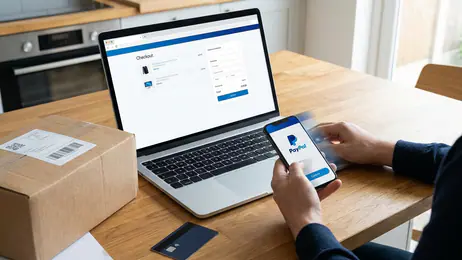
For Microsoft accounts configured for passwordless sign-in, follow the sign-in screen’s instructions instead of hunting for a code. Depending on the setup, you may approve a prompt or match a number. Check that the request corresponds to your own attempt before confirming. This is faster than typing a password, but it is not a shortcut around judgment.
On services that support authenticator codes, keep the sign-in page and the app available in a way that makes copying or reading the code easy. Avoid switching between several unrelated accounts during setup: finish enrollment and test the sign-in before moving on. That small discipline catches QR scans tied to the wrong account and prevents the common, frustrating discovery that the code was never confirmed.
Feature combinations that matter
The strongest setup combines a unique account password, two-step verification, a secured phone, and an independent recovery route. Each part covers a different failure. A password limits ordinary access; a code or approval adds another check; a screen lock protects the app if the phone is lost; recovery codes or a second method help when the phone is unavailable. None makes the others unnecessary.
Microsoft account passwordless sign-in and app-based codes are also worth understanding as separate tools. Passwordless can reduce password reuse and phishing exposure in supported flows, while codes help with services that still ask for a second factor after a password. The app does not turn every website into a passwordless service, nor does it replace a provider’s own security and recovery settings. Use the method each account actually supports.
Microsoft Authenticator earns its place when these pieces are configured together, not when its account list merely looks full. It is also more useful alongside a password manager: the manager can store unique passwords and recovery information, while the authenticator handles verification prompts and codes. Keep the recovery information protected and accessible through a separate route, rather than putting every key to an account in one place.
Mistakes casual users make
The most dangerous mistake is approving a request you did not start. If a prompt appears unexpectedly, deny it and change the relevant password through the service’s official site or app. A number-matching screen improves the flow, but it does not make an unsolicited request safe. Never approve several prompts simply to stop them arriving.
Other avoidable errors are leaving two-step verification half-configured, failing to save recovery codes, and assuming cloud backup covers every account. A code entry can remain on the phone even after you disable two-step verification at the provider, and deleting it locally may not switch off that provider’s security requirement. Make changes from the account’s own security page, then confirm the result.
Finally, do not treat an authenticator as a substitute for account hygiene. Reused passwords, outdated recovery email addresses, and unprotected devices still create openings. The app raises the cost of a stolen password; it cannot fix every weak link around it.
Who benefits most, and when it becomes useful
It is especially valuable for people with Microsoft work or school accounts, anyone who signs into several services protected by authenticator codes, and users who want fewer password-only accounts. It is less compelling for someone who has only one low-stakes account and already uses another reliable verification method. The practical payoff grows with the number and importance of accounts it protects, but so does the need for a migration and recovery plan.
You notice the app most when routine sign-ins become quicker and when a security alert lets you reject a request you did not initiate. Its deeper value appears during disruptions: a lost phone, a new device, or a work account that needs to be enrolled again. Those are precisely the moments when an untested backup or missing recovery code becomes obvious. Set up the safeguards while everything still works.
My recommendation is straightforward: Microsoft Authenticator is a useful, dependable part of a broader account-security setup, especially if Microsoft sign-ins or app-based codes are already part of your day. Install it, enroll the accounts that matter, secure the phone, and test recovery before you need it. Do not mistake convenience for complete protection, and never approve an unexpected prompt. Used with that bit of care, it is less a code drawer than a well-prepared way to keep access under control.