GO Launcher -Themes&Wallpapers
- 518.75K
- 4.3
- Installs
- 100.00M
- Price
- Free

Screenshots
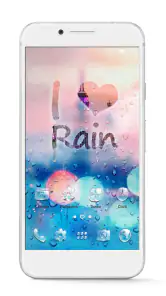
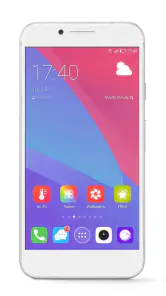
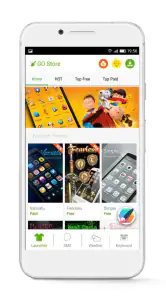
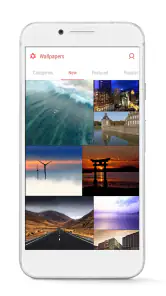
Analysis by Reviewed
I judge a launcher by what happens after the first burst of excitement: can I make the home screen feel more like mine without turning routine phone use into a project? GO Launcher - Themes & Wallpapers is a personalization app from go live llc, built around changing the look of an Android home screen with themes and wallpapers. It is free to install, rated for Everyone, and has a 4.3 average from around 7 million ratings, with over 100 million installs. Those figures suggest it has broad appeal, but the practical question is whether its customization fits the way you use your phone.
Where setup can get confusing
The first friction point with any launcher is understanding what changes and what does not. A theme can alter the visual feel of the home screen, while your apps, accounts, and personal files remain part of the phone itself. I recommend changing one thing at a time: choose a look, check how your icons and widgets sit, then decide whether to adjust the wallpaper or other elements. That makes it easier to spot what you actually like instead of stacking changes and losing track of the source of a problem.
Before settling on a design, check whether its contrast makes everyday tasks comfortable. Decorative icons may look polished in a preview but can be harder to recognize at a glance, especially if several apps have similar artwork. I would prioritize clear labels and familiar placement over a perfectly coordinated screen. If you rely on muscle memory, keep your most-used apps in their usual positions while you experiment with the rest.
Transform Your Home Screen
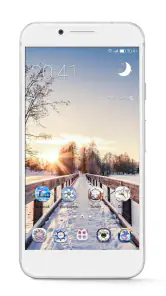
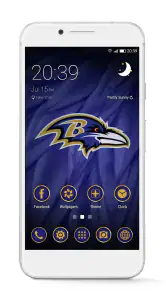
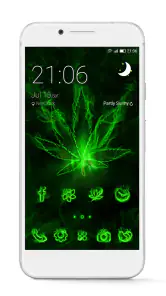
First off, the sheer variety of themes available in GO Launcher - Themes & Wallpapers is nothing short of impressive. I’m talking about thousands of themes, each one more vibrant and creative than the last. Whether you're into minimalist designs or extravagant styles, there’s something here for every taste. The easy-to-use interface makes it a breeze to switch things up whenever you fancy a change.
Ease of Use
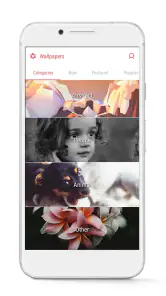
Downloading and setting up the app is as straightforward as it gets. I appreciate that it doesn’t bombard you with ads right off the bat, which is a huge plus in my book. Navigating through the themes and wallpapers is intuitive, with smart categorization that helps you find exactly what you’re looking for without the hassle.
One useful way to explore without overcommitting is to treat a theme as a trial rather than a permanent makeover. Try it through a normal day: open the apps you use for messages, maps, work, and errands, and see whether the new layout still feels quick. If a style makes those common actions harder, switch back or keep only the parts you enjoy. This small test is more revealing than judging a theme from its preview alone.
Personalization Features
What I love the most is the level of personalization you can achieve. Besides themes, the app offers a plethora of wallpapers, widgets, and transition effects that let you tailor your experience. Imagine having weather widgets that match your theme or transition effects that make your phone feel like an extension of your personality.
More From Our News Desk

Weather by Xiaomi Review: Clear at a Glance, Less Clear Up Close

X Under Pressure: Can It Recover When Posting Goes Wrong?

Clash of Clans Is Won Between the Battles

Android Auto Makes the Case for Quieter Car Software

MobiOffice: Transforming Mobile Productivity with Seamless Integration

EA SPORTS FC™ Mobile Soccer: Redefining Mobile Sports Gaming
For a practical setup, I would begin with a wallpaper that stays readable behind icons, then add only the widgets I check regularly. A busy screen can look striking but may make it harder to find information quickly; fewer, well-placed elements often work better. Transition effects are another area where restraint helps: a subtle effect can make navigation feel polished, while a more elaborate one may become distracting when you open and close apps throughout the day.
Performance Boost
Now, we all know that adding too many customizations can sometimes slow down your phone. However, I found that GO Launcher actually improves performance with built-in features like a speed booster and battery saver. It’s like having a handy little assistant keeping your phone running smoothly while looking fabulous.
I would still treat any booster or saver as an optional tool, not a guarantee that every slowdown will disappear. If the phone feels less responsive after a visual change, first remove the most recent theme or effect and see whether the experience improves. If it does not, the cause may lie elsewhere, such as a demanding app or limited device resources. A launcher can change how the home screen behaves, but it cannot solve every system-wide performance issue.
Community and Updates
Another thing worth mentioning is the vibrant community behind this app. The developers are active in rolling out updates, ensuring you’re never stuck with bugs or outdated features. Plus, the community is constantly sharing new themes and ideas, which keeps things fresh and exciting.
Making a setup easy to recover
Because it is easy to keep trying new looks, I find it sensible to make changes in small, reversible steps. Note which theme you applied and what you changed afterward, particularly if you are adjusting several parts of the screen. Then, if an icon becomes difficult to identify or a layout stops feeling natural, you have a clearer path back to a comfortable arrangement instead of having to undo everything at once.
If something looks different after an update or a change, check the launcher’s current settings and selected theme before assuming your phone has a deeper fault. Reopen the app, confirm which look is active, and test the home screen again. If the issue affects other apps or parts of the device too, it may not be caused by the launcher; checking the phone’s general settings or restarting it is a reasonable first step. I would avoid making several unrelated changes at once, since that makes troubleshooting harder.
Who will get the most from it
This is a good fit for someone who enjoys refreshing a home screen, likes trying different visual styles, and is comfortable spending a little time tuning a launcher. It can also suit people who want a coordinated look without designing every detail themselves. For example, if I wanted my phone to feel less cluttered before a busy week, I could choose a simpler theme, keep only essential widgets visible, and leave the main app positions familiar so I can still move quickly between daily tasks.
On the other hand, I would skip it if I am already happy with the phone’s default home screen or want the fewest possible settings to manage. A built-in wallpaper picker is usually the simpler choice when all I want is a new background. Other launchers may suit someone who prefers a different layout philosophy or a more minimal set of choices; the advantage here is the emphasis on themed visual changes, not that every user needs another layer of customization.
What’s the Catch?
Now, while I’m singing its praises, it’s only fair to mention some quirks. Some premium features require in-app purchases, which might not be everyone’s cup of tea. But honestly, the free features are robust enough that you might not even feel the need to go premium unless you’re really into that level of customization.
The app is free, but optional in-app purchases range from under a dollar to around $110 per item, so I would check the price shown for any specific item before buying. You do not need to purchase anything just to decide whether the launcher’s basic approach suits you. Its current version is 3.42, and it requires Android 7.0 or later; if your device runs an older system, this is not the right option for it.
One trade-off is that a large choice of themes can make browsing itself part of the time cost. I would save the search for a moment when I can compare a few styles calmly, rather than repeatedly changing the screen during a rushed morning. The best setup is not necessarily the most elaborate one; it is the one that remains readable and easy to use after the novelty wears off.
Choosing between a launcher and simpler options
The practical difference from using the phone’s default home screen is that a launcher makes visual changes feel more central to everyday use. If you only want a fresh background, the built-in wallpaper option is quicker and avoids changing how the home screen is presented. If you want icons, wallpaper, and the overall look to feel coordinated, this app’s theme-led approach gives you more to explore, though it also asks you to spend more time choosing and checking the result.
I would compare alternatives by asking what I actually want to change. For a single adjustment, the phone’s existing settings may be enough. For a broader visual refresh, GO Launcher makes more sense; another launcher could be a better fit if its layout and controls match your habits more closely. I would not switch just because one screenshot looks appealing. A home screen is something you use repeatedly, so familiar placement and legibility matter more than a dramatic first impression.
A realistic day-to-day test
Imagine I am getting ready for a busy week and want my phone to feel calmer, not simply different. I would choose a restrained theme, leave my message and calendar apps where my hands expect them, and keep only a useful widget or two. Then I would use the phone normally for a day: check messages while walking between tasks, open maps when heading out, and find the apps I need without stopping to admire the screen. If I keep hesitating, I would simplify the layout rather than add another effect.
That test also helps answer whether the app is worth keeping. A theme that looks good but makes routine actions slower is not a successful customization for me. If the screen feels more personal and I can still reach everyday apps quickly, the extra choices have served a purpose. I would save more ambitious designs for when I have time to explore, rather than making a complicated makeover the first thing I do in the morning.
A small routine for safer experimenting
I also find it useful to take a mental snapshot of the home screen before making a bigger change: remember the positions of the apps I rely on, then try the theme and judge its effect on those specific shortcuts. This is especially helpful if I use my phone one-handed or tend to open apps by tapping the same spot without looking. A pretty arrangement that shifts those touch habits can create more friction than it removes, even when every icon is still present.
If browsing starts to feel endless, I would narrow the choice by deciding what I want the screen to feel like before opening the theme collection: calmer, brighter, or easier to scan. Then I would compare a few options against that goal instead of judging every design on its own. That simple filter turns a large catalog into a practical decision and makes it less tempting to keep changing the whole setup just because another preview catches my eye.
What to check when something feels wrong
A useful troubleshooting distinction is whether the problem is visual, limited to the home screen, or happening across the phone. If only the icons or background look unexpected, I would check the selected theme and wallpaper first. If opening the home screen itself feels awkward, I would undo the most recent layout change and test again. If apps outside the launcher also behave oddly, I would look beyond customization rather than assuming a theme caused a device-wide issue.
For someone sharing a phone or helping a family member customize theirs, I would keep the setup conservative and make sure the person who uses it can still recognize their everyday apps. A coordinated screen is only useful if its owner can navigate it comfortably. The Everyone age rating makes the app broadly suitable in that respect, but I would still choose themes based on the user’s vision, familiarity, and comfort rather than appearance alone.
Final Thoughts
If you’re someone who enjoys making your phone a reflection of your individuality, then GO Launcher - Themes & Wallpapers is definitely worth checking out. It’s a powerful tool in the hands of those who love to tweak and tinker. With its vast array of options and seamless performance, it’s no wonder it has a loyal user base. So why not give it a whirl and see how it transforms your phone into a personal masterpiece?
Ready to dive into the world of customization? You can download the app from your respective app store and embark on this creative journey today.
GO Launcher -Themes&Wallpapers Frequently Asked Questions
What does GO Launcher do, and who might enjoy using it?
GO Launcher is a Personalization app for Android that changes the look and feel of your phone’s home screen. It offers themes, wallpapers, widgets, 3D effects, and transition animations for people who like to adjust their device’s appearance instead of keeping the default layout. It may appeal most to users who enjoy experimenting with different visual styles and home-screen arrangements.
What Android version does GO Launcher require?
GO Launcher requires Android 7.0 or later. Before downloading, check your phone’s Android version in its settings to make sure it meets that requirement. The app is designed to customize an Android home screen, and compatible devices may still differ in how smoothly they handle its visual options, so it is worth trying the free app before deciding whether it suits your setup.
Is GO Launcher suitable for children?
GO Launcher has an Everyone content rating, so it is classified for a broad audience. Its main purpose is personalizing an Android home screen with themes, wallpapers, widgets, and visual effects. As with any app, parents can review the available content and purchase options with younger users and use Android’s device controls to manage purchases or screen time as they see fit.
Does GO Launcher require a separate account, and can I start customizing right away?
GO Launcher is an Android personalization app focused on changing the look of your home screen with themes, wallpapers, widgets, and visual effects. You can begin exploring those options after installing the app and choosing to use it as your launcher. The experience is centered on making the phone’s home screen feel more personal, rather than setting up a separate social profile or game account.
Can I control which notifications appear on my home screen when using GO Launcher?
GO Launcher changes the home-screen experience, but notifications are also controlled by Android and the apps installed on your phone. If you want to adjust what appears or how alerts behave, check your device’s notification and home-screen settings. That lets you manage alerts separately from choosing a theme or wallpaper, so visual customization does not have to mean changing the notification preferences you already use.
Pros
- Highly customizable themes and icons.
- Smooth and fast user interface.
- Frequent updates with new features.
- Battery-saving optimization options.
- Wide range of free wallpapers.
Cons
- Contains ads that can be intrusive.
- Some features locked behind a paywall.
- Occasional performance lags on older devices.
- Support for widgets can be inconsistent.
- May require additional permissions.
- Category
- Personalization
- Version
- 3.42