FamilyKeeper Parental Control
- 150.00
- 3.1
- Installs
- 100.00K
- Price
- Free

Screenshots




Analysis by Reviewed
When a child’s phone becomes part of the household routine, the difficult part is rarely finding one more app. The difficult part is keeping screen time, app access, location, and family expectations in the same conversation. I found FamilyKeeper Parental Control, developed by Reason Labs, most useful when treated as a coordination tool rather than a magic solution. It brings several parental-control tasks into one place, but it also asks parents to think carefully about boundaries, trust, and how much supervision is appropriate.
In my experience, the app makes the most sense for a family sharing responsibility for a child’s Android device. One parent might handle daily limits, another might need to check where the phone is after school, and the child may need a clear explanation of what is being monitored. Having these concerns connected can be more practical than switching between separate screen-time settings, a location service, and an app-blocking tool.
FamilyKeeper is a free parenting app with optional in-app purchases ranging from $9.99 to $119.99 per item. It is rated for Everyone, and it has passed the 100K+ install mark. Those details make it accessible to try, but I would not treat the free download as proof that every useful capability is included without additional cost. The purchase screen and the exact plan offered to you deserve attention before you build your household routine around it.
How FamilyKeeper fits into a shared household
A realistic after-school routine
Imagine a child arriving home with a phone that is needed for messages, transport, and homework, but also becomes a distraction during the evening. A parent can use FamilyKeeper as a central place to review the child’s device activity, manage screen-time expectations, and decide whether certain apps should remain available. Later, the location feature may help answer a practical question such as whether the phone has left school or arrived home.
That workflow sounds simple, but the value comes from combining separate decisions. A location check tells me where the device is, while an app-monitoring view can help me understand what is competing for attention. A blocker can support a previously agreed rule, and screen-time management can give the rule a predictable shape. None of these tools replaces a conversation, yet they can make the conversation less vague.
The shared-device angle matters. If several adults care for the same child, the household should agree on who is responsible for changing limits and responding to alerts or concerns. Otherwise, two parents can unintentionally create conflicting rules, or one adult can change a setting without the other knowing. I would establish one primary decision-maker and one backup before installing the app, even if FamilyKeeper itself is being used by more than one adult.
I also recommend deciding what the app is for before opening its controls. Is the immediate problem late-night use, unsuitable app access, uncertainty about a commute, or general digital habits? Starting with one problem makes the setup easier to judge. Trying to activate every control at once can make the phone feel heavily supervised and can leave parents unsure which setting actually helped.
What the combined tools are good at
The store summary presents FamilyKeeper as a way to manage screen time, track location, monitor apps, and block them. In practical terms, that combination is more useful when each feature has a specific job. Screen-time controls can support predictable routines. Location tracking can provide reassurance during ordinary travel. App monitoring can show where attention is going. Blocking can create a firm boundary when discussion alone has not worked.
My strongest impression is that the app is better suited to structured supervision than to occasional panic checks. A parent who only wants a location tracker may find the broader control set unnecessary. A parent who wants a detailed family digital-wellness system may also need to compare it with the built-in controls already available on the child’s phone. FamilyKeeper earns its place when having these functions together is more convenient than managing them separately.
There is also a useful trade-off between visibility and simplicity. A single dashboard can reduce the mental load of remembering several services, but it can also encourage parents to check more often than necessary. I would use the app to support a routine review rather than repeatedly inspect every activity. That approach keeps the tool focused on safety and habits instead of turning it into a constant source of suspicion.
Setting boundaries before installing
Setup should begin with a family agreement, not with tapping through menus. I would tell the child which areas are being managed, why the controls are needed, and when the rules will be reviewed. This matters especially for older children, who may accept a clear safety boundary but react badly to unexplained monitoring. The app can enforce a decision, but it cannot make that decision feel fair.
Account boundaries deserve particular care in a household with shared phones or tablets. I would identify the supervised device, the parent responsible for it, and the adult account used to manage it. If a device changes hands between siblings, I would avoid treating it as though it belongs to one child unless the household has a clear way to separate those situations. A control that is sensible for one age group can be frustrating or inappropriate for another.
Before relying on a block or time limit, I would test the household’s most important routine. For example, check whether the child can still reach the apps needed for schoolwork or communication, and whether the parent can understand the resulting status without confusion. The point is not to search for technical loopholes; it is to prevent an ordinary rule from interfering with a legitimate need.
One non-obvious advantage of this approach is that it reveals whether the family actually needs a single control app. If the phone’s existing settings already handle basic limits well, FamilyKeeper may be most valuable for the location and monitoring workflow. If the family mainly needs app blocking, a narrower tool might be easier to explain and maintain. I would compare the app’s convenience with the complexity it introduces before paying for anything.
Coordinating adults without creating confusion
Parents often focus on what the child can do and overlook how adults will coordinate. In my view, FamilyKeeper works best when the adults agree on a small set of rules and record the reason for each one in ordinary language. “No entertainment apps during homework” is easier to review than a collection of unexplained restrictions. When a rule stops being useful, the adult who created it should be willing to change it.
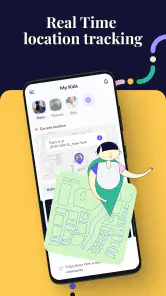
Location tracking needs the same discipline. It can be reassuring when a child is travelling alone, but it should not become a substitute for a message or a check-in plan. I would agree on situations where location is checked, such as a journey home, and avoid presenting constant visibility as the normal measure of trust. The app is more respectful when it supports a safety plan rather than silently replacing one.
App monitoring can also be interpreted too quickly. Seeing frequent use of an app does not automatically mean the app is harmful; it may be connected to school, friends, or a project. I would look for patterns over time and ask a question before blocking anything. That is one of the clearest differences between responsible supervision and simply reacting to a number on a screen.
For households with separated parents or several caregivers, consistency becomes even more important. I would decide which adult handles purchases, which adult changes restrictions, and how disagreements are resolved. FamilyKeeper can centralize control, but centralization does not automatically create agreement. If the adults cannot settle the boundaries, the child may experience the app as unpredictable regardless of how polished the interface feels.
Age, trust, and the limits of supervision
The Everyone content rating describes the app itself, not a universal recommendation for every family situation. A young child may need direct limits and close guidance, while a teenager may respond better to transparent rules and gradual independence. I would use the same feature differently depending on maturity. A strict block can be appropriate for a specific safety concern, but it may be excessive when the real issue is time management.
Trust is not an automatic result of allowing or restricting phone use. I prefer to explain the purpose of each control and set a date to review it. If the child consistently follows the agreement, the family can discuss whether some supervision should be reduced. If a problem appears, the adults can tighten one boundary instead of applying every available control at once.
There is a practical reason to avoid over-monitoring: it can make children hide behavior rather than discuss it. A location tracker may answer where a phone is, but it cannot explain whether the child is safe, why plans changed, or whether an uncomfortable situation is developing. App monitoring may show use, but it cannot replace a conversation about bullying, pressure, or emotional wellbeing.
I would also be cautious about using the app with a shared family tablet. If siblings use the same device, the activity picture may not clearly belong to one person. In that situation, a device-level control can still help with general household routines, but it should not be treated as a precise record of one child’s behavior. This is a key boundary that parents should understand before drawing conclusions.
Where it feels less convenient
FamilyKeeper’s average rating is 3.1 from roughly 256 ratings, with about 150 written reviews. I read that as a reason to approach the app thoughtfully rather than dismiss it outright. Parental-control software is especially sensitive to setup friction, device compatibility, account confusion, and expectations about what monitoring should show. A family should be prepared to spend time testing the workflow instead of assuming that installation alone solves the problem.
The app’s current version is 1.12.2 and it requires Android 6.0 or later. That broad operating-system requirement should cover many older Android devices, but it does not guarantee that every phone behaves identically. I would test the controls on the actual child’s device, especially if the phone is old, shared, or used for school and travel. A feature that works acceptably in a quick trial still needs to fit the family’s daily routine.
Cost is another point of friction. The app is free to download, yet optional purchases can reach $119.99 per item. I would inspect what is included before entering payment details and ask whether the paid capability solves the specific problem identified during setup. A family that only needs basic device habits may not benefit from paying for a larger package, while a family seeking several connected controls may decide that consolidation is worth it.
I would skip FamilyKeeper if the household wants completely invisible surveillance, because that approach is likely to damage trust even when the technology works. I would also look elsewhere if the priority is a highly specialized school-management system, a tool designed only for iPhone households, or a very simple timer with no interest in location and app oversight. The broader feature mix is useful, but broader does not always mean better.
Small workflow choices that improve the experience
My first practical tip is to create a baseline before changing behavior. Spend a short period understanding the child’s normal schedule and the apps that genuinely matter. Then adjust one control and observe the result. This avoids blaming the wrong app for a time-management problem and makes it easier to explain why a particular boundary was introduced.
My second tip is to separate urgent safety decisions from routine habit decisions. Location tracking belongs in the safety conversation, while screen-time limits belong in the daily-routine conversation. Mixing them can make ordinary entertainment use feel like a safety incident. Keeping the purposes separate helps parents use each part of the app with a lighter touch.
My third tip is to build an exception process outside the app. A child may need extra time for a school assignment, a delayed journey may require a temporary change, or a family event may make the usual schedule unrealistic. Agreeing in advance on how to request an exception prevents the child from feeling that every unusual situation is a violation. It also prevents parents from constantly changing permanent settings for temporary needs.
Finally, review the arrangement with the child rather than only reviewing the dashboard. Ask whether the limits are understandable, whether important apps remain usable, and whether location checks feel connected to genuine safety needs. This conversation is not an optional extra; it is what turns FamilyKeeper from a control panel into part of a workable household agreement.
My household verdict
After looking at the app as a parent would use it day to day, I see FamilyKeeper as a practical option for families that want screen-time management, location tracking, app monitoring, and blocking gathered around the same child device. Its strongest use case is a household that needs coordination: adults want a shared view, the child needs clear boundaries, and everyone is willing to discuss how supervision will work.
I would recommend trying it when the family’s problem is scattered controls rather than a single missing feature. The free starting point makes experimentation easier, while the paid items mean that the household should make a deliberate purchase decision instead of assuming the full experience is included. The app’s Android requirement, version history, and mixed rating also make a real-device trial sensible before relying on it for an important routine.
I would not recommend using it as a replacement for parenting, communication, or judgment. For a teenager who is ready for more independence, transparent agreements and built-in phone tools may be a better fit. For a shared tablet used by several children, the monitoring picture may be too difficult to interpret precisely. For parents who want only a basic timer or only a location service, a narrower alternative may feel cleaner.
Overall, FamilyKeeper Parental Control is most convincing when it helps a family make its rules visible, consistent, and reviewable. I like the idea of bringing several everyday concerns into one parenting workflow, but I would keep the boundaries modest, explain them openly, and test them against real household needs. Used that way, FamilyKeeper Parental Control can be a useful layer of support rather than an intrusive substitute for trust.
Pros
- Real-time location tracking helps parents know where children are.
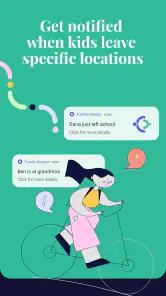
- Geofencing alerts notify you when a child enters or leaves a saved place.
- Screen-time tools support healthier phone-use routines.
- SOS features can provide quick access to emergency contacts.
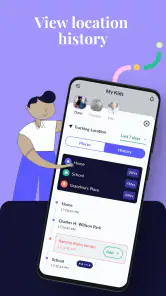
- Activity reports make it easier to spot unusual behavior patterns.
Cons
- Some features may require a paid subscription after the trial period.
- Continuous location tracking can reduce battery life on children’s devices.
- Children may feel uncomfortable with constant monitoring.
- Setup can be time-consuming across multiple phones and accounts.
- Accuracy may vary indoors or when GPS and mobile signals are weak.

- Category
- Parenting
- Version
- 1.12.2