Cloud Gallery - Photo Editor
- 246.00
- 4.7
- Installs
- 1.00M
- Price
- Free

Screenshots





Analysis by Reviewed
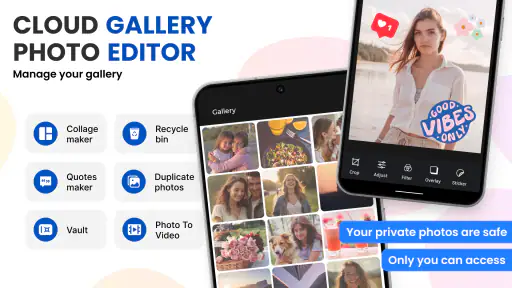
I usually judge a gallery app by what happens after the photo is taken. Can I find an image quickly, separate personal pictures from work material, keep videos under control, and avoid turning cloud backup into a confusing second job? Cloud Gallery - Photo Editor is built around that practical side of photography. It is a free photography app from Photo & Video Editors - Instant Solution, aimed at making albums easier to manage while also offering cloud backup and a way to hide pictures and videos.
After using it as a daily gallery rather than treating it like a special-effects editor, I found its appeal fairly clear: it tries to reduce the friction between capturing media and keeping it organized. The app has a 4.7 average from around 11 thousand ratings and has passed one million installs, so it is not an obscure experiment. Still, those figures do not automatically make it the right choice for everyone. Its value depends on whether you want a simpler media hub or a deeply customizable replacement for a mature phone gallery.
How Cloud Gallery fits into a normal photo routine
The most sensible way to begin is with a small, repeatable workflow. I would open the app when I need to browse recent photos, create or review an album, move images out of the general camera stream, and decide which videos or pictures deserve a more private place. That is different from using a full photo-editing suite, where the main question is how to change the image. Here, the main question is how to live with a growing collection.
The store describes it as a cloud gallery, and that focus matters. A local gallery is excellent when everything stays on one phone, but it becomes less reassuring when a device is lost, replaced, or short on storage. Cloud Gallery - Photo Editor brings backup into the same general experience, which can make the transition from taking a picture to protecting it feel less fragmented. I still recommend treating backup as a process to check rather than a button to trust blindly: after selecting important material, confirm that it appears where you expect before deleting anything from the device.
A realistic example is a weekend event. I might take a mixture of portraits, screenshots, short clips, receipts, and accidental pocket photos. Instead of leaving everything in one long camera roll, I can use the gallery to separate the useful images from temporary clutter. The practical gain is not dramatic editing; it is being able to return later and find the event without scrolling through unrelated media.
Albums are especially useful when they reflect decisions I make repeatedly. A folder for household documents, another for trips, and one for clips I plan to share are more helpful than creating dozens of tiny albums that I will forget. I found that the best results come from organizing in batches: take a few minutes after an event to sort the obvious items, then leave uncertain photos alone until I have more time. That avoids the common mistake of slowing down the entire workflow by trying to classify every image immediately.
The hiding function adds another layer. It can be useful for personal pictures, sensitive documents, or media that I do not want visible during casual browsing. I would use it as a privacy convenience, not as the only protection for extremely sensitive material. A hidden item is still part of a wider device and account environment, so I would also use a strong device lock and avoid assuming that “hidden” means the same thing as encrypted storage.
More From Our News Desk

Weather by Xiaomi Review: Clear at a Glance, Less Clear Up Close

X Under Pressure: Can It Recover When Posting Goes Wrong?

Clash of Clans Is Won Between the Battles

Android Auto Makes the Case for Quieter Car Software

MobiOffice: Transforming Mobile Productivity with Seamless Integration

EA SPORTS FC™ Mobile Soccer: Redefining Mobile Sports Gaming
What the free installation is best at
The app is free to install and is rated for Everyone, which makes it approachable for ordinary household use. It supports devices running Android 8.0 or later, so compatibility is broad enough for many phones still in circulation. The current version is 3.0.3, and I would keep the app updated through the normal store process because gallery software handles personal files and backup tasks where reliability matters more than novelty.
Its strongest audience is someone who wants a straightforward alternative to a crowded default gallery. If the built-in app on your phone mixes screenshots, downloads, camera images, and videos without giving you a comfortable way to manage them, this app is worth trying. It is also a reasonable fit for people who want cloud backup visible inside the gallery experience instead of switching between a local viewer and a separate storage application.
There is a trade-off, though. Free apps that include optional purchases may offer a basic path first and reserve some conveniences for paid use. The listed in-app purchase range runs from $0.99 to $99.99 per item. I would therefore explore the core workflow before committing to any purchase, especially if your main need is simple local browsing rather than cloud storage. The price range is wide enough that a careful user should understand what a selected purchase provides and whether it solves a real problem.
Settings I would check before importing everything
My first setting check would concern backup behavior. Cloud storage is helpful only when it matches my habits. If the app gives me choices about which albums or media types are included, I would avoid automatically sending every screenshot, meme, temporary download, and duplicate clip to the cloud. A selective approach keeps the backup collection useful and reduces the chance of filling it with content I never wanted to preserve.
I would also review how hidden media is handled before placing anything important there. The useful questions are practical: does hidden content disappear from ordinary album views, can I restore it without losing its original organization, and is there a separate action required to reveal it? I would test with an unimportant image first. That small experiment is one of the most valuable habits with any privacy-related gallery feature because it prevents surprises later.
Notifications deserve attention as well. Backup reminders can be useful when they tell me that a task needs checking, but too many alerts make it easy to dismiss the one that matters. I prefer a quiet setup in which the app does not interrupt ordinary browsing while still making unfinished backup work visible when I deliberately open the app.
Storage behavior is another area where experienced use pays off. I would not delete local originals immediately after seeing that a thumbnail exists in the cloud. A thumbnail proves that something is visible, not necessarily that the full-resolution file is safely available for later download. My routine would be to open a few backed-up images, check a video, and confirm that the files can be retrieved before clearing local space.
Finally, I would look at album naming and sorting habits before creating a large collection. Consistent names such as “2024 family,” “receipts,” or “projects” are easier to scan than vague labels. I would avoid relying only on memory or color-based organization. The app can make browsing faster, but it cannot compensate for an album system that changes every week.
Faster patterns that save time every day
The biggest speed improvement is to separate cleanup from browsing. When I open the app just to show someone a picture, I do not start reorganizing the whole library. I find the relevant album or recent item, finish the immediate task, and reserve cleanup for a dedicated session. This prevents a gallery from becoming a constant maintenance project.
For repeatable work, I would use a three-pass method. The first pass removes obvious mistakes, such as accidental shots or duplicate frames. The second places clear groups into albums. The third handles backup decisions and privacy-sensitive items. This is faster than making a backup decision for every single photo while I am still deciding whether the photo is worth keeping.
Videos benefit from their own habit because they consume attention and storage differently from still images. I would review clips separately, keeping only the ones with a clear purpose: a memory, an important demonstration, or a file I actually intend to share. Short, unwanted videos are easy to ignore in a mixed timeline, so a dedicated video review prevents them from quietly dominating the library.
Another useful pattern is a temporary album for an active project. If I am collecting images for a renovation, a school activity, or a sale listing, I can gather the relevant media in one place while the project is active. Once finished, I can either archive that album or move its final images into a longer-term collection. This avoids polluting permanent albums with material that was only useful for a few days.
When I need to share from the app, I would prepare the selection before opening the share action. That sounds minor, but it reduces accidental oversharing, particularly when a group contains private screenshots or unrelated images. The same principle applies to hidden content: keep private items out of mixed working albums so that a rushed selection is less likely to include them.
Cloud backup also works better when treated as a scheduled checkpoint. After a trip or event, I would connect to a reliable network, leave the app enough time to process the chosen media, and then verify a few originals. I would not make the backup decision while rushing through an airport or immediately after taking a picture. Deliberate checkpoints are less glamorous than automatic promises, but they are much easier to trust.
Where it differs from the usual gallery alternatives
The default gallery supplied by a phone manufacturer often has the advantage of deep system integration. It may open instantly from the camera, understand device-specific folders, and provide editing tools designed for that phone. If your current gallery already handles albums, privacy, and backup comfortably, switching may not produce a meaningful improvement.
Cloud-focused photo services usually go further with search, synchronization across devices, and broad online libraries. They can be better for someone who wants to browse a large collection from several devices or depend heavily on automatic discovery. Cloud Gallery feels more focused on the direct gallery task: albums, visibility, and a simpler route to backup. I would choose the more advanced service when powerful search and cross-device history matter more than a lightweight browsing experience.
Dedicated file managers are stronger when the job involves moving folders, renaming files, inspecting locations, or handling documents alongside images. They are less pleasant for visual browsing, however. This app sits between those choices: more image-oriented than a file manager, but less like a full archival system than a large cloud photo platform.
That middle position is both its strength and its limitation. Someone who wants a clean, approachable media organizer may appreciate it. Someone who expects professional cataloging, detailed metadata controls, sophisticated editing, or a complete replacement for every photo tool on a phone may find the experience too narrow.
Limits I would keep in mind before relying on it
The phrase “photo editor” can set an expectation that the app is primarily about filters, retouching, or advanced adjustments. My evaluation would not choose it for that reason. Its more convincing identity is gallery management with cloud backup and hiding features. If your priority is color correction, layer work, portrait retouching, or precise export control, a dedicated editor is likely the better companion.
Cloud storage also introduces dependence on connectivity and account workflow. A local gallery remains useful when I am offline and when I need immediate access to files stored on the phone. A cloud-centered routine requires more care around synchronization, available storage, and retrieval. I would keep particularly important originals in more than one sensible place rather than treating one app as the sole copy.
Privacy needs a realistic reading too. Hiding media is convenient for keeping a casual gallery private, but I would not use it as a substitute for secure document storage or a carefully managed encrypted vault. I would also avoid placing sensitive material into shared albums or sending it through a sharing flow without checking the selection first. The app can support better habits, but the user still controls the most important privacy decisions.
There is also a mental cost to changing gallery apps. Media may already be spread across camera folders, messaging folders, downloads, and editing exports. Before adopting a new organizer as my main tool, I would test it with a limited collection and observe how it handles the folders I use most. A clean experience with a small sample does not always translate into a painless migration of an entire phone.
For that reason, I would not recommend uninstalling the old gallery immediately. I would run both for a short period, compare how quickly I can locate recent photos, and confirm that backup and hidden items behave as expected. This trial approach is especially sensible when the library contains irreplaceable family pictures or work files.
Who should use it, and who should choose something else
I would recommend Cloud Gallery - Photo Editor to someone whose main frustration is disorganized media rather than a lack of editing power. It suits a person who wants albums to feel manageable, wants a cloud option close to the gallery, and values a less complicated routine for hiding selected pictures and videos. It can also help families or casual photographers who need a visual library without learning a professional cataloging system.
I would be more cautious about recommending it to a photographer who needs extensive metadata, advanced search, precise folder control, or a carefully structured multi-device archive. I would also point heavy editors toward a dedicated editing application and users with strong offline requirements toward a dependable local gallery or file manager. The right choice depends on whether organization and backup are the center of the problem.
Before paying for an optional item, I would identify the exact inconvenience I am trying to remove. If the issue is simply that my camera roll is messy, better album habits may solve it without spending anything. If a purchase addresses a cloud or management need I genuinely have, then the option may be worthwhile, but I would still compare it with the storage and gallery tools already available on my phone.
My verdict after building a repeatable routine
What I like most is the app’s practical direction. It does not need to turn every photo into a creative project to be useful. By combining albums, cloud backup, and hidden media in one photography app, it addresses the less exciting but more persistent problem of keeping a growing library under control.
The best results come from using it deliberately: review settings before a large backup, organize in batches, separate video cleanup from photo browsing, test hidden items with harmless files, and verify cloud copies before deleting local originals. Those habits matter more than any single shortcut because they make the app predictable.
My final view is positive, with sensible boundaries. It is a strong candidate for people seeking a simpler gallery workflow on Android 8.0 or newer, especially when the default app feels cluttered and a cloud-assisted routine sounds useful. It is not the right answer for advanced editing, deep archival management, or users who want to hand every privacy and backup decision to automation.
If I were recommending it to a friend, I would say: install it, start with a small album, test the backup and hiding workflow, and keep the setup simple. If it makes your everyday collection easier to find and protect, it has earned a place on your phone. If you quickly miss detailed editing, powerful search, or strict file control, return to the specialized tools that do those jobs better. The app works best as a calm, repeatable gallery habit—not as a replacement for every photography tool.
Cloud Gallery - Photo Editor Frequently Asked Questions
Will Cloud Gallery - Photo Editor work on my phone?
Cloud Gallery - Photo Editor is an app in the Photography category, and its current version is 3.0.3. It requires Android 8.0 or later, so check your device’s software version before installing. The app is rated for Everyone, making it suitable for a broad audience. Its listed release date is November 6, 2023.
Who makes Cloud Gallery - Photo Editor, and is it widely used?
The developer is Photo & Video Editors - Instant Solution. Cloud Gallery - Photo Editor has over one million installs and an average rating of 4.7 from around eleven thousand ratings, along with 246 written reviews. Those figures suggest that many people have tried it, although individual experiences can vary depending on their device and how they use its gallery and cloud features.
What is Cloud Gallery - Photo Editor, and what can I use it for?
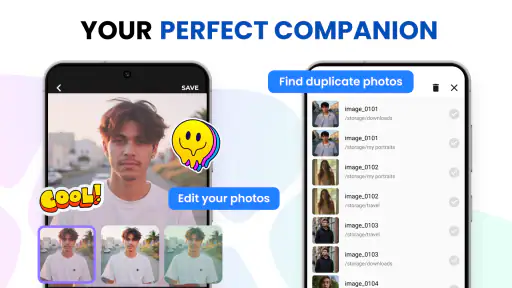
Cloud Gallery - Photo Editor is designed to combine photo organization with basic editing tools in one mobile application. After importing or viewing images, users can typically browse albums, sort personal photos, make adjustments, apply filters, crop pictures, and share finished results. Its usefulness depends on the exact version and available services, so checking the app description and permissions before installation is recommended.
Does Cloud Gallery - Photo Editor store my photos online or only on my device?
The name suggests that cloud-related features may be available, but users should not assume that every photo is automatically uploaded or backed up. Cloud storage, synchronization, and account requirements can vary by version, subscription, and device platform. Before relying on it as a backup solution, review its privacy policy, synchronization settings, storage limits, and whether originals remain accessible locally.
Is Cloud Gallery - Photo Editor free to download and use?
Cloud Gallery - Photo Editor is free to download, but in-app purchases range from $0.99 to $99.99 per item. Some editing tools, cloud capacity, advertising controls, or premium features could require payment. In-app purchase terms can also differ between Android and iOS. Before downloading, open the relevant store listing and check the current pricing, trial conditions, recurring subscription details, and refund policies to avoid unexpected charges.
Pros
- Cloud backup keeps photos accessible across supported devices.
- Simple editing tools are suitable for quick everyday adjustments.
- Organizing images into albums makes large galleries easier to manage.
- Sharing options let you send edited photos without leaving the app.
- A clean interface helps new users find the main features quickly.
Cons
- Cloud storage may require a subscription or have limited free space.
- Uploading large photo libraries can consume mobile data and take time.
- Some advanced editing features may be missing compared with pro editors.
- Performance can slow down when browsing very large galleries.
- Privacy depends on the app’s cloud policies and account security.
- Category
- Photography
- Version
- 3.0.3