 About Google Play Games
Google Play Games Is More Than a Launcher: Make It Work for You
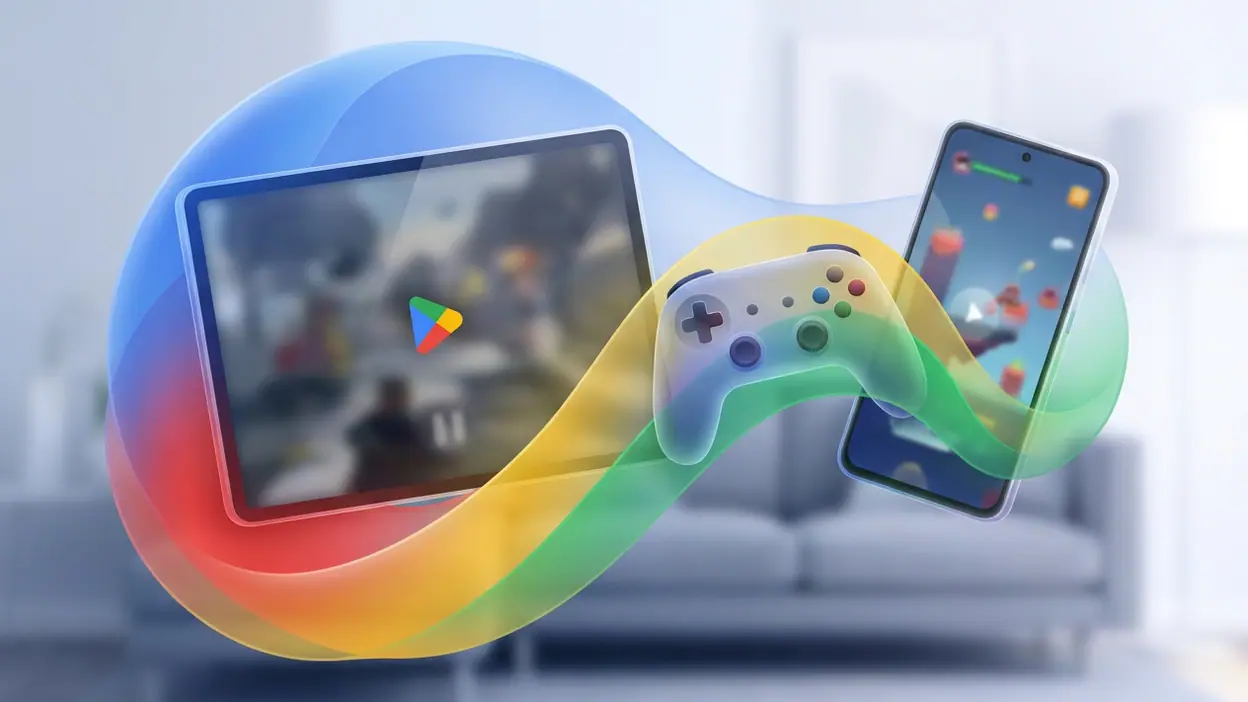
Most people open Google Play Games only when a game asks them to sign in, then forget it exists. That misses the point. Used deliberately, the app becomes a lightweight control room for your Android gaming: it can keep your identity and achievements together, help you find games worth trying, and make progress easier to pick up on another device. It is not a magic backup service, and it cannot impose order on every game. But a handful of setup choices make it substantially more useful than its quiet, easy-to-ignore interface suggests.
Why most people barely use it well
The app has an awkward identity problem. It looks like a place to browse games, but its most enduring value is account-level: achievements, leaderboards, saved progress where a supported game uses Play Games Services, and a record of what you have played. Those benefits often arrive in small moments rather than one impressive feature. You finish a level, see an achievement recorded, or install a game on a tablet and find that your account is ready.
That quietness makes it easy to mistake the app for a redundant shortcut to Google Play. The Play Store handles discovery and installation; Play Games is the companion layer for play activity and supported services. The distinction matters. Installing a game does not guarantee that its progress is backed up through Play Games, and seeing a game in your library does not mean every setting or save file follows you everywhere. Developers choose which services to use, and some games rely on their own accounts or cloud systems instead.
Once that limit is clear, the app is easier to judge fairly. It is not a universal gaming dashboard, nor a replacement for a publisher’s launcher. Its strength is a dependable shared identity for games that support it, with a convenient place to review activity and manage how that identity appears.


The fastest immediate win
Start by opening the app and checking which Google account is active. This sounds obvious, but it is the quickest way to prevent a common headache: launching a game under one account, earning progress there, then discovering that the account you use on a second device is different. If you have more than one Google account on your phone, treat this as a deliberate choice rather than assuming the app picked the right one.
Next, inspect your profile and privacy controls. Decide whether you want your gamer profile visible, whether people can find you, and what activity you are comfortable sharing. The exact options can vary with account type, region, age settings, and app version, so check the controls currently shown on your device instead of relying on an old walkthrough. A private profile can still be useful: you do not have to publish your play history to benefit from account-linked features.
Then launch one game you already play and look for its Play Games sign-in prompt or account connection. Confirm the profile you want before accepting. This is a better test than browsing menus because it reveals whether the game actually uses the service. If the title offers a separate publisher login, note which system stores progress; that is the account you will need if you reinstall or switch devices.
Latest News


Settings worth changing first
Spend a minute on notifications. Game invitations, achievement updates, and other alerts can add up, especially if several games are connected. Keep the notices that genuinely help you, and quiet the ones that merely pull you back into a game. You can also manage notifications through Android’s app settings, which is useful when the in-app controls do not expose the level of detail you want.
Review profile visibility and friend or player-discovery settings before you start using social features. People who share a device, use a family account, or simply prefer to keep gaming separate from their wider Google identity should be especially careful. On a supervised account, some features may be unavailable or controlled by a parent; that is a platform rule, not a setting to work around.
Finally, check whether your device and the games you care about support automatic sign-in or automatic sign-in to supported games. This can save repeated prompts, but it is not always desirable on a shared tablet. If you switch between accounts, play on a family device, or want to control each connection manually, a prompt is useful friction. Convenience is only an upgrade when it connects the right profile.
Build a better workflow
A practical setup begins with a simple distinction: Play Games tracks the account and supported activity; each game decides how it handles saves. Before deleting a game, changing phones, or clearing storage, open it and look for a confirmed cloud-save status, account link, or in-game backup option. If the title has a publisher account, verify that connection too. A familiar achievement list is not proof that your latest level is safe.
When you install a new game, make the first launch part of your setup routine. Confirm the Google account, accept the game’s sign-in only if it is the one you intend to use, and check where its progress is stored. Then play far enough to see whether achievements or profile activity appear. This small test catches account mismatches while there is little progress to lose.
For a multi-device household, choose one account per player wherever possible. Shared logins can blur achievements, recommendations, and save ownership, and they make troubleshooting harder. On a personal phone and tablet, use the same account for supported games, but verify each game’s own sync behavior. When moving to a new device, install the game, sign in to the correct account, and let the game complete its own restore process before starting a fresh save.
Shortcuts that save time
Use the Play Games app as a quick index, not as a promise that every installed title will be represented in the same way. Your game library and recent activity can help you return to something you have played, while achievements offer a fast reminder of where you left off or what you have already completed. The usefulness depends on the game’s integration, so an empty record does not necessarily mean the game has vanished or failed.
When a game asks you to sign in, pause long enough to read the account shown. That brief check is faster than sorting out a misplaced save later. If a sign-in prompt appears repeatedly, check that Google Play Games is updated, confirm the active account, and inspect the game’s own account settings. Reinstalling immediately is rarely the smartest first move, especially if local progress may not be synced.
Achievements can also serve as a low-effort progress log. They are not a full journal, but a sequence of milestones makes it easier to remember which campaign you started, whether you completed a challenge, or what you might revisit. For games with leaderboards, compare scores only when the competition adds something to the experience; chasing every ranking can turn a hobby into another notification treadmill.
Feature combinations that matter
The best results come from combining a consistent Play Games profile with a game’s own save system. The profile gives you a common identity and can record achievements, while the developer’s cloud save may preserve levels, unlocks, or settings. Together, they create a more complete handoff between devices than either feature alone. If one part is missing, however, do not assume the other will fill the gap.
Pair that account setup with sensible notification choices and a private, intentional profile. You can keep useful progress signals without inviting constant interruptions or exposing activity broadly. For a parent or anyone managing a shared device, add Android’s account and app controls to the plan; Play Games is not a substitute for device-level supervision.
Discovery is another modest combination: use Play Games to revisit titles and see the activity tied to your account, then use the Play Store for current listings, compatibility details, and installation. That division is less glamorous than an all-in-one hub, but it reflects how Google’s tools actually work. The Weather Channel - Radar or Google Home has a clear, single-purpose job; Play Games is more of a connective layer whose value depends on the games around it.
Mistakes casual users make
The biggest mistake is assuming that signing in equals backing up. Play Games achievements and profile data can be present even when a game’s save is stored locally or managed by another service. Before clearing data or uninstalling, look for explicit confirmation inside the game. If the progress matters, identify the save owner rather than guessing.
Another mistake is switching accounts midstream without checking consequences. A game may open under the wrong profile, create a new save, or keep a publisher account tied to an old email. If progress suddenly looks missing, stop before starting over. Check the active Play Games account and the game’s own login first; a new save can complicate recovery.
People also expect the app to behave like a full game launcher, with every title, save, and social feature neatly managed in one place. That expectation is too ambitious. Integration varies by developer, and the app’s interface and available features can change over time. Treat it as useful infrastructure, not an authority on every game installed on your phone.
Who benefits most, and when it becomes useful
Play Games is most valuable to people who regularly try several Android games, care about achievements, or move between a phone and tablet. It also helps anyone who has had to remember which account a game used. If you play one offline puzzle game, never change devices, and do not care about milestones, the app may remain nearly invisible. That is a fair outcome, not a failure.
Its usefulness becomes obvious at transition points: setting up a new device, reinstalling a game, returning after a long break, or comparing progress with friends. In those moments, the app can shorten the search for your gaming identity and show whether a supported game has recognized you. It cannot recover every lost save, but a properly chosen account and verified game-level sync reduce the odds of an avoidable loss.
Final recommendation
Google Play Games is worth setting up even if you do not plan to spend time inside it. Choose the right account, make profile visibility intentional, trim noisy notifications, and verify each important game’s actual save method. Those are small tasks with practical payoffs: fewer account mix-ups, a clearer record of play, and smoother returns to supported games.
As a universal gaming hub, it falls short: developer support is uneven, and its presence should never be mistaken for a guaranteed cloud backup. As a quiet companion for Android gaming, though, it earns its place. Set it up once, check it when a game or device changes, and let it do the behind-the-scenes work it is actually designed to do.