XTranslate - Photo, Voice, PDF
- 793.00
- 4.6
- Installs
- 10.00M
- Price
- Free

Screenshots



Analysis by Reviewed
When I need to make sense of a sign, a menu, or a document in another language, the useful question is not whether a translator can produce words, but whether it can help me act on them. XTranslate - Photo, Voice, PDF brings photo, voice, text, and document translation together in one tools app. Its most distinctive practical angle is turning text in a photo into something I can understand without typing it out first.
A useful first check: what kind of text is in front of you?
Before choosing a translation method, I find it helps to ask whether the source is printed, spoken, or already digital. That small decision saves time: photographing a printed notice avoids transcription, while pasting readable text avoids taking an unnecessary picture. The app’s range is most valuable when I move between these situations during the same day, rather than when I need only one occasional phrase.
For instance, if I am looking at a label with several short lines, a photo can preserve the layout and let me focus on the wording that matters. If the label includes ingredients or safety instructions, I would use the result to orient myself, then check the original text carefully before making a choice. Convenience is useful; it does not make a translation authoritative.
Breaking Down Language Barriers
Let's dive right in. One of the standout features of XTranslate - Photo, Voice, PDF is its ability to translate text from photos. Imagine you're in a bustling market in Tokyo, trying to figure out what's on the menu. Simply snap a photo, and voila, the app will translate the text for you. It's like having a personal translator in your pocket!
Why translating a photo changes the task
The practical benefit is skipping the slowest part of a quick translation: copying unfamiliar writing by hand. That matters when a label is small, a notice is long, or you are trying to keep moving while looking at something in front of you. I would use the camera approach for understanding the gist of a menu or sign, then check the original wording before acting on anything important. A translation is a reading aid, not a guarantee that every nuance or specialized term has been captured.
A small habit makes this workflow more dependable: frame the text clearly and avoid taking a picture that includes lots of unrelated clutter. If a line is blurred or partly hidden, I would retake the image rather than treating an odd translation as reliable. This is especially useful for menus with dish names or signs where a single word can change the meaning. Photo translation saves typing, but the quality of what the app can interpret still depends on what the camera captures.
Making photo translation practical in the moment
A good use case is a station notice or shop sign that I need to understand quickly while standing in a crowded place. I would move close enough to make the writing legible, keep the phone steady, and include the full line rather than a clipped fragment. If the output seems inconsistent with the surrounding context, I would take another image from a different angle or translate a shorter section. The goal is not to collect a perfect digital copy; it is to get a dependable enough first reading to decide what to do next.
More From Our News Desk

Weather by Xiaomi Review: Clear at a Glance, Less Clear Up Close

X Under Pressure: Can It Recover When Posting Goes Wrong?

Clash of Clans Is Won Between the Battles

Android Auto Makes the Case for Quieter Car Software

MobiOffice: Transforming Mobile Productivity with Seamless Integration

EA SPORTS FC™ Mobile Soccer: Redefining Mobile Sports Gaming
There is also a useful trade-off between photographing the whole page and isolating one passage. A wide image gives context, which can help with headings and nearby instructions, but small print may become harder to read. A tighter frame can improve legibility while removing clues about what a phrase refers to. I would start with the relevant paragraph and widen the frame only when the translated wording seems disconnected from its heading or neighboring text.
Voice Translation On-The-Go
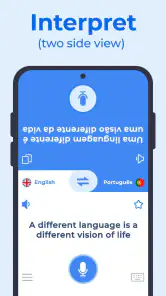
Another game-changer is the voice translation capability. You can have a real-time conversation with someone speaking a different language. Just speak into the app, and it translates your words instantly. It's incredibly useful for travelers or anyone trying to connect with people from different parts of the world. This feature can make you feel more connected and less isolated when you're in a foreign land.
For an everyday example, I can picture asking a shopkeeper whether an item is available in another size. I would keep the question short, speak clearly, and leave a pause for the other person to answer; that is more practical than trying to translate a long explanation all at once. Voice is convenient when hands are occupied, while typing may be better in a quiet conversation where I want to review the wording before showing it. For sensitive topics or decisions with consequences, I would not rely on a quick voice translation alone.
When spoken translation is the better choice
Voice makes most sense when the other person is present and typing would interrupt the exchange. I would prepare one clear question at a time, avoid talking over background noise, and repeat a key detail in simpler words if the response is confusing. This is a more realistic way to use a phone translator than expecting it to carry a fast, complicated conversation without pauses. It helps me start an interaction, but patience and gestures can still do important work.
If the conversation involves a number, an address, or a choice that matters, I would confirm it before moving on. A quick repeat or a written version of the essential detail can reduce the chance of misunderstanding. For casual questions, that extra care may feel unnecessary; for directions or purchases, it is a sensible habit.
Translating Documents Made Easy
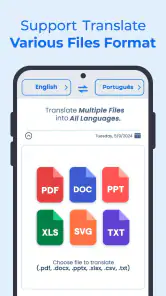
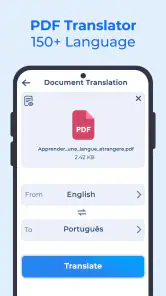
Now, let's talk about the PDF translation feature. Have you ever received a document in another language and had no clue what it said? With this app, you can translate entire PDFs quickly and accurately. Whether it's a work document or an instruction manual, XTranslate has got you covered. This feature is particularly beneficial for professionals dealing with international clients or partners.
PDF translation is most useful when I need to understand the broad content of a file before deciding what deserves closer attention. For example, a traveler might want to get the sense of an instruction sheet, while someone at work may need to identify which sections of a document warrant a careful human review. I would not treat a translated contract, medical instruction, or technical specification as authoritative without checking it with a qualified person. That distinction keeps the convenience without confusing a quick translation with professional interpretation.
A sensible way to use a translated PDF
For a long file, I would first use the translation to locate the sections that answer my immediate question, rather than assuming I need to study every page at once. Then I would compare important names, dates, amounts, or instructions against the original document. This two-pass approach makes the tool useful for triage: it can help me decide where to spend careful attention, while the source remains the reference for details that could have consequences.
PDFs can also contain tables, headings, and tightly arranged text, so I would be cautious when a translated passage seems to lose its relationship to a column or label. A sentence can read smoothly and still be attached to the wrong field. For a routine document, that may only be inconvenient; for forms or work instructions, checking the layout alongside the translated wording is a worthwhile extra step.
One of the things I love about this app is its user-friendly interface. Even if you're not tech-savvy, navigating through the features is a breeze. The app is designed to make your life easier, not complicate it further.
Where it fits among translation options
Compared with opening a basic text translator, XTranslate is more appealing when the source is already a photo, spoken conversation, or PDF. A plain text tool can be the simpler choice when I already have clean text to paste and only need a short phrase. The advantage here is having several kinds of input in one place, not a reason to assume every translation will be more accurate than alternatives. If I were studying a language, I would still use learning materials for grammar and vocabulary; a translation tool helps with immediate understanding, rather than building fluency by itself.
If the photo result looks strange, I would switch approaches: crop or retake the image, or enter the key words as text if they are readable. For a conversation, I would use short turns and confirm the important detail in another way. These are simple checks, but they help avoid the common trap of trusting a smooth-sounding result when the original input was unclear.
What a single-tool setup does—and does not—solve
Having photo, voice, text, and PDF translation together means I can choose a suitable input without jumping between separate apps. That is a practical advantage over keeping one camera translator, one voice tool, and one document workflow on my phone. It does not mean the methods are interchangeable: text is easier to inspect before sending, a photo depends on legibility, and voice depends on clear speech and a manageable pace.
For someone who already has a preferred translator that handles one specific task well, switching may not be worthwhile. I would choose XTranslate when the convenience of several input types matters more than having a dedicated tool for a single workflow. If I need language instruction, careful editing, or certified work, a translator app is the wrong category of solution regardless of how many input formats it accepts.
Who will get the most from it
In my opinion, XTranslate - Photo, Voice, PDF is a must-have app for anyone dealing with languages daily or occasionally. It's like carrying a Swiss Army knife for translations. Whether you're traveling, working, or just curious about different languages, this app can be a real game-changer.
I think it is best suited to people who encounter a mix of signs, conversations, and documents and want a quick first pass without switching between separate tools. Someone who only translates an occasional typed sentence may find a basic text translator enough. I would also steer users who need certified translations, precise legal wording, or dependable specialist advice toward a qualified human translator instead. The app is a helper for everyday comprehension, not a substitute for expertise.
A day where its range earns its place
Imagine arriving somewhere new, checking a photographed notice to find the right direction, asking a nearby shop worker a short question, then opening a PDF instruction sheet later that evening. Each moment calls for a different input, and having those options in one app reduces the friction of changing tasks. I would still slow down for anything important, but the everyday benefit is clear: less time copying text and more time working out what the message means.
For a traveler, one realistic routine is to use the camera for a menu, voice for a brief question, and a PDF translation to understand a travel document before reading crucial details carefully. That is where the range feels genuinely useful: each input matches a different moment, rather than forcing every task into typing. The trade-off is that switching among methods does not remove the need to check unclear or high-stakes results.
To sum it up, if you're looking for a reliable and versatile translation app, this one should be at the top of your list. It's not just about translating words; it's about connecting with the world around you without the language barrier holding you back. So, go ahead and give it a try. You might find yourself wondering how you ever managed without it!
What to know before installing
XTranslate is free to install, with optional in-app purchases ranging from $2.49 to $99.99 per item. It is rated for Everyone, and the app is developed by AI Translator. It has a 4.6 average from around 103,000 ratings and more than 10 million installs, which suggests it has found a broad audience, though popularity alone cannot tell me whether a particular translation is right. The current version is 2.0.28, and it requires Android 8.0 or later.
Because optional purchases are available, I would check what an in-app offer covers before paying rather than assuming every capability is included in the same way. The free starting point makes it easy to judge whether the app fits my routine, while the listed purchase range is broad enough that I would compare the specific offer with how often I expect to use it. Occasional travelers may value a quick tool differently from someone who translates documents regularly.
For me, the sensible expectation is straightforward: use it to get past everyday language friction, then slow down and verify when a misunderstanding would matter. That balance makes its photo-centered strength more valuable than expecting a phone app to replace careful reading, language learning, or professional translation.
XTranslate - Photo, Voice, PDF Frequently Asked Questions
Is XTranslate free to install, and what should I know before opening it?
XTranslate is free to download, so you can install it without an upfront payment. It brings photo, voice, text, PDF, and document translation together in one app, making it worth considering if you regularly need different ways to translate. Some optional purchases are available inside the app, so review any offer before choosing it.
Who develops XTranslate, and what kind of app is it?
XTranslate is a translation app from AI Translator, in the Tools category. It brings together photo, voice, text, PDF, and document translation in one place, which may suit people who want a single app for several everyday translation tasks. Its content rating is Everyone, so it is presented as suitable for a broad audience.
What is XTranslate and how does it work?
XTranslate is a versatile translation app that supports photo, voice, and PDF translations. Users can take a picture of text, speak into their device, or upload a PDF document, and the app will translate the content into their chosen language. It's designed to be user-friendly, making it ideal for travelers, students, and professionals who need quick and accurate translations.
Can I use XTranslate to translate documents as well as photos and speech?
Yes. XTranslate is presented as a tool for translating photos, voice, text, PDFs, and documents. That range can be convenient when you want to handle different kinds of content in one app, whether you are reading text in an image or working with a file. The published feature descriptions also mention uploading a PDF for translation.
Is XTranslate available for both Android and iOS devices?
Yes, XTranslate is available for download on both Android and iOS platforms. Users can find it on Google Play Store for Android devices and the Apple App Store for iOS devices. The app is designed to work seamlessly across both operating systems, offering the same features and functionalities.
Pros
- Accurate translations across multiple languages.
- Supports text
- voice
- and photo inputs.
- User-friendly interface with easy navigation.
- Offline mode for translation without internet.
- Quick response time for translations.
Cons
- Limited free version with in-app purchases.
- Occasional errors in complex sentences.
- Requires camera access for photo translation.
- Voice recognition can be hit or miss.
- Ads in the free version can be intrusive.
- Category
- Tools
- Version
- 2.0.28