 About Universal TV Remote Control
Universal TV Remote Control Works Best as a Reliable Backup
A TV remote app is easy to download and just as easy to forget. The difference between a novelty and a useful household tool is rarely a hidden superpower; it is whether the app can connect quickly, stay ready, and handle the small interruptions that happen every night. Universal TV Remote Control makes most sense when you treat it as a backup control surface and build a simple routine around it, rather than expecting every phone to replace every physical remote.
That distinction matters because “universal” can sound more comprehensive than the practical reality. Remote apps depend on the phone, the television, and the connection method supported by each. Some setups use the home Wi-Fi network; others may rely on infrared hardware, which many modern phones do not include. Compatibility and available controls can vary by TV brand and model. Spend a few minutes checking the connection before you count on it for a whole evening.
Start with the setup, not the button layout
Why most people barely use it well
Most people open a remote app only after the physical remote has vanished. They scan for a TV, tap through a connection prompt, press a button or two, then close the app once the lost remote turns up. That is understandable, but it means they never learn whether the app reconnects reliably, which controls it exposes, or how to make it convenient to reach.
There is also a basic expectation trap: a remote app is not automatically a universal answer to every television problem. A phone on one network may not discover a TV on another. A television may need to be awake, discoverable, or configured to accept network control. A weak Wi-Fi signal can make button presses feel laggy. These are setup constraints, not necessarily signs that the app itself is broken, but they are exactly why a first test should happen when you are not already frustrated.


My practical advice is to treat the first connection as a small home-network check. Put the phone and TV on the same trusted Wi-Fi network, wake the TV, open the app, and follow its discovery and pairing steps. If it does not find the set, check the TV’s network and device-control settings before repeatedly tapping scan. If your phone has no infrared emitter, do not assume an infrared-only control method will work; Wi-Fi support is the key distinction.
The fastest immediate win
Once paired, test the controls you actually reach for: power, volume, mute, navigation, and confirmation. Then test the app after leaving it and returning, and again after briefly locking the phone. This quick loop tells you more than browsing every menu. You will learn whether the TV stays available, whether the app reconnects without a fresh search, and whether there is enough delay to make menu navigation irritating.
The fastest everyday improvement is not a complicated configuration. Keep the app easy to find and leave the television in a state where network control is allowed. On Android, that may mean placing the app on the home screen or in a convenient folder; on iPhone, keep it somewhere you can reach without searching. If the app provides a favorite-device or remembered-device option, use it for the television you control most. The goal is to replace a long recovery ritual with a short, predictable sequence.
Latest News



Settings worth changing first
Do not assume every setting needs adjustment. Start with the connection and device-selection options, then look for controls related to vibration, sound feedback, or reconnection if they are present. Turn off button feedback that adds noise without helping you, especially if you use the phone beside someone watching. Keep any confirmation or haptic response only if it helps you notice that a tap registered.
Next, check how the app handles multiple televisions. If it lets you name or favorite devices, give each a clear room-based name rather than leaving a list of model numbers or generic entries. If it does not offer labels, make a note of which saved device corresponds to which room. A few seconds of organization now prevents the particularly annoying mistake of changing the bedroom TV while someone else is watching the living-room set.
Also review the TV’s own settings, because the phone app cannot compensate for a television that blocks network commands in standby. Depending on the model, the relevant setting may be described as network standby, remote start, or device control. Names vary, so consult the TV’s menus rather than hunting for an exact label. Enable only what you need, and consider the trade-off: keeping network control available may use a little more standby power.
Build a better workflow
A good remote workflow has two parts: the app and the room. Pair the main television, verify that the phone and set use the same network, and decide where the phone usually lives during viewing. A charger near the sofa or a consistent spot on a side table is more useful than an elaborate collection of shortcuts if the phone is always in another room.
For a shared home, agree on one reliable control phone or make sure each household member can connect independently. A network remote is not necessarily a single-user device, but discovery and permissions can differ between televisions. Test a second phone before relying on it. If one person’s device works and another’s does not, check network isolation, guest Wi-Fi, and the TV’s pairing prompts rather than assuming the app behaves identically on every device.
Keep the physical remote available, at least until the app has proved itself over several sessions. This is not a defeat; it is sensible redundancy. The phone is excellent when the remote is missing, when you want to type through a phone keyboard if that function is supported, or when you need a quick volume adjustment from across the room. The physical remote may still be faster for a frequently used specialized key or when the TV’s network is down.
Shortcuts that save time
The best shortcuts are the ones that remove repeated decisions. Save the correct TV if the app supports it. Put the app somewhere visible. Learn whether a long press, directional pad, or swipe gesture behaves differently from a single tap, but test those gestures carefully rather than assuming they exist. Remote interfaces can differ, and a movement that feels obvious on one version may not be supported on another.
If the app exposes a numeric keypad or direct input, use it for channels or menu values instead of stepping through one item at a time. If it offers a keyboard, use that for search fields when the TV accepts text input. These are conditional advantages: not every TV exposes the same functions, and an app’s control layout may change with the connected model. A useful rule is to discover one shortcut during a calm session, then use it enough to remember it before adding another.
On phones that support home-screen widgets or system shortcuts for the app, check whether one is available, but do not build your routine around a feature you cannot see in your version. A direct launch is valuable; a pretend one-touch power button is not worth relying on if the TV must first wake or reconnect. The dependable shortcut is the one you have tested from the exact state you expect to use it in.
Feature combinations that matter
The app becomes more useful when device discovery, saved selection, and the core controls work together. Discovery gets the television into the app; a remembered connection avoids repeating the search; accessible volume and navigation make the phone practical after setup. None is remarkable alone. Together, they turn an emergency download into a repeatable backup.
Text entry can be another meaningful combination, where supported: connect to the TV, open a search box, and enter a title from the phone instead of navigating an on-screen keyboard one letter at a time. That is the kind of task where a touchscreen can genuinely beat a row of remote buttons. It is not a reason to expect full control of every streaming app, though. The TV and its software decide what input they accept, and a phone remote cannot guarantee that every app will expose search to it.
Volume and mute are the most immediate daily controls, particularly when the physical remote is under cushions or the TV’s buttons are awkward to reach. Pairing them with a reliable saved connection is more valuable than a crowded panel of rarely used commands. Make reliability the feature you optimize first. A modest set of controls that responds consistently beats a broad layout that requires repeated pairing.
Mistakes casual users make
The first mistake is troubleshooting the app before checking the network. A phone on guest Wi-Fi may be unable to see a television on the main network, even though both devices have internet access. The second is repeatedly scanning while the TV is asleep or its network-control option is disabled. Wake the set, check its connection, and confirm the phone is on the right network before starting over.
The third is expecting the same behavior from every TV in the house. Different brands and models can expose different commands, and some functions may be absent even after a successful connection. Do not interpret a working volume key as proof that every menu, input, or power command will also work. Test the specific action you care about.
The fourth is treating the phone as a guaranteed replacement. Phones run out of battery, Wi-Fi fails, and apps can be closed or updated. Keep the original remote somewhere sensible and use the app as an extra route to control the set. That mindset makes the app less disappointing and, paradoxically, more useful: you will reach for it where it has a clear advantage instead of demanding that it solve every edge case.
Who benefits most, and when
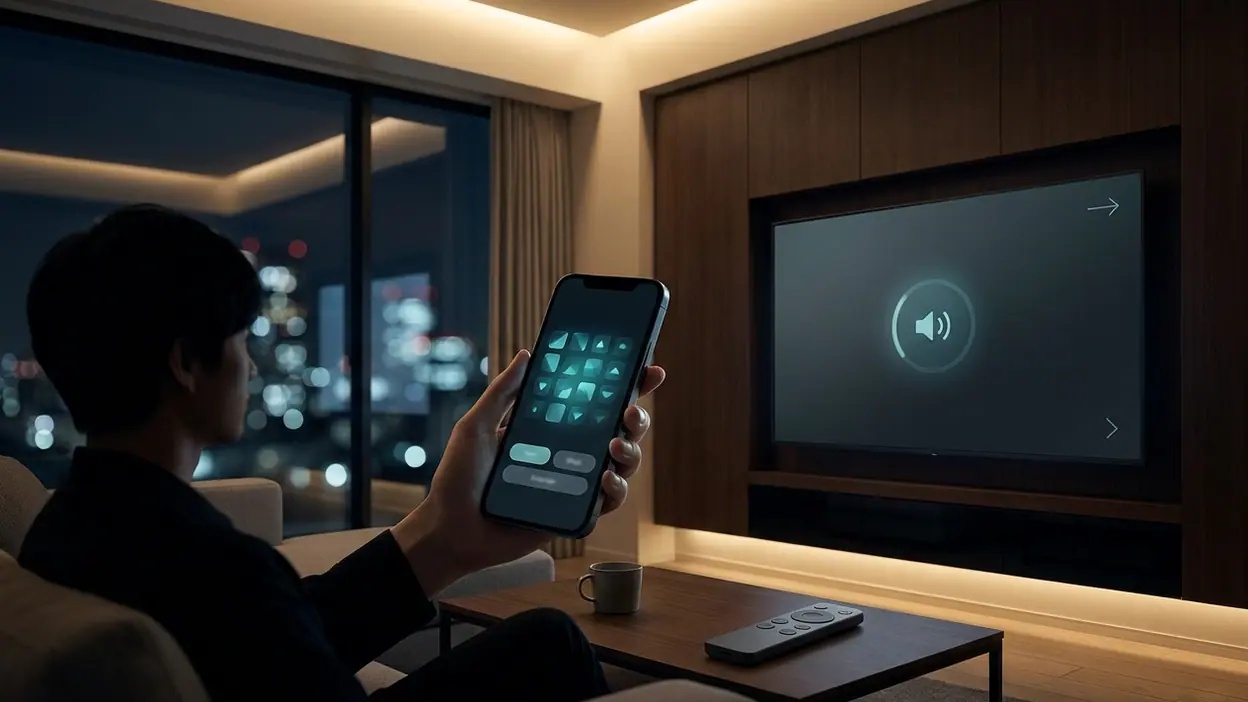
This app is most valuable to people who regularly misplace a remote, households that share control duties, and anyone who prefers using a phone to navigate text-heavy searches. It also suits a second-screen habit: the phone is already in your hand, so a quick volume change or menu adjustment does not require a search around the room. If your TV supports reliable network control, the convenience can become part of the viewing routine rather than an occasional rescue.
It is less compelling if your television is incompatible, your phone lacks the required control hardware for the available connection method, or your home network separates devices. It may also be unnecessary if the original remote is always nearby and already handles your most common tasks faster. The app’s value is practical, not universal in the sense of guaranteed compatibility.
The point at which it becomes genuinely useful is the second or third successful session. The first proves that the TV can connect; later sessions prove whether the app remembers it and whether you can get to volume or navigation without a fuss. If those repeat visits are quick, leave it installed. If you must rediscover the TV every time, it remains an emergency option rather than a daily tool.
Final recommendation
Universal TV Remote Control is worth setting up if you want a dependable backup and your television supports its connection method. Its strongest case is not that a phone can imitate every remote, but that it can keep essential controls close at hand and make text input or quick adjustments less cumbersome where supported. Test it in ordinary conditions, organize the saved device, and keep the physical remote as a fallback. If it reconnects cleanly, it earns a permanent place on your phone; if compatibility or network setup keeps getting in the way, there is little reason to force the habit.