Draw Anime: Paint & Sketch App
- 95.00
- 4.5
- Installs
- 5.00M
- Price
- Free
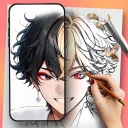
Screenshots
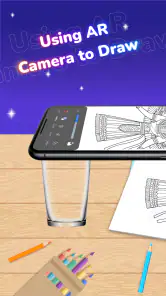
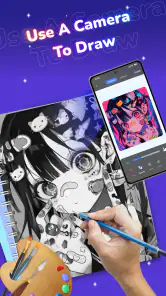
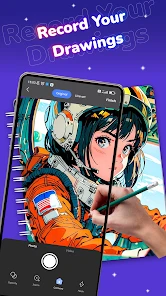
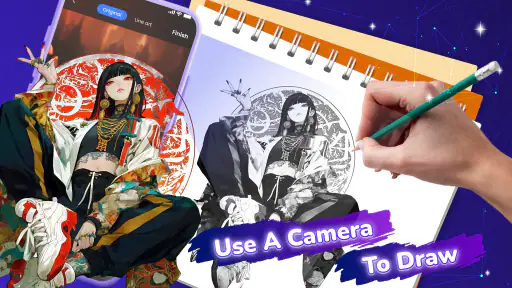
Analysis by Reviewed
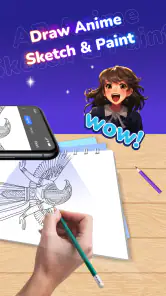
I like anime art, but starting from a blank canvas can be the hardest part: it is easy to have an idea for a face or pose and then get stuck on proportions. Draw Anime: Paint & Sketch App is aimed at that particular hurdle. Its central appeal is guided anime drawing with templates, so the first mark can feel more manageable than beginning with an empty page. I see it as a way to practise and play, rather than a replacement for learning to draw freely.
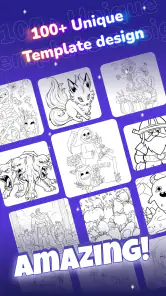
Templates make the first step less daunting
In use, a template changes the job from “invent the whole character” to “follow a starting shape and make choices.” That distinction matters for beginners: you can concentrate on line confidence, facial details, and color without having to solve every proportion at once. It can also help when I have a short break and want to make something recognizable before I run out of time.
The useful trade-off is that a template gives structure but also sets limits. If you want to design an unusual pose or build a character from imagination, guided outlines may feel restrictive. I would treat them as scaffolding: use one to understand how a drawing is organized, then try changing a detail or sketching the same subject without the guide. That small step keeps template use from becoming simple tracing without practice.
A practical way to work through a drawing
I would approach a session in stages rather than trying to finish a polished picture immediately. Start with the template that matches the kind of character or drawing you want to practise, then focus on the broad shapes before adding small details. Once the outline feels clear, use color deliberately: a limited palette makes it easier to see whether the face and clothing read well together. Saving a version before experimenting, if the app’s workflow allows it, is a sensible habit in any drawing tool; it gives you room to take creative risks without losing a version you like.
For example, on a commute or during a quiet evening, I might use a template to practise eyes and hair rather than attempt a full illustration. Repeating one small element with different expressions can be more instructive than rushing through several unrelated pictures. The template can reduce the setup work, while my attention stays on the feature I actually want to improve. That is where guided drawing is more valuable than simply filling spare time.
Getting Started with Draw Anime
The moment you open the Draw Anime: Paint & Sketch App, you’re greeted with a user-friendly interface that doesn’t intimidate. Everything is laid out neatly, and the icons are intuitive enough that you’ll quickly get the hang of it. I was pleasantly surprised by how seamless the onboarding process was. There's a handy little tutorial that guides you through the basic features, making sure you don’t miss out on anything essential.
Tools That Inspire Creativity
Now, let’s talk about the tools. This app isn’t just about drawing; it’s about unleashing your inner artist. With a plethora of brushes, colors, and effects, I found myself experimenting more than I usually would. Whether you’re sketching a character or painting a scene, the app provides a variety of options to make your art pop. The pressure-sensitive brushes, in particular, are a delight to use.
More From Our News Desk

Weather by Xiaomi Review: Clear at a Glance, Less Clear Up Close

X Under Pressure: Can It Recover When Posting Goes Wrong?

Clash of Clans Is Won Between the Battles

Android Auto Makes the Case for Quieter Car Software

MobiOffice: Transforming Mobile Productivity with Seamless Integration

EA SPORTS FC™ Mobile Soccer: Redefining Mobile Sports Gaming
One of the standout features is the layer functionality. Much like professional software, this app allows you to create multiple layers, which is a godsend for anyone looking to add depth and detail to their art. I found myself playing around with this feature quite a bit, and it really helped elevate my drawings.
Layers are especially helpful when a template is only the starting point. Keeping an outline separate from color, for instance, can make it easier to adjust one without disturbing the other. I’d also use a separate layer for small accents so that an experiment with highlights does not force me to redraw the main shapes. The practical lesson is to name or organize layers as you go if the controls make that possible; a crowded stack can become harder to manage than the sketch itself.
Community and Learning
What’s an art app without a community to share your masterpieces with? The app has an integrated platform where you can upload your artwork and get feedback from other users. It’s pretty motivating to see what others have created, and it definitely pushes you to improve your skills.
For those still honing their craft, the app offers step-by-step tutorials that cover everything from the basics to more advanced techniques. It's like having a personal art instructor on standby. I tried my hand at a few tutorials and was impressed by how easy they were to follow.
When using tutorials, I find it helps to pause after each stage and compare the result with the intended step, instead of racing to the final picture. If a face looks off, the problem may be the spacing of its features rather than the eye detail itself. That kind of check turns a guided exercise into a useful drawing lesson. Sharing work can help too, but I would seek specific feedback—such as whether an expression reads clearly—rather than relying only on general reactions.
Performance and Usability
Performance-wise, the app runs smoothly, even on older devices. I didn’t experience any lag or crashes, which is always a plus. The developers have clearly optimized it well. The only hiccup I noticed was that some of the more advanced features might take a bit of time to load on older hardware, but it wasn’t a dealbreaker.
In terms of usability, the navigation is straightforward, and I never found myself fumbling around, looking for a particular feature. Everything is right where you’d expect it to be, which makes the drawing process much more enjoyable.
Making a short practice session count
A useful way to fit this app into an ordinary day is to give each session one small aim. On a bus ride, for instance, I would not try to complete a complicated scene while distracted by stops and movement. I might instead work on a single expression, then compare how a slight change in the eyes or mouth affects the character’s mood. At home, I could return to that idea and add hair or clothing details. This keeps the template from becoming just a shortcut to a finished picture; it becomes a prompt for focused observation.
Another practical habit is to keep a simple record of what you changed. If the drawing lets you work with layers, a rough construction layer, a cleaner outline, and a color layer can help separate decisions. Even without a formal record, taking a moment to notice what improved—more even eyes, a clearer silhouette, or a more readable expression—gives the next session a direction. I would avoid adding detail just because the canvas looks empty. A clean, legible character is often a better exercise than a busy one.
Templates can also help when I want to draw with a friend or encourage someone who thinks they are “bad at art.” Starting from a guided shape gives both people something concrete to respond to, and comparing different choices can be more fun than judging who made the most polished result. The best use is collaborative play or practice, not a contest. If the other person wants to invent everything themselves, though, the same structure may feel like a constraint rather than support.
Where it fits among drawing apps
Compared with a general-purpose sketching app, the main draw here is the anime-focused guided starting point, not an assumption that every user wants a broad professional canvas. A blank-canvas tool may suit someone who already knows their preferred workflow and wants to build any subject from scratch. Conversely, someone learning anime proportions may find templates more approachable than a toolkit that offers brushes but no clear first move. I would choose based on whether I need a prompt to get started or freedom to construct the whole image myself.
It is also worth thinking about the kind of practice you want. Templates can make a quick, satisfying result more likely, but they cannot replace repeated freehand studies if your goal is stronger independent drawing skills. I’d alternate: use a template to understand a shape, then attempt a similar feature without it. If you mainly edit photos, create finished graphic layouts, or need a specialized illustration workflow, a different kind of art app is likely a better fit.
There is a middle ground between a guided drawing app and a full-featured illustration studio. If you enjoy anime but are still learning, you may not need every advanced control offered by a professional tool; too many options can slow down a casual session. Here, the template-led approach can make the first decision easier, while the drawing tools give you room to personalize the result. If your main goal is to build a polished piece for a client, print project, or larger portfolio, I would lean toward software designed around that workflow instead. A beginner-friendly starting point and a production-ready workspace solve different problems.
That distinction matters when choosing an app for a particular device, too. Drawing with a finger can be convenient for quick ideas, but precise linework is usually easier with a stylus if you have one. I would test a simple face before committing to a long session: the way your hand covers the screen, how comfortably you can zoom or place details, and whether the controls feel natural will affect the experience more than a long list of tools. If precision is frustrating, a larger screen or a different drawing setup may be a better answer than trying to force a tiny screen to behave like a desk tablet.
Who is likely to enjoy it
This is best suited to anime fans who want a low-pressure way to draw, beginners who benefit from a visual starting point, and casual artists looking for a focused practice session. It is less compelling for experienced illustrators who need highly customizable tools or who prefer complete control from the first stroke. The app is free, and CEM SOFTWARE LTD is the developer. It has a 4.5 average from around 97,000 ratings and more than 5 million installs, which suggests that many people have tried it, though popularity alone does not tell me whether its template-led approach will suit your style.
It is rated Teen, so I would check that rating against the needs of the person who will use it, especially if you are choosing a drawing app for a younger artist. The current version is 1.4.1, and it requires Android 7.0 or later. Those details make it easier to judge whether it is a practical option for your device; the app is also free, so trying its drawing approach does not require an upfront purchase.
One question worth asking before settling in is whether the app supports the kind of freedom you want after following a guide. I would start with a short drawing and test how comfortable it feels to move from the template into personal edits. If that transition feels natural, the app can serve both as a warm-up and a learning aid. If you find yourself wanting to redraw every guide or needing more control than the interface offers, a blank-canvas alternative will probably keep you happier.
Another useful check is how you plan to use finished work. For casual practice and sharing within the app’s community, its guided approach makes sense. If you need a drawing tool for a particular export format, professional project handoff, or a carefully managed portfolio workflow, confirm that it meets those needs before investing time in a large project. I would not choose an app based on a feature I have not tested; a small trial drawing quickly reveals whether the everyday workflow suits you.
My recommendation after weighing the trade-offs
The main question I would ask before downloading is not whether the app can make a drawing look attractive, but whether its guided method suits the way you want to learn. If you want a gentle nudge into anime sketching, a quick creative break, or a place to experiment with expressions and color, the templates offer a clear reason to give it a try. If you already know how you want to construct a figure and get impatient when a guide shapes the starting point, that same feature may become the first thing you want to work around.
I would also separate “having fun drawing” from “learning to draw independently.” The app can support both, but the second goal takes intention: use the guide, notice how the shapes relate, then make a small attempt without it. For a younger or completely new artist, that can make practice feel less intimidating. For a more advanced artist, it is most useful as a casual sketching option rather than a replacement for a carefully tailored studio setup.
All in all, if you’re someone who loves to create, the app is worth checking out. It’s packed with features that cater to both beginners and seasoned artists. So, grab your stylus, or just use your finger, and start creating your next anime masterpiece!
Draw Anime: Paint & Sketch App Frequently Asked Questions
What device requirements should I check before downloading Draw Anime: Paint & Sketch App?
Before downloading, check that your device runs Android 7.0 or later, since that is the minimum operating system requirement. Also consider whether you prefer drawing on a phone or tablet and whether the screen feels comfortable for detailed sketches. The app is free to download, so you can try its anime and manga drawing approach and decide whether it fits your device and habits.
How much storage space does Draw Anime: Paint & Sketch App need?
Storage needs can depend on the version and your device, so it is sensible to check the download size shown in your app store before installing. Leave some additional room if you plan to keep multiple sketches or artwork on your device. Since the app focuses on drawing anime and manga pictures with templates, having enough free space helps make installation and saving your creative work more convenient.
Can I save or export my drawings from Draw Anime: Paint & Sketch App?
Saving your work is an important part of any drawing app, especially if you want to return to a sketch later or share a finished picture. Draw Anime: Paint & Sketch App is built around making anime and manga art with templates, but the available save and export options may vary by device and app version. Check the controls in the app before relying on a particular file type or sharing workflow.
Does Draw Anime: Paint & Sketch App require an internet connection?
If you want to draw while away from a reliable connection, check how the app behaves on your device before depending on it for an offline session. Its focus is anime and manga drawing with templates, so it may suit sketching practice, but features that connect to online services may work differently without internet access.
What is Draw Anime: Paint & Sketch App?
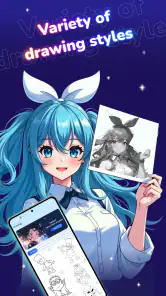
Draw Anime: Paint & Sketch App is a creative platform designed for artists who are passionate about anime-style drawing. It provides a wide range of tools and features, including customizable brushes, layers, and templates specifically tailored for sketching anime characters and scenes. Whether you're a beginner or an experienced artist, this app helps enhance your drawing skills.
Pros
- Easy-to-use interface for beginners
- Wide variety of brushes and tools
- Offline mode available
- Supports layer functionality
- Regular updates with new features
Cons
- Limited free version features
- Ads can be intrusive
- Occasional lag on older devices
- No export to vector format
- Requires in-app purchases for some tools
- Category
- Art & Design
- Version
- 1.4.1