Draw Animation - Anim Creator
- 1.22K
- 4.3
- Installs
- 10.00M
- Price
- Free

Screenshots
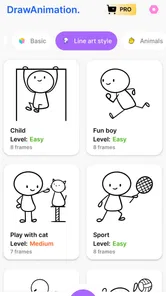
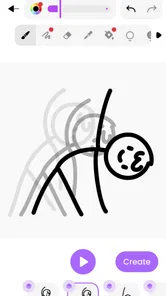
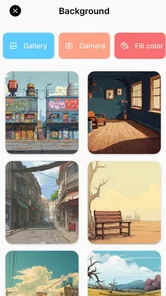
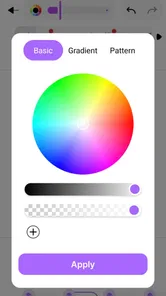
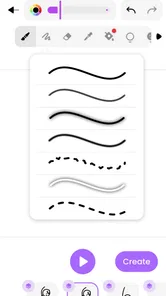
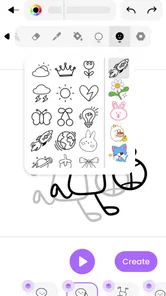
Analysis by Reviewed
When a drawing does not move the way you expected, it is tempting to blame the app or start over. I find it helps to slow down and check the drawing itself first: a small change between frames is easier to judge in playback than a large jump, and a quick preview can show whether the issue is timing or simply a pose that needs another pass. Draw Animation - Anim Creator is aimed at making that kind of frame-by-frame experimentation approachable on a phone, though it is best viewed as a place to learn and sketch rather than a full professional animation workstation.
Where beginners can get stuck
The first hurdle with any drawing-animation app is learning to think in separate moments instead of one finished picture. A character may look clear on a single frame but feel stiff when the frames play in sequence. I would begin with a simple action, such as a ball bouncing or a face blinking, before trying a busy scene. That keeps the number of moving parts manageable and makes it easier to spot what needs adjusting.
Another common snag is changing too much between drawings. If a hand, head, or object shifts abruptly, playback can look jumpy even when each individual sketch seems fine. The onion skinning feature is useful here: comparing the current drawing with earlier positions helps me keep movement consistent. It is a practical guide, not a replacement for deciding where the next pose should be.
Setup checks and a steadier workflow
Before starting a longer idea, I would make a tiny test animation and play it back. This gives you a chance to get comfortable with the interface, frames, layers, and available drawing tools without risking time on a project you have not yet learned how to manage. Save or share that test if you want to check how the result looks outside the editing view. The app is free to download, with optional in-app purchases priced from $1.49 to $19.99 per item, so it is sensible to explore the basic workflow before deciding whether to spend anything.
For a more reliable routine, work in short passes: sketch the key poses, add the in-between movement, then review the playback and refine only the frames that feel off. I would also keep early drawings simple and avoid adding decorative details until the motion reads clearly. This is a useful trade-off on a small screen, where extra detail can take longer to draw without making the animation easier to understand.
Dive into the World of Animation
First off, let’s talk about how easy it is to get started with Draw Animation - Anim Creator. The app is designed to be user-friendly, with a straightforward interface that doesn’t overwhelm you with too many options. You don’t need to be a tech wizard to navigate through the app, which is a huge plus in my book.
Features That Spark Creativity
What I love about this app is the variety of tools available at your fingertips. From a range of brushes and colors to the ability to add frames and layers, there’s enough here to keep you experimenting for hours. The onion skinning feature is particularly handy as it allows you to see previous layers, making the animation process a breeze.
More From Our News Desk
 Weather - By Xiaomi
Weather by Xiaomi Review: Clear at a Glance, Less Clear Up Close
Xiaomi’s weather app makes everyday forecasts quick to scan, but its calm surface can leave useful details and recovery paths harder to find than they should be.

 X
X Under Pressure: Can It Recover When Posting Goes Wrong?
A resilience-focused review of X, examining setup, mistaken posts, interruptions, weak connections, and the gaps that matter when recovery needs to be dependable.
 Clash of Clans
 Is Won Between the Battles
Its raids are quick; its community is a long-term project of coordination, teaching, rivalry, and shared responsibility—with all the friction that entails.

 Android Auto
 Makes the Case for Quieter Car Software
The car interface is no longer judged by how much it can do, but by how quietly it helps. Android Auto shows what drivers now expect—and what still gets in the way.

 MobiOffice: Word, Sheets, PDF
MobiOffice: Transforming Mobile Productivity with Seamless Integration
MobiOffice: Word, Sheets, PDF is redefining mobile productivity with a surprising blend of functionality and innovation.

 EA SPORTS FC Soccer Mobile 26
EA SPORTS FC™ Mobile Soccer: Redefining Mobile Sports Gaming
Dive into EA SPORTS FC™ Mobile Soccer, where immersive gameplay and strategic depth transform mobile sports gaming.
Latest News

Another thing worth mentioning is the app's playback feature. It lets you preview your animation in real-time, which is super helpful for making those last-minute tweaks. It’s like having a little animation studio in your pocket!
Perfect for All Ages
While the app is perfect for budding animators, it’s also a great way to keep the kids entertained. The intuitive design means even the little ones can have a go at creating their own cartoons. Plus, it’s a fantastic way to encourage creativity and storytelling in young minds.
For a real everyday use, I can picture taking a few minutes after school or during a quiet break to draw a character waving, then showing the short result to family. That small project gives a beginner a clear goal and a finished piece without demanding a long session. It also makes the app a good fit for casual doodlers and children who enjoy drawing, while someone who needs detailed control for polished, complex work may be happier with a more advanced animation program.
Sharing Your Creations
Once you’ve crafted your masterpiece, sharing it with friends and family is a cinch. The app provides you with options to save your animations in various formats or directly share them on social media platforms. It’s always a thrill to show off your creations and get feedback from others.
If a preview looks wrong, I would first check whether the difference between neighboring frames is too large, then replay the sequence after making a small correction. If drawing feels awkward, simplifying the subject or working on one layer at a time can make the task easier to follow. And if sharing does not go as expected, I would check the saved result and the phone’s usual sharing options before redrawing the animation; the problem may be in the handoff rather than in the artwork.
Small projects that suit a phone screen
I find this app most rewarding when I treat it as a place for compact visual ideas rather than a blank canvas for a long film. A waving character, a blinking expression, or a simple object changing position gives each frame a clear job. That helps me decide what to draw next and prevents the project from turning into a set of unrelated sketches. It is also a useful way to learn how anticipation and follow-through affect a movement: even a tiny pause or a slightly different pose can make an action feel more deliberate.
One practical approach is to plan the action in words before drawing it: “look left, notice something, turn, smile.” Then sketch only the moments that communicate those changes. Once they read clearly in playback, fill the gaps with smaller movements. This is less tiring than drawing every moment in order and hoping the sequence works. The trade-off is that a phone screen can make precise corrections fiddly, so I would keep the first version loose and resist polishing lines until the timing feels right.
Choosing the right tool for the job
Compared with a basic drawing app, this one is more useful when the goal is movement, because frames and playback make changes visible over time. Compared with a full desktop animation tool, it is easier to approach casually on a phone, but the simpler focus is also its limit. I would choose it for learning the rhythm of short animations, not for a project that depends on extensive production controls or a highly polished final edit.
That difference matters if you are deciding what to install. A regular sketching app is the better fit when you mainly want to make a finished still image, with no need to manage a sequence. A more advanced animation program makes more sense when you need a demanding production workflow and fine control over a complicated piece. Here, the appeal is the middle ground: drawing remains central, but you can check how your marks behave across frames without turning the hobby into a technical project.
It is also worth thinking about where the finished work will go. For a personal experiment or a short piece to show someone nearby, the straightforward frame-by-frame approach is enough to make the idea tangible. If your goal is a carefully finished animation with lots of refinement, I would plan to use a more capable tool for that stage rather than expect a phone-first sketching app to cover every step.
When a snag is outside the drawing
Not every frustrating result is caused by a bad frame. If the animation looks right while editing but not after saving or sharing, compare the saved version with the preview before changing the artwork. That simple check helps separate a drawing problem from an export or sharing handoff. If the saved result is also wrong, return to the frames and test one small change at a time; if it looks as expected, use the phone’s ordinary sharing flow and try again.
For a project that seems to have become confusing, I would pause before deleting anything. Reopen the work, inspect the key poses, and replay a short part of the sequence rather than judging the whole animation at once. If a particular frame is the source of a jump, correct that frame and test again. If several parts feel off, simplify the action and rebuild the motion in smaller steps. This approach will not fix every technical issue, but it prevents unnecessary redraws when the difficulty is really about tracking which change caused the result.
There is a similar distinction with drawing comfort. If a detail is hard to control on a small screen, that does not necessarily mean the tool is malfunctioning. Try a simpler silhouette or fewer marks, and see whether the movement becomes easier to read. I would switch to a larger-screen or more advanced option if precise line work is the main goal; for loose motion studies, the phone format is part of the convenience.
However, I did notice that the app could benefit from a few more advanced features for those looking to take their animations to the next level. Perhaps in future updates, we might see some more complex tools being added. Fingers crossed!
Banix Studio’s app is in the art and design category, and its 3.9 average rating across around 45,000 ratings suggests a mixed but substantial audience response. It has passed 10 million installs, is rated for Everyone, and version 8.6 runs on Android 6.0 or later. Those details make it easy to see why it can appeal to a broad range of casual users, but I would still approach it as a simple creative starting point rather than assume it will suit every animation workflow.
Who will enjoy it, and who may want more
I would recommend giving it a try if you already like doodling and want to see those drawings move, or if you are introducing a child to the basic idea of animation through a short, manageable activity. The Everyone age rating makes it suitable for a broad audience, though I would still expect younger children to benefit from an adult helping them get oriented and decide what to draw. It also suits someone who wants to explore motion in spare moments without first learning a large, complicated interface.
I would skip it if your main aim is detailed illustration, a long animation with many moving elements, or a polished production that depends on deeper editing controls. It may also frustrate anyone who dislikes drawing on a phone screen or wants every step to feel automatic. The app’s strengths come from keeping the task approachable, and that necessarily means it is not the best choice for every level of ambition.
If you are unsure whether it will fit your needs, make a small test before committing to a larger project. Try one clear action, check the playback, and see whether you enjoy adjusting the frames. That answers the most useful question: not whether animation sounds appealing in theory, but whether this particular hands-on process feels comfortable to you. Since the app is free to download and purchases are optional, there is room to explore the basic experience before deciding whether it belongs in your regular creative routine.
A practical verdict
My advice is to begin with a tiny idea, keep the first drawings simple, and use playback as a way to diagnose motion rather than as a final quality check. Onion skinning can help you compare positions, but it cannot decide the timing or tell the story for you. A short, clear movement will teach you more about the workflow than an ambitious scene that becomes hard to manage halfway through.
For me, the best reason to choose this app is that it makes frame-by-frame drawing feel accessible on a phone. Its limitations become important when you want more control, finer finishing, or a workflow built for complex animation. If your goal is to experiment, learn by making small mistakes, and share a simple result, it is a friendly place to begin. If you need a more complete production tool, I would move on to a more advanced alternative rather than fight the app’s simpler focus.
In conclusion, Draw Animation - Anim Creator is a delightful little app that brings the joy of animation to everyone. Whether you’re creating simple doodles or trying your hand at more intricate animations, this app offers a fantastic platform to let your imagination run wild. So go ahead, download it, and unleash your inner animator today!
Draw Animation - Anim Creator Frequently Asked Questions
Who develops Draw Animation - Anim Creator, and what kind of app is it?
Draw Animation - Anim Creator is an Art & Design app developed by Banix Studio. It is made for people who want to bring drawings to life, with the short description “Draw Animation” and a focus on turning simple sketches into animated stories. If you are looking for a mobile creative tool rather than a general-purpose drawing app, its animation-centered approach is the main thing to consider.
What Android version do I need to install Draw Animation - Anim Creator?
Draw Animation - Anim Creator requires Android 6.0 or later, so check your device’s operating system before downloading. The app is free to install, and its content rating is Everyone. Those details may help you decide whether it fits your device and household, while the animation tools themselves are intended for sketching and creating moving artwork.
Is Draw Animation - Anim Creator free to download, and are there optional purchases?
Draw Animation - Anim Creator is free to download, so you can try its drawing and animation tools without paying upfront. The app also offers in-app purchases, ranging from $1.49 to $19.99 per item, for users who want access to paid options. The free version can still be useful for getting started, but check the purchase details in the app before buying anything.
Will Draw Animation - Anim Creator work on my device?
The app requires Android 6.0 or later, which makes it suitable for many Android devices that meet that requirement. Before downloading, check your device’s operating system version and make sure you have enough available storage for the app and your projects. Draw Animation - Anim Creator is an Art & Design app from Banix Studio, aimed at people who want to turn sketches into animated creations.
What is Draw Animation - Anim Creator and how does it work?
Draw Animation - Anim Creator is a user-friendly app designed for creating animated drawings with ease. Users can sketch frame by frame, adjusting each scene to develop smooth animations. The app provides a variety of tools, such as brushes and color palettes, to enhance creativity. Once the animation is complete, it can be saved and shared with others, making it a perfect tool for both beginners and experienced animators.
Pros
- Intuitive interface for beginners.
- Wide range of drawing tools available.
- Supports multiple animation layers.
- Export animations in various formats.
- Regular updates improve functionality.
Cons
- Some features require in-app purchases.
- Occasional lag on older devices.
- Limited brush customization options.
- No direct cloud save feature.
- Ads can be intrusive at times.