Zip Extractor - UnZIP & UnRAR
- 1.33K
- 4.3
- Installs
- 5.00M
- Price
- Free
Screenshots
Analysis by Reviewed
When I need to open a compressed file on an Android phone, the problem is usually not the archive itself but the handoff around it. A ZIP arrives in a messaging app, a RAR file sits in Downloads, or a folder of documents has to be compressed before I send it onward. Zip Extractor - UnZIP & UnRAR is built for that exact gap: getting from a file I received to files I can actually use, or from several loose files to one archive I can share.
After using it as a practical file tool rather than as something I would keep open all day, I found it most useful for quick archive work on a phone. It belongs to the Tools category, comes from TarrySoft, and is free to install. The app has a 4.3 average from around 84 thousand ratings, with more than 5 million installs, so it is clearly being used as a regular solution for this common Android task. Its Everyone age rating also makes it suitable for a broad range of users, including someone who simply wants to open a downloaded attachment without learning a full desktop file-management system.
From a received archive to usable files
The starting condition matters more than it seems
My typical starting point is a file that another app has already downloaded. That detail is important because an archive does not always appear where I expect it. A ZIP might be in the Downloads folder, while a RAR could remain inside a folder created by a browser or a messaging application. The first useful habit is therefore to identify the file’s location before opening the extractor. If I skip that step, I can waste time browsing the wrong folder and assume the archive is missing.
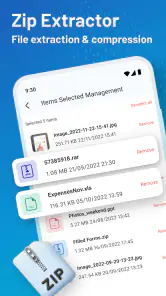
Once the file is visible, the app gives me a focused place to work instead of making me search through unrelated phone settings. I can select the archive and move toward extraction, or choose several files when I want to create a compressed package. That focused approach is the main reason I would recommend it over trying to manage archives through a general-purpose gallery or a basic file browser that only handles ordinary folders.
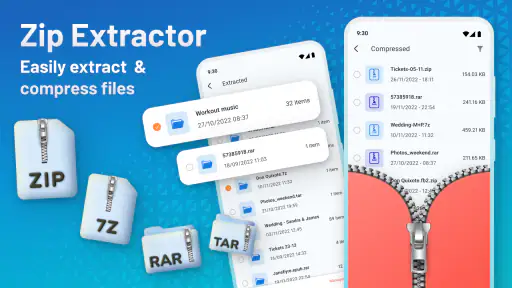
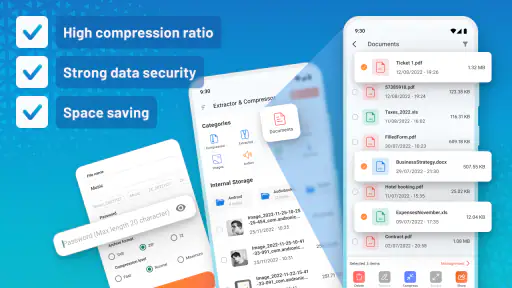
The app’s store summary says it can work with ZIP and RAR archives and compress different file formats. In everyday use, that makes it a bridge between apps that create files and the people or services that need those files in a particular package. I do not have to send ten separate attachments when one archive is more convenient, and I do not have to leave the phone to inspect a compressed folder.
A practical extraction workflow
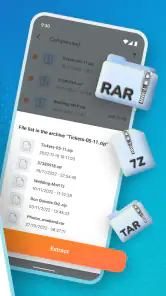
I begin by opening the archive from the app’s file view and checking what it contains before deciding where the extracted material should go. That small pause is worthwhile. An archive may contain a single folder, several documents, or a deeper set of directories. Extracting without checking can leave me with an extra layer of folders, which is not harmful but can make later sharing or uploading less tidy.
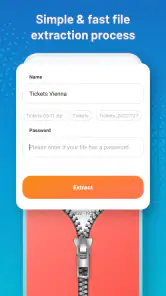
The next step is choosing the extraction action and destination. For a one-off download, I prefer a clearly named folder that I can find again. For a file I plan to edit immediately, a nearby location is more convenient. The best workflow depends on what happens next: reading a document, moving images into another app, or sending the unpacked folder to someone else.
After extraction, I check the destination rather than assuming the operation finished exactly as I intended. This is especially useful when the archive has several levels of folders. I can then open the resulting files with the apps designed for them, such as a document reader or image viewer. The extractor handles the archive stage; it does not replace those specialist apps, and treating it as a complete document-management system would create the wrong expectations.
One useful tip is to avoid extracting an archive directly into a crowded general folder if I expect to keep the contents. A dedicated folder makes the later handoff much cleaner and reduces the chance of confusing the original compressed file with its unpacked copy. This is a small organizational choice, but on a phone it can save more time than repeatedly searching for a document.
Compressing files for the next handoff
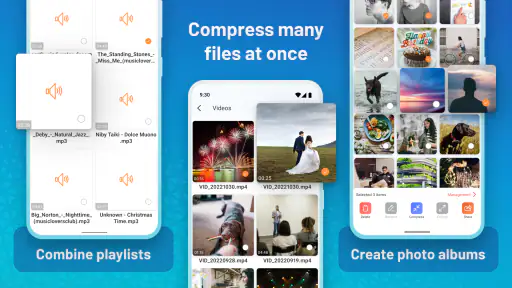
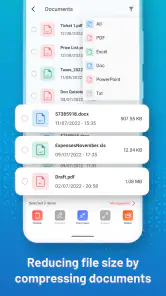
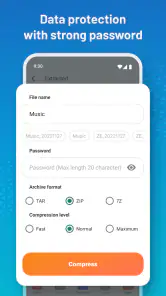
The reverse workflow starts with loose files. I select the documents, images, or other items I want to group, then create an archive instead of sending each item separately. This is helpful when a recipient expects one file, when an upload form accepts an archive, or when I want to keep a set of related files together while moving them between folders.
Before compressing, I review the selection carefully. A phone folder can contain thumbnails, duplicates, or temporary files that are easy to include by mistake. The app makes the compression step convenient, but it cannot decide which files are meaningful for my project. My own file selection remains the quality-control stage.
I also give the resulting archive a name that describes its contents and purpose. A name such as “documents” is less useful than one that identifies the project or occasion. This becomes particularly important when several archives are later stored in Downloads. The app helps create the package, but clear naming determines whether the package remains usable after it leaves the phone.
Compression is not automatically the best choice for every transfer. If I am sending one small photo, attaching the original file is simpler. If I am sharing a group of files, an archive can reduce clutter and preserve the grouping. That is the trade-off I noticed most: the app makes packaging easy, but packaging adds one extra step for the recipient, who must also unpack it.
Where the handoffs happen
The most realistic scenario is a work document arriving through a chat app. I download the archive, open it with the extractor, unpack it into a named folder, and then open the document in the appropriate editor. When I finish, I may compress the revised document with supporting images and send the new archive back. The extractor sits between communication and productivity apps, which is exactly where a dedicated tool earns its place.
A similar handoff happens with photos. Someone can send a collection as one archive, I can unpack it, review the images, and then move only the selected files into a gallery or cloud-storage workflow. Extracting first lets me inspect the contents before deciding what deserves permanent storage. That is more controlled than automatically saving every item into a general media folder.
There is also a useful travel or offline scenario. If I receive a group of reference files before leaving reliable internet access, extracting them into a clearly named folder gives me a better chance of finding the material later. The key benefit is not that the app replaces cloud storage; it is that it turns a single compressed object into ordinary files that other phone apps can open locally.
For someone helping a family member, the focused interface can also be less intimidating than a desktop archive utility. I would explain the process as: locate the archive, open it, extract it, then look in the destination folder. That sequence is easier to communicate than a long list of file-management instructions. Still, the recipient needs to understand that extraction creates a new copy of the contents, so storage space should be considered when dealing with large archives.
What the result looks like in real use
A successful result is straightforward: the archive becomes a normal folder of accessible files, or several separate files become one package ready to share. I value that directness. There is no reason for a simple ZIP task to require a desktop computer, and this app keeps the main job close to the file itself.
The current version is 3.3.4 and the minimum operating-system requirement is Android 7.0. That makes the app relevant to users who are not running the newest phone software, provided their device meets that requirement. I would still check the phone’s available storage before extracting a large package, because the original archive and the unpacked contents may need to exist at the same time.
The free installation is another practical advantage for occasional users. I can use it when a particular archive arrives instead of committing to a paid desktop-style utility. There are in-app purchases ranging from $0.99 to $99.99 per item, so anyone who wants to keep costs tightly controlled should pay attention to purchase prompts and decide whether the free experience already covers their needs.
My preferred outcome is not merely “the file opened.” It is a clean chain: the archive is identified, its contents are checked, the destination is sensible, the resulting files are handed to the right app, and the original archive is either retained for backup or removed when it is no longer useful. That last decision matters because duplicate copies can quietly make a phone feel disorganized and consume storage.
Where this workflow can break
The first point of friction is file discovery. If another app saves an attachment in an unexpected location, the extractor cannot make that confusion disappear. I may need to use the phone’s ordinary file browsing tools first. Users who want an automatic “open every archive wherever it appears” experience may find this more manual than expected.
The second issue is the difference between archive handling and file access. Extracting a document does not guarantee that the phone has an app capable of reading or editing it. The archive tool can complete its part while the next handoff still requires a compatible viewer or editor. This is not a defect in the extractor, but it is an important boundary to understand before relying on it for a complete workflow.
Storage is another practical limitation. Compression can make a group of files easier to send, but extraction creates the contents again. If I am working with a large archive on a phone that is nearly full, the operation may be inconvenient even when the archive itself appears small enough. I would clean up unnecessary downloads first and keep the destination organized.
Archive structure can also cause confusion. A package may contain a folder inside another folder, and the final location can look empty at first if I open only the top level. Checking the archive’s internal layout before extraction prevents that mistake. This is one of the reasons I prefer a deliberate workflow over tapping through the process as quickly as possible.
Password-protected or unusually structured archives are the kind of situation where I would avoid assuming that every file will behave identically. If the content is important, I would keep the original archive until I have confirmed that the extracted files open correctly. For critical business or personal material, a desktop archive utility may offer a more comfortable troubleshooting environment than a phone screen.
How it compares with the usual alternatives
The closest alternative is often a general file manager. That can be enough for people who only open an occasional ZIP and already have archive support built in. A file manager is usually better for moving, renaming, and cleaning up ordinary folders, while this app is more focused when the task begins or ends with compression.
Desktop archive programs remain preferable for heavy work: large collections, repeated batch operations, detailed archive inspection, or workflows that depend on advanced controls. A computer also makes it easier to compare folders and rename many files. I would choose the phone app for convenience and mobility, not because it replaces a full desktop toolkit.
Cloud-storage apps provide another comparison point. They are better when the main goal is synchronization, collaboration, or keeping a long-term copy available across devices. This extractor is better at the immediate conversion between an archive and usable local files. If I only need to store a ZIP and share it later, cloud storage may be the simpler home; if I need to unpack it now, a dedicated extractor is more direct.
Some messaging apps can preview compressed attachments, but previewing is not the same as organizing the contents for later use. I prefer a dedicated tool when I need to extract several files, choose a destination, or create a new archive from selected items. The trade-off is that I introduce another app into the chain, so the benefit is greatest when archive tasks happen regularly enough to justify that extra step.
Who should use it, and who should skip it
I would recommend this app to Android users who frequently receive ZIP or RAR files, send groups of files as one package, or need a simple bridge between downloads and other apps. It is particularly practical for students exchanging project materials, freelancers sending grouped deliverables, families sharing photo collections, and anyone who handles attachments away from a computer.
It is also a reasonable choice for occasional users who do not want to learn a complicated archive program. The free starting point lowers the barrier, and the Everyone rating makes it a broadly accessible utility. The strong install base and 4.3 average suggest that it has found a useful place in many people’s everyday file workflows, though popularity alone should not decide whether it suits a particular phone.
I would skip it if I almost never handle compressed files, already have a file manager that performs every archive task I need, or mainly work with large and complex packages that are easier to manage on a computer. I would also look elsewhere if my priority is cloud synchronization, collaborative editing, or advanced archive administration rather than quick extraction and compression.
For privacy-sensitive material, my advice is simple: use the app only as part of a careful local workflow, keep the original file until the result is checked, and avoid sharing the extracted contents more widely than necessary. The app’s purpose is file handling, not deciding who should receive the files or how long they should remain on the device.
My final view after following the full workflow
Zip Extractor - UnZIP & UnRAR succeeds because it addresses an ordinary but persistent phone problem. It takes an archive that is awkward to use directly and turns it into files I can pass to the right app, or it gathers loose files into a package that is easier to send. The strongest experience comes when I plan the handoffs instead of treating extraction as a single tap.
I especially like the balance between a focused purpose and a low commitment. I can install it for a specific attachment, use it for a repeatable file routine, and remove clutter afterward. The limitations are equally clear: file discovery, storage, archive complexity, and the need for separate apps to open the extracted contents still belong to the wider workflow.
My recommendation is therefore practical rather than universal. If compressed files regularly arrive on your Android phone, this is a useful tool to keep available. If archives are rare or your existing file manager already handles them comfortably, you may not gain much by adding another utility. For the right user, however, the real strength is the clean handoff from compressed file to usable result, and that is enough to make it worth trying.
Pros
- Supports ZIP and RAR files for convenient archive management.
- Simple interface makes extracting files quick for beginners.
- Can browse archive contents before extracting them.
- Useful for opening downloaded attachments directly on mobile.
- Works offline for basic compression and extraction tasks.
Cons
- Large archives may take noticeable time to process on older devices.
- Some advanced archive formats or features may not be supported.
- Ads can interrupt the experience in the free version.
- Extracted files may require extra storage space on your device.
- Permissions may be needed to access files and folders.
- Category
- Tools
- Version
- 3.3.4











