WOMBO Dream - AI Art Generator
- 10.60K
- 3.7
- Installs
- 10.00M
- Price
- Free
Screenshots
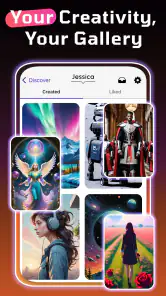
Analysis by Reviewed
I like the idea of having a quick, low-pressure place to turn a passing image in my head into something I can look at and revise. That is the appeal of WOMBO Dream: it makes AI-generated pictures approachable for people who have an idea but not the drawing skills or editing patience to make it themselves. I’d treat it as a creative sketchbook rather than a replacement for a full art program, and that distinction helps set fair expectations from the start.
What the free starting point tells you
The app is free to install, while in-app purchases range from $3.99 to $134.99 per item. That makes it easy to try the basic experience before deciding whether any paid option is worth considering. I would not assume that paying is necessary to find out whether the prompt-based workflow suits you; first see how well the results match the kinds of images you actually want to make.
WOMBO Studios Inc developed this Art & Design app. It is rated for Everyone, has a 3.7 average from around 526,000 ratings, and has been installed over 10 million times. Those figures suggest a widely used tool, though they don’t guarantee that its output will fit every taste. The current version is 4.2.7, and the app requires Android 7.1 or later.
Unleashing Creativity with AI
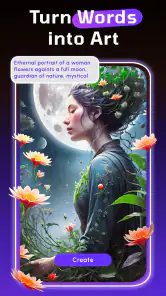
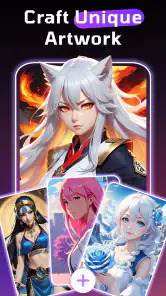
First things first, WOMBO Dream - AI Art Generator is not just another app; it's a revolution in the art world. The app uses sophisticated AI algorithms to transform simple text prompts into stunning pieces of art. You don't need to be an artist to use this app; just type in your idea, and let the magic happen. It's like having a genie that paints your dreams into reality!
Getting Started
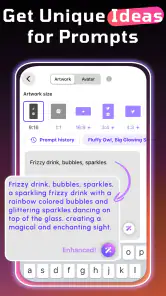
When I first downloaded the app, I was a bit skeptical. Can AI really create art that feels personal and unique? But I was pleasantly surprised by how user-friendly the interface is. You start by typing a description of the art you want to create. It could be anything from "a serene sunset over the mountains" to "a futuristic cityscape with flying cars". Within seconds, the app generates an artwork that looks like it was crafted by a seasoned artist.
For a more useful first test, I’d pick one clear subject and describe its setting or mood, rather than packing a prompt with unrelated details. If the first image is close but not quite right, changing one part of the wording at a time makes it easier to see what influenced the result. That simple habit turns generation into a small creative process instead of a string of random requests.
The Artistic Journey
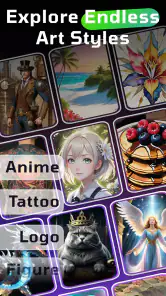
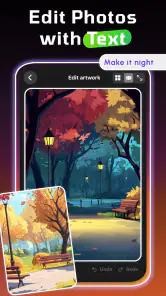
One of my favorite features is the variety of art styles you can choose from. Whether you're into abstract, realism, or something whimsical, WOMBO Dream has got you covered. The app even allows you to tweak the final output, giving you a sense of control over your masterpiece. It's incredibly satisfying to see how the AI interprets your vision and turns it into something tangible.
More From Our News Desk

Weather by Xiaomi Review: Clear at a Glance, Less Clear Up Close

X Under Pressure: Can It Recover When Posting Goes Wrong?

Clash of Clans Is Won Between the Battles

Android Auto Makes the Case for Quieter Car Software

MobiOffice: Transforming Mobile Productivity with Seamless Integration

EA SPORTS FC™ Mobile Soccer: Redefining Mobile Sports Gaming
That makes the app handy for practical, informal projects: I might make a playful image for a group chat, explore a mood for a personal project, or create a starting point for a handmade sketch. For a small event, for example, I could try a few prompt-and-style combinations for an invitation concept, then choose one to guide my own layout. I would still check the final image carefully before using it in anything important; an attractive overall result can interpret a specific detail differently than intended.
When another tool makes more sense
Compared with a conventional drawing app, Dream asks for words rather than precise strokes, layers, or detailed manual adjustments. That is its strength when I want quick visual exploration, but it is also the trade-off: if I need exact placement, consistent characters across several images, or careful control of every line, a traditional illustration editor is a better fit. A general photo editor is also more suitable when the goal is to retouch a real picture rather than invent a new scene.
One useful way to work is to save the prompt that produced a promising direction and adjust only the subject, setting, or mood for the next attempt. This can help keep a set of ideas coherent without expecting identical results. I’d also treat generated pictures as drafts when the project depends on precise text, recognizable details, or a specific visual identity; those are areas where hands-on design work gives me more dependable control.
Who is likely to enjoy it?
I’d recommend trying it if you enjoy experimenting, want a fast visual starting point, or simply find it easier to describe an idea than draw it. It is particularly approachable for casual creators who want to play with styles without first learning a complex editing interface. If you need predictable, production-ready artwork or prefer making every creative decision yourself, you may find the AI-led approach limiting and should look toward a manual art tool instead.
A realistic everyday use is making a quick image to share with friends: describe an inside joke or a favorite imaginary scene, choose a style, and see what the app makes of it. The fun is partly in the surprise, so I wouldn’t make the workflow depend on getting one exact result on the first try. If you are wondering whether you need drawing experience, you do not; the prompt is the main creative input. If you are wondering whether it is free, you can start without paying, but optional purchases are available, so check the purchase details in the app before choosing anything.
Making a prompt more deliberate
When I want an image to communicate one clear idea, I find it helps to decide what the viewer should notice first. I put that subject at the center of my description, then add just one or two supporting cues such as a setting or atmosphere. This is more useful than listing every object I can imagine, since a crowded prompt can pull the result in several directions and make it harder to judge what needs changing.
I also separate the stages of experimenting. First I explore the broad concept, then I compare styles, and only after that do I refine the wording. If I change the subject, mood, and style all at once, I have no clear sense of why one result feels better than another. This small bit of discipline makes the app feel less like a slot machine and more like a visual notebook, even though the outcome still has an element of surprise.
A useful fit for low-stakes creative work
Dream makes the most sense to me when the image is a means of exploring or sharing an idea, rather than a finished asset that must meet a strict brief. A friend planning a themed get-together could use it to explore a few visual moods before making a simple invitation elsewhere. Someone who writes stories might use a generated scene to picture a setting, then return to the writing with a clearer sense of its atmosphere. In both cases, the value is in getting a quick visual response to a thought.
For a small personal project, I would keep a short note of the prompt and style behind any result I like. That gives me a reference point if I want to explore the same general direction later. I would not count on reproducing an image exactly, though; the better expectation is to use the note as a starting recipe, not as a guarantee of a matching picture. That distinction matters if I am creating several related images and need them to feel like a set.
What the alternatives do better
In the usual art-app landscape, Dream sits between a blank canvas and a photo editor. A drawing app rewards deliberate technique and gives the artist direct control over marks and composition. A photo editor starts with an existing picture and is built around changing it. Dream’s prompt-led approach is more convenient when I have no source image and do not want to draw every element, but the convenience comes with less precision over the final details.
That difference can guide the choice quickly. If I need to sketch a logo concept with exact lettering, align objects carefully, or keep a character’s appearance consistent across a sequence, I would start in a conventional design or illustration tool. If I only need a visual spark for a mood board, a playful post, or a private idea, Dream is a lighter and more inviting place to begin. It is not that one kind of tool is universally better; they answer different creative questions.
Sharing the Dream
Once you're happy with your creation, sharing it with the world is a breeze. The app integrates seamlessly with social media platforms, so you can show off your AI-generated art to friends and followers. It's a great way to spark conversations and get feedback on your creations. Plus, who wouldn't want to brag about their newfound art skills?
I’d share an image when it feels finished enough for the audience and purpose, rather than treating every generation as a final piece. For personal posts, an unexpected interpretation can be part of the charm; for a more serious project, I’d review the image at full size and check that the subject and mood still read clearly. That extra pause is worthwhile when a small visual mismatch could distract from the idea.
Checking whether a result is ready to use
Before I use a generated picture outside the app, I look beyond the first impression. I check whether the main subject is easy to recognize, whether the composition leaves room for any text I plan to add elsewhere, and whether small details undermine the mood. A picture can look striking as a thumbnail but feel confusing when viewed more closely, so I would not choose one for an invitation, presentation, or public post without that quick review.
For a casual share, I’m comfortable treating an odd detail as part of the fun. For something where accuracy matters, I would either make a different attempt or move to a tool that lets me correct the specific problem directly. That is a practical boundary rather than a knock against the app: fast generation is useful, but it does not replace a final human check.
My buy-or-skip verdict
In conclusion, WOMBO Dream - AI Art Generator is an exciting tool for anyone looking to explore their creative side without any prior art experience. It's fun, easy to use, and the possibilities are endless. Whether you're an aspiring artist or just looking for a fun way to pass the time, this app is definitely worth checking out. So go ahead, give it a try, and watch your dreams come to life!
My recommendation is to start with the free access and judge it by how useful the results are for your own ideas, not by whether every image looks finished. I’d skip it if exact, repeatable control matters more than surprise, or if you want a hands-on drawing workspace. But for casual concept exploration, playful images, and a quick way to turn a sentence into a visual prompt, I think it is worth trying before spending anything.
How I’d decide whether to pay
The free starting point is enough for me to test whether prompt-based art is enjoyable and useful in my day-to-day creative work. Since individual in-app purchases can vary substantially in price, I would look at the specific option and what it offers before buying rather than treating any purchase as an automatic upgrade. The sensible question is not whether a paid option exists, but whether I have repeatedly reached a limitation that the particular purchase would solve.
If I only want to make an occasional image for amusement or inspiration, I would stay with the free access unless I found a clear reason to spend. If I use the app often and a paid option directly supports the way I work, I could consider it after checking its details in the app. I would not pay simply because one generation missed the mark; changing the prompt or choosing a different style may be enough to learn whether the tool suits me.
The people I’d point toward it
I’d send a curious beginner here if they want to see an idea become an image without first learning brushes, layers, or drawing techniques. It also suits people who like the unpredictable part of making art: the app may interpret a phrase in a way they had not pictured, and that surprise can lead to a better idea. For a busy person who wants a quick creative break rather than a full editing session, that low barrier is a real advantage.
I would steer away anyone whose work depends on exact visual consistency, precise lettering, or complete control over every object. It is also a poor fit if the fun of making art for you comes mainly from drawing each mark yourself. In those cases, a traditional illustration program gives more direct control, while a photo editor is the practical choice for improving a real photograph. Choosing the right starting tool saves frustration later.
Overall, I see Dream as a free-to-start creative companion, not a dependable substitute for a designer or a manual art workspace. Its appeal is how quickly it lets me test a visual thought, and its main limitation is that I must accept some uncertainty in how that thought is rendered. If that trade-off sounds enjoyable, I’d give it a try; if reliable precision is the priority, I’d skip it and use a more hands-on alternative.
WOMBO Dream - AI Art Generator Frequently Asked Questions
Do I need an internet connection to create images in WOMBO Dream?
WOMBO Dream turns text prompts into AI-generated artwork, so it is sensible to have an internet connection available when using its creation features. If you plan to make art while away from Wi-Fi, check your mobile data settings first, especially if you expect to generate or share several images. You can save completed creations to your device for later viewing or sharing.
What kinds of artwork can I make with WOMBO Dream?
The app is focused on AI-generated paintings, drawings, and cartoon-style images. You describe an idea using a word or phrase, then let the generator interpret it as a visual composition. That makes it useful for exploring imaginative concepts, trying different creative directions, or producing a quick image from a prompt, rather than serving as a traditional drawing canvas for detailed manual illustration.
Is WOMBO Dream appropriate for children?
WOMBO Dream has an Everyone content rating, so it is presented as suitable for a broad audience. It is an art and design app built around creating pictures from text prompts, which may appeal to children interested in imaginative images. As with any creative app, parents may want to review its features and supervise purchases or sharing choices according to their family’s preferences.
Can I use WOMBO Dream to make artwork from a text prompt?
Yes. Text prompts are central to the experience: you enter a word or phrase describing an idea, and the app uses AI to turn it into an image. This makes it possible to explore a concept without drawing it by hand. A prompt can be a simple starting point, and experimenting with different wording can help you see how the generator interprets your idea.
Is WOMBO Dream suitable for beginners who have never made digital art?
Yes. WOMBO Dream is designed to make creating art approachable, even if you have no drawing or painting experience. You can start with a word or phrase and let the app turn it into an image, rather than needing to work with complex art tools. Its focus on quick, prompt-based creation makes it easy to experiment with ideas.
Pros
- Creates stunning AI-generated art
- User-friendly interface
- Wide range of art styles available
- Quick processing time
- No artistic skills required
Cons
- Limited free features
- Requires internet connection
- Occasional crashes
- Subscription needed for full access
- Ads in free version
- Category
- Art & Design
- Version
- 4.2.7