Wix - Website Builder
- 4.45K
- 3.7
- Installs
- 5.00M
- Price
- Free

Screenshots


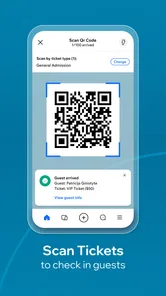
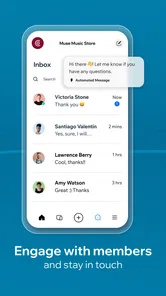
Analysis by Reviewed
I find Wix - Website Builder most useful when I treat it as a practical control room for a small website, rather than expecting a phone to replace every part of desktop web design. It is a free productivity app from Wix.com, INC., and its focus is on creating and managing a web presence. The key question is less whether it can do everything and more whether the work you need to do fits a mobile screen and a steady connection.
When the connection becomes part of the workflow
Building and managing a site involves moving between pages, editing content and checking how changes look. In my experience, those moments are easier to plan when I have a reliable internet connection: a phone is convenient for reviewing a page or making a small adjustment, but network interruptions can break the rhythm of a longer editing session. I would do substantial setup somewhere with dependable access, then use the app for focused follow-up tasks.
A useful habit is to decide what “finished” means before opening the editor. For a quick update, that might be correcting a detail, replacing an image, or checking a page before sharing it. This keeps mobile editing from turning into an open-ended redesign, where every change invites another round of checking. I would also review the result after each meaningful edit rather than assume that a change looks right just because it was easy to make.
For instance, if I am preparing a portfolio page before sending it to a client, I would write the revised project description first, then open the relevant page and make that one change. This reduces time spent navigating while connected and gives me a clear point at which to check the finished result. When the connection drops, I would stop rather than keep tapping save or repeating an edit; once service returns, checking the page tells me whether the change took effect.
Designed for phone-sized tasks, with limits
The app suits people who need to stay involved in a site while away from a computer: a freelancer checking a portfolio, a shop owner reviewing an online presence, or a blogger keeping an eye on content. It is less appealing if your main goal is precise, prolonged layout work. A larger screen and a desktop workflow are usually more comfortable for comparing sections, handling fine adjustments and keeping the whole page in view.
That distinction matters because a website is not just a collection of attractive blocks. Navigation, readable text and the path from a landing page to an important action all need attention. On a phone, I would make one category of change at a time—content first, then visual polish, then a final check—rather than trying to overhaul everything in one sitting. It is a simple way to reduce accidental inconsistencies and make revisions easier to assess.
The phone is especially useful for a quick editorial decision that does not depend on seeing the whole site at once: fixing a typo, checking a published page, or updating a short piece of text. By contrast, if I need to compare multiple pages or adjust the overall structure, I would switch to a computer. That is not a knock on the app; it is a practical way to match the task to the screen and avoid making broad design choices from a cramped view.
More From Our News Desk

Weather by Xiaomi Review: Clear at a Glance, Less Clear Up Close

X Under Pressure: Can It Recover When Posting Goes Wrong?

Clash of Clans Is Won Between the Battles

Android Auto Makes the Case for Quieter Car Software

MobiOffice: Transforming Mobile Productivity with Seamless Integration

EA SPORTS FC™ Mobile Soccer: Redefining Mobile Sports Gaming
Recovering your rhythm after a hiccup
If a page does not load or an edit feels interrupted, I would pause before repeating the same action several times. Check the connection, reopen the relevant area and confirm what actually changed before trying again. That cautious sequence is especially useful when editing public-facing content: duplicate effort can create confusion, while a quick review helps distinguish a failed attempt from a completed one.
For a realistic example, imagine you run a small service and notice a spelling error just before sending a prospective client your site. The app can be handy for locating and correcting that detail while you are out. I would then revisit the page and check the visible text before sharing it. For a full redesign, though, I would wait until I could work comfortably on a larger screen rather than rush through layout choices on a phone.
I would also keep the intended result in mind before making a change. If I am replacing a photo, I can note which page and image need attention, then verify that exact spot afterward. This is a simple safeguard against losing track when navigation or loading is interrupted. If a change is time-sensitive and the connection remains unstable, waiting for a reliable moment is more sensible than making several uncertain attempts.
Data-conscious editing and sensible trade-offs
Because site work relies on viewing and updating online content, I would avoid starting a large editing session when my connection is unreliable or when I need to conserve mobile data. Short, planned visits are a better fit than repeatedly loading pages while deciding what to change. If data use is a concern, prepare the text and images you intend to work with first, then make the necessary edits in a focused session instead of browsing aimlessly.
Compared with separate tools for blogging, online selling or portfolio publishing, Wix brings several kinds of site work under one roof. That convenience is valuable if you want a single place to manage a broad web presence, but a specialist service may suit you better if you only need one narrow function or already have a preferred workflow. I would choose based on the site you actually plan to maintain, not on the appeal of having every possible tool available.
There is a useful trade-off here: one connected workspace can be easier to manage than several services, but it also makes sense only if Wix’s way of organizing your site fits how you work. A blogger who wants a focused writing environment may value a dedicated publishing tool more, while a small business owner who needs a site combining several kinds of content may prefer a broader builder. Before moving an established project, I would consider how much of its current structure I am willing to recreate.
Ever thought of having your own website but felt overwhelmed by the technicalities? Say no more! Meet Wix - Website Builder, the app that turns your web creation dreams into reality without needing a degree in computer science. The app, available on both Android and iOS, is like having a web developer in your pocket. Let’s dive into what makes this app a game-changer for budding web designers and businesses alike.
Getting Started with Ease
Upon launching the app, you're greeted with an interface that's as friendly as your grandma's hug. Seriously, Wix - Website Builder is designed with user-friendliness at its core. You don’t need to have any prior experience in web design to get started. Simply choose from a plethora of templates that cater to different industries and styles. Whether you're a blogger, a musician, or a small business owner, there's something tailored just for you.
Customizing Your Website
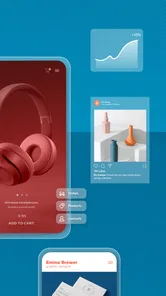
Once you pick a template, the fun truly begins. Customization is where Wix shines. With drag-and-drop functionality, you can add text, images, videos, and more with just a swipe of your finger. It's like playing a game of Tetris but way cooler because, at the end, you have a stunning website to show off. And if you’re feeling adventurous, the app offers advanced features like animations and scroll effects to give your site that extra oomph.
My practical tip is to treat template choices as a starting framework, not a checklist of sections to fill. Before adding more blocks, decide what a visitor should understand or do first. That keeps a mobile editing session focused and makes the finished page easier to scan. If I have a long description or several images to add, preparing them before I begin also helps me avoid spending a session deciding what belongs where.
Features That Stand Out
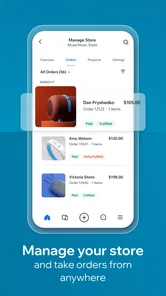
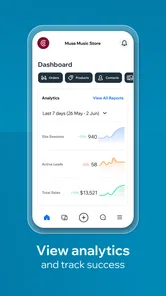
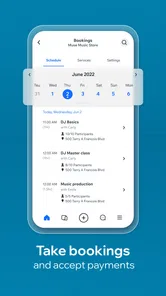
Beyond the basics, Wix is packed with features that make it stand out from the crowd. You can integrate e-commerce functionalities, which is a massive plus for anyone looking to sell products online. The app also supports SEO optimization, ensuring your site gets the visibility it deserves on search engines. Plus, with the mobile editor, you can tweak your site on the go, making it perfect for the hustle and bustle of modern life.
For a small shop, I would separate routine content upkeep from decisions that affect the entire storefront. Checking a page or making a small correction can be a convenient phone task; reviewing the overall buying journey deserves more deliberate attention. The same principle applies to a portfolio: a quick text correction is straightforward, but deciding how projects should be ordered is easier when I can compare the full page and think about the visitor’s path.
Support and Community
If you ever hit a snag, fear not. Wix provides a robust support system including a help center, forums, and tutorials. The community is active and always ready to lend a helping hand. It’s like having a bunch of tech-savvy friends who are just a click away.
Who will get the most from it?
The app is a strong fit for someone launching a first portfolio, keeping a small business site current, or publishing a blog without wanting to assemble separate tools. Its template-led starting point can help a beginner get a coherent design in place before they understand every detail of web layout. Wix has an average rating of 3.7 from around 64,000 ratings, and more than 5 million installs, suggesting a broad audience but also a range of experiences. I would not treat popularity as proof that it suits every project: a developer who wants full technical control, or a creator who only needs a simple hosted page, may prefer a different approach.
It is free to install and rated for Everyone, which makes it easy to try without an initial purchase. The app was released on February 21, 2021, and the current version is 2.112702.0; on Android it requires version 8.0 or later. Those details help with basic compatibility, but I would still judge it by the kind of work I plan to do. If I want to build a complex site from scratch, the phone should be a companion to a larger-screen workflow rather than my only workspace.
A practical way to build without getting lost
One trade-off with a template is that it gives you momentum but can also tempt you to keep adding sections simply because they are available. I would start by writing down the few things a visitor needs to understand or do, then choose a template and remove anything that distracts from those priorities. For a musician, that could mean making the latest work and contact details easy to find; for a small shop, it could mean keeping product information and the next step clear. This content-first approach is more useful than polishing animations before the site’s purpose is obvious.
Before publishing a change, I would check the page as a visitor rather than only as its editor: does the main message appear quickly, are the important links easy to spot, and does the page still make sense on a phone? That last check is worth doing even when the edit itself is small. An image or a long block of text can change the balance of a page, so a quick visual pass can catch a problem that is easy to miss while focused on editing.
Choosing it with realistic expectations
For a first-time site owner, I would use the app to explore a template, shape the basic content and handle modest updates, while reserving intricate layout decisions for a setting where I can concentrate. For an established site, it makes more sense as a companion for quick checks and targeted changes than as the only tool in the process. That division of labor keeps the phone useful without expecting it to be a full desktop replacement.
A common question is whether this is a good choice for someone who already has a website. I would first check whether that site is part of the Wix workflow; the app is most compelling when it helps manage the web presence you are actually building or maintaining there. If your site lives elsewhere, or your current tools already handle the work comfortably, switching just to gain a phone editor may add effort without solving a real problem.
Another practical consideration is how often you expect to edit. Someone who makes occasional corrections and checks pages while away may appreciate having the app available. Someone planning hours of detailed design work will likely be happier using a computer for the heavy lifting. In either case, I would keep changes small enough to review properly, especially when editing through a mobile connection.
In conclusion, Wix - Website Builder is more than just an app; it's a tool that empowers you to bring your ideas to life on the web. Whether you're starting from scratch or looking to revamp an existing site, Wix offers everything you need in a neat, easy-to-navigate package. It’s the perfect blend of simplicity and functionality, making web design accessible to everyone. So why wait? Give it a try and watch your website dreams unfold into reality.
My recommendation is to approach it as a convenient way to keep a Wix site moving, not as a promise that every design job will feel effortless on a phone. If you value templates, want one place for several kinds of site content, and can plan around a dependable connection, it is worth exploring. If your priority is intricate control, a specialist publishing tool, or a workflow that works without repeatedly loading online pages, another option may fit better. The best use of Wix here is deliberate: prepare, make a focused change, check the page, and leave the bigger redesign for when you have room to think.
Wix - Website Builder Frequently Asked Questions
Does Wix - Website Builder work on both Android and iOS?
Wix - Website Builder is a mobile app for building and managing websites. Android users need version 8.0 or later to install it. The app is developed by Wix.com, INC., and its store description presents it as a tool for creating blogs, portfolios, and stores. Check the app store on your device for its current availability and compatibility details before downloading.
How much does Wix - Website Builder cost to download?
The app is free to download, so you can get started without paying for the installation. Website creation and additional services may involve choices beyond downloading the app, so consider what you need for your project before committing to any upgrades. Wix - Website Builder is rated for Everyone, making its stated age category suitable for a general audience.
Can I manage an existing Wix website from the mobile app?
Yes. Wix - Website Builder is designed to let you work with your website from a mobile device, which can be useful for making updates while away from a computer. It is a productivity app for building and managing web projects, including blogs, portfolios, and stores. The app is free to download, and its age rating is Everyone.
Who is Wix - Website Builder best suited for?
Wix can suit individuals and businesses who want to create a web presence, whether that means a personal blog, a portfolio, or an online store. Its visual editing approach is approachable for people without coding experience, while its broader set of tools can support more involved projects. The app is developed by Wix.com, INC., and is available for Android devices running version 8.0 or later.
What is Wix - Website Builder and how does it work?
Wix - Website Builder is a versatile platform designed for creating professional websites with ease. It offers a drag-and-drop interface, allowing users to build and customize websites without any coding knowledge. With a variety of templates and features, users can design anything from personal blogs to e-commerce websites. Wix also provides hosting and domain services, making it a one-stop solution for web development needs.
Pros
- User-friendly interface for beginners.
- Wide range of customizable templates.
- Reliable customer support available 24/7.
- Integrated SEO tools for better visibility.
- Mobile optimization is automatic.
Cons
- Limited design flexibility for advanced users.
- Premium plans can be costly.
- Ads on the free version.
- Complex sites may load slowly.
- Limited e-commerce features on basic plan.












