Who Is Tracking My Phone?
- 255.00
- 3.9
- Installs
- 1.00M
- Price
- Free

Screenshots
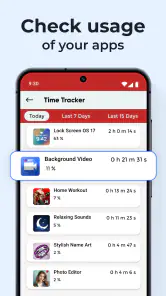
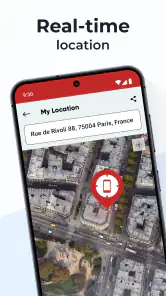
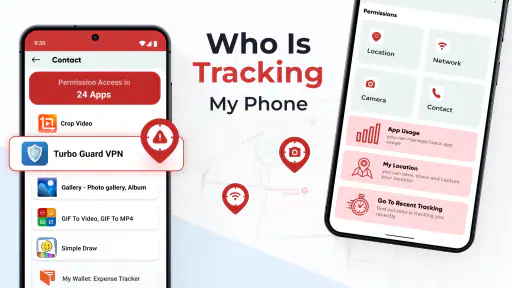
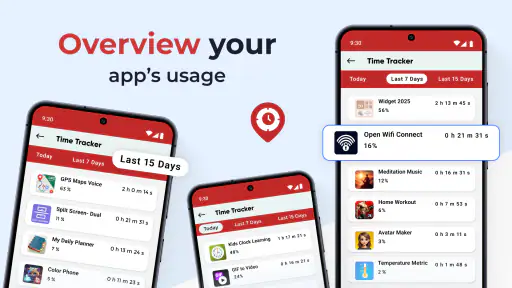
Analysis by Reviewed
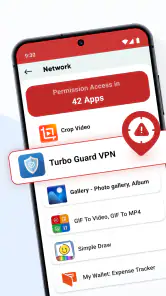
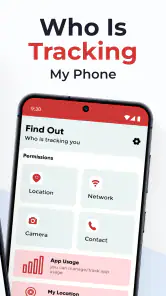
Who Is Tracking My Phone? is a free tools app from GeniusTools Labs that I found most useful as a starting point for cleaning up the permission side of an Android phone. Its purpose is straightforward: it helps you look at installed apps and consider whether they still need the access they have. That sounds simple, but it addresses a problem many people ignore until an app requests something that feels unrelated to its job.
I approached it less like a magical privacy scanner and more like a practical inspection companion. It does not replace Android’s own controls, and it cannot make every privacy decision for you. What it can do is put the question of app access in front of you at the right moment: which apps are installed, which ones deserve attention, and which permissions should be reviewed before you continue using them.
The app is listed for Everyone and works on devices running Android 8.0 or later. It is free to install, although optional in-app purchases range from $0.99 to $99.99 per item. The current version is 2.2.3, and its 3.9 average from around 3.7 thousand ratings suggests a mixed but generally useful experience rather than a universally polished one. More than a million installs also make it a familiar option for people looking for a dedicated permission-management tool.
Starting with a sensible permission baseline
What I check first
My first session with Who Is Tracking My Phone? worked best when I treated it as an audit rather than a one-tap solution. I began by looking through the installed-app view and separating applications I use every week from those I had forgotten about. That distinction matters because an old app can remain a privacy concern even when it is no longer part of your routine.
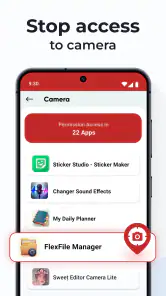
I then opened Android’s permission controls for the apps that deserved closer attention. The useful habit here is to ask what the app actually does before deciding whether access is reasonable. A navigation tool may have a clear reason to use location, while a simple utility requesting the same access deserves more questioning. The app helped me create that shortlist, but the final decision still belonged to me.
This is the most important expectation to set: the tool is not proof that an app is spying on you. The wording around tracking can sound more dramatic than the practical task. A permission can be necessary, optional, temporary, or excessive depending on how the app works and how you use it. I found the strongest results came from reading each item in context instead of treating every sensitive permission as automatically harmful.
A realistic everyday cleanup
Imagine installing several shopping, photo-editing, travel, and discount apps over a few months. You use one of them once, grant access quickly, and forget about it. Later, you notice battery drain or simply want to reduce exposure before lending your phone to a family member. This is where the app fits well: open it during a quiet ten-minute review, identify apps you no longer need, and use Android’s permission page to remove access or uninstall the least useful ones.
I would especially recommend doing this after returning from a trip. Travel often leads to temporary apps for transport, tickets, translation, or local services. Once the trip is over, their permissions may no longer serve a purpose. Who Is Tracking My Phone? gives that cleanup a clear starting point instead of relying on memory.
Another good moment is after changing phones or restoring a backup. A restored application may return before you have decided whether you still trust it. Reviewing the list before signing into everything again creates a useful pause. It is a small workflow, but it prevents old habits from being copied automatically to a new device.
Why the baseline matters
Permission management is easier when you establish a normal pattern. I prefer to keep everyday apps limited to what they need, allow sensitive access only when I understand the reason, and revisit unusual cases after using the app for a while. The tool is most valuable in that repeatable routine, not as a single dramatic scan.
One non-obvious benefit is that the review can expose clutter rather than only suspicious access. An app that no longer earns its place is worth removing even when its permissions look harmless. Fewer unused apps make future audits shorter, reduce notification noise, and make it easier to recognize something unfamiliar later.
Settings worth checking before changing anything
Read Android’s wording carefully
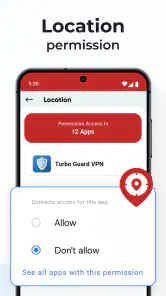
When I moved from the app’s overview into Android settings, I paid attention to the exact permission choices available on the device. Android may offer different levels of access depending on the permission and system version. Choosing the most restrictive option that still lets the app work is usually a better approach than granting everything permanently.
That does not mean denying access automatically. If a map application cannot locate you when you are using it, the experience may be frustrating or incomplete. My rule is to test the narrower setting first, then widen it only when a real feature needs more. This turns permission management into a practical experiment rather than a guessing game.
I also checked whether an app was still needed before changing its access. Revoking a permission from an app you never use is less useful than uninstalling it. On the other hand, temporarily restricting a familiar app can reveal whether a feature is genuinely important. If nothing breaks after several days, the broader access may not have been necessary.
Use the tool alongside system controls
Who Is Tracking My Phone? should sit beside Android’s built-in privacy pages, not replace them. Android remains the place where I confirm a permission, select an available access level, or remove an application. The third-party app provides a more focused reason to visit those controls, while the operating system supplies the actual authority.
This division of labor is important for anyone expecting a complete security dashboard. The app can help organize your attention, but it does not turn an unclear permission into a clear verdict. I would still check Android’s privacy indicators, account settings, and device-wide controls when investigating unusual behavior. The app is a useful layer of awareness, not a substitute for the operating system.
Settings that deserve a second look
I found three kinds of entries worth slowing down for. First are permissions that reveal location or personal activity. Second are access requests that seem unrelated to the app’s main purpose. Third are permissions granted long ago, before you understood how the application worked. None of these proves misuse, but each is a good reason to inspect the app’s current role.
A useful tip is to review permissions after updating an app, not only after installing one. Updates can change how an application behaves, and your original decision may no longer match the way you use it. I do not assume that every update creates a problem; I simply treat it as a convenient reminder to revisit important apps.
Another practical habit is to keep a short mental record of exceptions. If I allow broader access to one app because a specific feature requires it, I try to remember why. Without that reason, an exception can quietly become permanent. The app helps me find the exception again, but the explanation has to come from my own usage.
Faster patterns for repeat reviews
Build a short review loop
After the first inspection, I stopped trying to examine every installed app in one sitting. A faster pattern is to focus on newly installed apps, rarely used apps, and anything that has recently behaved differently. This keeps the process manageable and makes it more likely that I will repeat it.
I also group the review by situation. Before installing a new game or utility, I look at the access it asks for and decide whether I am comfortable with it. After deleting an app, I check that it is really gone rather than assuming removal from the home screen was enough. When I notice an unfamiliar application, I use the tool to bring it into the same review process as everything else.
These habits are more effective than opening a privacy app only when something feels wrong. Regular, low-effort checks help you notice changes earlier. They also reduce the temptation to make rushed decisions based on alarming wording or a single unfamiliar permission.
Use shortcuts without inventing a shortcut
The fastest workflow I found was not a hidden feature inside the app. It was a simple sequence: open the installed-app review, choose one category of concern, move into Android’s permission page, make one change, and return to the next app. Keeping the sequence consistent removes unnecessary wandering through menus.
I recommend starting with apps you have not opened recently. They are often the easiest decisions because there is little reason to preserve broad access for software that no longer has a place in your routine. After that, examine apps you rely on daily, since those require more care and may need a short test after changing access.
A second shortcut is to review in batches based on purpose. For example, inspect old photo tools together, then travel apps, then shopping apps. This makes it easier to remember why an app was installed and whether its permissions still match that purpose. It also exposes duplicates: two apps may do nearly the same job, making one unnecessary.
Make decisions you can reverse
When I am unsure, I prefer a reversible change. Removing a permission and testing the app is usually more informative than uninstalling immediately, provided I still trust the application enough to open it. If the feature fails, I can decide whether restoring access is worthwhile. If nothing changes, I have learned that the permission was not central to my use.
This approach is particularly helpful for people who fear breaking their phone. Permission settings are not a test you can fail permanently. The more useful question is whether the convenience gained by broader access is worth the privacy trade-off. Who Is Tracking My Phone? supports that decision-making process, but it does not remove the trade-off.
Where the app reaches its limits
It cannot judge intent
The largest limitation is that permission visibility is not the same as proof of tracking. An app may request access for a legitimate feature, for compatibility, or for a workflow you have not tried yet. Conversely, an apparently ordinary permission list does not tell you everything about an app’s behavior. I would never use this tool as the only basis for accusing a developer or declaring a phone compromised.
That limitation also explains the average rating. The app is approachable for a focused task, but users looking for a complete security suite may find the experience narrower than expected. Its job is closer to helping you manage unnecessary access than to performing a full investigation of network activity, account security, or malicious code.
When Android alone is the better choice
If you have only a few trusted apps and already review Android’s privacy controls regularly, you may not need an additional tool. The operating system can handle permission changes directly, and adding another layer may feel redundant. I would also skip this app if you expect automatic decisions, detailed forensic reports, or guaranteed identification of every tracker.
People who need enterprise device management, parental supervision, or advanced security monitoring should look for tools designed specifically for those jobs. Who Is Tracking My Phone? is better suited to personal maintenance. It helps ordinary users ask better questions about installed apps, but it is not a replacement for professional administration or a dedicated mobile security product.
Free access and possible friction
The app is free to use in its basic form, which makes it easy to try before deciding whether it belongs in your routine. Optional purchases are present, with individual items ranging from $0.99 to $99.99. I would check what a purchase unlocks before paying, especially if your needs are limited to occasional permission reviews.
Compatibility is another practical consideration. The app requires Android 8.0 or newer, so it is not aimed at very old devices. On supported phones, the exact screens and permission choices can still vary with the manufacturer and Android version. That means an instruction that feels obvious on one phone may be arranged differently on another.
I also found that the app’s usefulness depends on your willingness to act. A list of permissions does not improve privacy if you scan it and leave every decision untouched. The strongest results come from pairing the review with uninstalling forgotten apps, testing restricted access, and returning to Android settings when the app points out something worth checking.
My verdict after making it part of a routine
Who will get the most from it
I recommend Who Is Tracking My Phone? to Android users who want a clearer starting point for permission cleanup without immediately committing to a larger security suite. It is especially useful after installing many temporary apps, restoring a phone, or realizing that old software has accumulated over time.
It also suits people who prefer guided maintenance over searching through system menus from memory. The app gives the review a specific purpose and helps turn vague privacy concerns into individual decisions. For a family member who is comfortable using apps but unsure where permissions live, that focus can make the process less intimidating.
How I would use it over time
My recommended routine is simple. I would perform a broader cleanup when the phone has accumulated clutter, then use shorter reviews whenever I install unfamiliar software or notice an app I no longer recognize. I would keep Android’s own privacy controls as the final authority and treat every permission as a question of necessity, not automatic danger.
The most valuable advanced habit is recording the reason for unusual access in your own memory or notes. If an app needs a permission for one feature, test that feature and then decide whether the convenience justifies continued access. This prevents temporary exceptions from becoming invisible permanent settings.
I would also avoid chasing perfection. Some apps will work less smoothly with restricted access, and some permissions are reasonable for the tasks an app performs. The goal is not to deny everything; it is to make deliberate choices and remove access that no longer has a clear purpose.
My final recommendation
After using it as a permission-review companion, I see Who Is Tracking My Phone? as a practical maintenance app rather than a complete privacy shield. Its strength is focus: it encourages you to examine installed apps and manage unnecessary access. Its weakness is the same focus, because it cannot explain developer intent, inspect every form of tracking, or replace Android’s deeper controls.
For a free tools app from GeniusTools Labs, it offers a useful first step for everyday Android cleanup, provided you keep your expectations realistic. I would install it when I wanted help building a repeatable review habit, especially on a crowded phone. I would skip it if I already manage permissions comfortably or need professional-grade monitoring. Used with Android settings and a little patience, it can turn privacy maintenance from a vague worry into a manageable routine.
Pros
- Quickly identifies apps requesting location and other sensitive permissions.
- Clear interface makes permission information easy to understand.
- Useful for spotting unfamiliar apps with potentially excessive access.
- Helps users review privacy settings without technical knowledge.
- Can encourage better privacy habits and more careful app management.
Cons
- Results may require manual verification because permissions do not prove misuse.
- Some tracking activity can remain hidden from standard permission lists.
- Features and accuracy may vary between Android and iOS versions.
- May display alerts that feel excessive when legitimate apps use location services.
- Removing permissions can affect the functionality of dependent apps.

- Category
- Tools
- Version
- 2.2.3











