Volume Control Sound Launcher
- 8.41K
- 4.5
- Installs
- 1.00M
- Price
- Free
Screenshots
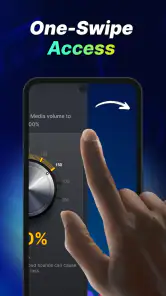
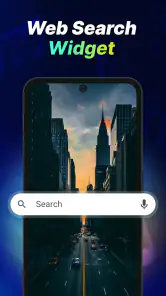
Analysis by Reviewed
I noticed Volume Control Sound Launcher because it takes a simple Android task—adjusting loudness—and puts it at the center of the experience. Developed by AtomApplications, this free tools app is aimed at people who want more direct control over sound for music, calls, alarms, and everyday media. I found the idea useful, especially when the phone’s standard volume buttons feel too limited or awkward to reach.
The app has attracted over a million installs and holds a 4.5 average from around 23 thousand ratings, which suggests that its straightforward purpose resonates with many users. It is rated for Everyone, runs on Android 10 or newer, and the current version is 1.12.0. Those details matter because this is not a specialist audio workstation; it is a practical volume utility for ordinary phone use.
How clearly the app presents volume controls
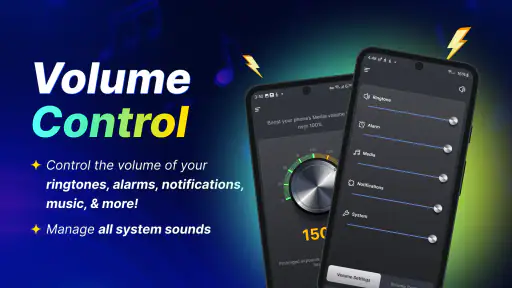
My first impression was that the concept is easier to understand than many audio-enhancement tools. Instead of making me search through a complicated equalizer or a long list of technical presets, the app focuses attention on sound control. That makes it approachable for someone who wants louder output without learning audio terminology.
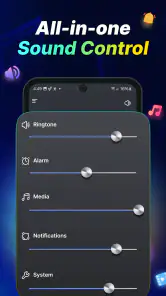
The interface is most useful when I already know what I need: raise media volume, make an alarm easier to hear, or adjust sound during a call. A focused design can reduce the number of steps for people who find Android’s separate sound channels confusing. It also helps users who do not want to remember which physical button changes which type of audio.
Readability is not only about large text. It is also about whether the purpose of each control is obvious. In this kind of app, labels for media, calls, alarms, and related sound channels need to be easy to distinguish. I would approach each adjustment deliberately rather than dragging everything to the highest level, because different sounds have different consequences.
One useful habit is to open the app before starting an activity that depends on sound. For example, I would check the alarm level before going to bed, then return to the normal media setting when listening to music. Treating the controls as separate tools is safer than assuming one louder setting improves every situation.
The app’s short store description is simply “Volume Control,” and that simplicity reflects its strongest quality. It does not ask me to commit to a large audio system before I can perform a basic adjustment. For users who prefer a clear, single-purpose utility, that is a welcome contrast with sound apps that bury everyday controls under effects and technical options.
Why the focused layout can help different users
People with reduced dexterity may appreciate having an on-screen route to volume control instead of repeatedly pressing small side buttons. A physical button can be difficult to locate, requires a firm press, and may be inconvenient when the phone is mounted, lying flat, or inside a case. A software control can be easier to reach in those situations, although the exact comfort will depend on the phone and the user’s preferred touch settings.
For users with limited vision, a dedicated volume screen may be easier to understand than moving through Android’s broader settings. The benefit comes from reducing the search area, not from assuming that every control is automatically accessible. I would still check whether the text, contrast, and touch targets work comfortably with the device’s own display and accessibility settings.
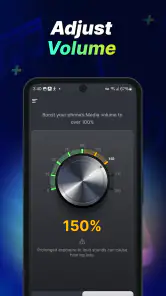
People who are sensitive to sudden loud sounds should use the app carefully. A booster can solve one problem while creating another if it makes a notification, voice, or music track unexpectedly intense. I recommend increasing sound gradually and testing with a familiar recording rather than beginning at the maximum. More volume is not always better access; predictable volume is often more useful.
Older relatives or less technical users may also find the narrow purpose reassuring. If I were setting up a phone for someone who often misses alarms or struggles to hear calls, I would explain one repeatable routine: open the volume tool, identify the relevant sound type, make a small adjustment, and test it. That is easier to teach than a full tour of Android audio settings.
Everyday situations where direct control makes sense
A realistic example is a commuter who listens to spoken audio on a bus, then receives a call and later needs a louder alarm at home. Each situation may require a different sound level. With a dedicated control app, the user can make a quick adjustment without hunting through the phone’s general settings. The important point is not simply increasing volume; it is matching the setting to the context.
Another case is a phone used in a kitchen or workshop, where background noise can mask a call or timer. A direct control may save time when the device is positioned away from the user. I would still avoid treating the app as a replacement for a safer placement, headphones, or a visual reminder when the environment is especially loud.
It can also help when the usual volume buttons are inconvenient. If the phone is on a stand during a video, connected to a charger in an awkward position, or being used by someone who has trouble with side buttons, an on-screen route may feel more natural. This is a practical advantage that a basic hardware-button workflow does not always provide.
For alarms, I would use the app as part of a checking routine rather than a one-time fix. After changing the alarm level, I would confirm that the phone is not muted and that the alarm sound itself is suitable. A volume utility can adjust loudness, but it cannot replace sensible alarm habits such as placing the phone where the sound is not blocked.
During calls, the useful adjustment may be different from media volume. That distinction is easy to overlook when relying only on the side buttons. I found that the best workflow is to change one channel at a time, listen for a few seconds, and stop as soon as speech becomes comfortable. This avoids turning up unrelated sounds and reduces the chance of an unpleasant surprise later.
What makes it different from ordinary Android controls
Android already provides volume buttons and system sound settings, so this app is not essential for everyone. The usual controls are faster for people who know their device well and have no trouble reaching the buttons. They also remain the natural choice when I need a quick, familiar adjustment without opening another app.
The advantage here is organization and accessibility of the task. A dedicated utility can make sound control feel more intentional, particularly for people who regularly adjust different audio types or find the phone’s hardware controls uncomfortable. It is less about adding a completely new activity and more about creating a more approachable path to one that already exists.
Compared with a full equalizer, this app should appeal to users who want loudness rather than detailed sound shaping. An equalizer is better when I need to change bass, treble, or the character of music. That extra control can be valuable for audio enthusiasts, but it also introduces more decisions. For everyday calls, alarms, and media, a focused volume tool may be easier to manage.
Compared with a manufacturer’s built-in sound panel, the choice depends on personal workflow. The system panel is already integrated and may offer device-specific options. This app is more attractive when I want a separate, uncomplicated place to handle sound. I would not install it merely because the phone already has perfectly comfortable controls; I would install it when those controls create repeated friction.
Practical ways to use it without creating new problems
My first tip is to make small changes and test immediately. Loudness can feel different across speakers, headphones, calls, and media, so a level that works for one source may be uncomfortable for another. Gradual adjustment is especially important for people sensitive to sharp or sudden sounds.
My second tip is to separate “hard to hear” from “poor audio quality.” If speech is muffled or music is distorted, increasing volume may not solve the real issue. The better answer could be moving the phone, cleaning an obstructed speaker, changing headphones, or choosing clearer content. A booster is not a universal repair tool.
My third tip is to build the app into a predictable routine for recurring needs. Someone who often misses calls can check call volume at the start of the day. Someone who relies on alarms can verify the alarm setting before sleeping. Someone who changes media levels frequently can use the app as a quick checkpoint rather than repeatedly experimenting with the loudest possible setting.
A fourth consideration is shared spaces. Loud audio may help the user hear a device but disturb people nearby. In a library, waiting room, or bedroom shared with another person, headphones or vibration may be a better solution. Inclusive access includes the surrounding environment, not only the person holding the phone.
Where the experience still has limits
The app’s usefulness depends on what the phone allows. Android devices can handle sound channels differently, and the result may vary with the model, speaker hardware, headphones, or connected accessories. I would therefore judge it by whether it makes my own routine easier, not by expecting identical behavior on every device.
There is also a natural boundary between control and amplification. Raising a software level cannot make a small speaker reproduce detail that its hardware cannot deliver. At high levels, distortion may become more noticeable, and prolonged loud listening can be uncomfortable or unsafe. The app should be treated as a convenience layer, not as permission to ignore sensible listening limits.
Users who need visual, vibrating, or caption-based alerts may find a volume-focused tool incomplete. Louder sound is not always the best answer for someone who cannot rely on audio, is in a noisy environment, or needs discreet notifications. In those cases, Android’s broader accessibility options and visual alert habits may be more appropriate than relying on sound enhancement alone.
Touch interaction can also remain a barrier. A software control avoids some physical-button difficulties, but it still requires accurately locating and moving a finger on the screen. Someone with tremors, limited reach, or difficulty maintaining a touch may prefer voice control, hardware assistance, or system features that require fewer precise gestures.
I would also avoid recommending it as the only solution for serious hearing difficulties. The app may make a phone louder, but hearing clarity can depend on frequency balance, background noise, the other caller’s microphone, and the listener’s hearing needs. A compatible hearing device, captions, text communication, or professional advice can be a better fit in those situations.
Because the app is free, it is easy to try without a purchase decision, which lowers the barrier for experimentation. Still, I would review the requested access during installation and keep the app only if its controls genuinely improve my routine. Free does not automatically mean frictionless, and a utility that I rarely open may not justify occupying space on the phone.
Who should use it and who should skip it
I think it is a good match for Android users who frequently adjust media, call, or alarm loudness and want a more direct software-based workflow. It is also worth considering for people who find side buttons uncomfortable, difficult to locate, or inconvenient when the phone is mounted or positioned out of reach.
It may suit families helping an older person manage sound, provided the setup is tested with that person’s hearing, vision, and touch preferences. The best result will come from teaching a simple routine and choosing moderate levels, not from presenting the tool as a magic fix for every missed call or alarm.
I would skip it if the phone’s existing volume controls already feel effortless, or if the real need is advanced music shaping. An equalizer, accessibility setting, captioning feature, or hearing accessory may be more appropriate depending on the problem. I would also skip it as a solution to damaged speakers, severely distorted audio, or a need for guaranteed loudness in a hazardous environment.
AtomApplications has kept the product’s purpose easy to grasp, and the current release, version 1.12.0, gives users a clear starting point for testing that purpose on Android 10 or later. The Everyone age rating also makes it broadly approachable, though responsible volume habits still matter for every age group.
After using it, my view is positive but specific: this is a practical access aid for controlling phone sound, not a replacement for every audio or accessibility tool. Its greatest strength is reducing the distance between a user and the sound setting they need. Its main weakness is that louder output cannot solve hardware, hearing, or environmental problems by itself.
If your daily frustration is finding or reaching the right volume control, I would recommend giving it a try. Start with one situation, such as calls or alarms, make gradual changes, and see whether the routine becomes easier. If your needs involve captions, detailed equalization, hearing support, or hands-free operation, another solution may serve you better. For straightforward sound adjustments, though, Volume Control Sound Launcher earns its place as a focused and approachable tools app.
Pros
- Quick access to volume controls from the launcher screen.
- Helps manage different sound levels without opening system settings.
- Simple interface that is easy to understand and use.
- Useful for adjusting media
- ringtone
- alarm
- and notification volume.
- Lightweight design should have minimal impact on device performance.
Cons
- Some features may depend on Android version and device manufacturer.
- May require permission to modify system settings or accessibility options.
- Limited usefulness if your phone already offers convenient volume controls.
- Launcher-style controls may take time to fit into your home-screen layout.
- Ads or in-app purchases may be present in the free version.
- Category
- Tools
- Version
- 1.12.0











