TV Remote Control
- 9.00
- 4.6
- Installs
- 500.00K
- Price
- Free
Screenshots
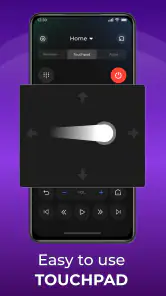
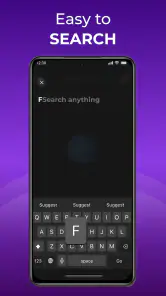
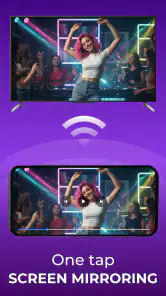
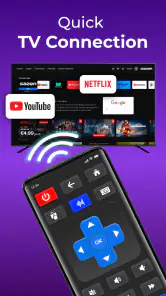
Analysis by Reviewed
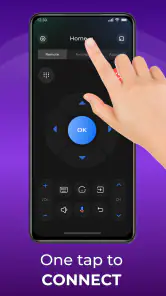
I judge a phone-based TV remote less by how many buttons it can imitate and more by whether I can tell what it does before I hand it access to my home devices. TV Remote Control, from Galixo.AI, is aimed at everyday control of a smart TV, with casting, screen mirroring and voice control also part of its stated purpose. Those extra functions make it more ambitious than a simple channel-and-volume replacement, but they also make it worth approaching thoughtfully: a remote should feel convenient without asking me to guess how it handles connections or personal choices.
In the House & Home category, the app has a clear practical audience: people who regularly use a compatible smart TV and would rather reach for a phone than search between sofa cushions. It is free to install and rated for Everyone. Its average rating is 4.6 from around 2.8K ratings, and it has over 500K installs, so it has attracted a sizable audience. That is useful context, not a guarantee that it will work equally well with every television or household setup.
Convenience is only useful when the setup feels clear
What I would expect from a phone remote
The appeal is easy to understand. A phone is already nearby, its screen can present controls in one place, and voice input may be quicker than navigating a long menu with directional buttons. Casting and mirroring extend the idea beyond changing channels: they can make a phone part of the viewing setup rather than just a substitute for a lost remote. The app’s current version is 1.2.2, and its developer is Galixo.AI.
I would still treat the first connection as a compatibility check, not assume that every smart TV behaves the same way. Before relying on a phone remote for a movie night, I would install the app while I still have the television’s regular remote available, then see whether the TV can be found and controlled. That small bit of planning avoids the frustrating situation where a phone is expected to replace a remote before the app has been connected successfully.
This distinction matters because phone remotes generally depend on a working relationship between the phone and television. A physical remote is often the safer fallback when the TV is off, the network is unavailable, or the phone cannot reach the device. I would keep the original remote in a drawer rather than treat this app as a guaranteed replacement for every moment.
Trust begins with choices I can actually see
For an app that can interact with a TV and offer voice, casting and mirroring, I pay attention to the prompts shown during setup. I would read each request in context and grant only what seems necessary for the action I am trying to use. If a permission or prompt appears unrelated to connecting the television, I would pause rather than accept automatically. That is a practical habit, not a claim about which permissions this app requests.
The same caution applies to data practices and account controls. I would look at the app’s own disclosures and available settings before entering personal details or enabling optional functions. I can’t responsibly infer its data handling, account requirements, or privacy controls from the remote-control description alone, so I would make those checks directly in the app and its current store information. If those details matter strongly to you, treat clarity as part of your decision rather than assuming every utility app works alike.
There is a useful boundary between a phone acting as a remote and a phone sharing content with a television. Pressing volume or navigation controls is a different kind of interaction from mirroring a screen or sending media to a larger display. I would use the basic remote first, then enable casting or mirroring only when I have a specific reason. This keeps the setup easier to understand and reduces the chance of sharing something unintentionally.
Small habits that make the app easier to live with
One non-obvious tip is to test the controls in a low-stakes moment, such as changing volume during a show, rather than discovering the connection process when guests are waiting. If the TV responds consistently, then try navigation and any other controls you expect to use. A few minutes of testing can reveal whether the phone is a reliable everyday remote in your particular room.
A second useful workflow is to separate routine control from content sharing. If all you want is to pause a program or adjust sound, stay with the remote controls; do not turn on mirroring just because it is available. When you do want to show something from the phone, check what is visible on its screen first, especially notifications or private messages. Mirroring can be convenient, but it may expose more than the one photo or clip you intended to show.
A third trade-off concerns voice control. Speaking a command can be quicker when the remote’s menus are slow to navigate, but voice is not always the right choice in a quiet room, a shared space, or a situation where you would rather not speak toward a device. I would regard voice as an optional shortcut, not the main reason to install the app. If it does not suit your habits, the app’s value depends on how useful its conventional remote controls are for your TV.
Where it fits beside the alternatives
Compared with keeping only the manufacturer’s physical remote, a phone app can be easier to find and may put several types of interaction in one place. The physical remote, however, has dedicated buttons, does not need a phone screen to stay awake, and can be simpler when you only want basic control. For someone who watches TV in a room with a dependable original remote, switching may offer little benefit unless casting, mirroring or voice is genuinely useful.
Compared with a manufacturer’s own companion app, a general remote-control app may appeal to people who want a single phone-based approach rather than a TV-specific routine. The trade-off is that dedicated companion apps can be a more natural choice for owners who already use their television maker’s services and settings. I would try the option that matches the TV first if manufacturer-specific functions are important, then consider this app for its broader combination of remote control and sharing tools.
It is also different from a standalone casting app. If your only goal is to send a video to a TV, a focused casting option may be less distracting. If you want phone control as well as casting and mirroring, TV Remote Control has a more relevant combination. The best fit depends on what you will actually use each week, not on how many functions appear in an app’s description.
Cost, expectations and who should pass
The app is free to download, with in-app purchases ranging from $7.99 to $29.99 per item. I would check what an offered purchase covers before paying, and decide whether the free experience already handles the task I need. Those prices make it sensible to test the basic connection and controls before spending. I would not buy an upgrade simply because I hope it will solve a TV compatibility issue; first establish whether the television connects and whether the feature you want is actually included.
At its current version, I would approach it as a useful convenience rather than a universal household essential. Someone who often misplaces a remote, uses a smart TV alongside a phone, and wants to try screen sharing may find the combination worthwhile. Someone who values a dedicated tactile remote, avoids phone-based control, or is uncomfortable until privacy and permission choices are clear may be happier sticking with the original remote or a TV-maker app.
A cautious recommendation for the right setup
I would recommend TV Remote Control as a low-commitment trial for a household that already has a compatible smart TV and can test the connection before depending on it. Start with the basic controls, inspect prompts and settings, then try voice or sharing only if those options solve a real problem for you. The app is free to begin with, carries an Everyone age rating, and its 4.6 average suggests many users have found value in it, though ratings cannot predict how it will behave with an individual TV.
My verdict is positive but measured: the best reason to try it is the mix of everyday remote control and optional phone-to-TV sharing, while the best reason to be cautious is that setup, compatibility and data-related choices deserve a direct look before you rely on it. Keep the physical remote as backup, avoid enabling functions you do not need, and judge the app by a real test in your own living room. That is the most sensible way to decide whether it earns a place on your phone.
TV Remote Control Frequently Asked Questions
What is TV Remote Control, and what can it do?
TV Remote Control is an app designed to let you control a compatible television from a smartphone, using on-screen buttons or other controls offered by the app. Depending on the version and your TV, you may be able to adjust the volume, change channels, navigate menus, and access playback or power functions. Available features vary, so check the app listing and your television’s compatibility details before downloading.
Will TV Remote Control work with my television and phone?
Compatibility depends on the specific app version, your television model, and the connection method it uses. Some remote apps communicate over the same Wi-Fi network, while others require a phone with an infrared transmitter; not every phone includes one. Check the developer’s supported-brand information and device requirements, and make sure your TV supports the necessary connection before expecting the app to replace its physical remote.
How do I connect TV Remote Control to my TV?
The setup process depends on the app and television. For a Wi-Fi-based connection, the phone and TV commonly need to be connected to the same network, after which you select or pair the TV in the app. Infrared-based controls may work by choosing the television brand and testing a remote profile. Follow the app’s on-screen instructions, and consult its help section if your TV is not discovered.
Is TV Remote Control free, and does it include ads or in-app purchases?
Pricing and monetization can differ between apps with the name TV Remote Control, as well as between Android and iOS versions. An app may be free to install but include advertising, optional purchases, or subscription features. Review the store listing for its current price and purchase details before downloading. You should also check the privacy information and requested permissions so you understand what the app collects or accesses.
Can TV Remote Control replace my physical remote, and what should I do if it stops working?
It may handle everyday tasks such as volume, channel, and menu navigation, but it is not guaranteed to reproduce every button or function on a physical remote. Reliability can depend on network quality, TV compatibility, and the phone’s hardware. If controls stop responding, check that both devices are connected as required, reopen the app, and repeat pairing. Keep the original remote available for setup or unsupported functions.
Pros
- Quickly sends common commands such as volume
- channel
- and power.
- Can replace a misplaced physical remote when the TV is supported.
- Touchscreen controls are easy to use and require no extra accessories.
- Useful for adjusting the TV without getting up.
- A single app may offer controls for multiple compatible TV brands.
Cons
- Compatibility depends on your TV model and connection method.
- Some TVs require both devices to be on the same Wi-Fi network.
- Infrared control is unavailable on phones without an IR blaster.
- Setup or pairing may take a few tries with certain TVs.
- Ads or in-app purchases may limit the experience for some users.
- Category
- House & Home
- Version
- 1.2.2