PDF Reader: Documents Master
- 47.00
- 3.6
- Installs
- 100.00K
- Price
- Free
Screenshots
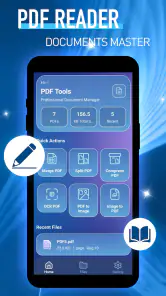
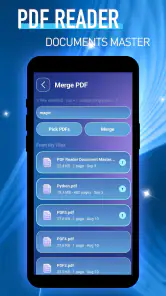
Analysis by Reviewed
I judge a PDF reader less by how many tools it claims to offer than by whether it makes ordinary document jobs feel straightforward. PDF Reader: Documents Master is a free utility from Praya, and its focus is clear: opening and handling PDF files without turning a quick task into a complicated setup. That makes it worth considering if you mainly need a practical reader rather than a full document-editing suite.
In everyday use, the important question is whether a reader fits the moment: checking a form on the bus, looking over a receipt, or finding a page in a long set of instructions. This app is aimed at those routine needs. I would approach it as a simple place to read PDFs, while keeping expectations measured about advanced editing or document management.
A sensible routine for opening and reading PDFs
Start with the documents you already have
The most useful way to evaluate a PDF reader is to try it with files you actually need, not just a sample document. Open a short form, a dense manual, and a multi-page file if you have them. That quickly shows whether the text is comfortable to read, whether pages are easy to navigate, and whether the app suits your usual documents. PDF Reader: Documents Master is positioned as a reader, so that basic reading routine is the right place to start.
A realistic example is receiving a PDF timetable or application form while away from a computer. You can use a phone reader to check the relevant page, confirm a detail, and move on without waiting to get home. For this sort of quick consultation, a dedicated reading app can be more convenient than opening a document through a general file tool every time.
I also recommend keeping the workflow uncomplicated: open the file, locate the information you need, and close it when you are done. Avoid building a complicated filing system around a reader until you know how it behaves with your own collection. That small habit makes it easier to spot whether the app is helping or whether your files are simply easier to manage elsewhere.
Make a short test before relying on it
Before using any mobile PDF reader for an important appointment or trip, try it with the exact kind of file you expect to need. A scanned document can behave differently from a PDF made mostly of selectable text, and a long manual places different demands on navigation than a one-page receipt. Testing early gives you a practical answer about readability and handling without relying on assumptions.
For a document you may need in a hurry, open it once while you have a stable connection and enough time to check that it is available when you expect. This is a general, low-effort precaution rather than a special feature claim. It is especially useful if you are preparing for travel, an appointment, or a meeting where searching through several folders would be distracting.
The app is free and rated for Everyone, which lowers the barrier to trying it for personal or household reading. Its current release is version 1.0.1, and the minimum operating-system requirement is 10. Those details are useful when deciding whether it fits an older device, but the real test remains whether your own files are comfortable to read on its screen.
Check the controls that affect comfort
When you first open a reader, spend a moment checking whatever reading controls are available in the version you have installed. Look for options that affect page presentation, text size, or screen comfort only if they are actually shown in the app; do not assume every PDF reader offers the same controls. A useful setting is one that solves a problem you have noticed, not one you switch on merely because it exists.
For example, if a page feels cramped, compare the available viewing choices before deciding the file itself is difficult to use. If you are reading a long document, test a couple of pages rather than judging the whole experience from the cover. This is a practical way to separate a layout issue from a screen-size issue and helps you avoid unnecessary fiddling when all you need is a quick answer.
My advice is to change one thing at a time and then return to a familiar page. That makes it easier to tell whether a setting genuinely improves reading. If the app does not expose a control you want, treat that as a product limitation rather than searching through menus indefinitely. A reader should save attention, not consume it.
Build faster habits without depending on tricks
Experienced users often become quicker through repeatable habits rather than obscure shortcuts. Give important files recognizable names before they become part of a crowded folder, and keep documents for an upcoming task together in a location you can find through your usual file workflow. This does not depend on a special feature in PDF Reader: Documents Master; it makes any straightforward reader easier to use.
Another helpful habit is to note the page or section you need before opening a long document. If you are checking a policy, manual, or form, knowing the heading or key phrase you are looking for can prevent aimless page-by-page browsing. When the reader offers a suitable navigation method, use it; when it does not, a clearer file name and a prepared destination can still save time.
For repeated tasks, such as reviewing invoices or checking a set of course notes, use the same sequence each time: locate the file, verify that it is the right version, inspect the relevant pages, then move on. The version check matters more than it may seem. A neatly named but outdated form can be worse than a few extra seconds spent confirming the document before you act on it.
Know where a reader stops being enough
A PDF reader and a PDF editor solve different problems. If your task is mainly viewing a document, a focused reader is a reasonable choice. If you regularly need to alter text, sign, annotate, rearrange pages, or create polished files, make sure the app provides the exact tools you rely on before treating it as your only document app. Those jobs may call for a dedicated editor or a broader office suite instead.
The same distinction applies to organization. Someone with a small collection who opens a document now and then may be happy with a reader-first approach. Someone handling a large archive, sharing files across devices, or needing carefully controlled document workflows should compare options designed around storage, search, collaboration, or editing. I would not choose a basic reader on the assumption that it will replace every tool in that chain.
There is also a practical trade-off between a dedicated app and the PDF viewer already built into a phone or file manager. A built-in viewer can be enough if you open PDFs rarely and want to keep your setup minimal. A separate reader makes more sense if you often return to documents and prefer a tool centered on that job. Whether this particular app is a better fit depends on its behavior with your files and the controls you personally need.
What its early track record suggests
The app has an average rating of 3.6 from around 330 ratings, with roughly 50 written reviews and over 100,000 installs. I read that as a reason to try it for ordinary reading rather than as proof that it will suit every workflow. Ratings can give a broad sense of how an app is being received, but they cannot tell you whether your scanned forms, textbooks, or work documents will feel comfortable on your device.
Praya is the developer, and the app’s modest version number suggests a relatively early stage of development. That is not a verdict on reliability, but it is a sensible reason to keep a backup option for time-sensitive documents. If you depend on a particular editing or navigation capability, test it directly before moving your routine over from another app.
One useful decision rule is to separate occasional convenience from essential dependence. If you only need to read a document now and then, a quick trial is low commitment. If a PDF reader is central to your work or study, compare it with your current option using the same representative files and tasks. That gives you a fair basis for deciding whether a simpler tool is actually an improvement.
Who should try it—and who should look elsewhere
I would suggest PDF Reader: Documents Master to someone who wants a free, dedicated way to open and read PDFs and does not expect a reader to double as a complete editing environment. It is also a reasonable candidate for a secondary device or for someone who wants to test a focused alternative to the viewer they already use. The Everyone content rating makes it suitable for general audiences.
I would look elsewhere if your everyday work depends on reliable annotation, signing, form completion, cloud-based organization, or detailed file conversion. Those requirements deserve direct confirmation in an app built to handle them; the label “PDF Reader” alone is not enough. Likewise, if your built-in viewer already opens documents quickly and has the controls you need, installing another app may add little value.
My bottom line is deliberately practical: treat it as a reader first, test it with the documents you really use, and keep your workflow simple. Its appeal is the possibility of handling routine PDF reading without paying for the app. Its main limitation is that a reader-focused tool should not be mistaken for a complete document workspace. If that distinction matches your needs, it is worth trying; if your PDFs are things you regularly edit or manage collaboratively, choose a more capable alternative.
PDF Reader: Documents Master Frequently Asked Questions
What is PDF Reader: Documents Master used for?
PDF Reader: Documents Master is designed to help you open and read PDF files on your mobile device. Depending on the version, it may also offer tools for organizing documents, searching within files, and viewing other document formats. Check the app’s current store listing for its exact supported formats and features, since capabilities can differ across versions and devices.
Can I use PDF Reader: Documents Master without an internet connection?
PDF files already saved on your device can generally be opened offline, so an internet connection may not be necessary for basic reading. However, downloading documents, using cloud services, viewing online content, or accessing certain optional features may require connectivity. If offline access matters to you, try opening a locally stored file before traveling or relying on the app without a connection.
Does PDF Reader: Documents Master let me edit or annotate PDFs?
PDF readers sometimes include options such as highlighting, adding notes, drawing, filling forms, or signing documents, but the tools available can vary by app version and may be limited to paid features. Do not assume that every editing function is included. Review the app’s feature list and in-app pricing, and test the specific tools you need before depending on it for important paperwork.
Is PDF Reader: Documents Master free, and does it include ads or in-app purchases?
The app may be available to download at no initial cost, but that does not necessarily mean every feature is free. Advertising, subscriptions, or one-time purchases may apply, and pricing can differ by country or change over time. Check the Google Play or Apple App Store listing and the purchase screen before subscribing, and review any renewal terms carefully.
How can I protect my privacy when opening documents in PDF Reader: Documents Master?
Before installing, review the app-store privacy information and the permissions requested on your device. Grant access only when it is needed to locate or open your files, and avoid importing sensitive documents into features whose data handling you do not understand. For confidential files, check whether the app offers password protection or local-only storage, and consult its current privacy policy for details.
Pros
- Opens common PDF files quickly for everyday reading.
- Page thumbnails make it easier to jump to a specific section.
- Useful search helps locate words and phrases in a document.
- Reading controls let you adjust the view for comfortable viewing.
- A practical option for keeping PDF documents accessible on your device.
Cons
- Large or image-heavy PDFs may take longer to load.
- Small text can still require frequent zooming on phone screens.
- Some advanced tools may be limited or require payment.
- The app’s usefulness depends on the features available in your version.
- Handling sensitive documents may raise privacy concerns; check its data policies.
- Category
- Tools
- Version
- 1.0.1











