Koi AI - AI Video Generator
- 63.00
- 3.8
- Installs
- 100.00K
- Price
- Free
Screenshots
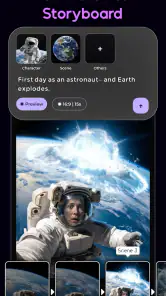
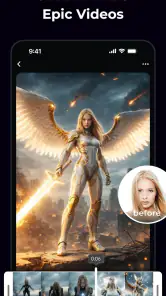
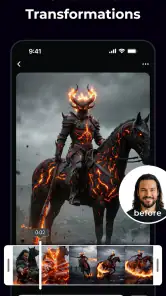
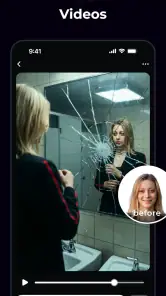
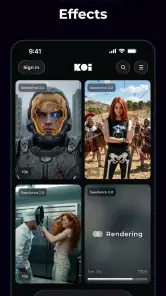
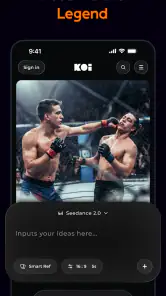
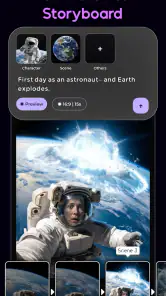
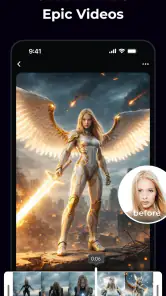
Analysis by Reviewed
I approached Koi AI as a photography app with one clear question in mind: can an idea become a video without the usual editing work getting in the way? That focus matters because many people have a visual concept but do not have the time, patience, or technical confidence to build it from individual clips. Koi AI, developed by POLYVERSE INC., is aimed at that gap. Its short store description is simply “Koi AI,” while its broader promise is to turn an idea into a video, so the useful way to judge it is by how well that creative shortcut fits real situations.
My overall impression is that this is best understood as an idea-to-video tool rather than a full replacement for a traditional editor. It appeals to someone who wants to explore a visual direction quickly, make a social post from a concept, or create a starting point before doing more careful editing elsewhere. The free entry point makes it easy to try, although optional purchases ranging from $1.99 to $99.99 per item mean I would not treat the app as completely cost-free for continued use.
Turning a rough idea into something visual
The central capability is the most interesting part of Koi AI: it takes a written or imagined concept and moves it toward a video result. That changes the first step of the creative process. Instead of opening a timeline, choosing clips, trimming them, and searching for a visual style, I can begin with the idea itself. For a person who thinks in scenes rather than editing tracks, that is a much friendlier starting point.
This approach is especially useful when the goal is experimentation. I might have a concept for a dreamy travel scene, a product mood, a short visual joke, or an atmosphere that would be difficult to capture immediately with a phone camera. An AI video generator can help me see whether the concept has potential before I spend time collecting footage. Even when the first result is not ready to publish, it can reveal which parts of the idea are clear and which parts need a better description.
That distinction is important. I would not open Koi AI expecting the same level of control I get from a conventional mobile editor. A normal editor is built around material I already have: photos, video clips, audio, cuts, transitions, and precise timing. Koi AI is more useful earlier in the process, when I have a direction but not necessarily the finished ingredients. It is a creative accelerator, not automatically a complete production suite.
In practice, the quality of the result depends heavily on how specific and coherent the idea is. A vague request such as “make something beautiful” leaves too much room for interpretation. A more useful prompt describes the subject, mood, movement, setting, and intended feeling. I found that separating the main subject from the surrounding atmosphere makes an idea easier to evaluate afterward. The goal is not to write a long paragraph for its own sake; it is to give the generator a visual brief that has a clear center.
Why the idea-first approach feels different
Traditional photography apps usually help me improve an image I already captured. Video editors help me arrange existing media. Koi AI starts before both of those stages. That makes it valuable for visual planning, but it also creates a different kind of uncertainty: I am judging whether the generated interpretation matches my intention, not simply whether my crop or color adjustment looks right.
More From Our News Desk

Weather by Xiaomi Review: Clear at a Glance, Less Clear Up Close

X Under Pressure: Can It Recover When Posting Goes Wrong?

Clash of Clans Is Won Between the Battles

Android Auto Makes the Case for Quieter Car Software

MobiOffice: Transforming Mobile Productivity with Seamless Integration

EA SPORTS FC™ Mobile Soccer: Redefining Mobile Sports Gaming
This can be liberating for beginners. Someone who has never learned keyframes or timeline editing can still begin with a concept. It can also be useful for experienced creators who want to test several directions quickly. I would use it as a sketchbook for motion: produce an early interpretation, notice what works, then decide whether to refine it in the app or rebuild the idea with camera footage and a dedicated editor.
One practical insight is to treat the first generation as a question, not a final answer. Instead of asking whether the video is perfect, I would ask whether it confirms the mood, subject, and movement I had in mind. If it does, the app has already saved creative time. If it does not, the mismatch can still be informative because it shows which part of the description was too broad or ambiguous.
What using it feels like in an everyday workflow
A realistic use case is preparing a short visual for a small event or personal announcement. Imagine I am helping a friend promote a weekend workshop. I may not have attractive footage of the venue, and I may not want to spend an afternoon learning an editing program. I can begin with the event’s atmosphere and intended audience, create a visual concept, and use the result to decide on colors, pacing, and the kind of imagery I should capture myself.
That workflow is more useful than simply pressing a button and accepting the first output. I would write one focused idea, review the result, identify the strongest visual element, and then revise the concept around that element. If the scene feels too busy, I would remove secondary details. If the subject is unclear, I would put it first and describe the background afterward. This kind of iteration is one of the less obvious benefits of an idea-driven app: it encourages me to clarify the brief before I worry about polishing the final file.
For social content, I would also keep the intended viewing context in mind before generating anything. A visual that works as a quick vertical post may not work as a landscape presentation or a longer narrative. Koi AI may help create the core idea, but I still need to think about where the video will be seen, how quickly the subject should be understood, and whether the result leaves room for text or branding.
Another useful workflow is making a mood reference for a photo shoot. I can describe the lighting, setting, and emotional tone I want, then use the resulting video as a conversation starter with a photographer or a friend helping with the shoot. This does not replace a proper shot list, but it can communicate an atmosphere more effectively than a few disconnected adjectives. The generated result becomes a visual reference rather than a promise of exactly what a camera will capture.
I would keep prompts organized outside the app if I were working on a larger project. Saving the wording of a successful concept makes it easier to compare variations and return to a direction later. It also prevents a common mistake with creative AI tools: changing too many things at once and then not knowing why one result feels better than another. A simple record of the subject, mood, and movement gives me a repeatable process even if the app itself is designed for quick experimentation.
Where the shortcut saves time—and where it does not
The shortcut is strongest at the beginning of a project. It can help me move from a blank page to a concrete visual direction without first gathering assets. That is a real advantage for people who are stuck at the idea stage. It is less obviously helpful when I already have a carefully planned collection of clips and need frame-accurate control over every moment.
There is also a difference between creating a compelling impression and creating a dependable production asset. For a personal experiment or a rough concept, an unexpected interpretation may be welcome. For a client deliverable, a branded campaign, or a video that must show a particular person, product, or location accurately, I would want more control and a clearly repeatable result. In those cases, Koi AI could still assist with ideation, but I would be cautious about making it the only tool in the workflow.
The app is free to start, which lowers the barrier for trying the concept-based workflow. At the same time, in-app purchases are listed from $1.99 to $99.99 per item. That broad range makes it sensible to test the free experience first and decide whether the value matches how often I expect to create videos. Someone making one occasional visual may see the app differently from a frequent creator who needs repeated generations.
The tradeoffs behind AI-generated video
The biggest tradeoff is control. With a conventional editor, I know which source image or clip I am using, and I can usually trace every change. With an AI-generated result, the creative process is partly interpretive. That is the reason the app can feel fast and surprising, but it is also why the output may not match every detail of my mental picture.
I would also avoid assuming that a polished-looking result is automatically accurate. If the video is meant to represent a real product, a real place, or a specific event, I would inspect it carefully before sharing it as factual imagery. An atmospheric concept can tolerate creative interpretation; an instructional or promotional video often cannot. This is one of the clearest situations where a normal camera workflow or a more controlled editor is the safer choice.
Another limitation is the learning curve of writing useful visual instructions. The app may be easier to approach than a timeline editor, but that does not mean every idea produces an equally strong result. I still need to learn how to describe motion and emphasis. Short, structured prompts are usually more practical than a pile of decorative words. I would begin with the action, then add the subject and setting, and only afterward refine the mood.
There is a creative tradeoff in using a generator instead of capturing everything myself. The speed can encourage me to explore more ideas, but it can also make the process feel less personal if I accept the first attractive result. I get the most from Koi AI when I use its interpretation as material to react to. If I want the video to carry a specific memory, authentic location, or recognizable personal detail, my own photos and footage remain more meaningful.
The Teen content rating is another practical point for families and younger users. I would not treat the app as an unrestricted children’s creativity tool. Parents should consider the age guidance before allowing regular use, particularly when the generated content is intended for public sharing. That does not make the app unsuitable for older teens or adults, but it does set a sensible boundary around who should use it independently.
How it compares with familiar photography and editing apps
Compared with a standard photography app, Koi AI is less about correcting exposure, retouching a portrait, or organizing a camera roll. Its value begins with an idea rather than a finished photograph. Compared with a mobile video editor, it reduces the emphasis on manual assembly and increases the emphasis on describing what I want to see.
That makes the choice fairly straightforward. I would choose Koi AI when I have a concept but lack footage, when I want a visual draft quickly, or when I am exploring several moods before committing to a shoot. I would choose a conventional editor when I already have the clips, need exact timing, want dependable control over text and sound, or must preserve the identity of real people and places.
The two approaches can work together. I can use Koi AI to explore a direction, then use another tool to build the final piece from authentic material. Conversely, I can use my own photos as inspiration for a concept and then decide whether an AI interpretation adds anything useful. Thinking of the app as one stage in a broader workflow prevents the common disappointment of expecting a single tool to handle ideation, production, editing, and publishing equally well.
Who gets the most value from Koi AI
I think the strongest audience is made up of curious creators who want to turn visual thoughts into something they can inspect quickly. This includes social media users, students developing presentation ideas, hobby photographers planning a themed shoot, and small creators who need a starting point without investing in complex software. The app is also appealing to people who feel comfortable explaining an image but not operating a detailed editing timeline.
It may be particularly helpful when the challenge is not technical editing but creative hesitation. If I keep postponing a project because I cannot decide on its look, generating a concept can give me something concrete to accept, reject, or improve. That is a more valuable use than treating the app as a vending machine for finished content. The best result may be a clearer idea, even if I later produce the final video somewhere else.
Experienced editors can benefit too, although for a different reason. They may use the app to create rough visual directions before gathering footage or to compare unusual concepts quickly. The time saved is mostly in exploration, not necessarily in final polishing. A professional who needs strict consistency, repeatable assets, or detailed post-production control should keep a traditional tool in the workflow.
I would skip Koi AI if my main goal is advanced manual editing, precise control of an existing video library, or faithful documentation of real-world events. I would also be cautious if I dislike iterative experimentation or do not want to evaluate AI-generated imagery closely. The app is most rewarding when I am willing to guide the concept, inspect the result, and revise rather than expecting the first attempt to be definitive.
Device support, cost, and the current release
Koi AI is available as a free photography app for Android, with support beginning at Android 8.0. The current release is version 1.0.6, so I see it as a relatively early product whose appeal rests on its focused idea-to-video direction. POLYVERSE INC. has placed it in an accessible category, but the Teen age guidance and optional purchases are worth considering before making it part of a regular creative routine.
The app has passed the early trial stage in the store, with over one hundred thousand installs. Its average rating is 3.8 from around 375 ratings, alongside roughly 63 written reviews. I read that combination as a sign to keep expectations measured: enough people have tried it to make testing worthwhile, but not enough feedback to assume it will suit every device, workflow, or creative style.
Because the entry price is free, my advice is to begin with a small, low-stakes project. Try a personal concept, compare a few prompt variations, and decide whether the generated direction is genuinely useful before considering any purchase. If the app consistently helps you move from an idea to a workable visual, the cost may feel justified. If you mainly need trimming, captions, soundtrack placement, or exact clip control, a familiar editor may offer better value.
After using it as an idea-first tool, I would recommend Koi AI to a friend who wants to explore video concepts without starting from a blank editing timeline. Its real strength is not that it removes every creative decision; it gives those decisions a faster place to begin. The best way to use it is as a visual sketchbook with motion, not as an automatic substitute for judgment.
My final recommendation is therefore selective but positive. Try it if your projects begin as descriptions, moods, or imagined scenes. Keep another editor nearby if accuracy and fine control matter. When I use Koi AI with that distinction in mind, it becomes a practical way to test ideas, prepare a shoot, and discover a direction that might otherwise remain only in my head.
Koi AI - AI Video Generator Frequently Asked Questions
What devices and operating systems can run Koi AI - AI Video Generator?
Koi AI is a mobile photography app for Android, with a minimum operating system requirement of Android 8.0. Before downloading, check that your device meets that requirement and has enough available storage for the app and any videos you create. The app is free to download, while optional in-app purchases may be offered.
Who develops Koi AI, and is it a well-established app?
Koi AI - AI Video Generator is developed by POLYVERSE INC. It has more than 100,000 installs and an average rating of 3.8 stars from around 375 ratings, with 63 written reviews. Those figures can help you gauge its reach and reception, but individual experiences with AI-generated video can differ depending on expectations, prompts, and the features available in the app.
What is Koi AI - AI Video Generator, and what can it create?
Koi AI is a mobile video-generation app that uses artificial intelligence to turn written prompts, images, or creative ideas into short videos. Depending on the available tools and your plan, you may be able to create animated scenes, stylized clips, social media content, and visual effects without traditional editing skills. Results can vary according to prompt quality, image input, processing limits, and the app’s current features.
Is Koi AI - AI Video Generator free to download and use?
The application is free to download, but free access does not necessarily include unlimited video generation. AI processing commonly uses credits, daily limits, watermarked exports, or subscription-based features. In-app purchases range from $1.99 to $99.99 per item, so before generating multiple videos, check the in-app pricing page carefully, including trial terms, renewal conditions, credit amounts, and whether unused credits expire. App Store or Google Play pricing can also vary by region.
Does Koi AI require an internet connection or an account?
Because video generation relies on cloud-based artificial intelligence, Koi AI generally requires a stable internet connection for submitting prompts, uploading images, processing requests, and downloading finished videos. Some features may also require signing in with an email address or supported social account. Offline editing should not be expected unless the app specifically states otherwise. Using mobile data for repeated generations may consume a significant amount of bandwidth.
Pros
- Turns text prompts into short videos with minimal editing skills.
- Offers creative styles and effects for varied visual results.
- Useful for quickly creating content for social media posts.
- AI-assisted workflow can save time compared with manual editing.
- Simple interface makes experimentation approachable for beginners.
Cons
- Generated clips may contain visual glitches or inconsistent details.
- Free usage may be limited by credits
- exports
- or watermarking.
- Results can vary significantly depending on prompt wording.
- High-quality video generation may require a stable internet connection.
- Some advanced tools may be locked behind a paid subscription.
- Category
- Photography
- Version
- 1.0.6