AI Photo Enhancer - Evoke
- 1.04K
- 4.6
- Installs
- 5.00M
- Price
- Free

Screenshots
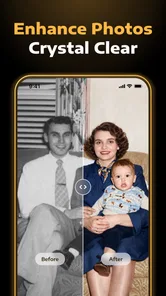

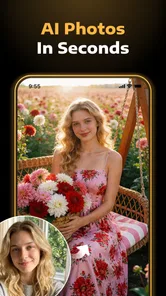


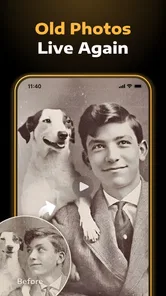
Analysis by Reviewed
When it comes to apps that can spice up your photo collection, there's one that's been catching my eye lately: Ghibli & Photo Enhancer, Evoke. This app is like having a little bit of Studio Ghibli magic right in your pocket. Let me take you through my experience with this whimsical photo enhancer.
The artistic effect is the main attraction
The first thing I’d decide is what I want from a picture: a faithful improvement, a repair attempt, or a deliberately imaginative reinterpretation. Evoke is interesting because it brings those aims together, but they are not interchangeable. A Ghibli-inspired treatment can make a familiar scene feel like a small illustration; it is not the option I’d choose when accuracy matters more than mood.
That distinction helps set realistic expectations. If I’m editing a photo of a meal, a pet, or a view from a walk, I may welcome a visible change. If I’m working with a document, a product image, or a portrait I want to preserve faithfully, I’d keep the treatment restrained or use a different tool. The central question is not whether an effect looks dramatic, but whether that new look suits what the image is for.
Transform Your Photos
First off, let's talk about what Ghibli & Photo Enhancer, Evoke actually does. Essentially, it takes your regular photos and transforms them into something that looks like it popped out of a Ghibli movie. You know those dreamy landscapes and enchanting character designs? Yes, exactly that. The app uses a clever blend of filters and AI-driven enhancements to give your photos that signature Ghibli flair.
A Different Kind of Photo Repair
That artistic transformation is the most distinctive reason to consider Evoke, but it sits alongside restoration tools: it can enhance, descratch, and colorize old photos. I find that combination appealing if your camera roll includes both everyday shots and family pictures that need a more careful touch. A stylized result is fun for sharing; a restored image serves a different purpose, so I’d choose the treatment according to what I want to preserve rather than applying the same look to everything.
For an older print, I’d start with a scan or a clear photograph of the picture and keep an untouched copy. That gives me a sensible comparison point if the repair changes an important detail. With portraits, I’d pay particular attention to faces and small features after processing: an image can look cleaner at a glance while still losing a little of the original character. The practical tip is simple: treat enhancement as a new interpretation, not a substitute for keeping the source.
User-Friendly Experience
Now, I know what you're thinking: "AI-driven enhancements? Sounds complicated." But fear not! The interface is super user-friendly. When I first opened the app, I was greeted with a clean, intuitive layout. It didn't take much effort to figure out how things worked. You can either take a new photo directly in the app or choose one from your gallery. From there, it’s just a few taps to apply the magic.
More From Our News Desk
Weather by Xiaomi Review: Clear at a Glance, Less Clear Up Close

X Under Pressure: Can It Recover When Posting Goes Wrong?
Clash of Clans Is Won Between the Battles
Android Auto Makes the Case for Quieter Car Software

MobiOffice: Transforming Mobile Productivity with Seamless Integration
EA SPORTS FC™ Mobile Soccer: Redefining Mobile Sports Gaming
That quick route suits a casual edit, though I’d take a moment to judge the image before choosing a treatment. A soft landscape and a sharply lit close-up don’t necessarily benefit from the same kind of change. If a result feels too artificial, I’d go back to the original and try a less ambitious direction instead of stacking edits until the picture loses its identity.
Choosing a good source image
The starting photo matters more than it may seem. For the artistic look, I’d pick an image with a clear subject and a readable setting: a winding path, a garden, or a street scene gives the transformation more to work with than a cluttered frame where several objects compete for attention. This is a useful way to avoid blaming the result on the app when the source itself is hard to interpret.
For a faded print, I’d first make sure the photograph is evenly lit and as sharp as I can manage. Glare, deep shadows, and a tilted camera angle can make marks or details harder to judge later. I’d also frame the old picture with a little space around its edges, rather than cropping tightly at the start. That gives me room to compare the repaired version with the original and decide whether any border or detail has been altered in a way I care about.
Customization Options
One of the neat features of this app is the level of customization it offers. You're not just stuck with a one-size-fits-all filter. Instead, you can tweak aspects like color saturation, brightness, and contrast to get the look just right. Want a warmer tone to match a sunset scene? No problem. The app gives you the tools to play around until you're satisfied with the results.
Those adjustments are most useful when they solve a specific mismatch, not when they become a goal of their own. I’d make small changes and check whether the subject still looks natural, especially with skin tones or a pale sky. For a keepsake photo, subtle correction is often more valuable than pushing every control to its limit; for a playful post, a more obvious artistic treatment may be exactly the point.
How I’d judge a result before sharing
I wouldn’t evaluate an edit only by its thumbnail. I’d open the result at a useful size and inspect the parts that matter for that photo: faces in a family portrait, fine outlines in a drawing, or the boundary between a building and the sky. A strong overall impression can hide a small oddity, and that may be fine for a casual post but not for an image I plan to print or keep as a faithful record.
I’d also compare the edited picture with the untouched source before deciding it is an improvement. For the stylized treatment, I’d ask whether the mood is appealing and the subject still recognizable. For restoration, I’d ask whether the repaired areas look plausible, not merely cleaner. That two-part check—appearance and purpose—helps prevent an attractive effect from being mistaken for an accurate repair.
Where It Fits in a Daily Photo Routine
Imagine finding a faded family picture while clearing space in your phone’s gallery. I’d keep the original, try a restoration pass, and compare the result before deciding whether it’s good enough to share with relatives. Later, I might use the same app on a recent garden or travel photo for a more imaginative look. That split use is a real strength: the app can be a quick creative detour as well as a way to revisit older images.
Compared with a standard photo editor, Evoke is aimed more at AI-led changes than at careful manual control over every part of an image. A conventional editor is the better choice when I need precise cropping, detailed retouching, or a consistent set of adjustments across many photos. Evoke makes more sense when I want a noticeable transformation or a fast attempt at restoration without building the effect from scratch.
A practical family-photo workflow
For a realistic weekend task, picture finding a small stack of old prints before a family visit. I’d photograph or scan just a few that matter most, keep the untouched files together, and test one image before processing the rest. If the first result handles the faces and background in a way I like, I can decide whether the same approach makes sense for the other pictures. If it changes details that relatives would recognize, I’d stop rather than applying it to the whole set.
That selective workflow is more sensible than treating restoration as a batch cleanup. Different prints can have different problems: one may be faded, another scratched, and another already in decent shape. I’d use enhancement only where it has a clear purpose, and I’d keep both versions when the restored file becomes a new interpretation rather than a dependable replacement. For sharing with family, having the original nearby also makes it easier to explain what has been changed.
Performance and Efficiency
Performance-wise, this app holds up quite well. I was impressed with how quickly it processed the photos, even on my slightly older device. No lagging or crashing, which is always a plus. Plus, it doesn't take up a huge amount of storage space, so you don't have to worry about it clogging up your phone.
It’s a free photography app from Guru AI Lab, with a 4.5 average from around 38,000 ratings and more than a million installs. It is rated Teen and supports Android 7.0 or later; the current version is 3.3.3-25102848. Those details make it easy to judge basic compatibility, but I’d still check the purchase screen before committing to a workflow: optional in-app items range from $3.99 to $59.99 each. If you only want occasional edits, decide whether the free experience meets that need before paying for anything.
What to consider before making it a regular tool
One practical question is whether a free starting point is enough for the way you take photos. I’d open the app with a particular image in mind and see how far I can get before making any purchase decision. Someone who edits now and then may have no reason to spend; someone planning a larger restoration project should first understand which options are available and what they cost in the app. The listed item prices span from $3.99 to $59.99, so I’d avoid tapping through a purchase screen without checking the amount and the exact item.
Another question is how much control you need after the AI has made its change. Evoke’s appeal is that it can produce a noticeable result without requiring me to reconstruct an effect by hand. That convenience also means I wouldn’t treat it like a full replacement for a detailed editing workflow. If I need precise local corrections, a carefully matched look across a group of photos, or exact control over a crop and retouch, a traditional editor is a more appropriate companion.
Who Will Enjoy It—and Who May Prefer Another Tool
I’d recommend giving it a look if you enjoy expressive photo treatments, want to experiment with a Ghibli-inspired aesthetic, or have old images you’d like to try enhancing, descratching, or colorizing. It’s less suited to someone who wants restrained, predictable edits or exact control over every retouch. For important archival work, I’d also keep a separate original and use a dedicated editing process rather than trusting one automated pass to make every decision.
It should also suit people who are curious but not deeply experienced with photo editing. The quick route from choosing an image to trying a transformation lowers the effort needed to experiment, and the adjustments give some room to steer the result. I’d still recommend approaching the artistic effect as a creative choice, not a guaranteed way to make every photo better. Some pictures will have a composition or lighting that works against the look, and leaving those alone can be the better edit.
By contrast, I’d skip it as my main tool if my priority were precise, repeatable corrections for work, product listings, or a large archive where consistency is important. I’d also avoid relying on an automated repair as the only copy of a precious image. A person restoring an irreplaceable photograph may prefer a specialist workflow that allows close inspection and manual correction, even if it takes longer. Evoke is most compelling when speed and a distinctive result matter more than complete control.
Why You Should Try It
In my humble opinion, if you're a fan of Studio Ghibli or just love adding a bit of artistic flair to your photos, Ghibli & Photo Enhancer, Evoke is worth a try. It's like having a pocket-sized art studio, ready to bring a touch of whimsy to your everyday snapshots. So go ahead, give it a go and watch your photos transform into something truly enchanting.
In a world where everyone is sharing photos, standing out is key. With this app, you're not just sharing a photo; you're sharing a moment that feels like it belongs in a storybook. And in my book, that's pretty magical.
My final recommendation
For me, the best reason to install Evoke is the chance to give a familiar image a different emotional tone without turning photo editing into a long project. Its combination of an imaginative style and old-photo repair makes it more distinctive than a basic filter app, while its AI-led approach is less suitable when every detail must stay under my direct control. I’d use it selectively, keep the source files, and judge each result by what I want that particular picture to do.
If that balance sounds right, it is an appealing free app to try, especially for casual creative edits and first attempts at improving worn family pictures. If your work depends on accurate restoration or meticulous retouching, I’d choose a more hands-on editor instead. That is the clearest way I can recommend it: enjoy the creative shortcut, but keep careful work and important originals on a separate footing.
AI Photo Enhancer - Evoke Frequently Asked Questions
Can I use Ghibli & Photo Enhancer, Evoke to restore old or damaged photos?
The app is described as an AI photo enhancer that can enhance, descratch, and colorize old photos. Those tools may be useful when you want to refresh a faded image or improve the appearance of a scratched one. The outcome depends on the source photo, so it is sensible to review the result before deciding whether it suits your needs.
Who develops Ghibli & Photo Enhancer, Evoke?
Ghibli & Photo Enhancer, Evoke is developed by Guru AI Lab. Knowing the developer can help you identify the app when browsing photography tools and distinguish it from similarly named editors. Before downloading, check that the app name and developer match what you intend to install, then consider whether its AI enhancement and old-photo restoration focus fits the way you want to edit pictures.
Does Ghibli & Photo Enhancer, Evoke use AI, and what can it do with photos?
Yes. Ghibli & Photo Enhancer, Evoke is presented as an AI photo enhancer, with features for enhancing, descratching, and colorizing old photographs. Its description also mentions Sora 2. These tools are aimed at transforming or improving images rather than serving only as a basic camera app, so it may appeal to people interested in creative edits and photo restoration.
Is Ghibli & Photo Enhancer, Evoke free to download, and what does it offer?
Ghibli & Photo Enhancer, Evoke is a free photography app from Guru AI Lab. It focuses on AI-assisted photo enhancement, with tools described for enhancing, restoring scratched photos, and adding color to old images. Some features may involve in-app purchases, so it is worth checking the available options and their prices in the app before choosing a paid feature.
What should I know about the app’s age rating and compatibility before downloading?
The app is rated Teen, so it may not be suitable for every age group; parents and younger users should consider that rating before installing it. Its listed minimum operating-system requirement is Android 7.0, which means a device running an older version may not be compatible. Checking your device’s software version first can help avoid download or installation problems.
Pros
- Intuitive user interface.
- High-quality photo enhancements.
- Wide range of filters available.
- Fast processing speed.
- Supports batch editing.
Cons
- Limited free version features.
- Occasional app crashes.
- Requires internet for full functionality.
- In-app purchases can be pricey.
- Ads in free version are intrusive.