Delete apps - Easy Uninstall
- 3.96K
- 4.3
- Installs
- 1.00M
- Price
- Free

Screenshots
Analysis by Reviewed
Removing one unwanted app sounds like a tiny job, but clearing several of them from a phone can become surprisingly tedious. I usually notice the problem after testing a few tools, downloading a game for a short trip, or installing an app that looked useful but never earned a place on my home screen. Opening system settings, finding the right menu, checking each app, and repeating the process is not difficult, yet it creates enough friction that unused software often remains installed for months.
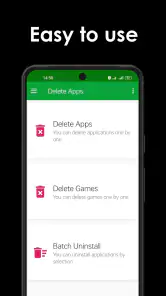
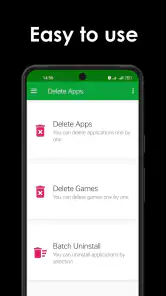
Delete apps - Easy Uninstall is built for that specific annoyance. It is a free tools app from DOSA Apps that puts app removal at the center of the experience. In my use, its appeal is not that uninstalling becomes technically different; Android still controls the actual removal process. The benefit is that the cleanup task feels more deliberate and less scattered, especially when I want to review several installed apps in one sitting.
The app has been available since February 20, 2017, and its broad adoption gives it a reassuring level of familiarity. It has passed one million installs, holds a 4.3 average from around 32 thousand ratings, and has about four thousand written reviews. Those figures do not guarantee that it will suit every phone, but they do suggest that this is an established utility rather than a brand-new experiment.
Making a cluttered app list easier to handle
The real problem is deciding what deserves to stay
Uninstalling is only half the job. The harder part is recognizing which apps are genuinely useful and which ones are simply occupying attention. A phone can collect shopping apps used once, duplicate photo tools, old travel utilities, abandoned games, and trial versions that were never opened again. The standard Android route handles removal, but it is not always the most comfortable place to perform a broad cleanup.
This utility is most useful when I approach the task as a review of the phone rather than as an emergency fix. I can move through the installed-app list and ask a simple question: would I notice if this disappeared today? That mindset prevents random deleting and makes the tool useful for maintenance, not just for removing one obvious mistake.
There is also a practical distinction between deleting an app and deleting its account or subscription. An uninstall tool deals with the app on the device. It should not be treated as a way to cancel a service, erase a cloud account, or automatically remove information held by the developer. I keep that distinction in mind before tapping the removal option, particularly with banking, messaging, storage, or paid-service apps.
My first useful setup
Getting started is straightforward because the purpose is narrow. I open the app when I have a few minutes available, look through the installed applications, and begin with items I recognize as temporary or abandoned. Starting with obvious candidates is better than immediately touching anything connected with work, authentication, photos, or personal records.
The current release is version 5.1.1 and it supports Android 8.0 or newer. That makes it relevant for a wide range of still-used Android phones, while anyone on an older system should check compatibility before planning a cleanup session. The app is rated for Everyone, which fits its basic function and uncomplicated audience.
My preferred setup is to create a short mental shortlist before removing anything. I separate apps into three groups: things I know I no longer need, items I might need later, and apps whose purpose I cannot immediately identify. Only the first group gets removed during the first pass. This small habit is one of the most useful ways to avoid turning a convenient cleanup tool into a source of regret.
I also recommend opening an app once before deleting it if its name is vague or if it may contain locally stored work. A utility can make selection quicker, but it cannot decide whether an app holds an offline document, a saved project, or a login that I will need tomorrow. The faster the list becomes, the more important that final human check is.
Everyday situations where it earns its place
A realistic example is returning from a trip. I may have installed a transit app, a local guide, a currency converter, and a restaurant service for a short visit. Once I am home, those apps become background clutter. Instead of waiting for the phone to remind me about storage, I can open this tool and remove the temporary group while the reason for each installation is still fresh.
It is equally helpful after trying several games. Games are often large, visually prominent, and easy to forget once the novelty wears off. If I have tested multiple titles and kept only one, a dedicated uninstall screen gives me a focused place to clear the rest. I still check whether a game stores progress locally before removing it, because deleting the app may not preserve everything automatically.
Families can also benefit from the simple workflow when a shared Android phone has accumulated apps belonging to different people. I would not let a child make the final decision alone, but an adult can use the list to identify old school tools, duplicate entertainment apps, or temporary downloads. The value here is organization: the phone becomes easier to inspect without navigating through unrelated settings.
Another useful moment is before handing a phone to someone else. Removing unused apps can make the device feel less personal and reduce the chance that an old account remains signed in. However, this app should be one part of that process, not the whole process. I would separately review accounts, browser sessions, downloaded files, and the device reset options when privacy matters.
For someone who installs many apps while comparing services, the tool can become a weekly reset point. I find that more realistic than promising a permanent clean phone. A short review after a period of experimentation is easier to maintain than a large cleanup after the app drawer has become overwhelming.
What friction it removes, and what it does not
The main improvement is focus. Android’s built-in uninstall route is perfectly adequate for removing a single app, but it can feel like a settings task. This app turns the job into a dedicated cleanup activity, which reduces the mental switching between app information pages and system menus. That matters when the goal is to remove a batch of forgotten software rather than troubleshoot one installation.
It also helps me avoid the opposite mistake: keeping an app simply because finding it again in system settings feels annoying. When removal is more visible, I am more likely to make a clear decision. The time saved is not dramatic for one app, but the convenience becomes noticeable when I am dealing with a crowded phone.
There is a trade-off, though. A dedicated uninstall utility adds another app to a phone whose purpose is to remove other apps. For a person who deletes software only once or twice a year, the standard Android method may be enough. I would choose this tool for recurring cleanup, not because every Android user needs a permanent specialist for a simple system action.
It is also important to understand the boundary between a cleaner and an uninstaller. This app’s central job is app removal. I would not expect it to replace a full storage analyzer, a file manager, a security scanner, or a battery diagnostic tool. If the real problem is large videos, duplicate downloads, cached media, or suspicious behavior, a different category of utility is more appropriate.
How it compares with the usual alternatives
The obvious alternative is Android’s own settings. That option has the advantage of being built in and familiar, and it is the better choice when I want to inspect detailed system information before removing one particular app. It is also the safest default for people who rarely perform cleanup. The advantage of Delete apps - Easy Uninstall is concentration: it is designed around the removal task instead of making me travel through broader device-management screens.
Home-screen long-press menus are another common route. They are convenient for one app that is already visible, but they become awkward when I want to review software spread across several pages or hidden in the app drawer. A dedicated list is more suitable for an inventory-style cleanup, where I am looking at the phone as a whole rather than reacting to one icon.
Full cleaning suites may offer more tools in one package, such as storage reports or junk-file suggestions. That can be useful if I want an all-purpose maintenance dashboard, but it can also make a simple uninstall feel surrounded by features I did not ask for. I prefer this app when I want a narrower workflow and do not need a broad cleaner.
There is one more practical consideration: uninstall behavior ultimately depends on Android and the app being removed. Preinstalled system software, administrator-controlled apps, or manufacturer components may not behave like ordinary downloads. A dedicated interface cannot override those restrictions. If an app refuses to disappear, the limitation may belong to the operating system or device policy rather than to this utility.
Small habits that make cleanup safer
I use a three-pass approach. First, I remove only apps I recognize and have no reason to keep. Second, I revisit uncertain items after checking what they do. Third, I restart the phone’s normal routine and see whether anything important is missing before continuing. This is slower than deleting everything in one sweep, but it is much safer and still benefits from the app’s focused presentation.
Before removing a productivity or creative app, I check whether its projects are stored locally. Before removing a communication app, I confirm that I know the account credentials and recovery method. Before removing a game, I consider whether progress is synchronized. These checks are not glamorous, but they are the difference between saving time and creating a repair job.
I also avoid treating the install date or the mere presence of an app as proof that it is unnecessary. Some tools are used only during emergencies, travel, tax tasks, or seasonal activities. My rule is to remove an app when I understand both what it does and how easily I could replace it if needed. If replacement would be difficult, keeping it may be the sensible choice even when it is rarely opened.
The app is free to download, with in-app purchase items ranging from $0.99 to $99.99 each. That makes it worth checking the purchase screen carefully before committing to anything beyond the basic experience. For my own use, the important question is whether the free workflow already covers the cleanup I want; occasional users should be especially cautious about paying for convenience they may not use again.
Who should use it and who should skip it
I would recommend it to people who regularly test apps, install short-term travel tools, manage a family phone, or feel that Android’s settings make bulk cleanup unnecessarily dull. It is also a reasonable choice for anyone who wants a dedicated place to review installed software without turning the phone-maintenance process into a larger project.
I would skip it if I have a nearly empty phone, remove apps only occasionally, or prefer not to keep a separate utility for a task Android already supports. I would also look elsewhere if my main goal is deleting junk files, finding duplicate photos, monitoring battery drain, or managing subscriptions. Those needs require different tools and different safeguards.
My overall view is positive but measured. DOSA Apps has focused this free tools app on a recurring nuisance and made the decision-making process more approachable. It does not magically understand which apps are safe to remove, and it does not replace the system’s own controls or a complete privacy reset. What it does well is reduce the small amount of navigation and hesitation that causes clutter to linger.
For me, that is enough to make it useful. If my phone has gathered a collection of forgotten games, temporary services, and experiments, I would rather spend one focused session reviewing them here than keep postponing the job. The best reason to install it is not that uninstalling becomes complicated; it is that cleanup becomes easier to remember and easier to finish.
Pros
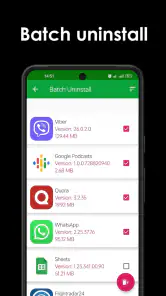
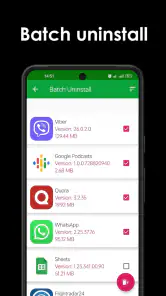
- Uninstalls multiple apps quickly from one simple screen.
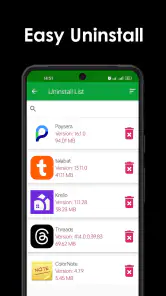
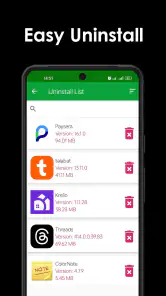
- Search makes it easy to find specific apps on crowded devices.
- Shows app details before removal
- helping avoid accidental deletions.
- Lightweight design keeps navigation fast on older Android phones.
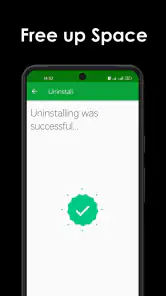
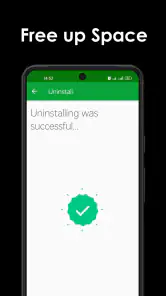
- Useful for clearing unused apps and freeing storage space.
Cons
- Some system apps cannot be removed because of Android restrictions.
- Ads may appear during use
- depending on the app version.
- Bulk uninstall still requires confirmation for each selected app.
- It is designed for Android and has no official iOS equivalent.
- Removing an app also deletes its local data unless it was backed up.

- Category
- Tools
- Version
- 5.1.1











