Deep Translate - All Language
- 961.00
- 4.8
- Installs
- 5.00M
- Price
- Free
Screenshots
Analysis by Reviewed
I use translation apps most when a small language gap threatens to slow down an otherwise ordinary moment: checking a notice, understanding a message, or asking a simple question while travelling. Deep Translate - All Language is built for that kind of quick help, bringing several ways to translate into one productivity app. My main advice for a first-time user is to start with a short, low-stakes translation, then try the input method that fits the situation rather than expecting every tool to work the same way.
What to expect from the app
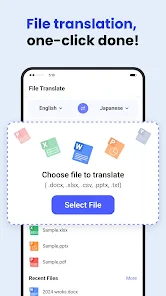
Readerland’s app combines text, voice, photo, document, and screen translation. That range is useful because the source material changes from moment to moment: you might type a phrase at home, speak during a conversation, or need help with text visible in an image. Its average rating is 4.8 from around 99,000 ratings, and it has been installed over 5 million times. Those figures suggest it has found a substantial audience, though they can’t tell you whether a particular translation will suit your context.
The app is free to install and rated for Everyone, with optional in-app purchases ranging from $4.99 to $49.99 per item. I’d treat it as a practical starting point, not a guarantee of polished wording in every language pair. Short phrases and everyday signs are sensible first tests; anything consequential deserves a careful check before you act on it.
Choosing a first task before exploring
Before opening every tool, decide what you actually need to understand. A short message is a good first test because you can compare the translated meaning with what you already know about the conversation. A sign or label is a better reason to try photo translation, while a spoken question makes voice input the natural route. This small choice keeps the first session reassuring: you are learning one workflow, not trying to judge the whole app at once.
Document and screen translation can be useful when the words are already on your phone or gathered in a longer file, but those situations call for a little more care than translating a single phrase. I would check the result in manageable sections and look for names, numbers, dates, and instructions that could change the meaning if misread. If you only need a quick gist, that may be enough; if you must preserve every detail, take time to compare the translated text with the original.
Your Personal Translator in Your Pocket
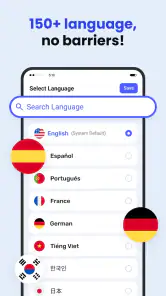
The first thing that caught my eye about Deep Translate - All Language is its versatility. This app isn't just about translating basic text; it's about breaking down language barriers in real-time. From my experience, the app supports a wide array of languages, which means you can go from Japanese to Portuguese or Swahili to French in just a few taps.
Features That Stand Out
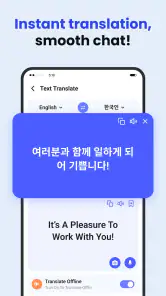
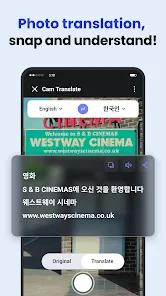
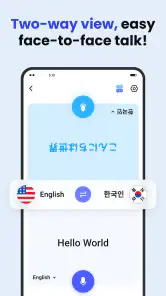
One of my favorite features has to be the real-time voice translation. Imagine speaking into your phone and instantly hearing your words translated into another language. It's not just about text; it's about voice, which makes it incredibly handy during conversations. The app also offers image translation. Just snap a photo of any text, and boom, you have it translated. This was particularly useful when I encountered a menu full of unfamiliar dishes.
More From Our News Desk

Weather by Xiaomi Review: Clear at a Glance, Less Clear Up Close

X Under Pressure: Can It Recover When Posting Goes Wrong?

Clash of Clans Is Won Between the Battles

Android Auto Makes the Case for Quieter Car Software

MobiOffice: Transforming Mobile Productivity with Seamless Integration

EA SPORTS FC™ Mobile Soccer: Redefining Mobile Sports Gaming
For a first successful try, I’d begin with a sentence whose meaning I already know. Type it in, choose the languages you need, and compare the result with your intent. Then try a short spoken phrase in a quiet setting, where you can tell whether the recognition has captured your words correctly. With a photo, frame only the relevant sign or menu section; reducing surrounding clutter makes it easier to judge whether the translated text matches what you were trying to read. These small checks help separate a translation problem from a source-text or capture problem.
Voice and photo tools are especially handy when your hands are busy or copying text would take longer than translating it. They also introduce extra uncertainty: background noise can muddle speech, while glare, unusual fonts, or a crowded image can make printed words harder to read. If a result looks odd, switch to typing a short excerpt rather than repeatedly relying on the same input. That simple fallback is useful when you need to understand the gist without turning a quick task into a troubleshooting session.
Making mixed inputs work for you
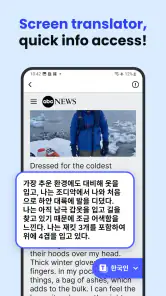
A useful way to approach a longer task is to treat each translation method as a different entry point, not as a separate promise of accuracy. For example, if you are reading a notice on a screen, screen translation may spare you from retyping it. If the output seems confusing, select or copy a short portion into text translation and inspect that wording by itself. The second pass can help reveal whether the trouble came from dense source text or from the way it was captured.
For a document, I would avoid judging the whole file by its opening lines. Headings, lists, and formal phrases can behave differently from ordinary sentences, so check the sections that carry the practical instructions first. This is especially useful for travel details: identify the time, destination, and action being requested, then verify those pieces against the original. A quick translation is valuable for orientation, but it is not a reason to stop reading carefully.
Choosing the right workflow
What sets this app apart is its user-friendly interface. Navigating through the app is a breeze, even for those who aren’t tech-savvy. The design is clean, and the functionalities are well-organized. I found that whether you’re translating a paragraph or a single word, the process is seamless and quick.
Compared with keeping separate tools for camera text, spoken phrases, and typed translation, having those routes together can make it easier to change approach mid-task. A dedicated text translator may be a better fit if you mainly need careful wording and want to inspect each sentence closely. For a quick exchange, voice can save time; for a menu, a photo may be more natural. I’d still avoid treating an automated result as a substitute for a human interpreter in medical, legal, or other high-stakes conversations.
When it fits—and when it doesn’t
If you're someone who loves traveling or simply needs a reliable translation app for daily use, this app is a great companion. It's like having a personal interpreter available 24/7. Additionally, the app doesn't take up much space on your device, so you don't have to worry about it hogging your phone's memory.
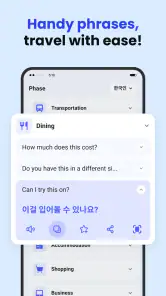
A realistic use is arriving at a café, photographing a menu item you can’t identify, then switching to a typed question if you need to ask about ingredients. For that sort of informal help, the multiple input choices are more valuable than a single perfect workflow. Students can also use a short translation to get the gist of a passage before studying the original, but should not assume a machine-rendered sentence preserves every nuance. If your main goal is formal language learning, pronunciation coaching, or editing professional writing, a specialist tool or a fluent speaker will serve you better.
Everyday situations where a second check matters
Imagine you are at a station and need to understand a notice before choosing a platform. A photo can give you a fast orientation, but I would check the key place names and directions against the visible text rather than acting on one unclear line. If the picture is crowded, crop your attention to the relevant section by framing that area more tightly. The aim is not to make the app prove itself; it is to use the quickest route while keeping the decision grounded in what is actually printed.
At work, a translated message may help you understand the broad subject before replying. I would keep the reply simple, avoid idioms, and translate it back or ask a fluent colleague to review it if the tone matters. That is a practical trade-off: this app can reduce the effort of understanding everyday communication, but social nuance and professional wording deserve human judgement. It is a particularly good companion for first-pass comprehension, not a replacement for careful editing.
Another noteworthy point is the app's ability to work offline. Yes, you heard that right. While many translation apps require a constant internet connection, Deep Translate - All Language allows you to download language packs, enabling you to translate even when you’re off the grid.
Offline access can be worth preparing before a trip, rather than discovering what works only after losing a connection. I’d check the language options you expect to need while you still have reliable internet and keep an important phrase available in a form you can read without opening the app. Also bear in mind that translation quality can vary with language, wording, and input method; for an unfamiliar result, try a simpler sentence or another route before relying on it.
What to check before relying on it away from home
If you expect to use translation while travelling, make a small test part of your preparation. Try a phrase you are likely to need, confirm that the selected language direction makes sense, and see whether the offline option covers the languages you expect to use. A downloaded language pack is only useful if it is ready before you lose connectivity, so it is better to check at home than in a station, airport, or unfamiliar street.
I would also keep the task itself modest when offline. Asking for a basic direction or reading an ordinary label is a sensible use; interpreting a complicated warning or a long set of conditions is not. If the wording affects safety, money, or an important appointment, use the translation to identify the issue and then find a more dependable way to confirm it. That is where a human speaker, official assistance, or a specialist resource may be the better choice.
Getting started and deciding whether to keep it
The app is currently version 1.8.6 and requires Android 8.0 or later. On first use, I’d pick one real task rather than exploring every tool at once: translate a short typed phrase, check that the language direction is right, then try voice or a photo only when you have a reason. This makes it easier to learn the workflow without confusing a setting choice with a translation issue. If you’re on iOS, check the version available for your device before installing.
My overall take is that this is most appealing if you want a single place to try several kinds of translation and don’t mind checking the result when precision matters. The optional purchases are worth considering if you’re deciding whether to spend beyond the free install; I’d first see whether the everyday tasks you care about are already covered for you. Someone who only translates occasional typed phrases may prefer a simpler text-only alternative, while travellers and people handling mixed text, speech, and images may appreciate having those choices together.
Who will get the most from it
I think the best match is someone who encounters language in different forms and wants a flexible first pass: a traveller reading signs and menus, a person keeping up with occasional messages, or a student trying to understand the broad sense of a passage. The app is less compelling if you need only one familiar language pair and a plain text box, because a basic text-focused option may feel more direct. It is also not the right tool for anyone who needs certified translation, exact legal wording, or reliable interpretation in a high-stakes conversation.
Before paying for an optional purchase, I’d make a short list of the tasks I expect to use repeatedly and try those workflows first. If typed phrases are enough, there may be little reason to add anything. If voice, photos, documents, and on-screen text all solve real problems for you, having them gathered in one place may justify exploring the paid options. The sensible decision depends on your habits, not on how many tools the app can offer in theory.
Final Thoughts
Overall, Deep Translate - All Language is more than just a translation app; it's a bridge to understanding and communication. Whether you’re using it for travel, study, or daily interactions, it’s a reliable tool that makes the world a bit smaller and a lot more connected. So, if you’re looking to enhance your linguistic skills or simply need a dependable translation app, give this one a try. Trust me; it won't let you down.
My recommendation is to start with one low-pressure task, learn which input method feels natural, and keep a second-check habit for anything important. That gives you a realistic sense of its usefulness without expecting an automatic translation to carry more certainty than it should. For everyday comprehension and changing between typed, spoken, photographed, and document-based text, it is a convenient option; for polished language work or consequential decisions, I would choose a specialist or a person who knows the language well.
Deep Translate - All Language Frequently Asked Questions
Can I translate a conversation by speaking into Deep Translate - All Language?
Yes. Deep Translate - All Language is described as supporting voice translation, alongside text, photo, document, and screen translation. That makes it useful when speaking or listening is more convenient than typing, such as when trying to understand a spoken phrase. As with any machine translation, review the result carefully when the meaning matters.
Does Deep Translate - All Language translate text displayed on my screen?
Screen translation is among the app’s advertised capabilities, so it may help when you need to understand text already visible on your device. The app also supports text, voice, photo, and document translation, giving you different ways to work with unfamiliar content. For important information, check the translated wording against the original where possible.
Can I use Deep Translate - All Language to translate photos and documents?
Yes. Deep Translate - All Language is presented as a multilingual tool for translating text, voice, photos, documents, and screen content. Its photo and document options can be useful when you need to understand printed or saved material without typing everything out. Results can still depend on how clearly the original text is shown, so check important details before relying on a translation.
Is Deep Translate - All Language suitable for everyday use?
Deep Translate - All Language is a productivity app for common translation needs, including text and voice translation as well as photo, document, and screen translation. Its range of input options makes it practical for situations such as understanding a message or checking unfamiliar text. It is rated for Everyone, and it has an average rating of 4.8 from around 99 thousand ratings.
What is Deep Translate - All Language used for?
Deep Translate - All Language is an application designed to provide high-quality translations across numerous languages. It is ideal for travelers, students, and professionals who need quick and reliable translations of text. The app supports real-time translations, voice input, and even image-based text recognition, making it a versatile tool for breaking down language barriers.
Pros
- Supports translation for over 100 languages.
- User-friendly interface with easy navigation.
- Offline translation available for select languages.
- Voice and text input for versatile usage.
- Quick translation with minimal delay.
Cons
- Limited offline language support.
- Occasional inaccuracies in translations.
- Requires internet for most features.
- Ads can be intrusive at times.
- Premium features locked behind paywall.
- Category
- Productivity
- Version
- 1.8.6