CastAll: TV Mirror & Stream
- 7.00
- 3.6
- Installs
- 100.00K
- Price
- Free

Screenshots
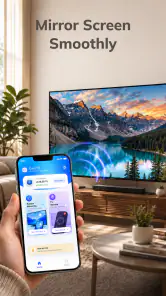
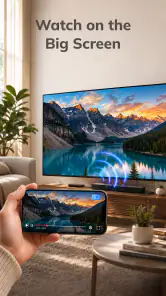
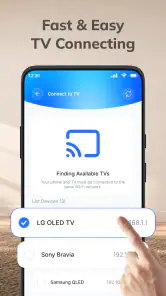
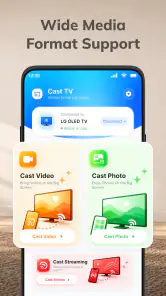
Analysis by Reviewed
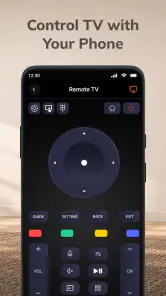
I judge a screen-mirroring tool less by its promise than by what happens when I want to show something on a larger screen and the connection is not immediately obvious. CastAll is a free tools app from PureSoft Studio Inc, built around mirroring a phone to a TV and offering TV control through a smart-remote function. That makes it appealing for quick, practical jobs: sharing photos, putting a phone screen in view of other people, or trying to manage a compatible television without switching between devices.
My overall take is cautious but positive. This kind of app can make a familiar task more convenient, yet casting depends on the phone, television, and connection working together. The app is most useful when you treat it as one part of that setup rather than expecting it to fix every display or network problem by itself.
Where setup tends to get stuck
Finding the right screen is only the first step
With phone-to-TV tools, the confusing moment is often not pressing a cast button; it is working out whether the television is ready to receive the phone’s screen. A TV may need to be awake, set to the right input, or using a compatible screen-sharing option before a phone can reach it. If it does not appear, I would check those basics before repeatedly restarting the app.
CastAll’s central job is screen mirroring, so it is best approached as a way to display what is already on the phone, not as a guarantee that every TV behaves identically. The word “TV” covers many manufacturers and software setups. A smooth result on one television does not automatically mean another model will be discovered in the same way.
Another easy source of confusion is mixing up mirroring with casting a single piece of media. Mirroring shows the phone’s screen as a whole, which is handy for browsing photos or demonstrating an app, but it also means notifications and other on-screen activity may be visible. Before sharing in a group, I would silence interruptions and open the material I want people to see first.
The remote and the mirror solve different problems
The smart-remote element is useful in a different situation from screen sharing: it is about controlling a TV, while mirroring is about showing phone content on it. I would not assume that successful control proves mirroring is ready, or that a working mirror means every remote function will be available. Treating these as separate tasks makes troubleshooting much less frustrating.
If your immediate need is simply to change the TV’s volume or navigate its menus, the physical remote or the television maker’s own app may be the more dependable choice. If your goal is to show something from the phone, CastAll’s mirroring purpose is the relevant part to try. Keeping those jobs distinct also helps you tell whether a problem is with discovery, display, or control.
What to check before blaming the app
I would start with a short, repeatable check rather than tapping through every option. Wake the television, make sure it is on a screen-sharing or receiving mode if its menus provide one, and keep the phone and TV on the same local network when that is the connection method available to the devices. Then reopen the discovery step and give it a moment to find the TV.
That same-network check is a practical first test, not a promise that all devices use one identical connection method. Some televisions expose their own wireless display workflow, while others depend on network discovery. Follow the receiving options shown on the TV itself, and avoid assuming that a device is incompatible just because it did not appear on the first attempt.
It is also worth checking that the phone is not already connected to a different display or network. A phone that has moved between home Wi-Fi and a guest network can be looking in the wrong place. For a household with separate network names, make sure the phone and television are not split across them before drawing conclusions about CastAll.
Making a connection—and recovering it
A simple workflow for sharing something
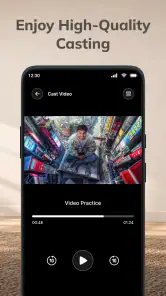
For a low-stress first use, I would test with something unimportant, such as a photo already saved on the phone, rather than beginning with a time-sensitive video call or presentation. Open CastAll, use its TV-discovery flow, and select the intended screen if it becomes available. Once the image appears, check that the phone’s orientation and the content look sensible from across the room.
This small trial tells you more than a rushed attempt during a gathering. It lets you see whether the TV is discoverable, whether the phone’s display is legible at a distance, and whether the connection stays useful while you move between screens. For a presentation, I would prepare the relevant images or notes beforehand and keep the phone’s display awake as needed, instead of relying on a last-second search through unrelated apps.
One non-obvious trade-off of mirroring is that the phone remains part of the viewing experience. If you need to keep using it privately while the TV shows something else, full-screen mirroring may not be the right workflow. A media app’s own casting option, when available, can be a better fit for sending a video while leaving the phone free for other tasks.
When discovery fails, reset the path in order
If the TV does not appear, I would close and reopen the app, confirm the TV is still ready to receive a connection, and recheck the phone’s network. If the devices have recently changed networks, reconnect them deliberately rather than assuming the old route remains valid. A single orderly retry is more useful than rapidly repeating the same search without changing anything.
If the connection drops after it starts, first consider whether either device has gone to sleep or changed its network state. Bring the TV back to its receiving screen, return to CastAll, and start a fresh connection. For a long viewing session, keeping the phone near its usual charging spot can also prevent a low battery from interrupting the task, without implying that the app itself controls the phone’s power settings.
When only one kind of content fails, test a different screen on the phone. If ordinary menus and photos mirror but a particular video remains blank or behaves differently, that points toward restrictions or behavior associated with that content rather than a general inability to connect. For that case, the content provider’s own TV app or casting control is often the sensible alternative.
When the app is not the cause
A missing television can be a device-discovery issue, a network mismatch, or a TV setting—not necessarily a fault in CastAll. Likewise, a picture that looks soft or delayed can reflect the whole wireless path. If nearby devices are also struggling with the same network, trying the mirror repeatedly is unlikely to make the underlying connection more reliable.
To isolate the cause, change one thing at a time: check the TV’s receiving mode, confirm the network, and then retry. If another phone can connect to the same TV, the television is probably ready and attention can shift to the first phone’s connection or setup. If no phone can find it, the TV’s own instructions and settings are the better place to investigate.
For situations where timing and reliability matter more than convenience, a direct wired connection or the TV manufacturer’s own software may be preferable, depending on the devices you already own. I would not choose a wireless mirroring app as the only plan for a formal presentation unless I had tested the exact phone-and-TV combination first.
Who will get the most from it
CastAll makes the most sense for someone who wants a straightforward way to try showing a phone screen on a television and appreciates having a remote-style control option in the same app. It can suit casual photo sharing, a quick demonstration, or looking at phone content with family in the room. The key benefit is convenience when the TV is compatible and the initial connection is easy.
I would be less enthusiastic about it for anyone who needs advanced presentation controls, guaranteed support for a particular television, or private phone use while separate content plays on the TV. Those needs call for a more specific solution: the television’s native casting features, a dedicated media app, or a wired setup may be a better match. The app is also not a substitute for checking whether the TV can receive a phone display in the first place.
CastAll has a 3.6 average from around a thousand ratings, with over a hundred thousand installs. I read that as a reason to keep expectations measured, not as a verdict on whether it will work with your particular equipment. It is free, carries an Everyone age rating, and is at version 1.0.0; the listed minimum operating-system requirement is 8.0. PureSoft Studio Inc is the developer.
My practical verdict
I would try CastAll if my goal were occasional phone-to-TV mirroring and I were willing to do a brief compatibility check before depending on it. Its mix of display sharing and TV control gives it a clear everyday purpose, but the real experience still hinges on the television’s receiving setup and the phone’s connection. A test with a photo or menu screen is the best way to learn whether the pairing suits your home.
My recommendation is to use it as a convenient option, not as a guaranteed fix for every TV connection. Start with the TV’s own screen-sharing mode, confirm the devices are on a workable connection, and keep the manufacturer’s app or a wired method in mind when reliability is essential. If that modest setup works for your devices, CastAll can make sharing a phone screen feel much less cumbersome; if it does not, the limitation may sit elsewhere in the setup, and a different route will save time.
CastAll: TV Mirror & Stream Frequently Asked Questions
What is CastAll: TV Mirror & Stream used for?
CastAll: TV Mirror & Stream is designed to help you share content from a mobile device on a compatible television or streaming receiver. Depending on the features available in your version, you may be able to mirror your screen or cast supported media such as photos and videos. The exact options can vary by device, operating system, and receiver, so check compatibility before relying on a particular feature.
How do I connect CastAll to my TV?
In most cases, your phone and TV or casting receiver need to be connected to the same Wi-Fi network. Open CastAll, allow any requested local-network permissions, and look for your television or receiver in the device list. Select it and follow the on-screen instructions. Menus and connection steps may differ across brands, and some TVs require screen mirroring or casting to be enabled in their own settings first.
Does CastAll work with every TV and phone?
No casting or mirroring app can guarantee compatibility with every television, streaming device, or phone. Support may depend on the receiver’s protocols, the phone’s operating system, network configuration, and the app’s current version. Before downloading, review the app-store listing for supported devices and requirements. If your TV does not appear, confirm that both devices share a network and that the TV supports a compatible casting or mirroring method.
Can I use CastAll to watch any video on my TV?
Not necessarily. Some media can be cast directly, while screen mirroring may show other content from your phone, but protected video services can restrict playback because of copyright or digital-rights rules. Playback quality and delay can also depend on your Wi-Fi connection and device performance. If a video displays a blank screen or will not play, the service may not permit mirroring; check its own casting options and terms.
Is CastAll: TV Mirror & Stream free, and what should I know about privacy?
Check the current Google Play or Apple App Store listing to confirm whether CastAll is free, offers in-app purchases, or includes subscriptions, since pricing and terms can change. Before connecting, review the permissions it requests and the developer’s privacy information. Screen mirroring may expose notifications or other visible phone content on the TV, so consider enabling Do Not Disturb and avoid displaying sensitive information.
Pros
- Works with a broad range of TVs and streaming devices.
- Simple setup makes it easy to start mirroring.
- Useful for sharing photos and videos on a larger screen.
- Can stream web videos without mirroring the entire phone.
- Handy for presentations and group viewing.
Cons
- Some features may require a paid subscription.
- Screen mirroring can introduce noticeable lag.
- Video quality depends on your Wi-Fi connection.
- Compatibility may vary by TV model and operating system.
- Casting may not work with every streaming service or protected video.

- Category
- Tools
- Version
- 1.0.0











