Car Play Connect Auto Sync
- 105.00
- 4.6
- Installs
- 1.00M
- Price
- Free

Screenshots
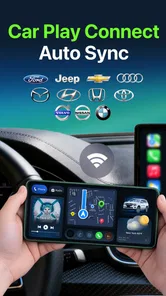
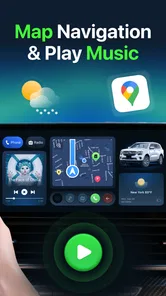
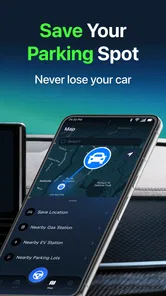
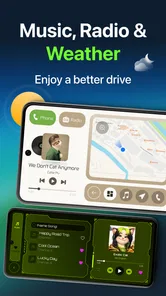
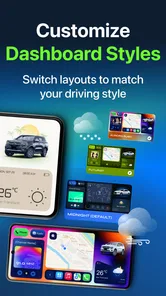
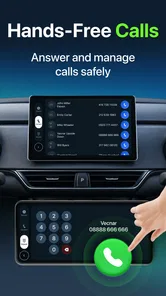
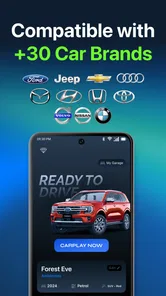
Analysis by Reviewed
When a phone does not connect to a car as expected, it is tempting to blame the dashboard app. In practice, the phone, vehicle, cable or wireless connection, and car display all have to cooperate. Car Play Connect Auto Sync is aimed at making that connection easier, but it is most useful when you approach it as one part of a setup rather than a fix for every compatibility problem. I’d consider it if I want an Android-focused route to a car display and am willing to check the basics before a drive.
What to expect before you install
I’d think of this as a focused connection app, not a replacement for every function built into a vehicle. If your main frustration is having to reconnect your Android phone at the start of routine drives, its automatic-sync goal is relevant. If you want navigation, music, calls, and other dashboard tools to work in a particular way, first check what your car’s own system supports; the app’s purpose does not establish that every dashboard feature will be available.
That distinction also helps set realistic expectations for a short test. A successful connection in the driveway is a useful sign, but it is not yet proof that the phone will reconnect smoothly on every trip. I’d test a normal start-and-stop routine before relying on it for a long drive, and keep a familiar alternative available until I know how my own car and phone behave together.
Where connection attempts tend to get stuck
This Auto & Vehicles app is developed by MONIQ TAP., CO LTD. Its purpose is to help an Android phone sync with a car dashboard, with automatic connection as part of the intended experience. That is a practical goal: fewer steps between getting into the car and having the phone ready to use. The app’s short store label is “Car Play,” but the important distinction for Android users is that an app cannot make an incompatible car or phone support a connection method it does not have.
The first useful question is not “Why did the app fail?” but “Which part of the connection did not happen?” A car may not recognize the phone, the phone may not see the vehicle, or the devices may connect without the dashboard behaving as expected. Those are different situations. Paying attention to the exact point where things stop can save you from repeatedly reinstalling an app when the actual issue is a vehicle setting or connection choice.
I would also avoid testing the setup for the first time while already driving. Park, keep the phone accessible, and work through the connection calmly. A dashboard workflow that seems simple once established can still require an initial check of the car’s display and phone settings. This app is intended to make syncing easier, but “automatic” should be treated as the hoped-for routine after a successful setup, not a guarantee that every vehicle will connect without any preparation.
The app has a 4.6 average from around 14,000 ratings, and it has passed one million installs. Those figures suggest many people have tried it, but they cannot tell me whether it will work with a particular car. Compatibility is personal: the vehicle’s own system and the Android device both matter. I’d use the rating as a reason to investigate the app, not as a substitute for checking whether my own equipment supports the intended connection.
More From Our News Desk

Weather by Xiaomi Review: Clear at a Glance, Less Clear Up Close

X Under Pressure: Can It Recover When Posting Goes Wrong?

Clash of Clans Is Won Between the Battles

Android Auto Makes the Case for Quieter Car Software

MobiOffice: Transforming Mobile Productivity with Seamless Integration

EA SPORTS FC™ Mobile Soccer: Redefining Mobile Sports Gaming
Start with the car and phone, not repeated taps
Before opening the app, check that the car is in the right mode for connecting a phone and that the phone’s wireless or wired connection is enabled as appropriate for the vehicle. If the car offers more than one phone-connection route, make sure you are trying the one your setup actually supports. A display showing a familiar name or a connection prompt is more useful evidence than repeatedly pressing a sync control without knowing whether the car has detected the phone.
It also helps to distinguish a one-time setup problem from a recurring one. If the connection works after you select the car manually but does not reconnect on a later trip, the initial pairing may be fine while automatic reconnection is the part that needs attention. If the car never recognizes the phone, focus first on compatibility and the vehicle’s connection mode. Keeping those cases separate makes troubleshooting less random.
Setup checks that make the first try more useful
For a first attempt, I’d keep the process deliberately simple: park safely, open the app, check the phone’s connection state, and follow the prompts shown by the phone or car. If the vehicle expects a cable, use a connection path the car supports rather than assuming a wireless option will work. If you are trying wireless, make sure the phone and car are both set up for that route. The exact controls vary across vehicles, so the car’s own display and instructions are worth checking alongside the app.
A practical tip is to change only one thing at a time. If a connection fails, note whether the phone was detected, whether the car prompted for a connection, and whether the app remained open. Then try one sensible adjustment, such as selecting the correct source on the car display or reconnecting the phone. Changing several settings at once may eventually work, but it leaves you with no clear idea which step mattered and makes the next trip harder to diagnose.
Another useful check is to remove distractions from the first setup. Do not begin with several phones trying to connect, and avoid switching between connection methods midway through the same attempt. Establish a clean connection with the phone you plan to use most often. Once that works, you can judge whether it reconnects as expected during ordinary trips. This is not a hidden feature; it is simply a way to find out whether the problem is the app’s workflow or competing device connections.
Car Play Connect Auto Sync is free to install, with in-app purchases ranging from $4.99 to $59.99 per item. I would first establish whether the basic connection suits my car before considering any purchase. The presence of paid items does not, by itself, tell me what an individual item does or whether it is needed for a particular vehicle, so I would read the in-app description carefully before paying. For someone who only needs to test basic compatibility, that is a sensible way to avoid spending money before knowing the setup works.
Recover the workflow when a connection drops
If the phone connected once but the next journey starts without the dashboard link, begin with a small reset of the connection rather than a full app overhaul. Check whether the car display is on the phone-connection screen, then check whether the phone still shows an active connection to the vehicle. If either side appears to be waiting, disconnect and retry using the same method that worked before. Repeating a known-good route is more informative than switching from wireless to wired, or vice versa, without a reason.
For an intermittent connection, pay attention to timing. Does it fail only when the car is first started, only after another phone has been used, or after the phone has been disconnected? That pattern can point toward a handoff or selection issue rather than a general failure. If another phone is nearby, temporarily keeping the test to one device can help establish whether the car is reconnecting to the intended phone. This is especially useful for households where more than one person uses the same vehicle.
If the app appears unresponsive, close and reopen it only after checking the car and phone connection state. Otherwise, an app restart may interrupt a connection that was still being established. If restarting does not change anything, return to the vehicle’s connection screen and confirm the phone is still selected or recognized. I would treat repeated failure at the same stage as a cue to inspect compatibility or the car’s settings, not as a reason to keep tapping the same button indefinitely.
One everyday example makes the distinction clear. Suppose I get into the car for a short commute and the dashboard does not show the phone. If the car is still set to another input, changing to the phone connection screen may solve the issue without touching the app. If the car detects the phone but the connection does not complete, I can retry the same connection route once and watch for prompts on both screens. That sequence keeps the task focused and avoids troubleshooting while the vehicle is moving.
When the app may not be the cause
Some failures sit outside an app’s control. The car may not support the connection method being attempted, the phone may not be compatible with the vehicle’s system, or a cable or wireless setup may be unsuitable for that car. In those situations, reinstalling the app is unlikely to create support that the hardware does not provide. I’d check the vehicle’s manual or its built-in connection instructions before deciding that the app itself is at fault.
There is also a meaningful difference between using a dedicated dashboard system and adding a phone-sync app to an existing setup. A built-in option from the car manufacturer may be a better fit if it is already available and reliably connects. A familiar Android dashboard solution may suit someone who wants another route to link a phone, but it should not be expected to replace every feature or behavior of the vehicle’s own system. If your current dashboard connection already works well, switching just for the sake of switching may bring more setup than benefit.
For a driver who wants a dependable connection every time without troubleshooting, a native car system or a connection method explicitly supported by the vehicle may be the safer choice. For someone comfortable checking the phone and dashboard together, this app is more appealing. It is also not the right choice if you expect an app to turn an unsupported display into a compatible one. Being clear about that boundary is the most helpful way to set expectations before installation.
The age rating is Everyone, and the app is listed for Android 8.0 and later. It is currently at version 2.4. Those details make it straightforward to decide whether the operating-system requirement fits an older phone, but they do not remove the separate need for car compatibility. I’d check the Android version first, then confirm the vehicle’s supported connection options, rather than treating either check as proof that the whole setup will work.
A practical verdict for Android drivers
The app is most worthwhile when your goal is a simpler phone-to-dashboard routine and your car already supports the connection you want to use. Its automatic-sync aim makes sense for daily driving, particularly if you are tired of navigating through several screens on each trip. The real value, though, depends on a successful first setup and consistent behavior with your own phone and vehicle.
I would recommend trying it if you use Android, have checked that your car can connect by the method you intend to use, and are comfortable doing a short parked setup. I would skip it if your car lacks compatible phone integration, if its built-in system already meets your needs, or if you want a completely hands-off experience from the first launch. In those cases, a car-supported native option is likely to be less frustrating than trying to work around a compatibility gap.
MONIQ TAP., CO LTD has built an app for a specific, understandable job rather than a general driving toolkit. That focus is helpful, but it also means I would judge it on the connection routine, not on assumptions about broader vehicle functions. My best advice is to test with one phone, one connection method, and the car parked; observe exactly where the setup succeeds or stops; and only then decide whether it belongs in your everyday drive. For the right Android-and-car combination, Car Play Connect Auto Sync may make the start of a trip smoother. For an unsupported setup, careful checks will tell you sooner than repeated retries.
Car Play Connect Auto Sync Frequently Asked Questions
What is Car Play Connect Auto Sync, and what does it do?
Car Play Connect Auto Sync is intended to help a compatible smartphone connect with a vehicle’s infotainment system, so drivers can access supported phone features through the car’s display. Depending on the app and the vehicle, this may include navigation, calls, music, or other connected functions. Its capabilities are not universal: check the app’s listing and your vehicle’s manual to confirm what is supported before installing.
Will Car Play Connect Auto Sync work with my car and phone?
Compatibility depends on several factors, including your phone’s operating system and version, the vehicle’s make and model, and whether its infotainment system supports the required connection method. An app cannot add full CarPlay or Android Auto support to a car that lacks compatible hardware or software. Before downloading, review the app’s device requirements and check the vehicle manufacturer’s guidance for wired or wireless phone connectivity.
Does Car Play Connect Auto Sync connect automatically, or do I need to set it up?
The name suggests automatic reconnection or synchronization, but the first connection may still require setup. You may need to enable Bluetooth or Wi-Fi, connect a USB cable, approve permissions, and follow prompts on both the phone and the vehicle screen. Exact steps vary by device and car. If automatic connection does not work, consult the app’s instructions and your vehicle manual rather than assuming the app can bypass required setup.
Is Car Play Connect Auto Sync free, and does it include in-app purchases or subscriptions?
Pricing and available features can differ by platform, region, and app version. Check the Google Play or Apple App Store listing for the current download price, in-app purchases, subscription terms, and any trial details before proceeding. Also review whether optional features are required for the functions you want. Store information is the best source for current charges, since pricing and plans may change after an app update.
Is it safe to use Car Play Connect Auto Sync while driving, and what data might it access?
Set up the app and review its permissions while parked, not while driving. Connecting a phone may involve access to functions such as Bluetooth, nearby devices, contacts, notifications, or location, depending on the features you use. Grant only permissions you understand and need, and check the app’s privacy policy for details about data collection and sharing. Keep your attention on the road and follow local laws and vehicle safety guidance.
Pros
- Can make compatible apps easier to access from the car’s display.
- May reduce the need to handle your phone while driving.
- Auto-sync features can keep supported information up to date.
- A useful option for drivers who regularly switch between devices.
- Could simplify connecting a compatible phone to an in-car system.
Cons
- Features depend on compatibility with your phone and car.
- Some functions may require a stable Bluetooth or Wi-Fi connection.
- Setup and permissions can take time to configure.
- Background syncing may use battery or mobile data.
- The app cannot add CarPlay or Android Auto support to incompatible cars.