Artify: AI Photo Magic Editor
- 39.00
- 3.9
- Installs
- 1.00M
- Price
- Free

Screenshots




Analysis by Reviewed
When I want to improve a photo without opening a full desktop-style editor, I look for a tool that makes the next step obvious: remove a distracting background, brighten a dull image, or turn a few pictures into a shareable collage. Artify: AI Photo Magic Editor is aimed at that quick, hands-on kind of editing. It brings several common photo tasks together, which is convenient, though the experience is best judged as a flexible all-rounder rather than a specialist tool.
Artify is a free photography app from Growly, rated for Everyone. It has a 3.9 average from around 13,000 ratings and has passed a million installs. The version is 1.1.8, and it runs on Android 7.0 or later. Those details make it easy to see who can try it, but the more useful question is whether its mix of editing options suits the way you actually handle photos.
Quick edits are the main attraction
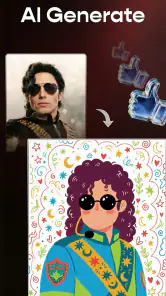
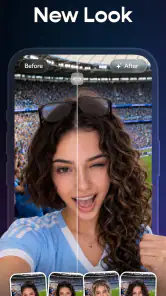
The appeal is the combination of AI-assisted editing, collages, background removal, filters, enhancement, and effects in one app. I would reach for Artify when a picture needs a noticeable improvement but not a painstaking, layer-by-layer makeover. Keeping those jobs under one roof can spare you the familiar routine of saving an image, switching apps, and trying to remember which editor has the right tool.
For a typical quick edit, I would start with the photo’s most obvious problem rather than apply several treatments at once. If the subject is lost against a messy background, try separating the subject first. If the composition is already good but the image feels flat, an enhancement or restrained filter is a more sensible starting point. Making one change at a time helps you see whether the edit genuinely improves the photo or merely makes it look more processed.
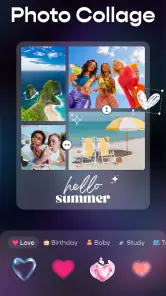
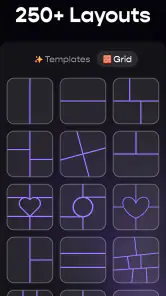
The app’s range also makes it useful for casual creative work. A collage can bring several images into one post, while effects offer a way to give a picture a different mood. These tools are handy when the goal is a personal social post, a simple invitation, or a visual keepsake—not necessarily a carefully color-managed image for professional delivery.
Where its speed matters most
There is a difference between an app having quick-edit tools and every edit completing instantly. AI processing can involve more work than applying a simple filter, and the size and complexity of a photo can affect how responsive any mobile editor feels. I would expect the lightest adjustments to be the most straightforward, while background removal and more elaborate effects are the jobs most likely to feel heavier.
A useful way to keep a short editing session moving is to choose the final purpose before you begin. For a small image shared in a message, there is little value in repeatedly refining fine details that will barely show on screen. For a photo you plan to crop or reuse, check the edges of the subject after removing the background and avoid stacking effects until you know the cutout is clean. That order reduces wasted effort if you decide the central edit is not working.
More From Our News Desk

Clash of Clans Is Won Between the Battles

Android Auto Makes the Case for Quieter Car Software

MobiOffice: Transforming Mobile Productivity with Seamless Integration

EA SPORTS FC™ Mobile Soccer: Redefining Mobile Sports Gaming

How Microsoft OneDrive Became a Mobile Productivity Giant

How Google Translate Breaks Language Barriers Effortlessly
On a slower or older phone, I would also avoid treating a large batch of edits as a single uninterrupted task. Work through one picture, check the result, then move on. That is practical advice rather than a promise about a particular processing time: phones vary, and image-editing workloads can change substantially from one photo to the next.
Busy sessions reveal the trade-offs
The most demanding session is likely to be one that combines several jobs on the same image: removing its background, adjusting the appearance, adding effects, and then fitting it into a collage. Even when all those options are convenient, each extra step creates another chance to lose track of what changed or to push the picture past the look you wanted. I recommend keeping an untouched original and comparing the finished result with it before sharing.
That comparison is especially important for portraits and product photos. A cutout can be useful for placing a person or object against a cleaner scene, but fine edges around hair, transparent materials, or similarly colored foreground and background can be difficult for automated separation. In those cases, inspect the outline at a larger view if possible. If the edge looks rough, a plain crop or a less ambitious edit may look more natural than forcing a perfect-looking composite.
Collages bring a different trade-off. They make several photos feel like one finished piece, but a crowded layout can make each image too small to appreciate. I would choose a collage for a recap or a group of related moments, not as a shortcut for presenting a single important photo. A simple enhancement or filter is usually the better route when one image needs to remain the focus.
Reliability and a safer editing routine
I would treat Artify as a convenient creative workspace, not as the only place to keep an important picture. Before making a series of changes, retain the original in your regular photo library. That gives you a straightforward recovery path if an edit looks wrong, a processing step takes longer than expected, or you later want a cleaner version. This is a sensible habit with any editor, particularly when experimenting with AI effects.
For an image you care about, make a small test edit first. Try the background treatment or enhancement on one photo, inspect the result, and only then repeat the approach across a set. This is more reliable than applying the same look everywhere: lighting, contrast, and subject edges differ from image to image, so a treatment that works on one shot may make another look artificial.
I would also avoid judging stability by one difficult image. A complicated cutout and a basic filter are not equal tests of an editing app. If a heavy effect seems slow, return to a simpler edit and see whether that fits your needs; if the same issue interrupts routine work, a lightweight editor with fewer processing demands may be a better match. Keeping originals makes either outcome easy to manage.
Choosing it for your phone and your workflow
Artify supports Android 7.0 and later, so it is not limited to only the newest Android releases. That minimum alone does not guarantee that every device will feel equally responsive, though. Available memory, image size, and the phone’s general condition can all shape the experience. If your device is older, start with one ordinary photo rather than importing a large collection and trying several effects at once.
On iOS, I would check the relevant store page for compatibility before planning a workflow; the Android version information does not establish which Apple devices are supported. More generally, if your phone has little free storage or already struggles with large images, keep edits modest and export only the versions you intend to use. This avoids filling your library with several near-identical experiments.
Compared with a basic gallery editor, Artify is appealing when you specifically want background removal, collage-making, or a more stylized result in the same place. A built-in editor is often quicker for a tiny crop or brightness tweak, since there is no reason to open a separate app for a one-step fix. At the other end, a dedicated professional editor is preferable when you need precise selections, detailed retouching, or consistent control over a large batch of images. Artify sits between those choices: broader than a simple gallery tool, but best suited to approachable, individual edits.
Who will get the most from Artify
I can see it working well for someone who edits photos for social posts, family updates, casual invitations, or personal projects and wants several creative options close at hand. It is also a reasonable choice for people who enjoy trying different looks without learning a complicated editing workflow. The free price makes it easy to explore, while the Everyone age rating reflects its broad intended audience.
Imagine taking a quick photo at a weekend market, then noticing that signs and passersby compete with the subject. I would try a background removal or a restrained effect, inspect the subject’s outline, and save a separate edited copy before sharing. If the cutout is convincing, the picture may become more focused; if the edges look distracting, I would keep the original and use a simple crop instead. That is the sort of practical decision where Artify’s range helps, even when the AI option is not the best answer.
I would skip it if my main need were exact retouching, highly controlled layer work, or dependable bulk processing. It is also not the right tool when all I want is a quick crop and my phone’s existing editor already handles that cleanly. In those situations, a more focused alternative can save time and offer better control over the specific task.
My performance verdict
My overall view is that Artify is worth trying for flexible, everyday photo edits, especially when background changes and collages are part of the plan. Its broad tool mix is more useful than a single-purpose filter app, but it also encourages restraint: complex edits deserve a careful check, and AI separation will not suit every subject or background.
I would start with one photo, keep the original, and see how the app handles the kind of images I edit most often. If those first results look good and the workflow feels comfortable on your phone, it can become a handy option for casual creative work. If you need exact control or your usual edits are simple, a dedicated editor or the built-in gallery tools may be the more efficient choice.
For me, that is the fair balance: Artify offers a convenient place to experiment, but it is not a reason to abandon a more precise tool when precision matters. Its 3.9 average suggests a mixed rather than universally glowing reception, so I would judge it by the quality of the edits I actually need, not by the promise of doing everything. Try it for a real photo, inspect the result before sharing, and keep the original close by.
A practical way to decide before committing
If you are unsure whether Artify belongs in your regular editing routine, use a photo that represents the task you actually do most often—not a particularly easy sample chosen to make any editor look good. A busy indoor snapshot is a useful test for enhancement, while a subject photographed against a cluttered scene is a more honest test of background removal. The point is not to push every tool through its paces, but to find out whether its particular style of assistance fits your own images.
I would also compare the result at the size where you plan to use it. A cutout that looks acceptable as a small profile image may show rough edges when enlarged, and a subtle filter can look stronger on a bright phone screen than it does elsewhere. Before sharing or printing, view the saved image at a comfortable size and check faces, fine outlines, and areas of strong contrast. That small review catches problems that can be easy to miss while tapping through effects.
Small workflow choices that make a difference
When making a collage, I find it helpful to select the photos for a shared reason—same outing, same person, or one short sequence—before arranging them. That gives the layout a clear purpose and prevents the collage from becoming a pile of unrelated images. If one picture is the main memory, let it carry the attention and use the others as supporting moments; if all images matter equally, a balanced arrangement makes more sense.
For a portrait or a product shot, I would decide whether the background is genuinely the problem before removing it. A natural setting can provide context, and an automated cutout may leave the subject looking pasted on if the replacement scene has different lighting or perspective. If the goal is simply to make the subject easier to notice, cropping distractions or toning down the overall look may preserve a more believable photo than a full background change.
One useful restraint is to stop once the image serves its purpose. An enhancement, a filter, and an effect may each seem appealing on their own, but combining them can flatten detail or make skin and colors look less natural. I would keep a simple version beside a more stylized experiment and choose between them later, rather than assuming the most edited result is the best one.
What to expect from everyday use
Artify is most convincing as a flexible helper for occasional creative edits, not as a guarantee that every photo can be repaired automatically. The 39 written reviews alongside its broader rating pool make it sensible to form your own view from the specific jobs you care about. In practice, a successful result depends on the source image as much as the tool: clear separation between subject and background gives an automated cutout a fairer chance than a scene full of overlapping shapes.
If you are choosing between this and a dedicated filter app, ask whether you will genuinely use the extra editing options. A filter-focused tool can be a cleaner fit when all you want is a consistent color treatment. Artify makes more sense when you expect to switch between a collage, a background change, and a quick enhancement, even if you only use one of those tools on a given day. That convenience is valuable when it prevents app-hopping, but it is not a substitute for precision where exact selection or repeatable control matters.
My advice is to treat the first session as a compatibility check for your workflow: try a modest edit, see how comfortably it runs on your phone, and confirm that the finished image is easy to review and keep. If heavier processing feels awkward on your device, there is no need to force a complicated sequence; use the simpler options or return to the editor already built into your phone. That way, the app earns a place through useful results rather than through the length of its tool list.
Artify: AI Photo Magic Editor Frequently Asked Questions
What is Artify: AI Photo Magic Editor?
Artify: AI Photo Magic Editor is a photo-editing app centered on AI-powered effects and creative image transformations. Depending on the tools available in the version you install, it may let you apply artistic styles, enhance portraits, or create other stylized results from your pictures. Check the app’s current listing and screenshots before downloading, since features and output can change with updates.
Is Artify: AI Photo Magic Editor free to use?
The app may be free to download while reserving some effects, editing tools, or usage limits for in-app purchases or a subscription. Pricing and trial terms can vary by platform, country, and version, so review the store listing and payment details before confirming a purchase. If you start a trial, check its renewal date and cancellation instructions to avoid an unexpected charge.
Do I need an internet connection to use Artify?
Some basic editing actions may work on your device, but AI image processing can require an internet connection if requests are handled online. Availability may also depend on the app’s servers, and processing time can vary with image size and network quality. Check the app’s permissions and privacy information to understand how photos are processed, especially if you plan to edit personal or sensitive images.
Are photos uploaded to Artify private and secure?
Privacy depends on how the app handles images and on its current policies. Before importing personal photos, read the privacy policy and store disclosures to see whether images are uploaded, retained, used to improve services, or shared with providers. Review requested permissions as well, and avoid submitting sensitive images unless you are comfortable with the stated processing and storage practices.
What should I check before downloading Artify on Android or iOS?
Confirm that your device and operating-system version meet the app’s requirements, and check the latest store listing for available features, file size, regional availability, and recent user feedback. Also review subscription terms, in-app purchases, privacy disclosures, and permissions. AI edits may look different from previews, so keep original copies of photos and try a sample image before relying on the app for important work.
Pros
- Quick AI edits make it easy to transform photos without advanced editing skills.
- A range of creative effects helps produce varied looks from the same image.
- Useful for making eye-catching social media posts and profile pictures.
- Simple editing workflow makes experimenting with photos approachable.
- AI-powered tools can save time compared with making similar edits manually.
Cons
- Results can vary depending on the original photo and chosen effect.
- Some features or exports may require a paid plan or in-app purchase.
- AI processing may take longer when internet connectivity is weak.
- Generated edits may look artificial or alter details you wanted to keep.
- Frequent editing can use substantial storage for saved images and app data.

- Category
- Photography
- Version
- 1.1.8