AR Meter: Tape Measure Camera
- 269.00
- 3.6
- Installs
- 5.00M
- Price
- Free
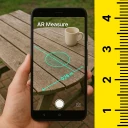
Screenshots
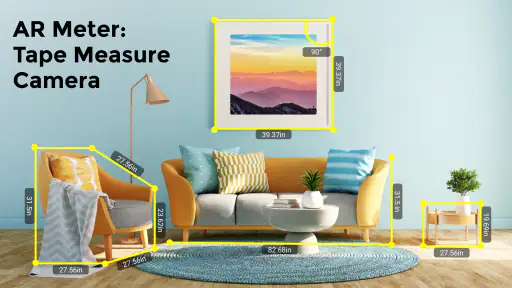
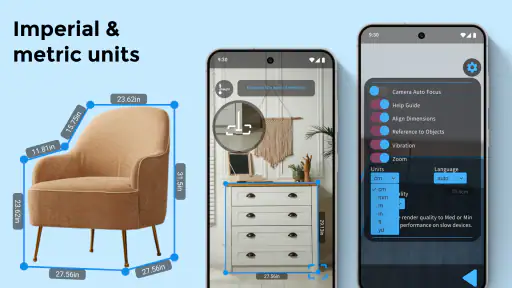
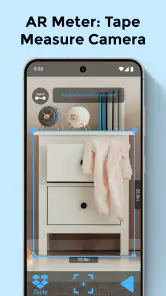
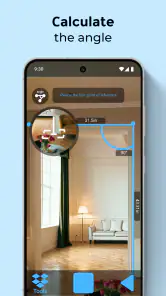
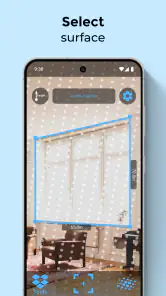
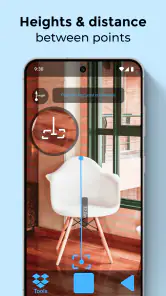
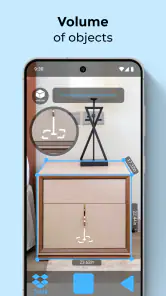
Analysis by Reviewed
I approached AR Meter: Tape Measure Camera as a quick utility for moments when a physical tape measure is not nearby. It belongs to the tools category, comes from Galaxy studio apps, and uses the phone camera with augmented reality to estimate objects and distances. That sounds simple, but the real question is whether it helps with a practical task without making the process more confusing than using a ruler.
My overall impression is that it is most useful as a convenient visual estimator. I would reach for it to check whether a small table might fit beside a wall, estimate the width of a box, or get a rough idea of a gap before looking for a proper measuring tool. I would not treat a camera-based result as the final word for carpentry, precise installation, tailoring, or anything where a few millimeters matter.
The app is free to install and is rated for Everyone. It has attracted over five million installs and holds a 3.6 average from around fifteen thousand ratings, which suggests a fairly broad audience but also a mixed experience. That balance makes sense for this kind of tool: the idea is accessible, while the quality of a result depends heavily on the phone, the surface, the lighting, and how carefully the user positions the device.
Getting from installation to a useful first measurement
I’d use this section to focus on making the first attempt easy to judge, not merely getting a number on screen. Starting with a familiar object in clear light gives me a reference point for how the camera handles edges and movement, so I can decide whether a later estimate is trustworthy enough for planning. From there, the next section can look at where the app’s convenience genuinely helps.
What the app is really good at
The strongest part of this app is convenience. A normal tape measure is dependable, but it has to be stored somewhere, unfolded, held straight, and sometimes used by two people. A camera-based meter removes much of that preparation. If I am standing in a shop, moving furniture, or checking a package, having a measuring tool already inside the phone is genuinely handy.
The experience is also more visual than a conventional ruler. Instead of reading a strip of markings, I can use the camera view to identify the beginning and end of the distance I want to estimate. That makes the tool approachable for someone who does not regularly work with measurements. It is especially helpful when the object is awkward to reach or when I want a quick answer before deciding whether a more accurate tool is worth finding.
There is an important distinction, though. This is not a replacement for a certified measuring instrument. The app estimates distance through the camera and AR, so it needs a scene that the phone can interpret. A clean, visible edge is much easier to measure than a dark object against a dark background. A flat floor or tabletop is usually more cooperative than a cluttered corner.
More From Our News Desk

Weather by Xiaomi Review: Clear at a Glance, Less Clear Up Close

X Under Pressure: Can It Recover When Posting Goes Wrong?

Clash of Clans Is Won Between the Battles

Android Auto Makes the Case for Quieter Car Software

MobiOffice: Transforming Mobile Productivity with Seamless Integration

EA SPORTS FC™ Mobile Soccer: Redefining Mobile Sports Gaming
I also found that the app makes more sense as a first-pass decision tool than as a record of exact dimensions. If I need to know whether a chair is obviously too wide for a doorway, an estimate can save time. If I am ordering a custom glass panel, cutting wood, or drilling based on the result, I would verify it with a physical tape measure.
What to do immediately after opening it
For a first-time user, the best approach is to avoid starting with a difficult target. Choose something with clear boundaries, such as the straight edge of a box or the visible width of a book. Put the object in good light and remove anything that hides the endpoints. This gives the camera a much better chance of recognizing the scene than beginning with a shiny, curved, or very small item.
Move the phone slowly rather than waving it around. AR tools need a stable view of the surroundings to build a sense of position. Slow movement also makes it easier to keep track of where the intended start and end points are. If the view looks uncertain, I would pause, change the angle slightly, and try again instead of immediately trusting the first number that appears.
Keep the phone roughly level when measuring across a flat surface. Tilting the device can make the visual relationship between the camera and the object harder to judge. For a wall or floor, I would step back far enough to see both endpoints in one view, but not so far that the object becomes too small to identify.
The current version is 4.0.8 and supports devices running Android 8.1 or later. That makes it available to many existing Android phones, although compatibility alone does not guarantee equally good results. Camera quality, motion sensors, screen size, and the phone’s ability to handle AR can all affect how comfortable the measuring process feels.
How I would make the first successful measurement
My recommended first attempt is a simple horizontal distance. Place a rectangular object on a table, open the camera-based measuring view, and let the phone observe the surface for a moment. Then identify one end of the object and move toward the other end with controlled hand movements. The goal is not to rush to a result; it is to create a stable visual reference first.
Once the endpoints are selected, look at the result as an estimate and repeat the measurement from a slightly different position. This second pass is more useful than staring at a single number. If both attempts are close, I have more confidence that the scene is being interpreted consistently. If they differ noticeably, I would improve the lighting, clear the surface, or use a physical tape measure.
A practical trick is to measure a familiar item before relying on the app for an unfamiliar space. A book, a sheet of paper, or a small parcel gives me a rough sense of how the app behaves in my room. This is one of the more useful habits with AR measurement tools because it separates a problem with the environment from a problem with my technique.
I would also avoid placing the phone too close to the target. When the camera cannot see the complete start and finish points comfortably, it becomes easy to tap or align the wrong locations. Stepping back usually produces a clearer view, even if the object looks smaller on screen. The best position is the one that keeps the endpoints visible and the phone steady.
Why some results feel wrong
The most common confusion is expecting the app to behave like a physical tape measure immediately. A tape measure has a fixed scale. AR measurement depends on the camera understanding depth and location, so the same object can produce different estimates if the phone angle, lighting, or starting point changes.
Another source of trouble is an unclear endpoint. If a table has a rounded edge, a thick lip, or a shadow crossing it, I need to decide exactly which point I am measuring. The app cannot solve an ambiguous instruction. Before measuring, I find the physical edges first and make sure they are visible in the camera view.
Reflective and transparent surfaces deserve extra caution. Glass, polished metal, and glossy finishes can make visual tracking less dependable because the camera sees reflections instead of a simple surface. A plain, matte object is a better test target. Dark surroundings, low light, and busy patterns can create similar problems.
Small distances are another weak spot. A tiny gap may occupy only a few pixels on the screen, making a small hand movement seem large in the result. For a narrow space between two objects, I would enlarge the view if the interface allows it, hold the phone carefully, and repeat the reading. If the answer affects whether something physically fits, I would confirm it with a ruler.
It is also easy to confuse the distance from the phone to an object with the dimension of the object itself. The intended measurement should be planned before touching the screen: am I measuring the object’s width, the gap between two edges, or the distance from one location to another? Thinking through that question first prevents many apparently mysterious results.
Everyday situations where it earns a place
Imagine I am buying a narrow storage cabinet and want to know whether it might fit beside an existing unit. I can use the app to estimate the available opening before leaving home. That does not replace checking the product’s official dimensions, but it can quickly tell me whether I am considering something obviously too wide.
Another useful situation is moving furniture. Before carrying a desk toward a doorway, I can estimate the door opening and compare it with the desk’s visible width. The measurement is most valuable when it prevents wasted effort, not when it is used to prove an exact fit. I would still account for handles, trim, hinges, and the angle at which the furniture must pass through.
For parcels, the app can help me compare several boxes when choosing one for storage or transport. It is also convenient for checking the approximate length of a shelf, the height of a plant pot, or the space available for a picture frame. These are low-risk tasks where an estimate provides useful direction.
People working remotely may find it helpful when describing a room to someone else. I could estimate the distance between a desk and a wall during a video call or check whether a lamp has enough clearance. The visual nature of the tool makes it easier to explain what is being measured than simply guessing from memory.
There is a less obvious use for it as a planning aid. I can make a quick series of rough checks around a room before creating a shopping list, then use a proper tape measure only on the dimensions that actually matter. That workflow saves time while keeping accuracy where it counts. The app is better as a filter for decisions than as the final measurement authority.
Where a normal tape measure is still better
A physical tape measure wins whenever the result needs to be repeatable and exact. It does not care whether the surface has a confusing pattern, whether the room is dim, or whether the phone’s camera is struggling to track movement. It is also easier to use for long straight dimensions when one person can hold the hook and another can read the markings.
A ruler is better for small objects on a desk. Its edge can be placed directly against the item, and its scale is easy to verify. For tailoring, craft work, model building, or cutting materials, I would choose a ruler or measuring tape first and use this app only for a rough preliminary check.
A dedicated laser distance meter is the stronger option for longer indoor distances and repeated professional work. It is designed around distance measurement rather than camera interpretation. If I were measuring rooms for renovation, quoting installation work, or recording dimensions that other people will rely on, the extra hardware would be justified.
This app has a different advantage: it is already in the phone and costs nothing to start using. The free price makes it easy to keep as a backup tool, although in-app purchases range from ninety-nine cents to ninety-nine dollars and ninety-nine cents per item. I would pay attention to any purchase screen and decide whether the added value fits my occasional use before spending money.
Small habits that improve reliability
First, clean the camera lens. It sounds obvious, but fingerprints soften edges and reduce contrast, exactly the qualities the app needs for identifying endpoints. I would also avoid measuring while walking or holding the phone with one hand at full reach. A stable posture gives a better chance of producing a consistent result.
Second, use reference points that are easy to describe. Instead of measuring from a shadow or a decorative edge, choose the actual corner of the object. If the object has several possible boundaries, place a small temporary marker beside the intended point when practical. This makes repeated attempts more consistent.
Third, take the result out of isolation. Compare the estimate with the object’s known size, a product specification, or a second measurement. A single reading is a weak basis for an important decision. Two similar readings from different positions are more reassuring, while two different readings are a signal to switch tools.
Fourth, measure along the simplest visible path. If I want the width of a shelf, I measure directly from one side to the other rather than trying to trace around a corner. For a room, I would break a complicated route into clear sections instead of expecting one diagonal measurement to answer everything.
Finally, remember that an apparent fit is not always a practical fit. Furniture may need clearance to turn, doors may open into the measured space, and objects may have protruding parts. The app can estimate a dimension, but I still need to think about how the object will actually move and be used.
Who should install it, and who should skip it
I would recommend it to renters, students, shoppers, DIY beginners, and anyone who occasionally needs a quick estimate. It is also a sensible backup for people who already own a physical tape measure but do not carry it everywhere. The low barrier to entry means it can be useful before a purchase, during a move, or while rearranging a room.
It is less suitable for professionals who need documented precision, tradespeople setting out work, or anyone measuring expensive materials. Those users should choose a physical or laser instrument designed for dependable accuracy. I would also skip relying on it when the target is transparent, highly reflective, poorly lit, extremely small, or partly hidden.
Users who dislike camera-based interfaces may find the process slower than expected. The app is not just a digital ruler; it asks the user to manage framing, movement, and endpoint selection. That interaction is reasonable once understood, but it can feel fussy when I only need to measure a small object on a nearby desk.
My final way of using it
After trying it, I see AR Meter: Tape Measure Camera as a practical convenience rather than a precision instrument. Its best role is to answer, “Is this roughly the right size?” quickly, using a phone that is already in my hand. The app becomes more dependable when I prepare the scene, move slowly, repeat important readings, and treat the result with appropriate caution.
Galaxy studio apps has made a straightforward tool for casual measuring, and the current 4.0.8 release works on Android 8.1 and newer devices. The free entry point is appealing, while the middling average rating is a useful reminder that camera measurement is sensitive to conditions and technique. My experience would lead me to keep it installed for everyday estimates, but not to retire my tape measure.
The best first step is simple: measure a clear, familiar object in good light, repeat the result, and learn how your phone behaves before using the app for a real decision. If the estimate is close enough for planning, it has done its job. If the measurement determines whether something must fit exactly, use the app to prepare and a physical tool to confirm.
For that specific balance of speed and caution, I would recommend AR Meter: Tape Measure Camera to people who want a handy backup in the tools category. It is useful when convenience matters more than laboratory accuracy, and easy to skip when precision is the main requirement.
AR Meter: Tape Measure Camera Frequently Asked Questions
Can AR Meter: Tape Measure Camera help me decide whether a large item will fit in a room?
It can provide a quick camera-based estimate of an object or room dimension, which may help you make an initial check before moving furniture or planning a layout. Treat the result as a guide rather than a guarantee: camera position, lighting, and the visibility of edges can affect the reading. For a close fit or an important purchase, confirm the measurements with a conventional tape measure.
What Android version does AR Meter require, and is it suitable for everyone?
AR Meter requires Android 8.1 or later and is rated for Everyone. As with any camera-based tool, the experience also depends on your phone’s camera and its ability to support the app’s augmented-reality features. Check your device’s software version before downloading, and make sure you are comfortable granting camera access so the app can use its core measuring approach.
Can I use AR Meter: Tape Measure Camera without an internet connection?
AR Meter is designed around using your phone’s camera and augmented reality to estimate measurements, so the main measuring process is intended to happen through the device. Whether every feature works offline can depend on the app version and phone. If you plan to measure somewhere without a reliable connection, it is sensible to open the app beforehand and check that its camera-based tools are available.
What should I check before installing AR Meter on my phone?
Check that your device meets the app’s operating-system requirement and that its camera and AR features are available. AR Meter is a Tools app from Galaxy studio apps, and it is rated for Everyone. It is free to download, with optional in-app purchases, so review the app’s permissions and purchase details on your platform before installing or using it.
What is AR Meter: Tape Measure Camera, and how does it work?
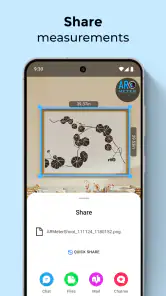
AR Meter: Tape Measure Camera is a measurement app that uses your phone’s camera and augmented reality to estimate distances, lengths, heights, and other dimensions. After scanning a surface, you place virtual points over the object or area you want to measure, and the app calculates the result on screen. It is designed for quick everyday estimates rather than professional surveying.
Pros
- Quick measurements without carrying a physical tape measure.
- Camera-based interface is simple for casual home projects.
- Useful for estimating length
- height
- and distance on the go.
- Convenient for checking furniture fit before moving items.
- Lightweight app that can be handy during shopping or DIY tasks.
Cons
- Accuracy can vary with lighting
- angles
- and camera quality.
- Requires camera access and a compatible device with AR support.
- Less reliable for precise professional construction measurements.
- Some features may be limited behind ads or in-app purchases.
- Measuring unfamiliar surfaces may require practice for consistent results.
- Category
- Tools
- Version
- 4.0.8