Pixelup - AI Photo Enhancer
- 4.52K
- 3.9
- Installs
- 10.00M
- Price
- Free

Screenshots
Analysis by Reviewed
I keep coming back to Pixelup - AI Photo Enhancer for one particular job: giving an old, soft, or slightly damaged photo a cleaner appearance without asking me to understand professional editing tools. It is a free photography app from Codeway Dijital, available for Everyone, and its main appeal is simple enough to explain to a friend: choose a picture, let the app process it, and see whether the important details look more defined.
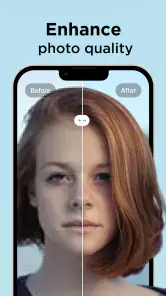
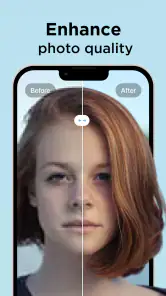
That sounds modest, but it matters in everyday use. Many photos that feel unusable are not completely ruined; they are just low-resolution, blurred, faded, or difficult to see on a modern screen. Pixelup is aimed at that gap. It can unblur photos, sharpen and enhance their visual quality, and colorize black-and-white images. I found the experience most convincing when I treated it as a rescue tool rather than a replacement for a proper camera or editing suite.
What Pixelup actually improves in a photo
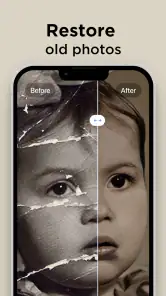
The strongest reason to open this app is restoration. A portrait saved from an old phone, a family picture copied through several messaging apps, or a cropped image from a larger photo may still contain the memory you want, but its face and edges can look muddy. Pixelup tries to rebuild a clearer-looking result from that limited source. The important word is “tries”: enhancement can make an image more presentable, but it cannot recover every detail that was never captured.
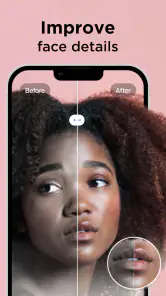
In my experience, the effect is easiest to appreciate on subjects with recognizable structure. Faces, hair outlines, clothing edges, and strong contrasts give the processing something useful to work with. A small portrait may come back looking more defined, while a busy background can remain soft or acquire an artificial texture. I would not judge the app by expecting a tiny image to become a genuinely high-resolution original. I judge it by asking whether the result is easier to view, share, or print casually than the starting file.
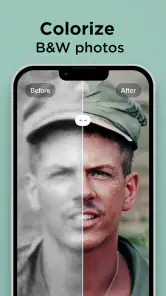
The colorization option serves a different purpose. Turning an old black-and-white photograph into a colored version can make it feel more immediate, especially when the original has personal value. I see this as an interpretation, not historical proof. Skin, fabric, walls, and outdoor scenes may receive plausible colors, but the app cannot know the exact shades that existed when the photograph was taken. That makes the feature enjoyable for exploring a family archive, while the untouched original should remain the version you preserve as the reference.
The best results come from asking for a believable improvement, not a miracle. If the source is only mildly blurry, sharpening can make it more comfortable to look at. If the subject is almost impossible to distinguish, the app may produce a cleaner-looking guess rather than a faithful recovery. That distinction is important when the image has emotional or documentary importance.
My practical workflow for old and blurry pictures
I would begin with the least edited copy of the photo I can find. Sending a screenshot of a compressed image, then enhancing it and sharing it again, gives the app less useful information than starting with the original file. If the picture came from a chat, a cloud backup, or an old device, I would first look for the largest available version. This small preparation step often matters more than repeatedly applying an enhancement effect.
Next, I would inspect the subject before processing. A centered face with reasonable contrast is a sensible first test. A dark group photo, a picture covered by glare, or a heavily cropped image is a harder challenge. I also keep the original separate so that I can compare the result honestly. Without that comparison, a sharper image can feel automatically better even when facial details have changed in ways I would not want.
For a black-and-white image, I would save the colorized version as an additional interpretation rather than overwriting the monochrome file. This is a useful habit for family albums: one copy preserves the authentic appearance, while another lets relatives imagine the scene in a more contemporary way. If the result looks too strong or the colors do not suit the mood, I would return to the original instead of treating the generated version as definitive.
Pixelup is particularly convenient when I want a quick before-and-after check on a phone. I do not need to learn layers, masks, curves, or manual sharpening controls just to see whether an old portrait can be improved. That simplicity is the core of the app. It also explains its limits: people who want precise control over every part of an image will eventually find the process too automatic.
A realistic family-photo scenario
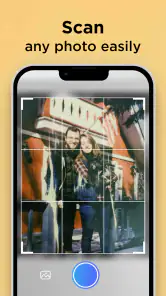
Imagine finding a small photograph of a grandparent in a drawer. The paper has aged, the digital copy is not very large, and the face is recognizable but soft. I would scan or photograph it as cleanly as possible, select that file in Pixelup, and use the enhancement result as a shareable version for family members. If the black-and-white image invites curiosity, I would also test colorization, but I would label it mentally as an artistic reconstruction.
The useful outcome is not necessarily a poster-quality enlargement. It may simply be a portrait that relatives can see more comfortably on a phone, or a version that works better in a digital album. This is where the app feels more valuable than a standard filter collection. Filters change mood; Pixelup is aimed at making an imperfect source feel more usable.
There is another everyday case: an old profile picture or travel snapshot that became soft after cropping. I might try enhancement before discarding it. The result could be good enough for a private album or a social post, particularly if the subject is clear and the background is not the focus. I would still avoid using an altered face for identification, official paperwork, or any situation where accuracy matters more than appearance.
Where the automatic approach helps, and where it gets in the way
The obvious advantage is speed. Traditional photo editors can sharpen an image, adjust contrast, reduce noise, and add color, but doing those steps well takes patience. Pixelup places the main decision in a much simpler workflow: select the image and evaluate the processed version. For someone who wants to rescue a handful of personal pictures, that is far less intimidating than opening a desktop editor with a crowded interface.
It is also more focused than a general social camera app. A typical filter app is built around effects that make a good image look different. Pixelup makes more sense when the starting image is the problem. That difference changes how I use it. I am not browsing effects for entertainment; I am testing whether one damaged or low-quality photo can become clearer enough to keep.
Still, automatic enhancement has a trade-off: convenience replaces control. If the algorithm interprets a small eye, strand of hair, or patterned shirt incorrectly, I cannot rely on manual adjustment to correct every decision inside the restoration process. The finished image may look polished at a glance while containing details that were inferred rather than recovered. For casual sharing, that may be acceptable. For archival work, I would combine the app with careful scanning and keep the untouched source.
Another limitation is that sharpening cannot solve every kind of blur. Motion blur, severe focus failure, reflections, and missing exposure information are different problems. An enhanced result may have stronger edges without becoming genuinely clearer. I recommend checking skin texture, lettering, and fine lines rather than judging only the overall crispness. If those areas turn strange or overly smooth, the processing has probably reached the limit of what the source can support.
The app is free to install, but it includes in-app purchases ranging from $0.49 to $69.99 per item. That makes it sensible to inspect the available workflow and any purchase prompt carefully before committing to repeated use. I would first test it on a few representative photos, decide whether the results are worth keeping, and only then consider paying for anything offered. A person with a large archive should think about the total cost rather than focusing on the smallest individual amount.
Pixelup runs on Android from version 8.0 onward, and the current version is 2.0.0. That broad compatibility is helpful if the old phone holding your family pictures is not a recent model. Even so, the quality of the source file remains more important than the age of the device. A newer phone cannot recreate detail that was lost before the image reached the app.
Questions I would ask before relying on it
Will it make every blurry photo sharp? No, and I would be suspicious of any tool that promised that. It can improve the appearance of suitable images, particularly portraits and pictures with clear edges, but extreme blur may lead to invented-looking detail. I use the result as an enhancement, not as evidence that the original contained information I can now trust.
Is it suitable for restoring a whole archive? It can be useful for selecting highlights, but I would not process everything automatically without reviewing the outputs. Old photos vary widely in exposure, damage, composition, and resolution. A small batch lets me learn which types of pictures respond well before spending time or money on the rest.
Does colorization reveal the original colors? No. It creates a visually plausible colored interpretation. I enjoy that for storytelling and family sharing, but I keep the black-and-white original beside it. If the exact color of an object matters, I would not use the colorized result as a factual record.
Can it replace a full editor? For quick restoration, it may be easier than one. For selective retouching, precise cropping, typography, layered compositions, or detailed correction, a conventional editor remains the better choice. Pixelup is strongest when I want the app to handle the difficult-looking first pass and I do not need to control every parameter.
Is it a good choice for professional or sensitive images? I would be cautious. A generated enhancement can alter small details, and that is not appropriate when authenticity is central. For a sentimental portrait, social post, or personal album, the convenience is attractive. For evidence, identity verification, journalism, or formal archival work, I would use a more controlled process and preserve the original file.
Who gets the most value from this photography app
I think Pixelup suits people who have a phone full of older pictures they rarely open because the quality is disappointing. It is also a good fit for relatives who want to share family memories without learning complicated editing software. The interface concept is approachable: the app focuses attention on the image and the result instead of making the user build an editing recipe from scratch.
It may also help someone preparing a small digital album. Rather than applying the same filter to every picture, I would choose only the images that need rescue: a soft portrait, a compressed travel shot, or a faded monochrome photo. This selective approach produces a more natural album and avoids turning already-clear images into overprocessed ones.
People who need exact control should skip it as their main editor. Photographers who already work comfortably with manual sharpening and color tools may prefer their existing workflow. The same is true for anyone who dislikes algorithmic interpretation of faces or wants every restored detail to be traceable to the source. Pixelup saves effort, but the price of that effort-saving is less control over how the image is reconstructed.
Its reception suggests that many people find the idea useful: the app has an average rating of 3.9 from over 103 thousand ratings, with more than 4.5 thousand written reviews and over 10 million installs. I read those figures as evidence of broad interest, not a guarantee that every photo will work well. Restoration apps are unusually dependent on the material each person brings to them, so my own test images would matter more than popularity alone.
My final take after using it as a rescue tool
Pixelup is most convincing when I use it narrowly and realistically. Give it a meaningful but imperfect photo, compare the output with the original, and keep the version that improves the memory without pretending to be the original. Its ability to enhance blurry pictures and colorize black-and-white images makes it more purposeful than a standard filter app, especially for family photos that are worth saving but not worth learning a full editing program for.
I would recommend trying the free app if you regularly encounter low-quality portraits or old monochrome pictures. Start with a copy, test several different image types, and inspect faces and fine details at a closer view. Be prepared for some results to look artificial, and remember that the in-app purchase range can become significant if you use the service extensively.
For me, the deciding question is not whether Pixelup can create a perfect image. It cannot. The better question is whether it can turn a forgotten, difficult-to-see picture into one I feel comfortable sharing and keeping in an album. When the source has enough structure, the answer can be yes. When accuracy, manual control, or archival fidelity matters most, I would choose a traditional editing workflow instead.
Pros
- Enhances blurry
- low-resolution photos with a simple tap.
- Colorizes black-and-white images with generally natural-looking results.
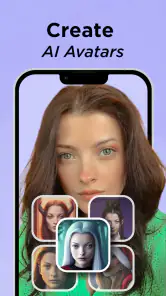
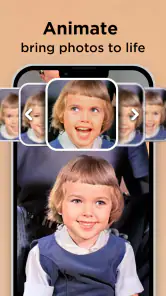
- Includes useful tools for restoring and animating old portraits.
- Easy interface suitable for users without photo-editing experience.
- Processes common photo formats quickly on most modern devices.
Cons
- Many advanced enhancements require a paid subscription or credits.
- AI results can look artificial on faces with heavy blur or damage.
- The free version may add watermarks or limit export options.
- Animated photo effects are not always smooth or convincing.
- Frequent processing can consume storage
- data
- and battery resources.

- Category
- Photography
- Version
- 2.0.0