Nixplay App
- 2.18K
- 2.2
- Installs
- 1.00M
- Price
- Free

Screenshots
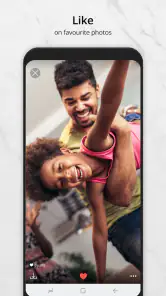
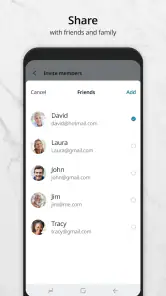
Analysis by Reviewed
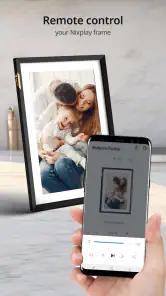
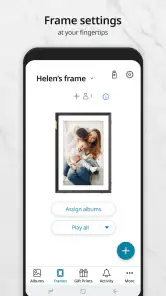
I found Nixplay App most useful when I stopped thinking of it as a general photo editor and treated it as a simple bridge between my phone and a compatible Nixplay WiFi Frame. Its purpose is focused: choose pictures on a mobile device and send them to a frame so they can appear there without the usual memory-card routine. For a family home, a reception area, or anyone who wants changing pictures on display, that focus makes sense.
At the same time, this is not the right photography app for every phone owner. It is a free app in the Photography category, developed by Nixplay, and it depends on having the company’s frame as the destination. Without that hardware, much of its value disappears. My overall impression is that the experience is easiest when the frame is already ready to use and the user approaches the app with a small, organized photo selection rather than an entire camera roll.
What the first-time experience is really like
The first thing I would tell a new user is to set expectations correctly. Nixplay App is not designed to replace the camera app, a full photo library, or a creative editing suite. Its job is more practical: help move selected images from a mobile device to a Nixplay display. That makes the app feel narrower than many photography downloads, but the narrow purpose is also its main advantage.
The app has been available since Aug 13, 2015, and the current version is 3.74.2. It supports Android 7.0 and later, which is useful for people using older phones, although the quality of the overall experience will still depend on the phone, the network, and the frame being used. The age rating is Everyone, so the basic concept is approachable for households where several people may contribute pictures.
Its popularity is considerable, with over one million installs, but the average rating is 2.2 from around four thousand ratings. I would not ignore that signal. It suggests that the app may work well for the central task while still frustrating some users during setup, connection, account handling, or content delivery. In my view, this is the kind of app where the surrounding hardware and network matter almost as much as the app itself.
The most useful mental model is a shared digital picture pipeline. Your phone is where the pictures begin, the app is the handoff point, and the WiFi Frame is where the result is meant to be seen. Once I viewed it that way, I found it easier to judge the app fairly. It does not need dozens of creative tools; it needs to make that handoff understandable and dependable.
Before installing, check the one important dependency
Before spending time organizing photos, make sure you actually have access to a Nixplay WiFi Frame that you intend to use. This is the first practical question a new user should answer. If your goal is simply to back up pictures, share them in a chat, or create an album on your phone, a cloud gallery or messaging app will usually be a better fit.
If the frame belongs to someone else, clarify who controls it and who is expected to send pictures. That small conversation can prevent confusion later. A household may have one person managing the display, while relatives contribute images from their own phones. In that situation, deciding who handles the frame and who handles photo selection makes the experience much smoother.
The app itself is free to install, with in-app purchases ranging from $1.99 to $34.99 per item. I would keep that in mind before treating every available option as part of the basic experience. The core reason to install it is the frame connection, not the promise of a complete photography ecosystem.
How I would approach the first setup
I recommend doing the first setup when you have a few uninterrupted minutes and both the phone and frame are available. Starting with a large batch of pictures while rushing through menus makes it harder to tell whether a problem comes from the selected images, the account, the frame, or the connection. A small test group gives you a much clearer starting point.
Begin by installing the app and opening it with the frame nearby. Read each screen rather than tapping through automatically, especially when the app asks you to identify the display or continue with an account-related step. The exact wording can change between versions, but the principle remains the same: the app needs to know which Nixplay destination should receive the photos.
For the first attempt, I would choose two or three pictures with different shapes. A landscape image helps you see how a typical phone photo appears, while a portrait image reveals whether the framing is comfortable for your display. A close-up face, a group picture, and a room scene are useful test subjects because they expose different cropping problems.
One of the less obvious preparation tips is to avoid judging the app with your most important family album. Use copies or less critical images first. This is not because the app is a photo editor or because the original files are necessarily changed; it is simply good practice whenever a new workflow involves selecting and sending personal media. You can learn the process without feeling pressure to get the first transfer perfect.
Another useful habit is to clean up the selection before sending it. A frame is viewed from across a room, so near-duplicates, accidental screenshots, dark indoor shots, and pictures with distracting edges are more noticeable than they are on a phone. The best slideshow is rarely the largest one. A smaller group with a clear visual rhythm usually feels more intentional.
The first successful action should be deliberately small
For me, the first meaningful success would be seeing one chosen photograph appear on the intended WiFi Frame. I would not begin by trying to fill the display with years of memories. I would select a single image, send it, and wait long enough to confirm the result. That simple test answers the questions that matter most: is the correct frame connected, did the photo leave the phone, and does the image look acceptable at display size?
Once that first image works, add a short sequence rather than everything at once. This creates a practical baseline. If the first picture appears but a later batch does not, you know the basic connection is functioning and can focus on the size or selection of the new group. If nothing appears, you have not wasted time sorting an entire library.
A realistic everyday example would be a parent preparing a small set of school-event photos for grandparents. I would select a few clear images, send them to the family frame, and then ask the people in the room whether faces are visible and whether the order feels natural. That feedback is more useful than inspecting thumbnails on a phone. The frame is a shared display, so the final judgment should happen where the audience will actually see it.
This workflow also reveals a trade-off that is easy to miss: convenience can encourage over-sharing. Because sending a picture may feel quick, it is tempting to add every image from an event. I prefer treating the frame as a curated space. A short, refreshed collection keeps the display interesting and reduces the chance that an unsuitable or repetitive photo remains visible.
Photo shape matters more than it does on a phone
Phone screens are forgiving because you can pinch, rotate, and scroll. A frame is less flexible from the viewer’s perspective. Portrait photos, wide landscapes, group shots, and images with important details near the edge may not all look equally comfortable. I would check faces, signs, pets, and other essential subjects after the first transfer instead of assuming that a thumbnail tells the whole story.
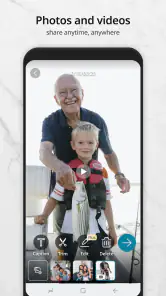
This is one reason I would not use Nixplay App as my only place to prepare photographs. If an image needs cropping, brightness correction, or removal of an unwanted object, I would make that adjustment in the phone’s usual photo tool first and then send the finished version. The Nixplay workflow is stronger as a delivery step than as a creative editing step.
That separation is actually helpful. It keeps the display app focused and lets you use the editor you already understand. The downside is that it adds one extra decision before sending: is this picture ready for a large, shared screen? For family photos, that check can prevent awkward crops and make the result look much more polished.
Where new users may become confused
The most likely confusion is assuming that installing the app automatically means a frame is ready to receive pictures. It does not make the hardware relationship disappear. The phone, the Nixplay account or destination, and the WiFi Frame all need to line up. When something does not appear as expected, I would first confirm the selected destination rather than repeatedly tapping send.
A second source of uncertainty is the difference between choosing a picture and confirming that it has reached the display. A photo can look selected inside the app without being visible in the room yet. I would use the frame itself as the final authority. If the image is not there, keep troubleshooting the handoff instead of assuming the thumbnail represents a completed transfer.
Network conditions can also make the experience feel inconsistent. A phone may have internet access while the frame is unavailable, or the two devices may be operating under different connection circumstances. I would test again with both devices in their normal locations and avoid making several changes at once. Changing the selected photo, destination, and network simultaneously makes the cause of a problem much harder to identify.
Another practical issue is account ownership. If several relatives send pictures, they should understand whether they are contributing to one shared display or setting up separate arrangements. A user who expects a private album may be surprised if the chosen frame is visible to everyone nearby. The app’s value is partly social, so agreeing on the audience before sharing is sensible.
Because the rating is only 2.2, I would approach support and troubleshooting with patience rather than assuming every step will be perfectly obvious. That rating does not tell me that the central idea is unusable, but it does warn me that setup friction may be part of the experience for some people. I would keep the first session simple, record which frame is being targeted, and avoid sending a large batch until the basic path has worked.
How it compares with ordinary photo-sharing alternatives
Compared with a messaging app, Nixplay App is better when the desired result is a persistent display in a room. A message is excellent for conversation and immediate reactions, but it can disappear into a busy thread. A frame creates a visible destination that people can enjoy without opening a phone. The trade-off is that Nixplay requires compatible hardware, while messaging works with almost anyone who has a phone.
Compared with a standard cloud gallery, the Nixplay approach is more direct for passive viewing. A cloud album is usually better for searching, sorting, commenting, and keeping a broad archive. Nixplay makes more sense when the goal is to put a selected set of memories in front of people who may not want to browse an app. If you need deep organization or long-term file management, I would keep the cloud gallery and use this app only for the display collection.
Compared with transferring pictures through a memory card or cable, the app is more convenient for ongoing updates. You can choose new images from a phone instead of physically moving storage between devices. The trade-off is dependency: the wireless route introduces account and network steps that a direct transfer may avoid. For someone who enjoys a one-time manual setup and rarely changes the display, traditional transfer can still feel simpler.
Compared with a general smart-display ecosystem, Nixplay App has a clearer relationship with its own frame. That can be reassuring if you already own the hardware, but limiting if your household uses displays from several brands. I would choose it when the Nixplay frame is the center of the plan, not when I am looking for one universal photo controller.
Three workflows that make the app more useful
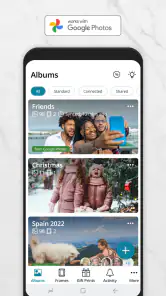
Use a “display-ready” album on the phone. Instead of selecting from the full camera roll every time, I would keep a small album containing pictures that have already passed a quick quality check. This reduces accidental screenshots, repeated shots, and images with poor framing. It also makes sending new material a calmer task for relatives who are not comfortable navigating large photo libraries.
Prepare for the viewer’s distance. I would prioritize images with clear subjects and enough visual space around faces. A photo that looks beautiful when held close may lose its impact across a room. This is especially important for group pictures, where a tight crop can make one person disappear. The app’s value is not just moving pixels; it is helping a picture work as a room display.
Test a small batch after any major change. If I switch phones, change the household’s arrangement, or begin sending to a different frame, I would repeat the single-photo test before restoring a larger collection. This is a practical diagnostic habit. It separates a new setup problem from a problem with a particular image and prevents a long queue of uncertain transfers.
These workflows also explain why I would not recommend sending every photo immediately after an event. First, remove duplicates. Then correct the few images that need editing. Next, select a short sequence and verify it on the frame. Only after that would I expand the collection. The extra minute or two of preparation has a visible effect on the final display.
Who will enjoy it, and who should skip it
I think Nixplay App is a good match for people who already own a Nixplay WiFi Frame and want a straightforward way to refresh it from a phone. It is especially suitable for families sharing memories with relatives, households that want a changing display in a common room, and small spaces where a dedicated frame is more convenient than asking visitors to browse a phone.
It can also suit users who prefer a controlled selection rather than an always-growing camera roll. The app encourages a useful boundary between private phone photography and public or semi-public display. That distinction matters when a frame sits in a living room, office, or reception area.
I would skip it if you do not have the compatible frame, if you mainly want editing tools, or if your priority is a searchable photo archive. I would also hesitate if you dislike account-based setup and wireless troubleshooting. In those cases, a normal gallery, a cloud album, or a direct storage method may provide less friction and more flexibility.
People who expect instant results from every transfer should be prepared for a little patience. The app’s central action is simple, but the complete journey includes selecting suitable images, identifying the correct display, and checking the physical result. That is not a deal-breaker for me, yet it is important to understand before relying on it for a time-sensitive presentation.
The next step after the first photo works
Once the first image appears correctly, I would create a repeatable routine rather than treating the app as a one-off experiment. After a birthday, trip, or family visit, I would make a small phone album, remove weak or duplicate shots, edit anything that needs attention, and send only the strongest images. Then I would look at the frame from the normal viewing position.
If several people contribute, agree on a simple rule for selection and timing. One person can review the final group, or contributors can take turns. This avoids a common shared-device problem where everyone sends pictures but nobody checks how the complete collection feels. A frame works best when its content is considered as a whole, not just as isolated uploads.
I would also keep expectations realistic about paid options. The app is free to download, but individual in-app purchases can cost from $1.99 to $34.99. Before paying for anything, I would decide whether the extra option solves a problem I actually have. The basic test is straightforward: can I connect the intended frame and send the kind of photos I want to display? If yes, then I can evaluate additional choices based on need rather than curiosity.
My final view is cautiously positive. Nixplay App is most convincing when you already have the matching frame and want a dedicated route from phone photos to a shared display. It is not a universal photo manager, and the low average rating means I would not promise a frictionless setup to every newcomer. Still, with a small first test, careful photo selection, and a clear understanding of who controls the frame, it can turn a static screen into a simple, personal part of the home.
For a first-time user, my recommendation is to begin with one meaningful photograph, confirm that it reaches the correct display, and only then build a larger collection. That approach gives you a quick answer about whether the app fits your household while keeping the process manageable. If the frame is the experience you want, this focused photography tool is worth trying; if the frame is not part of your plan, I would choose a more flexible alternative instead.
Pros
- Simple setup for compatible digital photo frames
- Automatic photo syncing keeps displays updated
- Supports shared albums from multiple contributors
- Scheduled playlists make content easy to manage
- Useful remote control for changing displayed photos
Cons
- Many features require an active Nixplay subscription
- Frame compatibility is limited to supported Nixplay models
- Large photo libraries may take time to upload and sync
- Some users may find account setup unnecessarily involved
- Performance can depend heavily on Wi-Fi quality

- Category
- Photography
- Version
- 3.74.2