Native Camera
- 57.00
- 4.0
- Installs
- 10.00K
- Price
- Free
Screenshots
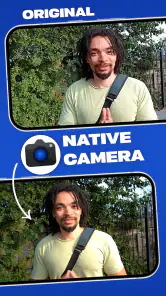
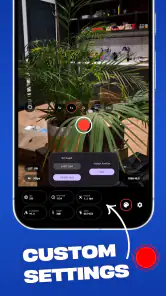
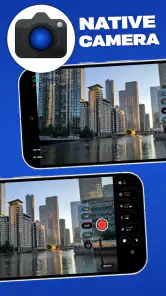
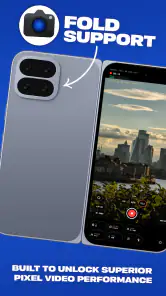
Analysis by Reviewed
I spent time with Native Camera as a photography app from N8 Media, approaching it less like a novelty filter tool and more like a way to get closer to the camera hardware already inside a phone. That distinction matters. The app is aimed at people who feel their standard camera interface hides useful controls, yet it still needs to remain understandable when you are trying to capture something quickly.
My overall impression is positive but specific: this is most interesting for Android users who want a more direct camera experience and are willing to explore their device rather than expect a polished, heavily guided editor. It is free to install, rated for Everyone, and its current version is 1.3.02. The app has reached over ten thousand installs and holds a 4.0 average from around 680 ratings, which suggests a useful but not universally perfect experience.
How the camera feels to use in everyday situations
Readability and navigation
The first thing I noticed is that a camera app has to solve two problems at once. It must expose controls for people who want more control, while keeping the viewfinder calm enough for someone who simply wants to point and shoot. Native Camera’s appeal comes from that direct relationship with the phone’s camera rather than from a large collection of decorative effects.
For me, the best way to approach it is to spend a few minutes learning where the important controls live before using it at an event or on a walk. A camera interface is rarely forgiving when you are searching through buttons with one hand and trying to keep a subject in frame with the other. That is especially true for users with limited vision, reduced dexterity, or difficulty remembering the position of changing controls.
I would not judge the app only by how quickly a first photo is taken. The more useful question is whether the layout lets you build a repeatable routine. If you can identify the shutter, switch between camera views, and reach the controls you use most without hesitation, the app becomes much more practical. If every adjustment requires stopping to inspect the screen, the extra control can become a burden instead of an advantage.
Text and icons also matter more in photography than they might in a casual utility. A small control can be acceptable when browsing settings at home, but it becomes difficult outdoors, in dim rooms, or while wearing glasses that are not optimized for close viewing. I found that a deliberate setup pays off: choose the controls you actually need, avoid changing several things at once, and take a test image before an important moment.
That workflow is useful for anyone, but it can make a particular difference for people who find dense interfaces tiring. Rather than treating every available option as something that must be mastered, I recommend creating a small mental map. Start with framing, shutter access, camera switching, and review. Only then add more advanced adjustments if they genuinely improve your photos.
Motor and sensory considerations
Photography often looks simple from the outside, yet it combines several physical tasks. You may need to hold the phone steady, tap a small target, adjust your grip, and react to a moving subject. An app cannot remove all of those demands, but a direct camera layout can either reduce or increase the amount of effort involved.
For users with limited fine motor control, the main trade-off is control versus precision. More visible controls can reduce the number of menus you need to open, but they can also create more small targets around the viewfinder. I found that using two hands when possible is more comfortable than trying to operate everything with one thumb. It also makes it easier to keep the frame stable while changing a setting.
People with light sensitivity or visual fatigue should test the app in the conditions where they expect to use it. A bright viewfinder can be uncomfortable in a dark room, while a dim screen can make controls hard to distinguish outside. I would not assume that a camera app will automatically suit every sensory preference simply because it is straightforward. The phone’s own display settings, text scaling, contrast choices, and brightness controls remain important parts of the experience.
Audio feedback is another area where expectations need to stay realistic. I would not choose Native Camera on the assumption that every action will be announced or that the app will replace a dedicated accessibility tool. If you rely heavily on spoken guidance, large touch targets, or a completely hands-free workflow, the usual built-in camera may be the safer first choice because it is already familiar and integrated with the phone.
On the other hand, people who prefer visual control may appreciate the app’s purpose. It is not trying to turn photography into an automatic social-media process. That can be helpful for someone who wants to inspect the scene, make a considered adjustment, and keep the image closer to the phone’s native camera capabilities.
Situational access: where it helps and where it does not
A realistic example is taking photos at a family gathering. The room may be unevenly lit, people may move unpredictably, and you may not have time to explore a new control for every shot. I would prepare by opening Native Camera before the gathering, checking the framing in the actual room, and taking a few trial images of a stationary object. That lets me discover whether the interface feels comfortable before faces and moments start moving.
For travel, the app can make sense when you want a camera-first experience without filling your workflow with editing tools. I like the idea of using it for architecture, street details, food, or quick reference photos where the important thing is getting a clean image and returning to the moment. A traveler who has difficulty with complicated menus may benefit from limiting the process to one familiar sequence: open, frame, capture, review.
It is also potentially useful for documenting objects at home. Someone cataloguing books, recording the condition of furniture, or photographing craft work may prefer the directness of a camera-focused app over a social camera that immediately encourages filters and sharing. In that situation, consistency is more valuable than a long list of creative effects. Keeping the phone at a similar distance and using the same basic routine can make the resulting images easier to compare.
For low-light scenes, I would be more cautious. A camera app can expose access to the phone’s capabilities, but the final result still depends on the device, its sensors, and the surrounding light. Native Camera is not a substitute for a tripod, a brighter scene, or a phone with stronger night photography hardware. If your priority is automatic night processing, a manufacturer camera or computational photography app may produce more dependable results with less effort.
Moving subjects create a similar choice. A direct interface may be satisfying when you want to decide how the shot should be made, but automatic systems can be better when a child, pet, or athlete will not pause. I would use Native Camera for deliberate compositions and the familiar default camera for moments where speed and prediction matter more than control.
Useful habits that make the app easier to live with
The first non-obvious tip is to separate learning from shooting. Do not test every control while an important subject is in front of you. Photograph a table, a window, or a nearby object and compare how the images look after small changes. This gives you a low-pressure way to learn what the app actually changes on your phone.
The second is to build a physical routine around the screen. If tapping is difficult, hold the phone in the position that gives your most stable grip before opening the camera. If you tend to lose track of controls visually, keep the phone orientation consistent and use the same hand for the same action. This sounds minor, but repeatability reduces the mental load of photographing under pressure.
The third is to review accessibility at the system level rather than expecting the camera alone to solve it. Increase display size or brightness when that helps, but remember that a larger interface can also reduce the visible area around the viewfinder. For some people, a moderate setting is better than the maximum because it keeps both the image and controls usable.
A fourth practical habit is to use the app as a capture tool, not necessarily as the entire photo workflow. If you prefer a different gallery, backup service, or editor, you can decide that after taking the image. This division is useful for people who become overwhelmed by apps that combine camera controls, editing, social features, and sharing in one crowded screen.
Remaining barriers and trade-offs
The biggest barrier is that direct access to camera functions does not automatically mean simple access. A person who wants more control may find the app appealing, while someone who needs strong guidance may find the same openness demanding. The product’s purpose is better suited to exploration than to a completely frictionless, one-button experience.
There is also a device-dependence issue. Android phones do not all expose camera hardware in exactly the same way, so the usefulness of a camera app can vary with the phone itself. I would avoid promising myself identical results across devices. If a particular feature is essential to your work or daily life, test it on the phone you actually use rather than relying on another person’s experience.
The free entry point is helpful, but the app includes in-app purchases ranging from $9.99 to $49.99 per item. That makes it worth thinking about your needs before paying for anything. I would first establish whether the basic camera experience solves a real problem for me, then decide whether an optional purchase offers enough value. People on a tight budget, or users who only take occasional snapshots, may be better served by the camera already included with their phone.
Another limitation is the learning curve created by expectations. The store summary presents the app as a way to access more of what a camera can do, but that does not mean every user will want to see more controls. A photographer who enjoys manual experimentation may see possibilities; a user who mainly wants reliable automatic exposure may see extra decisions. Neither reaction is wrong. They simply point to different priorities.
I would also skip it if you need a camera designed around extensive spoken feedback, specialized hands-free operation, or a carefully guided accessibility workflow. Native Camera may still be usable in those circumstances, but I would not make it my first recommendation without testing it personally. A familiar built-in camera, a camera designed specifically for your access needs, or a simpler interface could be a better fit.
How it compares with the usual camera choices
Compared with the default phone camera, Native Camera is attractive when the default app feels too restrictive or hides the controls you want. The default option usually wins for immediate familiarity, fast access, and confidence that it will behave as expected on that particular phone. If you regularly hand your phone to another person to take a picture, that familiarity can be more important than additional control.
Compared with creative camera apps, Native Camera feels more focused on the act of capturing than on turning the image into a finished social post. That is a strength for documentation and deliberate photography. It is less compelling if your main reason for opening a camera is to apply effects, decorate images, or share them immediately.
Compared with advanced manual camera tools, it may be easier to approach because its identity is tied to the phone’s native camera capabilities rather than to a specialist photography lesson. Still, serious photographers should judge the exact controls they need, not the promise of expanded access. If your work depends on a particular manual setting, file format, or professional workflow, confirm that it fits before replacing a tool you already trust.
The developer, N8 Media, has positioned the app in a useful middle ground: more intentional than a basic point-and-shoot experience, but not something I would automatically recommend to every photographer. Its value is strongest when the default camera is getting in the way and you want to investigate what your phone can offer.
My inclusive verdict
After using it with accessibility and real-world context in mind, I see Native Camera as a worthwhile free experiment for Android users who want a more direct photography interface. It can support different abilities when the user takes time to tailor the phone’s display, chooses a stable grip, and builds a small, repeatable shooting routine. Those benefits are practical rather than magical: the app can make camera controls feel more available, but it cannot remove the physical and sensory demands of holding and operating a phone.
The Everyone age rating makes it approachable for a broad audience, including families who want to explore photography together. Its 1.3.02 release is the version I would look for when installing, and the overall rating of 4.0 gives me a reasonable expectation of a useful experience with some device-specific or usability differences. I would begin with the free version and avoid paying until I knew exactly which part of my workflow needed improvement.
My recommendation is therefore conditional but clear. Choose it if you enjoy learning your camera, want fewer distractions from editing and sharing, or feel that the standard camera does not expose enough of your phone’s photographic potential. Stay with the built-in camera if your priority is instant familiarity, dependable automatic results, or the strongest possible hands-free and guided experience.
The most inclusive choice is the one that reduces effort in your actual situation, not the one with the longest feature list. Native Camera earns a place on my shortlist because it invites a more direct relationship with the phone’s camera, while still leaving room for an honest test: check the controls in your lighting, try your usual grip, and see whether the extra access genuinely makes taking photos easier for you.
Pros
- Manual controls offer greater flexibility for experienced photographers.
- Quick access to the viewfinder makes spontaneous shots easy to capture.
- HDR mode helps balance bright skies and darker foregrounds.
- Grid and level guides support better composition and straight horizons.
- Photos can usually be saved and shared without requiring an account.
Cons
- Advanced features may vary significantly between Android and iOS devices.
- Low-light results depend heavily on the phone’s camera hardware.
- Manual settings can feel confusing for users who prefer automatic shooting.
- Some devices may limit resolution
- zoom
- or frame-rate options.
- The app may use considerable storage when saving high-resolution photos or videos.
- Category
- Photography
- Version
- 1.3.02