Game Booster VIP Lag Fix & GFX
- 238.00
- 4.4
- Installs
- 100.00K
- Price
- $0.49

Screenshots
Analysis by Reviewed
Game Booster VIP Lag Fix & GFX asks for a little trust from anyone hoping for smoother mobile play: it promises help with performance, and its name suggests tools that can affect how games look and feel. I’m cautious with any utility that sits alongside the games I use, so I’d treat it as an optional experiment rather than a guaranteed fix. The app is a paid Tools app from TOLAN, costs $0.49, and is rated Everyone. Its average rating is 4.4 from around 22,000 ratings, with over 100,000 installs; those figures suggest it has found an audience, but they don’t prove it will improve every phone.
Trust starts with a clear purpose
A game utility can be useful, but I don’t treat “booster” as a reason to grant access automatically. I’d first ask what I want to improve: visual quality, inconsistent frame delivery, or a game that feels sluggish. That gives me a practical standard for judging each option and helps avoid changing settings just because they are available. The app is most worth exploring when I can name a specific problem and compare the result in a familiar game.
There is also a difference between a tool’s intended role and what it can guarantee. A phone’s performance depends on its hardware, temperature, game, and other conditions, so a separate utility cannot make every demanding title behave identically on every device. I would approach its controls as experiments, not promises. That is especially important when a change might affect image quality or make the phone work harder.
What I would check before relying on it
My first step would be to read the app’s on-screen explanations and review any permission prompts before accepting them. I wouldn’t assume that a booster needs broad access just because it is intended for gaming. If a request is unclear or seems unrelated to the task I’m trying, I’d pause and decide whether I’m comfortable proceeding. That simple check matters more to me than a performance promise.
The useful question is not only whether a tool offers controls, but whether I can understand what each one changes and reverse it afterward. I’d try one adjustment at a time, then launch the same game under similar conditions. That makes it easier to spot whether the change helped, did nothing, or made the experience worse. It also avoids confusing a setting change with the effect of a freshly restarted phone or a cooler device.
Keep sensitive choices deliberate
Before using any tool that works alongside games, I make a habit of checking what information or access it asks for and what choices it presents. I don’t infer a privacy practice from the app’s name or its gaming purpose. If I’m not comfortable with a prompt, I can stop there rather than proceeding out of habit. That pause is useful whether I’m setting up a new utility or revisiting one after an update.
I also avoid entering personal details into a tool unless there is a clear reason to do so. For a performance test, the useful evidence is usually how the game behaves before and after a setting change, not a collection of unrelated account details. When an app presents choices, I read them rather than tapping through quickly. This keeps my decision grounded in what I can actually see, instead of assumptions about what may happen in the background.
More From Our News Desk

Weather by Xiaomi Review: Clear at a Glance, Less Clear Up Close

X Under Pressure: Can It Recover When Posting Goes Wrong?

Clash of Clans Is Won Between the Battles

Android Auto Makes the Case for Quieter Car Software

MobiOffice: Transforming Mobile Productivity with Seamless Integration

EA SPORTS FC™ Mobile Soccer: Redefining Mobile Sports Gaming
Boosting Your Game Experience
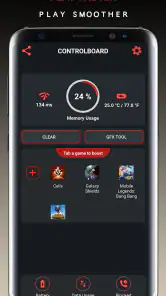
So, what’s the deal with Game Booster VIP Lag Fix & GFX? Essentially, it’s like a personal trainer for your phone, optimizing it to ensure that your games run smoother than butter. The app is designed to enhance your device’s performance by managing background apps, freeing up RAM, and boosting CPU efficiency. I mean, who wouldn’t want their game to load faster and play without those annoying lags?
Features That Pack a Punch
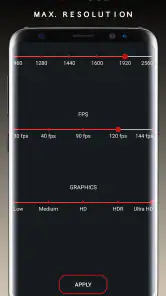
This app doesn’t just stop at boosting your games. It comes packed with a ton of features that make it a must-have. First up, the GFX tool. This nifty feature allows you to tweak the graphics settings of your games, unlocking higher resolutions and FPS settings that you might not even know your device could handle. Imagine playing your favorite shooter in crisp, clear detail, without dropping frames.
Another highlight is the Lag Fix feature. We’ve all experienced those frustrating moments when a game stutters at the worst possible time. With Game Booster VIP, the app dynamically adjusts system settings to minimize lag and smooth out gameplay. It feels like magic when you see the immediate improvements.
Choosing a sensible test
I’d start with the game that gives me the most trouble, not change settings across my whole library at once. Before adjusting graphics, I’d note how the game behaves on its usual settings: does it hitch during busy scenes, feel sluggish after a long session, or simply look less clear than I’d like? A targeted test helps match the GFX choices to the actual problem. Higher graphics options can be a trade-off, too: a sharper image is not automatically worth it if the phone then feels less responsive or becomes uncomfortable to hold.
For a realistic check, imagine opening a game during a short break, playing a few familiar minutes, and then comparing the same section after trying one change. I’d keep the session and surroundings as similar as possible and avoid judging from a single unusually smooth round. If performance varies from one attempt to the next, I’d return to the original settings before trying another adjustment. This cautious approach is more useful than treating a booster as a one-tap cure.
Where it fits among other options
Compared with the built-in game or battery controls already on many phones, a separate booster may be appealing if you want gaming-oriented adjustments collected in one place. But built-in controls are often the simpler starting point: they avoid adding another app to your routine, and they may be enough for someone who only wants to close distractions or choose a basic performance mode. I’d use this app when I specifically want to explore its GFX and lag-related options, not just because every game session needs “boosting.”
It also isn’t the right answer to every kind of lag. If a match stutters only when the connection is unstable, changing local graphics settings may not solve the real cause. If the phone is hot, low on storage, or struggling in several apps, I’d address that broader issue first rather than expect a game utility to overcome a hardware limit. Players who prefer stable, manufacturer-supported settings over experimenting with graphics controls may be happier sticking with their phone’s standard tools.
A practical session, not a lab test
In everyday use, I’d treat a short gaming break as a chance to check one concrete outcome. For example, if a shooter feels choppy in a crowded match, I’d first play a familiar section on the normal setup, then change one graphics option and repeat a similar section. I’d keep the phone’s position and session length roughly alike, because a warm device or a different scene can make an unfair comparison. The point is not to produce a perfect measurement; it is to decide whether the adjustment makes the game feel better for me.
If a change helps only briefly and the phone becomes warmer or less comfortable, I would not call that a win. I’d prefer a modest, steady experience over a flashy setting that makes controls feel less responsive. And if the problem appears only in online matches while other games run normally, I’d check the connection before blaming the device. That distinction can save time: not every hitch is a graphics problem, and a local tuning tool cannot repair an unreliable network.
Easy to Use, Hard to Beat
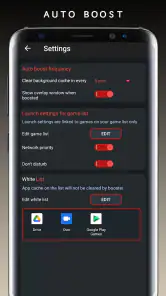
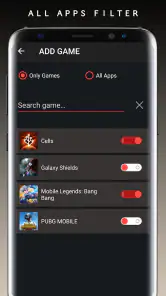
What I personally love about this app is its user-friendly interface. You don’t need to be a tech wizard to navigate through its settings. Everything is laid out in a straightforward manner, letting you optimize your device with just a few taps. Plus, it supports a wide range of games, which is a huge bonus if you have a diverse gaming library.
The app also provides a handy FPS monitor, so you can keep an eye on performance stats while you play. It’s like having your own little control center to ensure your gaming experience is top-notch.
A small routine that keeps the test honest
I’d use the FPS display as a comparison aid, not as a scorecard. Watch whether performance stays more consistent in a familiar scene, but also pay attention to touch response, visual clarity, and heat. A number that looks better is not much help if aiming feels less precise or the phone becomes uncomfortable. If the monitor itself distracts me, I’d turn my attention back to how the game actually feels instead of chasing a display reading.
For someone who plays several titles, I’d test each one separately rather than assume a setting that suits a slower game will suit a fast shooter. Keep a note of the original options, make one change, and revert if the result is worse. The app runs on Android 6.0 or later, and its current version is 209, so compatibility is worth checking before paying, especially on an older device.
Deciding whether the paid trial suits you
The $0.49 price is small, but I’d still decide what I expect to learn before installing. If I want to see whether a particular GFX adjustment makes one game more comfortable, I have a clear reason to try it. If I’m hoping it will solve every slow-loading title or make an older phone perform like a newer one, I’m setting myself up for disappointment. Its Everyone age rating makes it broadly suitable from a content perspective, but that does not replace a careful look at prompts or settings.
One useful approach is to treat the first session as a baseline: note the game, its usual visual settings, and the situation where it struggles. Then test a single option and decide whether the difference is noticeable enough to keep. If there is no clear benefit, I would undo the change and avoid spending more time chasing tiny variations. A paid utility is only worthwhile to me if it offers a practical improvement or a control I genuinely want to use.
Who I’d recommend it to
I’d consider it if I enjoy tuning game visuals, can tell when a familiar title feels inconsistent, and don’t mind testing settings carefully. The low one-time price makes that trial approachable, though paying for an app still doesn’t guarantee a change in gameplay. If I only play occasionally, already get steady performance, or don’t want to review prompts and compare settings, I’d skip it and stay with the phone’s built-in options.
I’d also be cautious if I use a phone that already struggles with heat or has little headroom for demanding games. In that situation, pushing graphics higher may work against the goal of smoother play. Someone who wants a hands-off experience may prefer the phone maker’s standard gaming mode, while a player who likes experimenting and can reverse settings may get more out of this app. The best fit is not simply “mobile gamer”; it is someone with a specific game and a willingness to judge the result carefully.
A cautious verdict
Released on May 15, 2020, Game Booster VIP has a substantial user base, but its usefulness still depends on the phone, game, and problem at hand. I’d install it only after checking the permissions and the choices shown inside, then make small, reversible adjustments and judge the result myself. For graphics experimentation it may be worth a look; for connection trouble or hardware limits, I’d choose a different fix. My recommendation is measured: try it when you have a specific game issue and a clear way to compare, but don’t expect a universal performance shortcut.
Overall, I see it as an optional tuning tool rather than something every player needs running before every session. The appeal is having game-focused graphics and performance choices to explore; the trade-off is that each change still needs your own judgment, and a better-looking setting may not feel better in play. If you’re willing to check the prompts, start conservatively, and return to the phone’s standard setup when results disappoint, it is a reasonable small-cost experiment. If you want a guaranteed fix with no testing, I’d pass.
Game Booster VIP Lag Fix & GFX Frequently Asked Questions
Who develops Game Booster VIP Lag Fix & GFX, and what kind of app is it?
Game Booster VIP Lag Fix & GFX is a Tools app developed by TOLAN. It is intended for people who want to adjust their mobile gaming experience rather than play a game within the app itself. Its short description is “Game Booster,” and its focus is low-latency, maximum-FPS, optimized mobile gaming. The app is rated Everyone.
How popular is Game Booster VIP Lag Fix & GFX?
The app has more than 100,000 installs and an average rating of 4.4 from around 22,000 ratings, with 238 written reviews. Those figures suggest that it has reached a substantial group of Android users, though individual results with a booster can vary by phone and game. Reading recent reviews can help you judge whether its approach suits your own setup.
Is Game Booster VIP Lag Fix & GFX free to download, and what does it cost?
Game Booster VIP Lag Fix & GFX is a paid Tools app from TOLAN, priced at $0.49. That makes it worth checking the purchase amount shown on your device’s app store before you proceed. The app’s focus is boosting mobile gaming, with a short description of “Game Booster” and a summary highlighting low latency, maximum FPS, and optimized gameplay.
What Android version do I need to run Game Booster VIP Lag Fix & GFX?
The app requires Android 6.0 or later, so it may suit a broad range of Android phones and tablets that meet that requirement. Before downloading, check your device’s Android version in its settings. Compatibility and the results you get can still depend on your device, so meeting the minimum requirement does not guarantee that every feature or game will perform identically.
When was Game Booster VIP Lag Fix & GFX released, and what is its current version?
Game Booster VIP Lag Fix & GFX was released on May 15, 2020, and its current version is 209. These details can help you identify the app and distinguish it from similarly named tools when browsing. Before installing, make sure the app you select is the TOLAN release, and check that your Android device meets its minimum operating-system requirement.
Pros
- Enhances device performance efficiently.
- User-friendly interface and design.
- Customizable settings for optimal gaming.
- Supports a wide range of games.
- Improves graphics quality effectively.
Cons
- May drain battery faster on some devices.
- Occasional lag spikes reported by users.
- Limited compatibility with older OS versions.
- Contains in-app advertisements.
- Some features require a VIP subscription.
- Category
- Tools
- Version
- 209