FixMyPics - Restore Old Photos
- 724.00
- 4.3
- Installs
- 1.00M
- Price
- Free
Screenshots
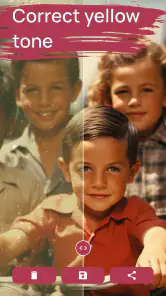
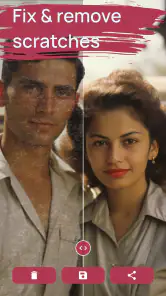
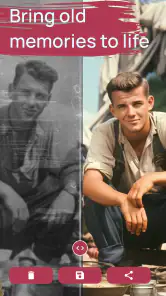
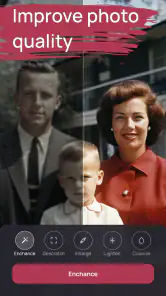
Analysis by Reviewed
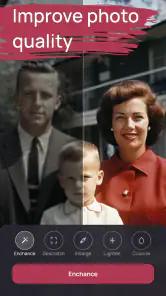
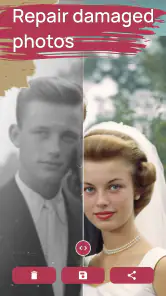
I tried FixMyPics - Restore Old Photos as a photography app for the very specific job of making aging pictures easier to view and share. Its focus is old-photo restoration, repair, and colorization, so it is aimed at people who have scanned family prints, received faded images through messaging apps, or simply want to give a damaged picture a cleaner presentation. I found the idea appealing because it addresses a problem that a normal camera editor does not really solve: an old photograph may need more than brightness, contrast, or a filter.
The app is made by Kallossoft and is free to install, with optional in-app purchases ranging from $0.99 to $79.99 per item. That combination matters when deciding whether it fits your needs. You can explore the app without paying upfront, but the presence of purchases means the practical value depends on how much restoration you want to do and which parts of the experience are available without an upgrade. I would treat it as a convenient first tool rather than assume that every restoration task is included at no cost.
How FixMyPics handles old images and everyday restoration
The most useful way to think about this app is as a quick restoration workspace rather than a complete replacement for professional photo editing. Its purpose is not simply to make a modern photo look stylish. It is built around old pictures and images that may have lost clarity, color, or visual impact over time. That narrower purpose gives it a more approachable starting point than a traditional editor filled with curves, masks, layers, and technical controls.
For a casual user, that simplicity can be a real advantage. If you have a photograph from a family album and do not know how to repair scratches or improve a washed-out appearance manually, an app centered on restoration removes much of the guesswork. I would be more comfortable handing this workflow to a relative who wants a result quickly than asking them to learn a desktop editing program first.
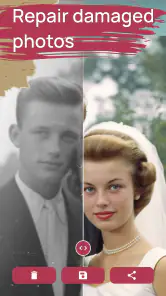
At the same time, restoration is not the same as recovering every original detail. When a face is heavily blurred, a corner is missing, or the source image is extremely small, an automated result may create a cleaner-looking interpretation rather than reproduce the exact historical photograph. That distinction is important. I would use the output for sharing, organizing memories, or making a print look more presentable, while keeping the untouched scan as the archival original.
A practical workflow for a family photograph
My preferred workflow would begin with a careful scan or a well-lit camera capture of the print. Before asking the app to improve anything, I would make sure the image is as straight as possible and that reflections are not covering important details. Restoration software can work with a poor source, but it cannot reliably recover information hidden by glare, severe motion blur, or a fold that obscures an eye.
After importing the picture, I would first judge the overall structure: are the faces recognizable, is the background important, and does the image have a sentimental reason to remain imperfect? That last question sounds minor, but aggressive cleanup can remove marks that are part of the photograph’s character. For a wedding portrait or an old school picture, I might prefer a restrained improvement. For a damaged snapshot intended for a digital family album, I might accept a stronger correction.
A useful habit is to compare the restored result with the original instead of looking only at the new version. This helps reveal changes that are easy to miss when the image initially appears sharper or more colorful. I would also save the source separately and label the restored copy clearly. That small bit of organization prevents a polished version from being mistaken for the untouched historical record later.
Colorization is helpful, but it changes the character of a picture
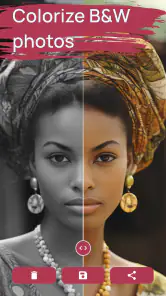
Colorizing a black-and-white image can make it feel more immediate, especially when the goal is to share it with younger family members who are used to seeing color photography. It can also make clothing, scenery, and facial expressions easier for some viewers to interpret. In my experience with this kind of tool, though, color should be treated as an artistic reconstruction, not automatically as fact.
Old photographs often contain clues about lighting, fabric, skin tone, and surroundings, but those clues do not guarantee a historically accurate palette. A colorized image may look convincing while still making uncertain choices. I would therefore keep both versions: the original monochrome image for authenticity and the colorized copy for a more accessible presentation. This is one of the strongest reasons to use the app as part of a workflow instead of allowing it to replace the original.
Colorization is also not equally valuable for every picture. A group portrait with clear subjects may benefit more than a dark landscape with very little tonal information. If the image is already expressive in black and white, adding color may distract from its mood. I would test the option on a duplicate and choose the version that preserves the memory best, not simply the one that looks more dramatic.
Where it fits beside ordinary photo editors
A standard mobile editor is usually better for cropping, rotating, adjusting exposure, and applying precise manual changes. Those tools give you more direct control, which matters when you already understand what the image needs. They are also preferable when you want to preserve a realistic appearance and avoid an automated system making interpretive changes.
FixMyPics is more appealing when the starting point is visibly old or damaged and you want a guided attempt at improvement. The trade-off is control. A conventional editor may require more patience but lets you decide exactly how much sharpening, contrast, or color adjustment to apply. I would use a regular editor after restoration for finishing touches such as framing or a gentle crop, rather than expecting one app to be perfect at both automated repair and detailed manual editing.
Professional desktop restoration software remains the better choice for a large archive, demanding print work, or images that require painstaking manual reconstruction. It can offer more control over individual defects and preserve a carefully documented process. The cost is time and learning effort. For one family photograph on a phone, that level of complexity may feel excessive; for irreplaceable material, the extra control can be worth it.
What the free access means for value
The free installation makes the app easy to test before making a commitment. That is especially useful here because restoration quality is personal. One person may be delighted by a modest improvement, while another may reject the same output because a face looks too smooth or a color choice feels wrong. I would not decide based only on the promise of restoration; I would inspect how the app treats the particular photographs I care about.
Optional purchases are listed from $0.99 to $79.99 per item, a broad range that signals that paid value can vary considerably. I would look at the exact purchase screen inside the app before spending anything and ask whether the improvement is meaningful for my own collection. A small one-time need and a serious restoration project are very different buying situations, so the same purchase cannot be judged equally for everyone.
My rule would be simple: use the free route to test several representative images, including one clear portrait, one faded picture, and one genuinely damaged photo. If the results are useful across that mix, paying may make sense for a personal archive. If the app only helps with images that were already in decent condition, I would keep the free experience and use another tool for difficult repairs.
I also would not confuse a higher purchase price with professional archival service. A paid feature can make the app more convenient or capable, but it does not guarantee historical accuracy, perfect facial reconstruction, or a museum-quality master file. The value is in saving effort on suitable images, not in eliminating the need for judgment.
Small decisions that noticeably improve the result
The first non-obvious tip is to prepare the source before importing it. A phone photograph of a print should be taken parallel to the surface, with even light from the sides rather than a strong lamp directly above it. This reduces glare and uneven shadows that restoration tools may interpret as damage. If you have access to a scanner, a clean scan is usually a better starting point than a casual picture of the album page.
The second is to process a copy, not the only version. Old images often carry sentimental and documentary value, and automated repair can alter details in ways that are difficult to reverse. I would keep a folder containing the original scan, a lightly improved copy, and a colorized version when appropriate. This three-copy approach makes it easier to choose later without losing the source.
The third is to judge faces and background separately. A result can make a wall or sky look impressively clean while introducing unnatural skin texture or changing the shape of small facial details. When the picture is meant as a gift, the face deserves more attention than the general sharpness. I would zoom in on eyes, hairlines, and mouths before deciding that the restoration is successful.
A fourth useful approach is to use the app selectively across a collection. Not every photograph needs the strongest available treatment. A mildly faded image may look better with limited correction, while a badly damaged print may justify a more noticeable transformation. Applying the same style to every family picture can make an album feel inconsistent and can erase differences that tell part of its story.
Limitations I would consider before relying on it
The biggest limitation is inherent to automated restoration: the app must make decisions where the source does not contain enough information. That can produce a visually pleasing image that is not fully faithful. This matters most for historical clothing, uniforms, signs, documents, and recognizable faces. If accuracy is more important than convenience, I would use the app only for a preview and seek a more controlled method for the final version.
Another limitation is that mobile restoration is not automatically ideal for every output size. A picture that looks good on a phone may reveal softness or invented detail when enlarged for a large print. Before ordering anything expensive, I would inspect the result at the intended viewing size and make a small test print if the photograph is especially important.
There is also a practical learning curve, even though the app is designed to be more approachable than a professional editor. The challenge is not only finding the right action; it is learning when to stop. More correction is not always better. If you keep applying improvements because the original looks old, you may end up with a modern-looking image that no longer feels like the same photograph.
People who need detailed manual retouching may find the app restrictive. Someone restoring a damaged document, removing a specific object, rebuilding a missing border, or matching a carefully calibrated print may prefer software with direct selection and layer controls. FixMyPics makes more sense when speed and accessibility matter more than pixel-level authorship.
Who is likely to get the most from it?
I think the strongest audience is someone digitizing a small or medium personal collection without wanting to become a photo-editing specialist. It is also a sensible option for a person who wants to prepare a few old pictures for a family chat, memorial slideshow, birthday gift, or private digital album. The free entry point lowers the risk of trying it, while the restoration focus keeps the task more direct than opening a general editor.
It can be particularly useful when several relatives have different copies of the same old photograph. One copy may be faded, another may have a crease, and a third may be slightly clearer. I would compare the available sources first, then use the best version as the restoration starting point. The app can improve a selected image, but choosing the strongest original often has a larger effect than any later correction.
People who should skip it are those seeking guaranteed historical color accuracy, extensive manual control, or a complete archive-management system. It is also not my first choice for a professional photographer who already works comfortably with advanced editing software. In those cases, the convenience of a focused mobile app may not compensate for reduced control or the need to move files between tools.
For a busy household, the app’s most realistic value is reducing the friction between “I should restore these someday” and actually preparing a few photographs. That is different from promising a perfect archive. If you have hundreds of images, I would start with a small representative batch and establish a naming and backup routine before processing the rest.
My buy-or-skip judgement
FixMyPics is worth trying if your main goal is quick improvement of old photos and you want to work from a phone rather than learn a full desktop editor. Its photography focus, restoration-oriented purpose, and colorization capability make it more relevant to aging prints than a typical filter app. The fact that it is free to install gives you a practical way to judge the results on your own images before considering an optional purchase.
I would be cautious about paying at the upper end of the listed purchase range without first testing difficult examples. The app can save time, but restoration quality should be judged by facial detail, preservation of the original character, and usefulness at the final sharing or printing size. A paid option is most defensible when it consistently improves the kinds of pictures you actually own, not merely when the preview looks impressive.
The app is currently at version 2.0.5 and supports devices running Android 8.0 or later. It has an Everyone content rating, which suits its family-photo use cases. Its public reception is strong enough to show broad interest, with a 4.3 average from around 57 thousand ratings and more than a million installs, but those figures should be treated as context rather than proof that every damaged image will work equally well.
My final recommendation is to keep the original files, test the free experience on varied photographs, and use colorization as an optional interpretation rather than a historical fact. For casual family restoration, it offers a convenient starting point; for precision restoration, it is better viewed as one step in a larger process. I would choose it when ease and speed are the priority, and skip a paid upgrade when the job requires exact control, archival accuracy, or extensive manual repair.
Pros
- Simple interface makes photo restoration accessible to beginners.
- Colorization can bring faded black-and-white images to life.
- Useful for repairing scratches
- blur
- and other visible damage.
- Processed photos can be saved and shared from the app.
- Helpful for restoring family pictures and scanned physical photographs.
Cons
- Results can vary significantly depending on the original photo quality.
- Some advanced restoration tools may require a paid subscription.
- AI processing may create unnatural facial details in heavily damaged photos.
- High-resolution exports may take longer on older phones.
- Uploading personal photos may raise privacy concerns for some users.

- Category
- Photography
- Version
- 2.0.5