FaceFun: AI Video Generator
- 178.00
- 4.2
- Installs
- 1.00M
- Price
- Free
Screenshots

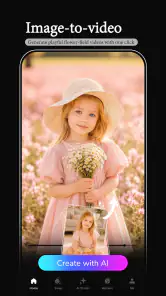
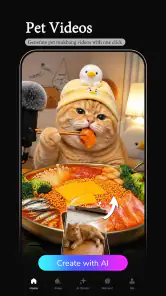
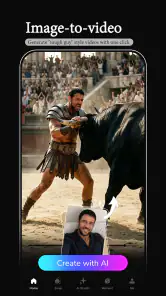
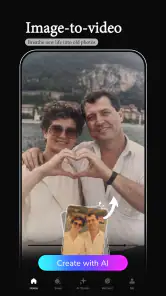
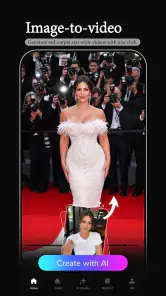
Analysis by Reviewed
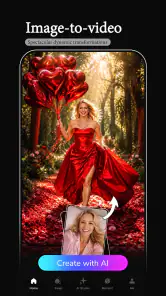
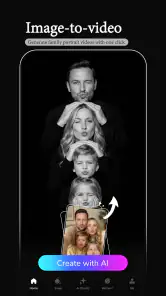
I tried FaceFun: AI Video Generator as a lightweight way to turn still photos into short, playful AI videos, and my first impression was clear: it is aimed at people who want a result quickly rather than a full editing workstation. You choose a favorite image, let the app process it, and focus on the finished effect instead of learning a complicated timeline. That makes it approachable for casual creators, family moments, profile content, and quick social posts.
FaceFun is a free photography app from Renrenlian, with optional in-app purchases ranging from $0.99 to $199.99 per item. It is rated for Everyone, runs on Android 7.0 or later, and the current version is 3.3.2. The app has an average rating of 4.2 from around 16 thousand ratings and has passed one million installs, so it has clearly found an audience beyond novelty testing.
How I use FaceFun from photo to finished video
The most useful way to approach FaceFun is to treat each source photo as the main creative decision. The app can make an ordinary image feel animated, but it cannot rescue a picture that is badly framed, blurry, heavily shadowed, or crowded with several faces. I get better results when I begin with one clear subject, a visible face, and enough space around the head and shoulders.
My baseline workflow is deliberately simple. I select a photo, choose an available video treatment, preview the result, and decide whether the movement suits the image. If it does, I save or share it. If it does not, I change the source photo before repeatedly trying random effects. That small habit saves time because an effect that looks charming on a front-facing portrait can look awkward on a side profile or a group shot.
This is where the app feels different from a traditional mobile video editor. In an editor, I would normally crop clips, arrange a timeline, add transitions, adjust sound, and control timing manually. FaceFun is more immediate: the photo supplies the starting point and the AI treatment supplies most of the motion. I would recommend it to someone who wants a shareable visual experiment, not to someone who wants frame-by-frame control.
A realistic everyday use is a birthday message. I can take a well-lit portrait of a friend, create a short animated version, and send it as a more personal greeting than a static image. The same workflow works for an old family photograph, a pet picture with a clearly visible face, or a profile image that needs a little movement. I would still check the result before sharing, especially when the source photo includes glasses, unusual angles, or several people.
The app’s store summary presents the central idea in a simple way: favorite photos can become special AI videos without editing skills. In practice, I found that “no editing skills” does not mean “no preparation.” Choosing the right image is the closest thing to an editing skill here, and it has more influence on the outcome than tapping through every available option.
Photo selection matters more than effect hunting
For the cleanest starting point, I look for a face that is large enough to read clearly but not cropped at the forehead, chin, or sides. Even lighting helps, as does a relatively calm background. A portrait taken outdoors in soft daylight tends to be a safer choice than a dim indoor snapshot with strong shadows across the face.
I also avoid testing an important personal photo first. A better routine is to use a copy or an unimportant image while learning how FaceFun handles a particular style. That gives me a chance to understand the visual character of an effect without worrying about wasting time on a meaningful picture. Once I know which kind of source works, I return to the photo I actually want to share.
One useful, non-obvious trade-off is that a more expressive source photo is not always better. A dramatic pose may look interesting as a still image but produce distracting movement when animated. A neutral portrait often gives the app a cleaner foundation, while a subtle smile or relaxed expression can make the final result feel more natural.
Settings and choices worth checking before processing
FaceFun is designed to reduce decisions, but I still pay attention to every choice shown before generation. I check which photo is selected, whether the intended face is being used, and whether the chosen treatment matches the mood of the image. A playful effect can work for a casual message but feel inappropriate for a professional profile or a memorial photograph.
I also inspect the preview rather than assuming that a successful generation is automatically a good one. AI animation can produce a technically complete video that still feels strange because the movement does not fit the person’s expression. Looking at the preview helps me catch that difference before I send it to someone else.
Another practical point is to keep the original photo untouched. FaceFun is most useful as a conversion tool, so I treat the resulting video as a new version rather than a replacement for the image. This makes it easy to try another treatment later, compare outcomes, or use the original in a different app. It also prevents a quick experiment from becoming the only copy of a favorite picture.
Because the app is free to install, it is easy to begin without committing money. However, the presence of optional purchases means I would read any purchase screen carefully before confirming anything. I would not assume that every available treatment or repeated generation is included without charge. For occasional use, the free entry point is appealing; for frequent experimentation, the cost of repeated optional items becomes part of the decision.
The Everyone age rating makes the app broadly accessible, but that does not remove the need for sensible photo choices. I would avoid uploading images of people who have not agreed to the transformation, particularly when the result might be shared publicly. The creative process is simple, yet the social context still matters more than the button that creates the video.
Repeatable habits that make the app faster
Experienced use of FaceFun is less about discovering a secret control and more about building a repeatable routine. I keep a small mental checklist: use a clear face, start with one subject, preview before sharing, and keep the original image. Those steps sound basic, but they reduce failed attempts much more effectively than tapping through treatments without a plan.
When I want several results, I work in batches. I first gather a few suitable photos, then test one treatment on each instead of spending all my time on one image. This quickly shows which source has the strongest potential. After that, I focus on the best candidate and avoid generating multiple versions of every weak photo.
A second useful pattern is matching the source to the destination. For a private message, I may choose a more playful result. For a profile or public post, I prefer a cleaner portrait and a less distracting animation. FaceFun can make a photo more noticeable, but noticeable is not always the same as polished. If the image represents me professionally, I would usually choose a conventional editor or a subtle motion effect instead.
I also use a two-stage review before sharing. First I watch the video for visual oddities, such as movement that feels disconnected from the face. Then I consider whether the recipient will understand the joke or mood. This is a small but important distinction: a result can be technically amusing to me while being confusing or uncomfortable to someone else.
For a family archive, I would keep the workflow conservative. I would use a high-quality scan or a clear modern portrait, create one or two versions, and label the animated copy separately from the original. That preserves the historical image while allowing a playful reinterpretation. For social content, I would be more experimental, but I would still avoid treating every generated clip as ready to publish.
Where FaceFun reaches its limits
The biggest limitation is the lack of the detailed control I expect from a full photo and video editor. FaceFun’s appeal comes from automation, so users who want to set exact duration, build a multi-clip story, fine-tune motion, balance audio, or make precise color corrections may quickly feel restricted. In those situations, an editor with a timeline is the better choice.
It is also not the right tool for every kind of photograph. A landscape without a face, a document, a product shot, or a very busy group scene does not match the app’s central strength as well as a clear portrait does. I would use a conventional animation or slideshow app for those subjects rather than expecting FaceFun to turn them into something convincing.
Results can also vary with facial details. Strong shadows, extreme expressions, partial faces, and unusual angles make the transformation less predictable. That does not make the app unusable, but it means I would frame the experience as creative experimentation rather than guaranteed realism. If accuracy is essential, I would choose a workflow where I can manually control every visible change.
There is a further trade-off between speed and consistency. Automated generation is convenient because it removes many manual steps, but the same convenience means I have less influence over why one result feels natural and another feels awkward. I can improve the odds through better source photos and careful previews, yet I cannot replace that process with a precise set of editing commands inside the app.
Storage and sharing habits matter too. AI-generated videos are separate media files, and repeated experiments can make a gallery harder to organize. I prefer to delete failed attempts promptly and keep only the versions I might actually use. This is not a special feature of FaceFun, but it becomes especially relevant when an app encourages quick, repeated creation from the same photo.
Who should try it, and who should skip it
I would recommend FaceFun to casual photographers, people making quick greetings, users who enjoy playful AI effects, and anyone intimidated by a traditional editing timeline. It is especially suitable when the desired result is a short visual surprise rather than a carefully produced video. The free starting point also makes it easy to test the basic idea before deciding whether optional purchases are worthwhile for your habits.
I would be more cautious about recommending it to professional creators, social media managers who need consistent brand output, or editors producing longer projects. Those users normally need repeatable timing, exact composition, audio control, and reliable revision tools. FaceFun’s automated approach can contribute an interesting clip, but it is unlikely to replace a full production workflow.
It may also be a poor fit if you mainly photograph scenery, food, products, or events where no single face is the focus. In those cases, a slideshow maker, motion-photo tool, or standard video editor will probably offer more useful control. The app is at its best when the face is the subject and the goal is fast transformation.
My verdict after using its simple approach
FaceFun: AI Video Generator succeeds because it keeps the central action understandable: start with a photo and turn it into something moving. I like that it lowers the barrier for people who would never open a complex editor, and I found the workflow most enjoyable when I treated it as a source-photo challenge rather than an endless effect catalog.
Its weaknesses are tied to the same simplicity. The more control I want, the less satisfying the experience becomes. I would not use it as my main editing environment, and I would not share every generated result without checking it carefully. The app is better viewed as a focused creative shortcut than as a complete photography suite.
Renrenlian’s app is free, available for Everyone, and compatible with Android 7.0 or later, while its 4.2 average from around 16 thousand ratings suggests a generally positive reception. Those details make it a reasonable low-risk experiment, provided I remember that optional purchases can change the cost of frequent use.
My honest recommendation is to try FaceFun when you have a clear portrait and a specific reason to animate it. Use a good source image, preview before sharing, preserve the original, and switch to a conventional editor when you need precision. With that expectation, it is a fun and accessible photography companion; without it, the automation may feel limited very quickly.
Pros
- Creates entertaining AI videos from selfies and photos.
- Offers a wide range of trendy templates and visual effects.
- Simple interface makes video creation accessible to beginners.
- Quick processing for short clips on compatible devices.
- Useful for sharing personalized content on social media.
Cons
- Many premium templates require a subscription or extra payment.
- Results can vary depending on photo quality and lighting.
- AI processing may consume significant battery and mobile data.
- Some effects may look repetitive after extended use.
- Privacy concerns may arise when uploading personal photos.
- Category
- Photography
- Version
- 3.3.2